
Puran Data Recovery Review: Features, Limits & Alternatives
When a scratched DVD or damaged USB drive refuses to copy files, you need a tool that can handle read errors. Puran Data Recovery is designed to copy accessible content while skipping unreadable sectors. However, it is not intended primarily for recovering permanently deleted files. This review explains its actual purpose, compares it with Puran File Recovery and Magic Data Recovery, and helps you choose the right solution. If the source device itself is the problem, our hard drive recovery solutions provide additional guidance.
The key is to distinguish damaged-media copying from deleted-file recovery. These operations require different methods, so a single recovery percentage cannot fairly rank every tool.
Table of Contents
Quick Picks: Which Recovery Tool Should You Choose?
- Puran Data Recovery: Choose it when files remain visible on damaged media but ordinary copying encounters read errors.
- Puran File Recovery: Consider it for accidentally deleted files, formatted drives, or lost partitions.
- Magic Data Recovery: Consider it as an alternative for supported logical data-loss scenarios when backups and built-in recovery options are unavailable.
These recommendations are based on documented functions and available evidence, not a claim that one product outperforms the others. Magic Data Recovery is an Amagicsoft product; it is evaluated using the same comparison criteria as the two Puran utilities.
Puran Data Recovery vs. Puran File Recovery vs. Magic Data Recovery
Evaluation factor | Puran Data Recovery | Puran File Recovery | Magic Data Recovery |
Primary purpose | Copy files from damaged media | Recover deleted files and lost partitions | Recover deleted or lost files |
Best-fit scenario | Visible files produce read errors | Deletion, formatting, or lost partitions | Supported logical data-loss scenarios |
Documented version | 1.2, September 2013 | 2.0.1, January 2026 | 3.13.271, Build 151 |
Windows compatibility | Official list ends at Windows 10 | Official list includes Windows 11 | Product documentation lists Windows 7–11 |
Pricing | Free utility | Free to use, according to publisher | Trial up to 500 MB; paid licenses available |
Main limitation | Not a dedicated deleted-file scanner | Recovery does not guarantee intact files | Cannot repair physical hardware damage |
Performance evidence | No directly comparable published benchmark identified | External USB recovery study available | No directly comparable result in the cited study |
Sources: Puran Data Recovery, Puran File Recovery, and Magic Data Recovery.
How We Selected These Tools
We used three selection criteria.
- Direct relevance: Puran Data Recovery is the primary subject because users searching for it may need to copy files from damaged media.
- Product-name clarification: Puran File Recovery is included because the publisher directs users who need deleted-file recovery to this separate utility.
- A relevant alternative: Magic Data Recovery addresses supported logical data-loss scenarios. It is not presented as a replacement for damaged-media copying.
We excluded unrelated tools from the main comparison to keep the review focused. Recuva and EaseUS appear later only because an independent study tested them alongside Puran File Recovery.
Testing Methodology and Evidence
This review distinguishes verified source-dataset evidence from published third-party research and recovery tests that remain pending. We do not present planned tests as completed experiments or invent scan times, recovery rates, or recovered-file results.
Standardized test environment
We defined the following target configuration for the planned recovery tests.
Parameter | Defined configuration |
Operating system | Windows 11 Pro 25H2, 64-bit |
Target OS build | 26200.9711 (KB5127648) |
CPU and memory | 4 vCPUs and 16 GB RAM |
System disk | 100 GB target capacity |
Source device | Dedicated 32 GB USB 3.x drive |
File system | NTFS for deletion and quick-format tests |
Test dataset | 18 files totaling 3,355,523 bytes |
Software versions | Puran Data Recovery 1.2; Puran File Recovery 2.0.1; Magic Data Recovery 3.13.271 |
Recovery destination | Separate physical disk |
Integrity check | Original SHA-256 manifest |
Planned repetitions | Three runs per applicable tool and scenario |
The configuration specifies the intended environment, not proof that the recovery applications have already been tested on that machine. Before execution, the actual Windows build, device model, allocated resources, and installer hashes must be recorded.
Verified dataset integrity: 18 of 18 files passed
Before testing the recovery applications, we verified the packaged 18-file source dataset against its original SHA-256 manifest. This preflight check was completed independently of the recovery software.
The verification report records each filename, expected and actual file size, expected and calculated SHA-256 hash, and final baseline status. All 18 files passed both the size comparison and hash comparison. The calculated total also matches the manifest.
This dataset includes documents, spreadsheets, presentations, images, audio files, text, HTML, JSON, a ZIP archive, and binary data. Using a manifest establishes a reproducible reference for determining whether recovered files remain identical to their originals.
Important distinction: This result verifies the integrity of the original test samples. It does not establish that any recovery application has recovered a file successfully. Actual recovery counts, elapsed times, and post-recovery SHA-256 matches must be measured separately after the recovery tests run.
Reproducible recovery procedures
We separated the planned tests because deleted-file recovery and damaged-media copying are different operations.
Test A: Deleted files
- Copy the original dataset to the dedicated NTFS test volume.
- Verify all 18 files against the original SHA-256 manifest.
- Create a baseline image of the test volume.
- Delete the files using Shift+Delete and capture the resulting disk state.
- Restore the same post-deletion state before testing Puran File Recovery and Magic Data Recovery.
- Record scan settings, elapsed time, files found, files saved, and integrity results.
Test B: Quick format
- Restore the original test-volume baseline.
- Perform a quick format and capture the resulting state.
- Restore the same post-format state before each comparable scan.
- Record the scan modes and settings used by each application.
- Save recovered files to a separate physical disk and verify their hashes.
Test C: Damaged-media copying
Puran Data Recovery requires a separate test because its primary purpose is copying accessible files from damaged media.
Use sacrificial media with verified read errors. Record the device model, connection method, affected files, and errors encountered during normal copying. Then use Puran Data Recovery to copy accessible content to a separate destination.
Record the copy settings, elapsed time, output size, and SHA-256 results. Do not use valuable original media for this experiment.
How recovery results will be measured
For each applicable scenario, the protocol specifies three runs from the same source-state baseline. The following definitions will be used consistently across the tools.
Metric | Definition |
Files found | Files listed in the application results |
Files recovered | Files successfully saved to the destination |
Intact files | Recovered files whose SHA-256 matches the original |
Hash mismatches | Recovered files whose SHA-256 differs from the original |
Files not found | Original files without a corresponding recovered output |
Median time | Median elapsed time across three completed runs |
A filename appearing in a scan result does not prove that the file is recoverable. Likewise, a preview does not establish that the complete file was restored.
Current testing limitation: The source dataset has passed its integrity preflight, but the additional three-tool recovery tests remain pending. No original scan times, recovery counts, or post-recovery hash results are claimed in this review.
What the Published Recovery Research Shows
A 2025 paper in the DS Journal of Cyber Security, Assessing the Performance of Forensic File Recovery Tools on Deleted Files from a USB Device, evaluated Recuva, Puran File Recovery, and EaseUS Data Recovery.
The researchers used an 8 GB USB flash drive formatted as FAT32. Their dataset contained 18 files totaling 187 MB. They measured file recovery counts, elapsed time, recovered output sizes, and hash matching to evaluate the integrity of recovered files.
The study reported the following results:
Published metric | Recuva | Puran File Recovery | EaseUS |
Files reported recovered | 13/18 | 16/18 | 14/18 |
Reported recovery rate | 72.22% | 88.89% | 77.78% |
Reported elapsed time | 6 min 33 sec | 5 min 20 sec | 9 min 29 sec |
Files matching original hashes | 11/13 | 9/16 | 11/15 |
Hash-matching rate | 84.62% | 56.25% | 73.33% |
These figures come from the external paper, not our own recovery tests.
The difference between recovered files and intact files is significant. Although Puran File Recovery reportedly recovered 16 files, only nine of those 16 reportedly matched the original hashes. The paper also reports 296 MB of recovered output from an original dataset of 187 MB, which raises questions about its file-size measurement.
There is another reporting inconsistency: the abstract attributes an 84.62% hash-matching result to EaseUS, while the detailed table assigns that figure to Recuva. The table’s figures are shown above, but this discrepancy limits confidence in the study’s summary.
Consequently, the reported 88.89% recovery rate does not establish that 88.89% of the original data was restored intact. The study also did not test Puran Data Recovery or Magic Data Recovery, so it cannot establish a performance ranking among all three products reviewed here.
Puran Data Recovery: Features, Pros, and Cons
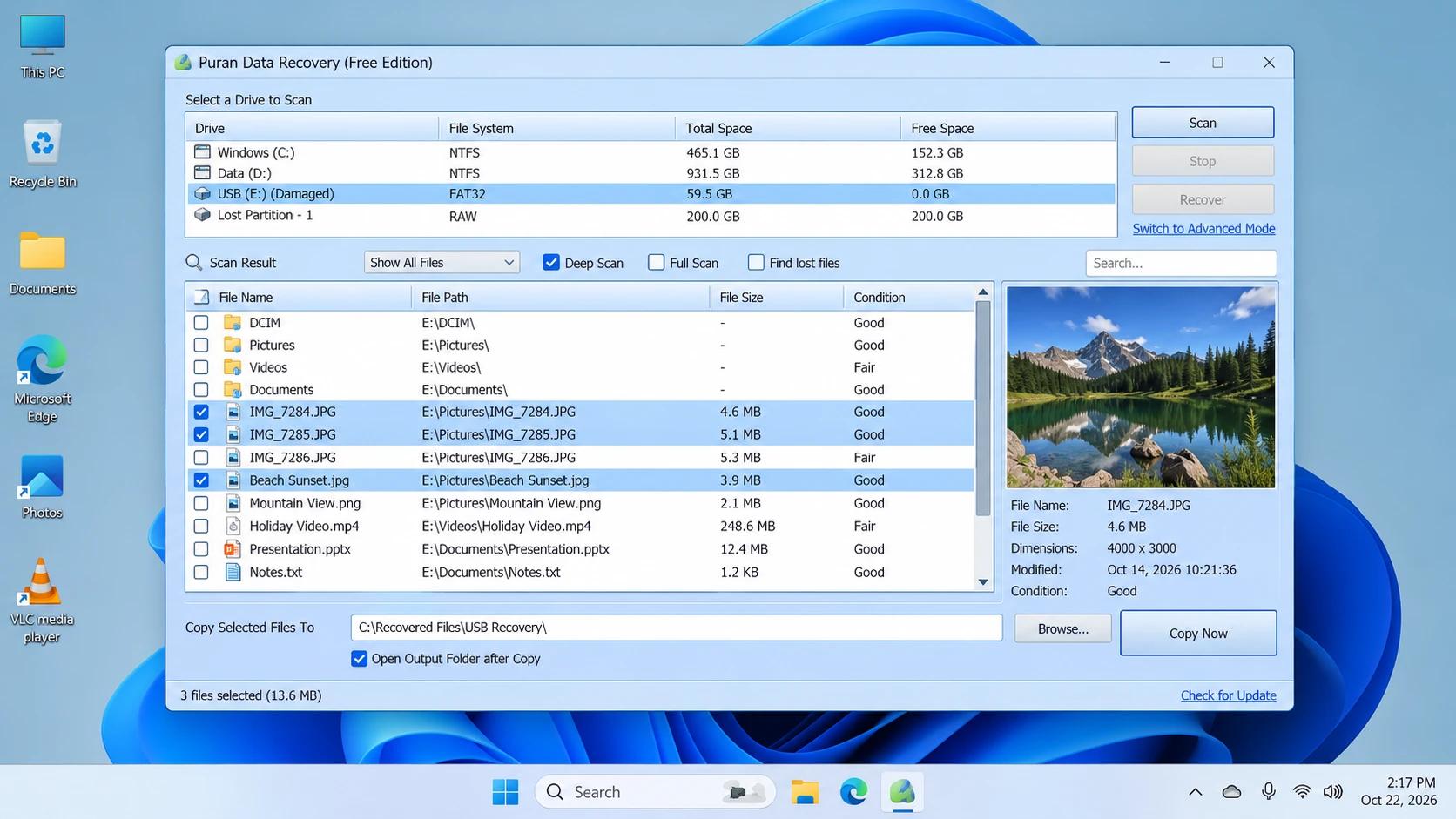
According to the official product page, Puran Data Recovery is a free utility for copying accessible files from damaged media, including scratched CDs, DVDs, Blu-ray discs, USB drives, and memory cards.
Its defining behavior is simple: when it encounters an unreadable sector, it attempts to skip that area and continue copying the remaining data. This may preserve readable portions of a file, but it cannot reconstruct missing bytes from a sector that the device cannot read.
Main strengths
- Error-tolerant copying: Attempts to continue past unreadable sectors.
- Flexible selection: Copies entire drives or individual files and folders.
- Adjustable speed levels: Provides settings to balance copying speed and recovery effort.
Limitations
- Not a deleted-file scanner: It is not intended primarily to locate permanently deleted directory entries.
- Old documented release: Version 1.2 was released on September 7, 2013.
- Windows 11 support is unconfirmed: The official compatibility list ends at Windows 10.
- Incomplete copies remain possible: Skipping unreadable sectors cannot restore missing content.
Best for: Copying visible files from damaged media when normal Windows copying encounters read errors.
Not suitable for: Searching primarily for deleted files, recovering overwritten content, or repairing physical hardware damage.
Five-step workflow
- Download: Get the utility from the official download page.
- Connect: Attach the source device. Stop if it repeatedly disconnects or shows signs of serious physical failure.
- Select: Choose the accessible files, folders, or drive that you need to copy.
- Copy: Select an appropriate speed level and save the output to a healthy, separate destination.
- Verify: Open representative files and check their contents. Keep the original media unchanged until you confirm the copies are usable.
Puran File Recovery: Deleted Files and Lost Partitions
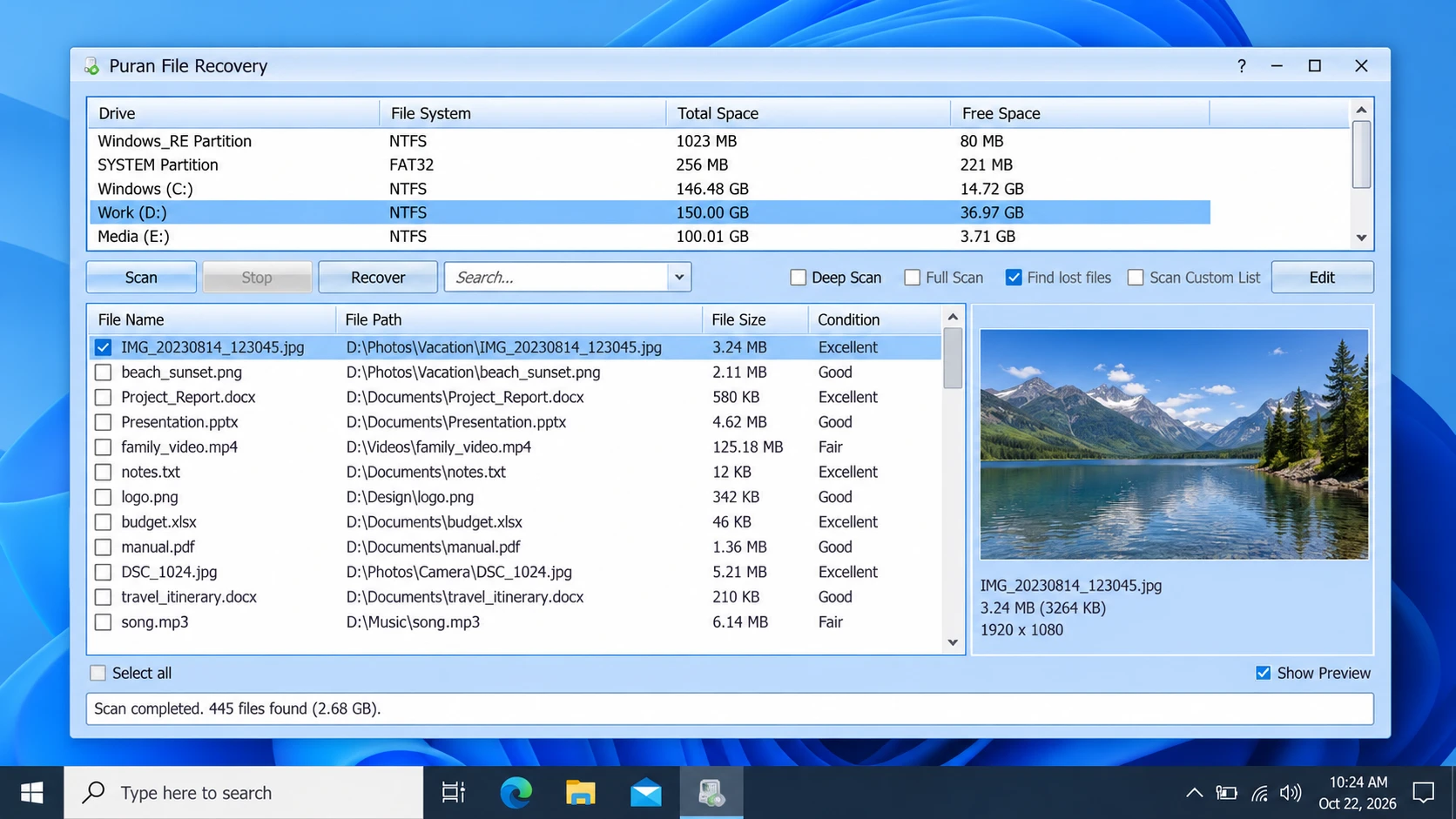
Puran File Recovery is a separate application for recovering deleted or lost files. The official product page also describes support for formatted drives and lost partitions.
It provides three scan modes:
- Quick Scan: Searches available file-system information for deleted files. The publisher identifies support for FAT12, FAT16, FAT32, and NTFS.
- Deep Scan: Searches byte by byte for additional files using data patterns.
- Full Scan: Searches for lost partitions and files on formatted or RAW drives.
The program also includes file search, preview, and an option to preserve folder structures when the necessary information remains available.
Main strengths
- Covers deleted files, formatted drives, and lost partitions.
- Offers multiple scan modes for different scenarios.
- Provides search and preview functions.
- Includes a portable version.
Limitations
- A listed file may not be completely recoverable.
- Deep scans can take time depending on the device and scan scope.
- A recovered file may be corrupted.
- Commercial-use conditions should be verified if relevant to your deployment.
The official version history lists version 2.0.1 on January 21, 2026, and explicitly includes Windows 11 compatibility. These details apply to Puran File Recovery, not to Puran Data Recovery.
Best for: Users who need a free utility to search for deleted files, formatted volumes, or lost partitions.
Not suitable for: Copying visible files from damaged media when the main problem is unreadable sectors.
Five-step workflow
- Download: Visit the official Puran File Recovery page.
- Select: Choose the original drive or partition containing the missing files.
- Scan: Use Quick Scan for a first search, Deep Scan for additional file-pattern searching, or Full Scan for lost partitions and formatted volumes.
- Review: Search the results and preview supported files where possible.
- Recover: Save the selected files to a different physical drive, then verify their contents.
Magic Data Recovery: An Alternative for Logical Data Loss
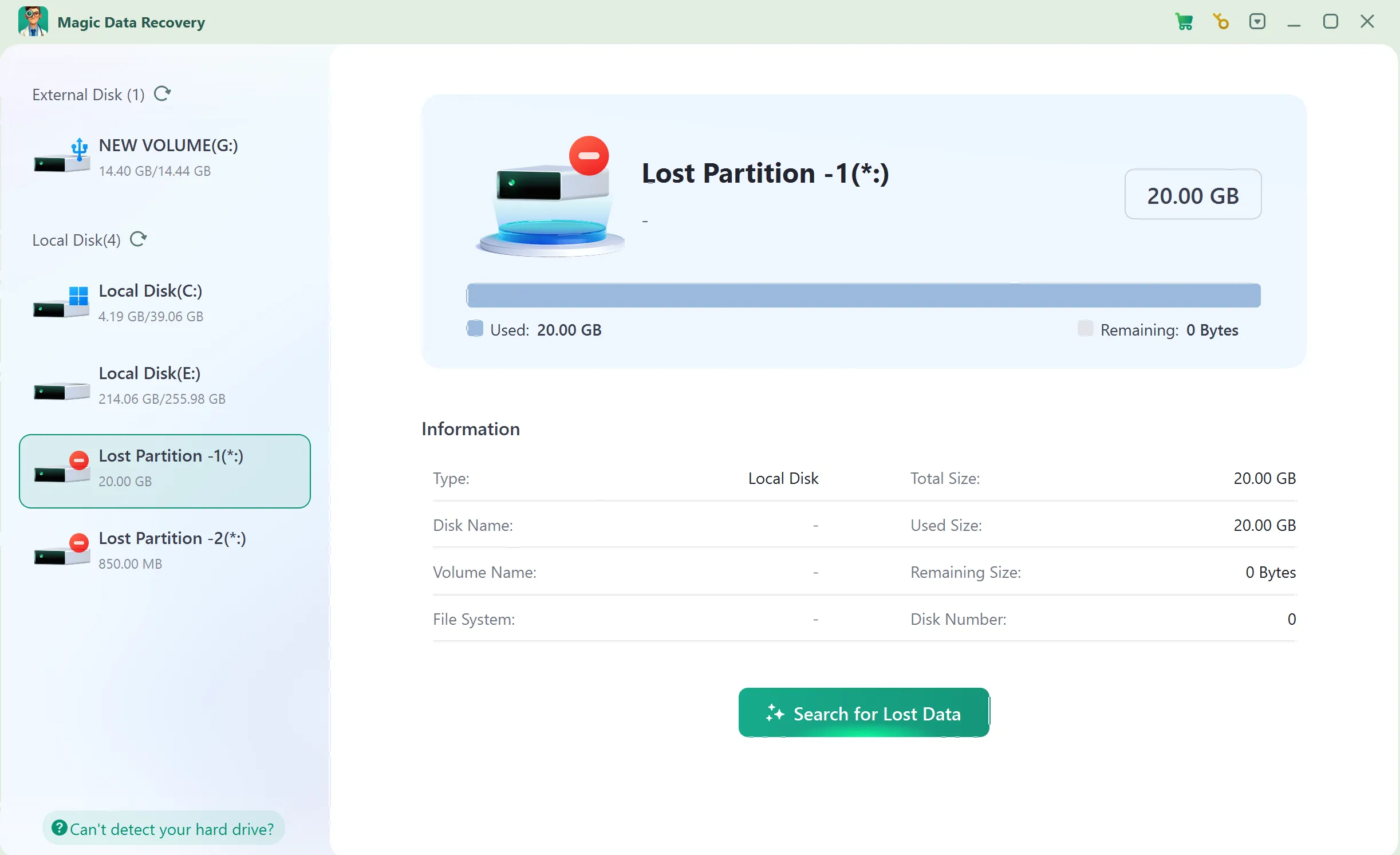
Magic Data Recovery provides a guided workflow for supported deleted-file and logical data-loss scenarios. Users select a storage device, scan for lost data, inspect results, preview supported files, and recover selected items.
It is included as an alternative, not as a performance winner. The published USB study did not test Magic Data Recovery, and our additional comparative tests remain pending.
Main strengths
- Guided workflow: Supports drive selection, scanning, browsing, and recovery.
- File filtering: Helps narrow down scan results.
- Preview support: Helps identify supported files before recovery, although not every file can necessarily be previewed.
- Trial availability: The official product page states that users can recover up to 500 MB for evaluation.
Limitations
- It cannot repair physical hardware damage.
- Overwriting and SSD TRIM can reduce recovery prospects.
- A scan result does not guarantee an intact file.
- Recovery beyond the trial allowance requires an appropriate paid license.
Best for: Users who need a guided workflow for supported deleted-file or logical data-loss scenarios.
Not suitable for: Repairing a physically damaged device or reconstructing data from unreadable hardware.
Five-step workflow
Step 1: Download and Install Magic Data Recovery
Install the program on a different drive or partition from the one that lost data. This reduces the risk of overwriting recoverable content.
Supports Windows 7/8/10/11 and Windows Server
Step 2: Select the Drive Where the Files Were Stored
Launch the program, select the original drive or partition, and start the scan.
Step 3: Scan for Lost or Deleted Files
Allow the scan to run and review the files that appear.
Step 4: Preview Files Before Recovery
Use Preview for supported file types to help identify the intended files. A preview does not guarantee that the complete file is intact.
Step 5: Recover Files to a Safe Location
Save selected files to a different physical drive. Do not write them back to the source location where data was lost.
Pricing and License Comparison
The three tools differ in pricing and available licensing information.
Product | Pricing | License information |
Puran Data Recovery | Free utility | Confirm current terms before business deployment |
Puran File Recovery | Officially described as free to use | A third-party review describes possible commercial-use restrictions; verify with the publisher |
Magic Data Recovery | Trial up to 500 MB; paid plans available | One-computer PRO licenses and Technician plans are listed |
The Magic Data Recovery pricing page displayed the following promotional prices when checked on October 22, 2026:
Plan | Displayed price | License terms |
Free | $0 | 500 MB for free |
PRO — 1 year | $49.95 | One computer; one year of upgrades |
PRO — perpetual | $69.95 | One computer; lifetime upgrades |
The pricing page also displays reference prices and a 30-day money-back guarantee. Prices and terms can change, so check the current offer before purchasing.
The comparison does not assume that paid software is better than free software. Instead, the choice depends on the task, supported platform, license terms, and whether the recovered files are intact.
Which Tool Should You Choose?
Your situation | Recommended next step | Reason |
Files remain visible on a scratched disc but copying fails | Puran Data Recovery | Designed to continue copying readable content |
Files were accidentally deleted | Check Recycle Bin and backups, then consider Puran File Recovery | Designed for deleted-file recovery |
A drive was formatted or a partition disappeared | Consider Puran File Recovery | Provides Full Scan for lost partitions and formatted volumes |
You prefer a guided logical-recovery workflow | Evaluate Magic Data Recovery’s trial | Allows you to inspect actual results before purchasing |
A drive clicks, repeatedly disconnects, or shows physical damage | Stop DIY scans and seek professional diagnosis | Software cannot repair serious hardware damage |
A reliable backup exists | Restore from the backup first | Avoids unnecessary scanning and further writes |
Before recovery, stop writing new data to the affected device. Do not install recovery software on the source partition, and save recovered files elsewhere. On SSDs, TRIM may make deleted content unrecoverable even when a scanner detects remnants.
Conclusion: Is Puran Data Recovery Worth Trying?
Puran Data Recovery remains relevant for copying visible files from damaged media when ordinary copying encounters unreadable sectors. However, its documented version is old, and the official compatibility list does not explicitly include Windows 11.
For deleted files, formatted drives, and lost partitions, Puran File Recovery is the more appropriate Puran utility. An external study reported a high file-count recovery rate, but its hash-matching results and reporting inconsistencies show why recovered files must be checked for integrity.
If built-in recovery methods and backups fail, Magic Data Recovery offers an alternative for supported logical data-loss scenarios. It is not a universal replacement for Puran Data Recovery, and this review does not claim a performance winner without directly comparable tests.
Choose according to the cause of data loss, device condition, compatibility, and file integrity. For further device-specific guidance, visit our hard drive recovery solutions.
Supports Windows 7/8/10/11 and Windows Server
FAQ
What is Puran Data Recovery used for?
What is the difference between Puran Data Recovery and Puran File Recovery?
Is Puran Data Recovery free?
Does Puran Data Recovery work on Windows 11?
Can Puran File Recovery restore permanently deleted files?
Does the published 88.89% recovery rate prove that Puran File Recovery is reliable?
Should I choose Puran File Recovery or Magic Data Recovery?

Vasilii is a data recovery specialist with around 10 years of hands-on experience in the field. Throughout his career, he has successfully solved thousands of complex cases involving deleted files, formatted drives, lost partitions, and RAW file systems. His expertise covers both manual recovery methods using professional tools like hex editors and advanced automated solutions with recovery software. Vasilii's mission is to make reliable data recovery knowledge accessible to both IT professionals and everyday users, helping them safeguard their valuable digital assets.