
How File Deletion Works on NTFS and What Can Be Recovered
File deletion removes a file name from its active folder. Once final deletion completes on NTFS, Windows can reuse the file’s record and any separately allocated data clusters. The original bytes may still be readable, but later writes can replace them, and SSD TRIM can make them inaccessible through ordinary reads.
That distinction explains why a deleted file can still appear in a recovery scan, why an item in the Recycle Bin is easier to restore, and why a recovered file can have the right name but fail to open. This guide focuses on local NTFS volumes in Windows. For an accidental deletion, start with the deleted file recovery options for Windows.
Table of Contents
What Happens to Deleted Files in Windows
When File Explorer sends a local file to the Recycle Bin, Windows moves the item out of its original folder and keeps the information needed to restore it. The contents are still allocated on the volume. Restoring the item from the Bin uses that stored copy and its original location.
Shift+Delete bypasses the Bin in File Explorer. Emptying the Bin also removes the copies it holds. Applications, scripts, and network shares can follow different deletion rules. If a file vanished after an ordinary Delete operation, check the common reasons deleted files bypass the Recycle Bin before assuming Windows released its storage.
The rest of this guide follows a local NTFS file with one hard link, after deletion has completed and any handles that delayed deletion have closed.
How File Deletion Changes NTFS Metadata
NTFS keeps the active directory entry, the file record, and the allocation state in different structures. The directory index lets Windows find a file by name. The NTFS Master File Table (MFT) stores the file’s attributes, including its name and information about how its contents are stored. Allocation bitmaps track which records and clusters are available for reuse.
NTFS structure | What changes after final deletion | What may still be visible |
Parent directory index | The name is removed from the active index. | Old entry fragments may survive in unused parts of the index. |
MFT record and | The record’s in-use flag is cleared, and its slot becomes available for reuse. | The old filename, timestamps, or $DATA attribute may remain until the record is reused or overwritten. |
Volume $Bitmap | Clusters used by a separately allocated data stream become available for reuse. | A read of the former clusters may still return the original bytes. The bitmap only describes current allocation. |
The $DATA attribute determines where to look for the file’s contents. A resident stream fits inside its MFT record, so record reuse can replace the contents directly. A nonresident stream stores data in separate clusters. Its record contains a mapping, commonly called a runlist, that tells NTFS where those clusters are. Record reuse can erase that map while the external contents survive. Later writes to the clusters can also destroy the contents while the old map survives.
Released clusters become free space inside the NTFS volume. The volume retains its place in the disk layout. A hex editor may use unallocated for clusters that the file system has freed, while Windows Disk Management uses Unallocated for a region outside the current partitions or volumes.
What a Hex Editor Shows After File Deletion
In an NTFS 3.x FILE record, the two-byte flags field begins at offset +0x16, measured from the start of that record. Bit 0x0001 indicates that the record is in use. For the ordinary file record shown below, the raw bytes change from 01 00 to 00 00. Read the in-use bit individually, since other flag bits can remain set in other record types.
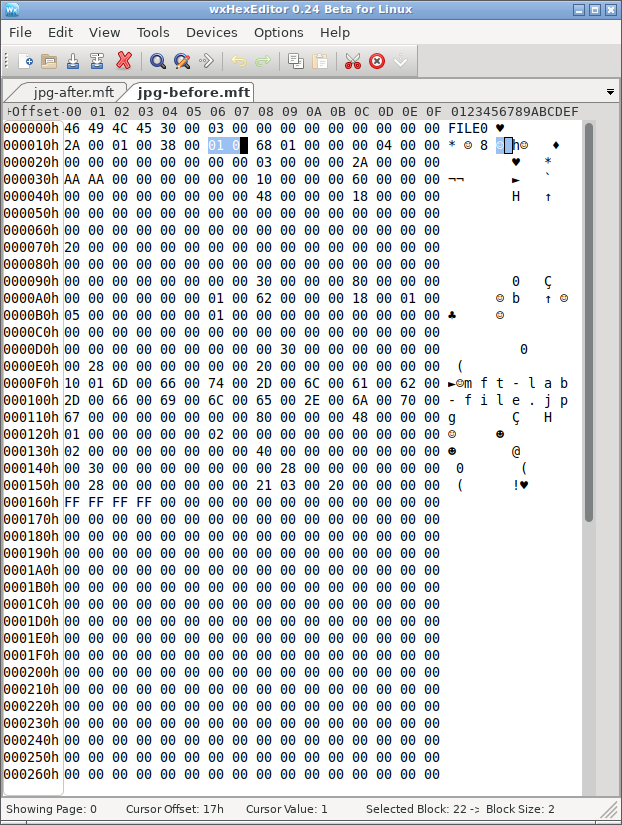
Figure 1. Before deletion, the constructed JPG record has its in-use bit set. wxHexEditor highlights the two-byte flags field.
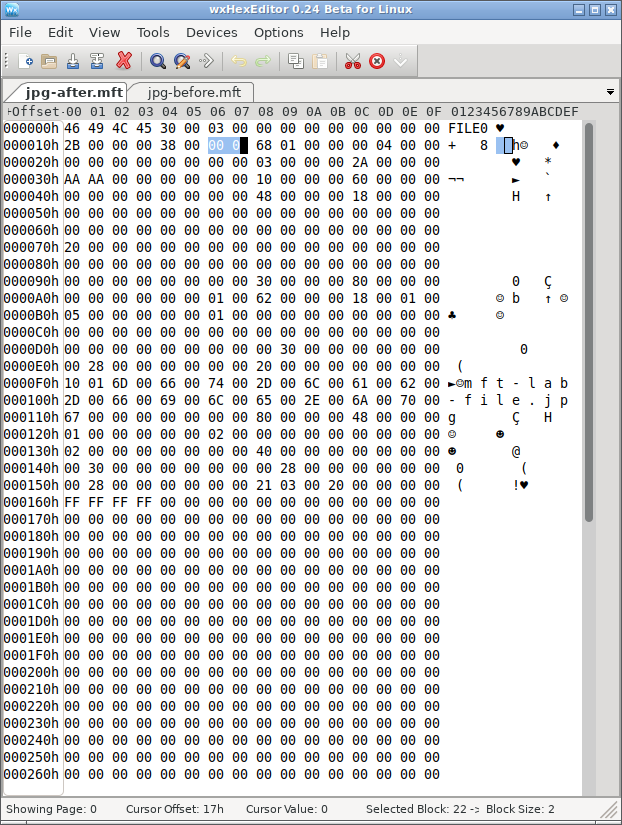
Figure 2. In the sample’s deleted state, the in-use bit is clear and the old filename is still visible in the record.
To inspect the same fields in WinHex, use read-only access on a disk image or exported record. For a controlled comparison, create before-and-after images of a disposable NTFS test volume and keep a reference copy of the test file on another drive.
- In both images, locate the same MFT record slot using the original record number. Identify the start of the
FILErecord before applying any offsets. - Compare the flags at
+0x16. Check the $FILE_NAME and $DATA attributes separately to see which parts of the old record remain. - For a resident stream, read the $DATA value within the record. For a nonresident stream, use the retained runlist to read the mapped clusters in order and stop at the file’s logical length.
- Compare the extracted stream with the reference copy. A matching SHA-256 hash verifies the extracted content, while the flags field only tells whether the record slot is in use.
The resident example below shows why the content check takes place inside the record for some files. The highlighted text is the stream itself. The NTFS deleted-file MFT test follows both samples through record reuse and shows the effect of overwriting one of the JPG’s data clusters.
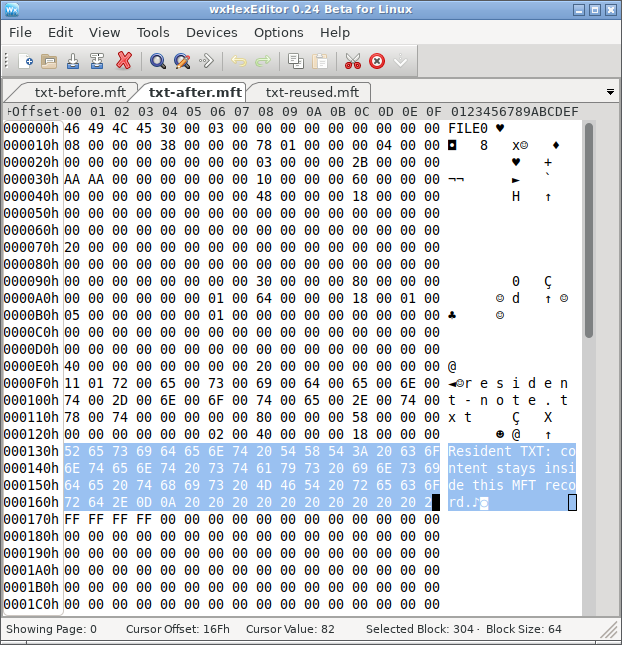
Figure 3. In the constructed deletion sample, the 64-byte TXT stream remains visible inside the freed MFT record.
Deleted vs. Overwritten Files
Deleting a file changes how NTFS tracks the name, record, and storage. Overwriting replaces the bytes stored at a location. The two events can happen separately. A file can disappear from its folder while all its bytes remain readable. A later write can replace those bytes while a recovery scan still lists the original name.
Situation | What the scan or folder may show | What determines recovery |
File deleted, old record and data intact | A scan may list the original name and size. | Whether the old mapping and all required bytes can still be read. |
MFT slot reused, external data still readable | The original name or runlist may be missing. | Whether the file can be identified and reconstructed from other evidence or its contents. Fragmentation makes this harder. |
Some of the old data overwritten | The scan may still show the original name and size. | Which bytes survived and whether the file format can tolerate the damage. A missing part of a compressed archive or video can prevent normal use. |
Document saved over or replaced | A file with the same name is still present. | How the application saved it and whether an earlier version survives in a backup, snapshot, or cloud history. |
Recovery software cannot reconstruct the exact original bytes from unrelated data that replaced them. An earlier copy can still provide the original file. If an application saved a new version under the same name, the visible result alone does not establish which storage locations changed. See how data overwriting affects recovery for the difference between a replaced file and replaced bytes.
SSD TRIM and Deleted Data
On an HDD, freed clusters can continue returning their old contents until another write changes them. On an SSD, NTFS can send a delete notification, commonly called TRIM, through a storage path that supports it. The device may stop returning the old contents of those logical ranges even when no new file has been saved there. Behavior depends on the device and how it is connected, so there is no reliable recovery window based on the time since deletion.
The Windows command fsutil behavior query DisableDeleteNotify reports the delete-notification setting. An NTFS value of 0 means notifications are enabled. It cannot show whether the drive received a notification for a particular file or what that file’s former addresses return now.
Recovery Steps That Match the Situation
- Check for a surviving copy. Look in the Recycle Bin for a locally deleted file. For a synced item, check the service’s online trash or version history. For a file saved over, look for a version from before the change.
- Limit writes to the source drive. Downloads, installations, updates, and ordinary system activity can reuse freed storage. For a healthy drive that needs a scan, run recovery software from a different drive and save recovered files to a separate physical device.
- Verify the recovered contents. Open the saved file and inspect the parts that matter. Check later pages in a document, play several sections of a video, or run an archive integrity check. If a trusted original or checksum is available, compare the full file. A matching name, size, or thumbnail is only an initial check.
FAQs
Does deleting one hard link delete the whole file?
Can a file be deleted while an application still has it open?
Can the NTFS timestamps show exactly when a file was deleted?
Why did deleting a file barely change the reported free space?
Can deleting a file make an NTFS drive appear as RAW?
Will a deeper scan recover a file after its MFT record is reused?

Jason is a data recovery and technical support specialist with over 15 years of hands-on experience. He has worked extensively with frontline users, troubleshooting difficult data loss cases and providing practical recovery solutions for accidental deletion, formatted drives, damaged file systems, lost partitions, system failures, and other recovery emergencies. His expertise also includes backup and restoration, file repair, and disaster recovery, with a strong emphasis on safe, reliable, and technically accurate guidance.