Skip to content
amagicsoft logo icon
  • Home
  • Products
    • Magic Data Recovery
    • Magic Recovery Key
  • Store
  • Blog
  • More
    • About Amagicsoft
    • Contact US
    • Privacy Policy
    • Terms
    • License Agreement
    • Refund Policy
  • English
    • 日本語
    • 한국어
    • Deutsch
    • Français
    • 繁體中文
Bitlocker Recovery

Bitlocker Key Finder: How to Find Your Recovery Key
12.12.2025 Smith, Erin Comments Off on Bitlocker Key Finder: How to Find Your Recovery Key
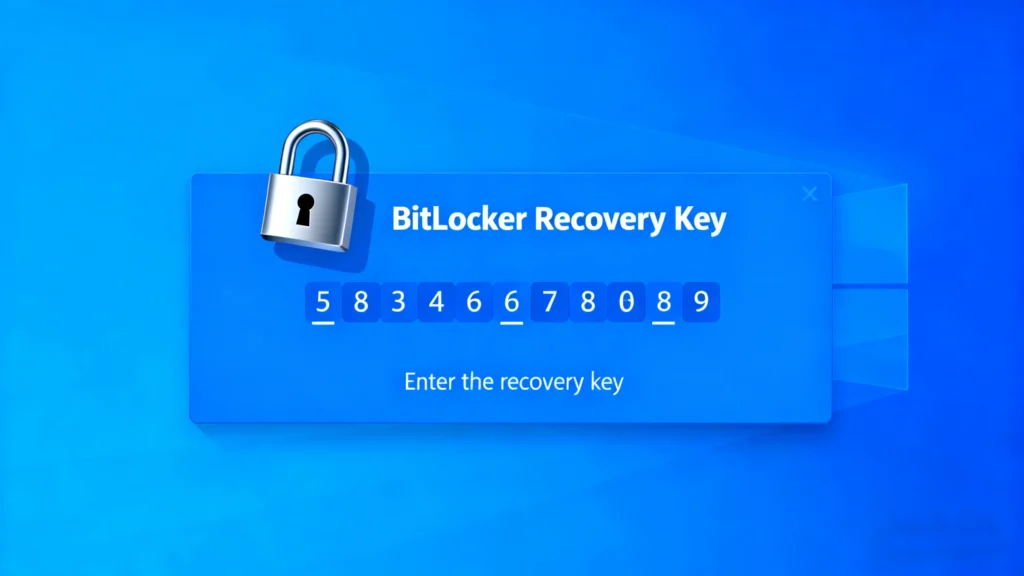
find your windows bitlocker recovery key
If you’ve ever encountered the dreaded BitLocker recovery screen on your Windows PC or laptop, you understand the frustration of being locked out of your own device. BitLocker encryption is an essential security feature, but if you lose your BitLocker key or can’t find it, you can be left in a bind. The good news is that you don’t have to panic. In this guide, we’ll show you how to find your Windows BitLocker recovery key using a Bitlocker key finder: Magic Recovery Key.
Download Magic Recovery Key

Supports Windows 7/8/10/11 and Windows Server

Table of Contents

What is a BitLocker Recovery Key?

Before we dive into how to find your BitLocker recovery key, it’s essential to understand what it is and why it’s important.

A BitLocker recovery key is a 48-digit key that you can use to unlock your BitLocker-encrypted drive if you forget your password, experience system changes, or have trouble with your PIN. This key acts as a safeguard to ensure that only authorized users can access the encrypted data on your device.

BitLocker encryption is great for protecting your data, but losing access to the key can leave you locked out of your device permanently. Fortunately, there are methods to recover or find this key, which we’ll explore below.

Common Ways to Find Your Windows BitLocker Recovery Key

There are several common methods to recover your Windows BitLocker recovery key, but none are foolproof. Here are the main ways people try to find their BitLocker key:

1. Check Your Microsoft Account

If you linked your BitLocker key to your Microsoft account during setup, you can find the key by logging into your Microsoft account on another device. Go to the “Devices” section, and you should be able to find the recovery keyassociated with your device.

2. Look for the Recovery Key in Your Printed Documents or Saved Files

During the BitLocker setup process, Windows prompts you to save or print the recovery key. If you followed these instructions, you may have a physical or digital copy of the recovery key saved in your documents.

3. Use a USB Drive with the Key

If you stored your BitLocker recovery key on a USB flash drive, simply insert the drive into your locked device to retrieve the key.

4. Check Your Organization’s IT Department (For Work Devices)

If you’re using a work laptop or device, the IT department may have a backup of the recovery key in case you lose it. It’s always worth checking with them if you’re unable to find your key.

How a Bitlocker Key Finder Can Save Your Time and Data

One of the most significant advantages of using Magic Recovery Key, a reliable Bitlocker key finder, is how much time and effort it saves. Instead of wasting hours hunting down your recovery key from various sources, the tool quickly scans and retrieves the key for you.

Imagine being locked out of your device after a system update or unexpected restart. You don’t want to spend days searching for the key—especially if you don’t remember where it’s stored. Magic Recovery Key eliminates the guesswork and helps you get back into your device in no time, allowing you to resume your work or personal tasks without delay.

Step-by-Step Guide to Using Magic Recovery Key

1. Download Magic Recovery Key: Start by downloading and installing Magic Recovery Key on your device.
Download Magic Recovery Key

Supports Windows 7/8/10/11 and Windows Server

2. Launch the Tool: Open the tool and follow the on-screen instructions.
how to find your windows bitlocker recovery key

3. Scan for the Recovery Key: Let the tool scan your system for BitLocker recovery keys.

4. Retrieve Your Key: Once the scan is complete, the tool will display your BitLocker recovery key.

Guide to Using Magic Recovery Key
5. Unlock Your Device: Enter the recovered key to unlock your BitLocker-encrypted drive.

Conclusion

In conclusion, Magic Recovery Key is the ideal tool for those who need to recover their BitLocker recovery key quickly and securely. Whether you’re a home user or a business professional, this tool simplifies the recovery process, allowing you to regain access to your device without hassle. If you’re tired of losing valuable time and data, consider using Magic Recovery Key for a seamless recovery experience.

If you’re looking for a more efficient and reliable solution, Magic Recovery Key is the answer.

Bitlocker Key Finder FAQs

What is a BitLocker key finder, and how does it work?

A Bitlocker key finder is a tool designed to help you quickly locate and recover your Windows BitLocker recovery key. It scans your system to find stored keys and provides easy access to unlock your encrypted drive.

How can I find my Windows BitLocker recovery key?

You can find your Windows BitLocker recovery key by checking your Microsoft account, looking for a saved copy, using a USB drive, or contacting your IT department. Alternatively, using a bitlocker key finder like Magic Recovery Key can make the process faster and easier.

Can Magic Recovery Key help me recover my BitLocker recovery key?

Yes, Magic Recovery Key is a reliable bitlocker key finder that scans your system to retrieve the BitLocker recovery key quickly and securely, saving you time and effort.

What should I do if I can’t find my BitLocker recovery key?

If you’re unable to locate your BitLocker recovery key, try using a bitlocker key finder like Magic Recovery Key, or check for backups in your Microsoft account or saved documents.

Is it possible to recover my BitLocker key without a backup?

Yes, a bitlocker key finder tool such as Magic Recovery Key can scan your system to locate the Windows BitLocker recovery key, even if you don't have a backup.

How does Magic Recovery Key differ from other BitLocker recovery methods?

Unlike manual methods, Magic Recovery Key offers a faster, automated approach to finding your BitLocker recovery key. It saves you time by eliminating the need to search through backups or accounts.

Can Magic Recovery Key be used on both Windows 10 and Windows 11?

Yes, Magic Recovery Key works seamlessly on both Windows 10 and Windows 11, making it a versatile solution for anyone looking to find their Windows BitLocker recovery key quickly.
  • Magic Recovery Key
Smith, Erin

Erin Smith is recognized as one of the most professional writers at Amagicsoft. She has continually honed her writing skills over the past 10 years and helped millions of readers solve their tech problems.

文章导航

Previous
Next

Search

Categories

  • Bitlocker Recovery
  • Deleted File Recovery
  • Format File Recovery
  • Hard Drive Recovery
  • License Key Recovery
  • Lost File Recovery
  • Memory Card Recovery
  • News
  • Password Recovery
  • Photo Recovery
  • SSD Recovery
  • USB Drive Recovery
  • User Guide
  • Video Recovery
  • Wiki

Recent posts

  • How to Recover a Formatted Hard Drive for Free
    How to Recover a Formatted Hard Drive for Free
  • How to Restore a Formatted Hard Drive Safely and Effectively
    How to Restore a Formatted Hard Drive Safely and Effectively
  • What is FAT32 File System
    What is FAT32 File System

Tags

How to Magic Data Recovery Magic Recovery Key WiKi

Related posts

BitLocker CMD Encrypt and Manage Drives
Bitlocker Recovery

BitLocker CMD: Encrypt and Manage Drives

14.12.2025 Vasilii Comments Off on BitLocker CMD: Encrypt and Manage Drives

Losing access to your encrypted drives or forgetting your BitLocker password can be frustrating and disruptive. For IT administrators and everyday users alike, managing BitLocker through the command line offers flexibility and control. This guide will explain how to use BitLocker CMD effectively, from encryption to recovery, while introducing Magic Recovery Key as a reliable […]

unlock bitlocker drive on another computer
Bitlocker Recovery

How to Unlock BitLocker Drive on Another Computer

14.12.2025 Smith, Erin Comments Off on How to Unlock BitLocker Drive on Another Computer

Losing access to a BitLocker-encrypted drive on a different computer can be frustrating. Many users face this challenge when migrating drives, replacing computers, or troubleshooting encrypted storage. Without the BitLocker recovery key, data access becomes nearly impossible. This guide will show you how to unlock BitLocker drive on another computer safely and efficiently. You’ll also […]

Why Did BitLocker Install Itself A Complete Guide
Bitlocker Recovery

Why Did BitLocker Install Itself? A Complete Guide

14.12.2025 Vasilii Comments Off on Why Did BitLocker Install Itself? A Complete Guide

Imagine turning on your Windows PC only to be greeted by a BitLocker recovery screen demanding a 48-digit BitLocker recovery key—one you never set up or saved. You didn’t manually enable BitLocker install, yet there it is, fully active. This isn’t a glitch. It’s a feature of modern Windows that can catch even experienced users […]

amagicsoft logo icon

Our vision is to become a globally renowned software brand and service provider, delivering top-tier products and services to our users.

Products
  • Magic Data Recovery
  • Magic Recovery Key
Policy
  • Terms
  • Privacy Policy
  • Refund Policy
  • License Agreement
Company
  • About Amagicsoft
  • Contact US
  • Store
Follow Us

Copyright © 2025 Amagicsoft. All Rights Reserved.

  • Terms
  • Privacy Policy