
How to Recover Files in SSMS: 7 Safe Ways
If you need to recover files in SSMS, first identify what disappeared. An unsaved query after an SSMS crash is different from a saved .sql script deleted from disk, and both differ from a missing .bak database backup. This guide covers each case in the safest order. If built-in recovery no longer has a usable copy, Magic Data Recovery may help recover deleted files that were previously written to storage.
Supports Windows 7/8/10/11 and Windows Server
Table of Contents
What Can You Recover in SSMS?
Before you recover files in SSMS, match the loss to the right recovery source.
Loss scenario | Best first option |
SSMS crashed with an unsaved query | Reopen SSMS and check Recovered Files |
Unsaved query did not reopen | Check AutoRecover and %TEMP% |
Saved .sql file was deleted | Recycle Bin or File History |
Project item disappeared | Check the original project folder/source control |
Local .bak file was deleted | Backup copy or deleted-file recovery |
Database itself needs restoration | SQL Server restore tools |
Microsoft documents that SSMS uses its own solution and project files, including .ssmssqlproj, and stores projects under the local user profile by default. Therefore, do not apply VS Code Backup or Local History paths to SSMS.
Important: If a saved file was deleted, stop writing new data to that drive. Microsoft notes that deleted-file recovery becomes less likely as free space is reused. Also, do not install recovery software on the affected partition.
Method 1: Recover Files in SSMS from Recovered Files
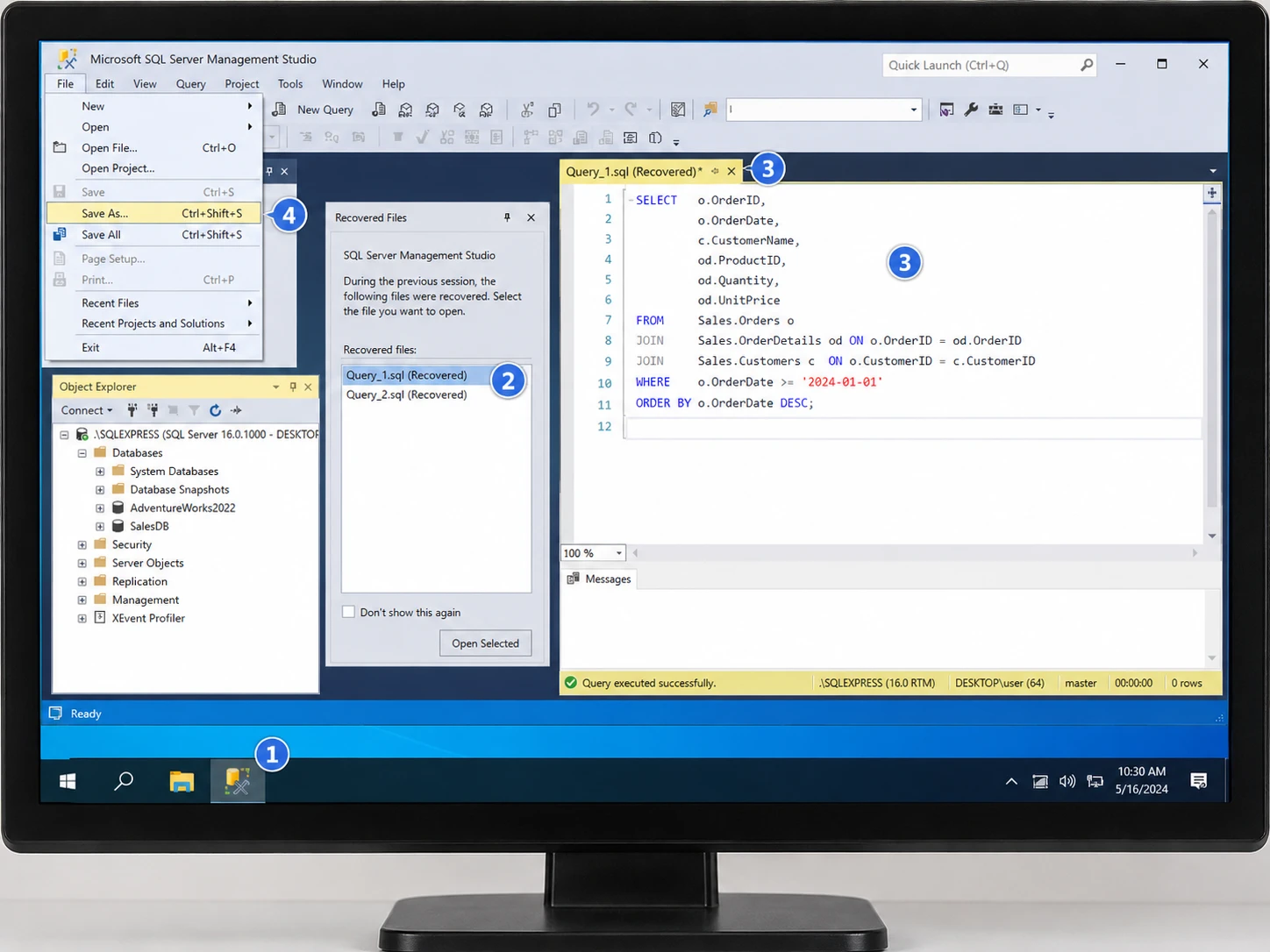
After an unexpected shutdown, reopen SSMS first. If AutoRecover captured the query, SSMS may show a Recovered Files prompt or reopen recovered content.
- Restart SSMS.
- Open the recovered query if prompted.
- Check whether the latest statements are present.
- Choose File > Save As and save a normal
.sqlfile.
This is the safest way to recover files in SSMS after a crash because it uses SSMS recovery data. However, AutoRecover is not a permanent backup, and the newest edits may be missing if the recovery interval had not occurred.
Method 2: Check AutoRecover to Recover Files in SSMS
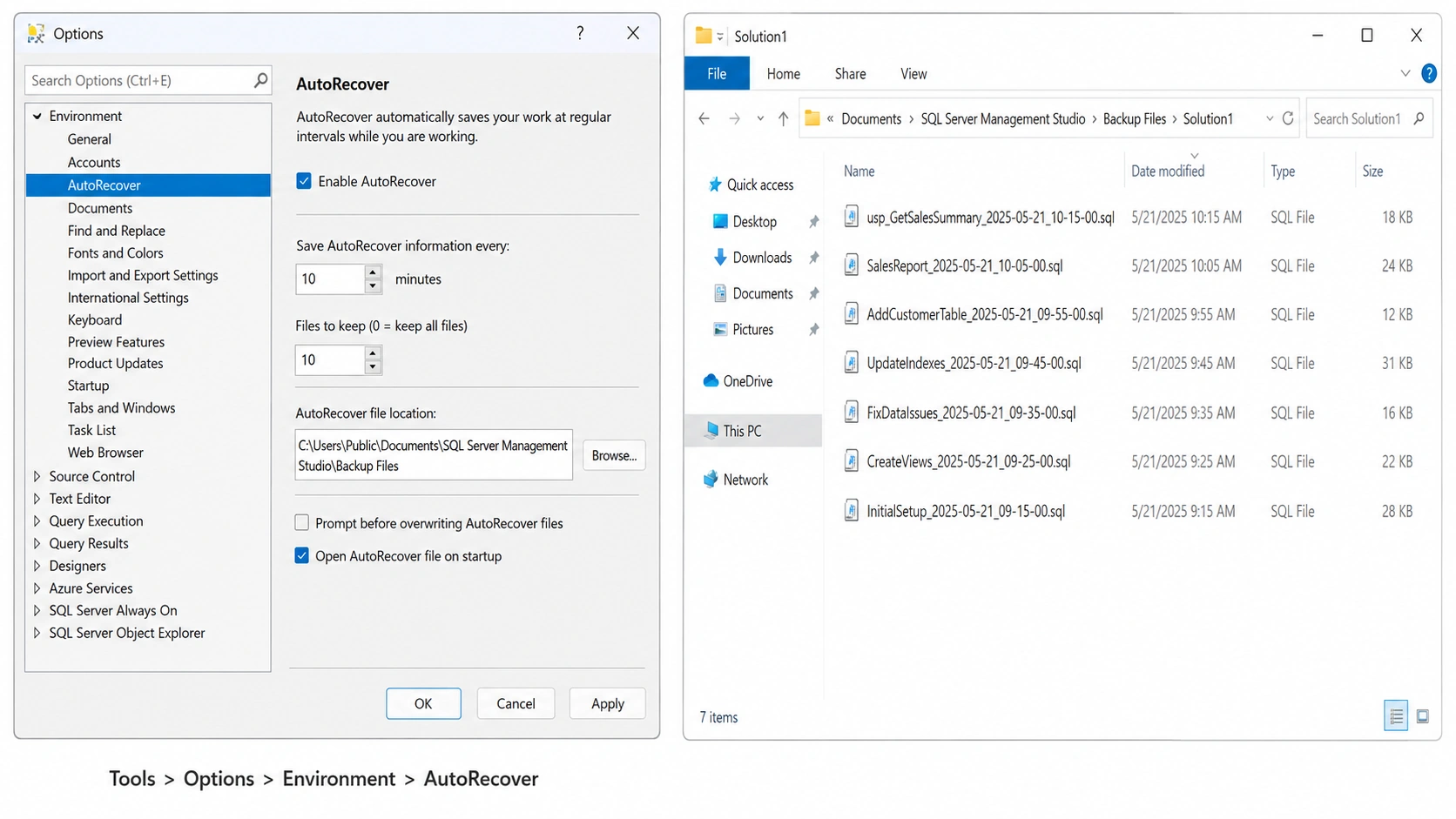
If no prompt appears, check AutoRecover manually.
- Open Tools > Options > Environment > AutoRecover.
- Confirm that AutoRecover is enabled.
- Search your Windows user profile for Backup Files or BackupFiles.
- Sort recent
*.sqlfiles by Date modified. - Open likely files and save the correct script elsewhere.
A current SSMS tips reference shows the AutoRecover controls and a common path under Documents > SQL Server Management Studio > Backup Files > Solution1. Paths can vary by SSMS version, so searching recent .sql files is safer than assuming one fixed directory.
Method 3: Recover Files in SSMS from %TEMP%
Some SSMS versions or sessions may leave temporary query files in Windows %TEMP%. Use this only when the normal recovery folder is empty.
- Press Win + R and enter
%TEMP%. - Sort by Date modified.
- Search for
*.sqland names beginning with~vs. - Open likely files in Notepad or SSMS.
- Save useful content as a new
.sqlfile.
Temporary files are not guaranteed to survive cleanup or a normal application exit. Therefore, %TEMP% is a fallback for an unsaved query, not a backup strategy.
Method 4: Recover Files in SSMS from Recycle Bin
If the query was saved and later deleted, check the Recycle Bin instead of AutoRecover.
- Open Recycle Bin.
- Search for the
.sqlfilename. - Check its original location and deletion date.
- Select Restore.
- Reopen the file in SSMS.
This can recover files in SSMS after ordinary Windows deletion, but it will not help after Shift+Delete or an emptied Recycle Bin.
Also, removing an item from an SSMS project is not always physical deletion. Microsoft states that a project item removed from Solution Explorer can remain on disk, so check the original project folder first.
Method 5: Recover Files in SSMS with File History
For a saved script or project folder, Windows File History may contain an older copy if protection was enabled before the loss.
- Go to the folder that contained the file.
- Right-click it and choose Restore previous versions.
- Open a suitable version.
- Restore the required
.sqlfile, preferably to another location first.
Microsoft explains that File History can restore deleted files and earlier folder states. This makes it useful for SSMS recover files scenarios involving saved scripts, but it cannot reconstruct an unsaved query that SSMS never captured.

Method 6: Recover Files in SSMS from Projects, Git, or .BAK
For project-based work, check the project folder and source control. Microsoft describes SSMS script projects as collections of related scripts and notes that projects can integrate with source control. A previous commit or copied project may contain the missing .sql file.
Do not confuse query recovery with database restore. A .bak file is a database backup, not an unsaved Query Editor tab. If you still have a healthy .bak, use SSMS Restore Database > Device to restore the database.
If the .bak file itself was deleted, recover that file first. SQL Server can restore it only if the recovered backup remains structurally usable.
Method 7: Recover Permanently Deleted SSMS Files with Magic Data Recovery
Use recovery software to recover files in SSMS when a saved .sql, project file, or local .bak was permanently deleted and the Recycle Bin, File History, backups, and source control have no copy.
Magic Data Recovery scans storage for deleted file data. That makes it different from SSMS AutoRecover, which preserves editor recovery information. It cannot recreate text that was never written to disk, guarantee recovery after overwriting, or solve physical drive damage. SSD TRIM can also reduce recovery chances.
If the built-in recovery options no longer work, you can try Magic Data Recovery before new data overwrites the deleted files.
How to Use Magic Data Recovery to Recover Files in SSMS
Step 1: Download and Install Magic Data Recovery
Install Magic Data Recovery on a different drive or partition from the one that contained the deleted SSMS file. This avoids writing new data over recoverable content.
Supports Windows 7/8/10/11 and Windows Server
Step 2: Select the Drive Where the SSMS File Was Stored
Launch the software, select the drive that originally stored the deleted .sql, project, or .bak file, and start scanning.

Step 3: Scan for Lost or Deleted SSMS Files
Let the scan continue and check the results for relevant SQL scripts, project-related files, or local database backups.

Step 4: Recover Files to a Safe Location
Recover selected files to a different drive or safe storage location. Do not write them back to the original data-loss location.

How to Prevent SSMS File Loss
After you recover files in SSMS, improve protection:
- Keep AutoRecover enabled with a sensible interval.
- Save important query tabs as
.sqlfiles early. - Store reusable scripts in structured SSMS projects.
- Use Git or another source-control system.
- Back up project folders with File History, OneDrive, or another backup method.
- Keep database
.bakfiles separate from working scripts and maintain multiple copies.
Autosave or AutoRecover is not the same as a permanent backup. A real backup keeps an independent copy that survives deletion or device failure.
Conclusion
The best way to recover files in SSMS depends on whether the content was unsaved, saved and deleted, removed from a project, or stored as a database backup. Start with Recovered Files, AutoRecover, %TEMP%, the Recycle Bin, File History, and project or backup copies. If a saved file was permanently deleted and those methods fail, Magic Data Recovery is a good choice to recover the deleted data.
Supports Windows 7/8/10/11 and Windows Server
FAQs
How do I recover files in SSMS after a crash?
To recover files in SSMS after a crash, reopen SSMS and check for a Recovered Files prompt first. If nothing appears, inspect AutoRecover settings and search recent .sql files inside Backup Files or BackupFiles folders. You can also check %TEMP% for recent temporary SQL files. Save any recovered query immediately under a new filename.
Where does SSMS save unsaved query recovery files?
SSMS recovery locations can vary by version. A common pattern uses a Backup Files or BackupFiles folder under the user’s Documents or SSMS-related local profile. Some builds may also leave temporary ~vs*.sql files in %TEMP%. Instead of relying on one path, search your user profile for recently modified .sql files.
Can SSMS recover files that were permanently deleted?
SSMS itself is not a general undelete tool. For a permanently deleted saved .sql, .bak, or project file, first check File History, Previous Versions, cloud backups, and source control. If no copy exists, file recovery software may help while the deleted data remains on storage and has not been overwritten.
What is the difference between SSMS AutoRecover and a backup?
AutoRecover periodically preserves editor recovery information so SSMS may restore work after an unexpected shutdown. A backup is an independent copy designed for longer-term protection. Therefore, AutoRecover should not replace saved .sql files, source control, File History, or database backups. Cleanup, normal closing behavior, or retention limits may remove temporary recovery data.
Can I recover an unsaved SQL query if AutoRecover has no copy?
Possibly, but the options become limited. Check %TEMP%, search the user profile for recently modified .sql or ~vs*.sql files, and review any copied snippets or source-control work. Data recovery software cannot reliably recreate query text that was never written to disk, so a completely uncaptured unsaved query may be unrecoverable.
Can Magic Data Recovery restore a deleted .bak file from SSMS?
It may find a deleted .bak if the file existed on local storage and its data has not been overwritten. However, recovering the file and successfully restoring the database are separate steps. SQL Server must still be able to read the recovered backup. SSD TRIM, overwriting, corruption, or physical damage can prevent a usable restore.
How can I prevent losing SSMS files again?
Save important queries as .sql files early, keep SSMS AutoRecover enabled, and organize reusable scripts in project folders. Add source control for scripts that matter to development or administration. In addition, back up those folders regularly and keep database .bak files in separate protected storage. This layered approach protects both unsaved work and saved files.

Vasilii is a data recovery specialist with around 10 years of hands-on experience in the field. Throughout his career, he has successfully solved thousands of complex cases involving deleted files, formatted drives, lost partitions, and RAW file systems. His expertise covers both manual recovery methods using professional tools like hex editors and advanced automated solutions with recovery software. Vasilii's mission is to make reliable data recovery knowledge accessible to both IT professionals and everyday users, helping them safeguard their valuable digital assets.