
How to Open Document Recovery Pane in Excel

Many users search for how to open document recovery pane in Excel after Excel crashes or closes unexpectedly. Normally, Excel displays the recovery pane automatically when the program restarts. This panel shows temporary versions of workbooks that were not saved before the crash.
However, the recovery pane does not always appear. As a result, users may think their spreadsheet has disappeared permanently.
Fortunately, several document recovery methods exist. In this guide, you will learn how to open document recovery pane in Excel, how to access Excel recovery options, and how to restore lost spreadsheets when Excel cannot find them. In addition, we will show how Magic Data Recovery can recover Excel files directly from the storage device when built-in recovery features fail.
Supports Windows 7/8/10/11 and Windows Server
Table of Contents
What Is the Excel Document Recovery Pane
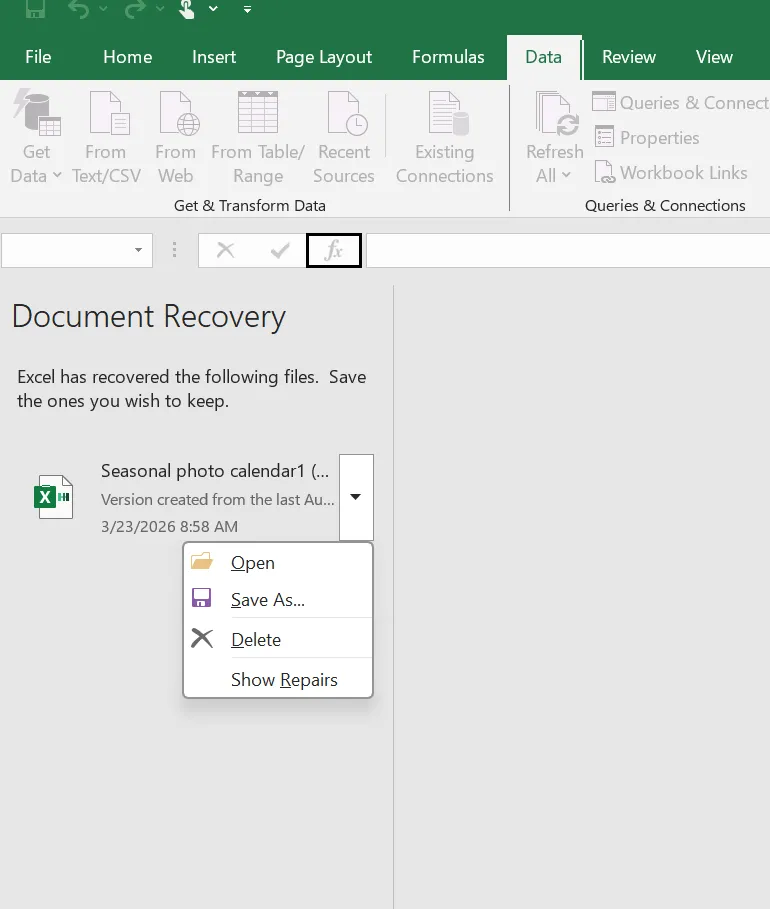
The Excel document recovery pane is a built-in feature that appears automatically when Excel restarts after an unexpected shutdown. Its purpose is to help users restore files that were open before the crash occurred.
When Excel closes abnormally, the program stores temporary copies of open workbooks using the AutoRecover feature. Then, when Excel launches again, the system checks for these temporary files.
If recovery data exists, Excel displays the document recovery pane on the left side of the screen. The pane typically includes:
- The name of recovered workbooks
- The time of the last AutoRecover save
- Multiple file versions when available
For example, consider a scenario where a user edits a financial spreadsheet and a power outage interrupts the computer. When Excel restarts, the recovery pane appears and offers the latest recovered version of the workbook. As a result, users can reopen the file and save it immediately.
Can You Manually Open the Document Recovery Pane in Excel
Many users search online for how to open document recovery pane in Excel because they expect a manual option. However, Excel does not provide a command that opens the recovery pane on demand.
Instead, Excel shows the pane only under specific conditions. The feature activates when Excel detects an abnormal shutdown during an editing session.
Common triggers include:
- Excel crashes unexpectedly
- Windows shuts down during editing
- Excel stops responding and closes
Because the recovery pane relies on crash-generated AutoRecover data, Excel cannot display it manually.
Nevertheless, this does not mean your file is unrecoverable. In fact, Excel offers other ways to access unsaved workbooks.
How to Open Document Recovery Pane in Excel After a Crash
Although users cannot manually trigger the pane, several built-in options allow access to similar recovery data. Therefore, these methods are often the first steps when trying to recover lost spreadsheets.
Restart Excel to Trigger the Recovery Pane
First, restarting Excel may automatically display the recovery pane.
Steps:
- Open Microsoft Excel
- Allow Excel to load the previous session
- Check the left side for the Excel document recovery pane
- Select the recovered file
- Save the workbook immediately
If AutoRecover data exists, Excel lists the available versions automatically.
Recover Unsaved Workbooks if the Pane Does Not Appear
If the recovery pane does not appear, Excel still allows users to access unsaved workbooks.
Steps:
- Open Excel
- Click File
- Select Open
- Scroll down and choose Recover Unsaved Workbooks
- Select the file from the list
- Save the workbook
This feature searches the AutoRecover directory and displays available temporary files.
Where Excel Stores Document Recovery and AutoRecover Files
Understanding AutoRecover storage locations helps clarify alternatives to how to open document recovery pane in Excel.
Excel automatically stores recovery files in a hidden system folder.
Typical location:
C:\Users\Username\AppData\Roaming\Microsoft\Excel\
These files often appear with extensions such as:
- .xlsb
- .tmp
- .xar
To verify the exact path:
- Open Excel
- Go to File → Options
- Select Save
- Check the AutoRecover file location
After locating this folder, users can manually search for unsaved Excel workbooks.
Why the Excel Document Recovery Pane Does Not Appear
Sometimes users attempt recovery steps yet still cannot see the recovery pane. Several situations can prevent the feature from appearing.
Excel Closed Normally
If Excel closed normally, no recovery session exists. Therefore, Excel does not generate recovery files.
AutoRecover Was Disabled
If AutoRecover is turned off, Excel cannot save temporary versions of the workbook.
Temporary Files Were Deleted
Disk cleanup utilities may remove temporary files used by Excel recovery.
The Original File Was Deleted
If the Excel file was deleted from the disk, the recovery pane cannot restore it.
Consequently, users may need deeper recovery solutions when these situations occur.
How to Recover Excel Files When the Document Recovery Pane Fails
When Excel recovery tools fail, recovering the file requires a different approach. Instead of relying on AutoRecover data, Magic Data Recovery scans the storage device directly.
This method helps recover Excel files in scenarios such as:
- Accidental deletion
- Disk formatting
- Partition loss
- USB drive corruption
- System crashes that removed files
Because Magic Data Recovery analyzes disk structures, it can locate recoverable Excel documents even when Excel itself cannot detect them. Moreover, the software allows users to preview files before restoring them. Therefore, users can confirm the correct spreadsheet before recovery.
Recover Lost Excel Files Using Magic Data Recovery
Step 1: Download and Install Magic Data Recovery
First, download Magic Data Recovery and install it on your computer. Installing the software on a different drive from where the files were lost helps reduce the risk of overwriting recoverable data.
Supports Windows 7/8/10/11 and Windows Server
Step 2: Select the Drive to Scan
Next, open the program. From the main interface, choose the drive where the Excel files were previously stored. After selecting the location, start the scanning process.

Step 3: Scan the Drive for Deleted Files
The software automatically performs an advanced scan. Meanwhile, it identifies recoverable files and displays them as the scanning process continues.

Step 4: Preview Files Before Recovery
After the scan completes, use the preview feature to check file content. This step helps ensure you recover only the files you actually need.

Step 5: Recover Files to a Safe Location
Finally, select the target files and restore them to a safe location. Avoid saving recovered files to the original drive, because doing so may overwrite other recoverable data.

Why Magic Data Recovery Is a Reliable Solution
When built-in Excel recovery options fail, users often need a more advanced tool. Magic Data Recovery offers several advantages that make recovery easier.
Key benefits include:
- Recovery of Excel, Word, and many other document formats
- Support for HDDs, SSDs, USB drives, and memory cards
- Deep scanning of formatted or inaccessible disks
- File preview before recovery
For example, imagine a user deletes an Excel spreadsheet from a USB drive and empties the recycle bin. In this case, Excel cannot restore the file because AutoRecover never saved a backup. However, Magic Data Recovery can scan the drive and reconstruct the lost file.
Therefore, this tool becomes especially valuable when Excel recovery methods cannot locate the workbook.
Tips to Prevent Excel Document Recovery Problems
Although recovery tools are helpful, prevention remains the best strategy.
Enable AutoRecover
Set Excel to save AutoRecover data every five minutes. As a result, Excel will store frequent backup versions.
Use Cloud Storage
Saving spreadsheets to cloud services such as OneDrive allows version history and automatic backup.
Create Regular Backups
Maintaining backup copies on separate storage devices protects important spreadsheets from unexpected data loss.
Conclusion
Understanding how to open document recovery pane in Excel helps users restore unsaved Excel file after unexpected crashes. Although Excel automatically displays the recovery pane after abnormal shutdowns, the panel cannot be opened manually.
Fortunately, Excel still provides alternative recovery methods. Features such as Recover Unsaved Workbooks and AutoRecover folders help retrieve temporary files. However, these methods only work when recovery data still exists.
When files are deleted, formatted, or lost due to disk errors, Excel recovery options may not locate them. In these situations, a deeper recovery solution becomes necessary. Magic Data Recovery scans the storage device directly and restores lost Excel files even when Excel cannot detect them. For users who need a reliable solution to recover missing spreadsheets, Magic Data Recovery offers an efficient and practical recovery method.
Supports Windows 7/8/10/11 and Windows Server
FAQs About Excel Document Recovery Pane
Can I manually open the Excel document recovery pane?
No. The Excel document recovery pane appears only when Excel restarts after a crash or abnormal shutdown.
Where are Excel AutoRecover files stored?
Excel usually stores AutoRecover files in the AppData folder inside the user profile directory.
How often does Excel save AutoRecover data?
By default, Excel saves AutoRecover information every 10 minutes. Users can change this setting in Excel Options.
Why didn't the recovery pane appear after Excel crashed?
Several reasons may cause this issue. AutoRecover may be disabled, temporary files may have been removed, or Excel may have closed normally.
Can Excel recover overwritten files?
Excel typically cannot recover overwritten files unless version history or backups exist.
Can deleted Excel files be recovered?
Yes. If the disk sectors containing the file remain intact, recovery tools such as Magic Data Recovery may restore the file.
What should I do if Excel recovery options fail?
If built-in recovery tools cannot locate the file, using a professional recovery solution such as Magic Data Recovery can significantly increase the chance of recovering lost Excel files.

Vasilii is a data recovery specialist with around 10 years of hands-on experience in the field. Throughout his career, he has successfully solved thousands of complex cases involving deleted files, formatted drives, lost partitions, and RAW file systems. His expertise covers both manual recovery methods using professional tools like hex editors and advanced automated solutions with recovery software. Vasilii's mission is to make reliable data recovery knowledge accessible to both IT professionals and everyday users, helping them safeguard their valuable digital assets.