
Overwritten Word File Recovery: Step by Step Guide
Accidentally saving over an important document can feel overwhelming. However, overwritten word file recovery is often still possible if you act quickly and follow the right steps. Many users assume their files are permanently lost. In reality, earlier versions or fragments may still exist under certain conditions.
Therefore, this guide explains practical solutions step by step. In addition, it helps you understand when built-in tools are enough and when deeper document recovery methods, such as scanning for earlier versions with Magic Data Recovery, become necessary.
Supports Windows 7/8/10/11 and Windows Server
Table of Contents
Can You Perform Overwritten Word File Recovery?
Before trying any solution, you should understand how overwriting actually works.
Overwritten Does Not Always Mean Lost
Although a file appears replaced, the system does not always erase old data immediately. Instead, parts of the original content may remain temporarily. As a result, overwritten word file recovery depends on timing and disk activity.
Recovery Chances by Scenario
- File still open → Very high
- Version history enabled → High
- AutoRecover available → Moderate
- No backup → Low
- Multiple overwrites → Very low
Therefore, choosing the correct method early significantly improves recovery success.
Quick Decision Guide for Overwritten Word File Recovery
Instead of trying every method randomly, you should follow a clear path.
- If the document is still open → Undo changes immediately
- If the file was saved → Check version history
- If backups exist → Restore previous versions
- If none of these work → Try deeper scanning tools
Consequently, this structured approach simplifies overwritten word file recovery and avoids unnecessary risks.
Method 1: Undo Changes Immediately
If Word is still open, this is the fastest solution.
- Press Ctrl + Z
- Review previous content
- Save a new version
Because changes remain in memory, this method often works instantly.
Method 2: Recover Saved Over Word Document from Version History
Next, you should check version history if the file has already been saved.
- Open the file
- Go to File > Info > Version History
- Select an earlier version
- Restore or save separately
In many cases, this is the most effective way to handle recover saved over Word document situations.
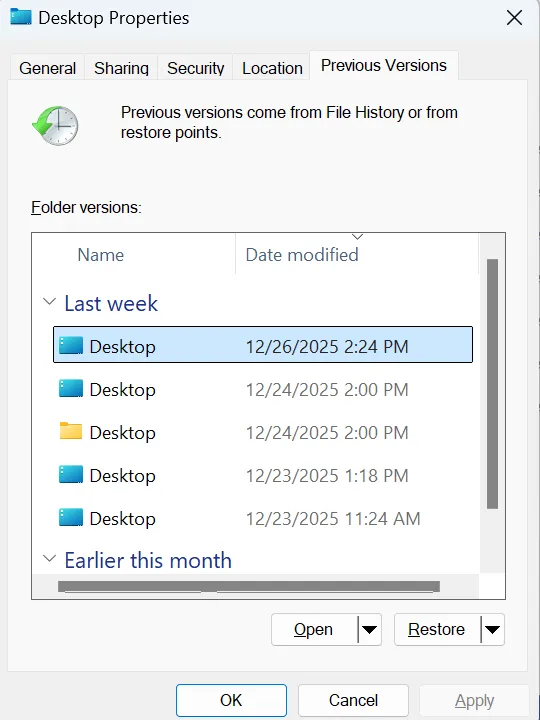
Method 3: Restore Previous Versions in Windows
If File History is enabled, Windows may provide backup copies.
- Right-click the folder where the file located
- Select Properties
- Open Previous Versions
- Restore a version
However, this method only works if backups were enabled beforehand. Therefore, not all users can rely on it.
Method 4: Use AutoRecover or Temporary Files
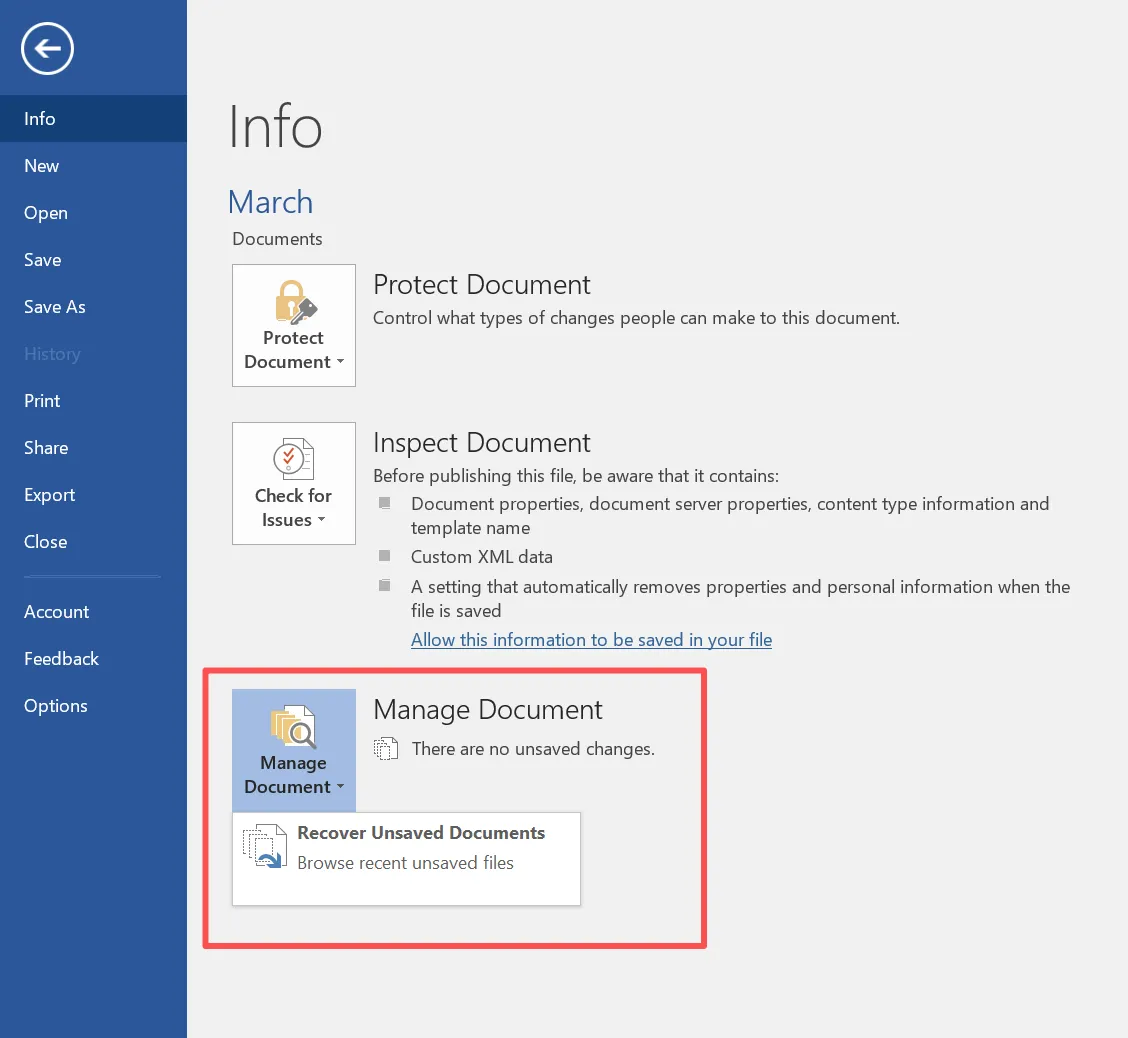
In addition, Word may store temporary versions automatically.
- Go to File > Info > Manage Document
- Click Recover Unsaved Documents
You can also search for .asd files manually.
As a result, this method supports partial overwritten word file recovery, especially after crashes.
Method 5: Overwritten Word File Recovery Without Backup
When no backup exists, recovery becomes more challenging. Nevertheless, some data may still remain if you use the correct recovery software.
Why This Method Still Works
Even after overwriting:
- The file system may not overwrite all sectors immediately
- Older fragments can remain temporarily
- Residual structures may still be detectable
Therefore, deeper scanning methods may still locate earlier versions.
Overwritten Word File Recovery Using Magic Data Recovery
When standard methods fail, you can try scanning the disk for earlier versions using Magic Data Recovery. Instead of reversing the overwrite directly, this method focuses on finding recoverable traces.
How to Use Magic Data Recovery
Step 1: Download and Install Magic Data Recovery
Download and install the software in a different location from the affected file path. This helps prevent further overwriting.
Supports Windows 7/8/10/11 and Windows Server
Step 2: Select the Drive to Scan
Launch the program. Then, choose the drive where the overwritten Word file was stored and start scanning.

Step 3: Run an Advanced Scan
The software performs an Advanced Scan automatically. Meanwhile, it lists files that may include earlier versions or fragments.

Step 4: Preview Recoverable Files
Next, use the preview feature to verify file content. This step helps you identify usable versions more accurately.

Step 5: Recover Files to a Safe Location
Finally, select the files you need and save them to a different location. Otherwise, you risk overwriting remaining data.

Why Consider This Method
Compared with built-in tools, this approach offers additional benefits.
- It scans disk sectors beyond standard file systems
- It helps locate earlier file traces without backups
- It allows preview before recovery
- It works when traditional methods fail
Therefore, for difficult overwritten word file recovery scenarios, this method provides a practical alternative.
Why Overwritten Files Can Still Be Recovered
From a technical perspective, overwriting does not always erase data instantly. Instead, storage systems often delay physical replacement. Consequently, fragments of older content may remain accessible.
As a result, overwritten word file recovery sometimes succeeds even without backups.
Common Mistakes to Avoid
To improve recovery chances, you should avoid these actions:
- Saving the file repeatedly
- Installing software on the same drive
- Writing new data to the disk
- Waiting too long before recovery
Therefore, acting quickly is essential.
How to Prevent Overwritten Word Files
Although recovery is possible, prevention is always more reliable.
- Enable AutoSave and version history
- Use cloud storage
- Turn on Windows File History
- Save multiple versions manually
As a result, you can reduce the need for overwritten word file recovery.
Conclusion
In summary, recovering overwritten files depends on timing and available features. First, you should try built-in tools such as Undo, Version History, and AutoRecover. However, if no backup exists, deeper scanning becomes necessary.
Magic Data Recovery stands out because it searches disk-level data rather than relying on backups. While it does not directly reverse overwriting, it can help identify earlier versions that may still exist. Therefore, if standard document recovery solutions fail, trying Magic Data Recovery is a logical next step.
Supports Windows 7/8/10/11 and Windows Server
FAQs About Overwritten Word File Recovery
Can overwritten word file recovery work without backup?
Yes, it can, but success depends on whether earlier data still exists on the disk. If no backup is available, recovery tools may help locate previous versions or fragments. However, results vary depending on how much new data has been written after the overwrite.
How do I recover a saved over Word document quickly?
First, try Undo if the document is still open. Next, check Version History or AutoRecover. If those options fail, consider scanning the disk to search for earlier versions that may still exist.
Why is overwritten word file recovery difficult?
Overwriting replaces existing data, which reduces recovery chances. However, because storage systems do not immediately erase all data, some fragments may remain temporarily and can sometimes be recovered.
Can recovery software fully restore overwritten files?
Not always. Most tools cannot completely reverse overwriting. Instead, they attempt to locate earlier versions or recoverable fragments that still exist on the disk.
How long do overwritten files remain recoverable?
It depends on disk usage. The more new data you write, the faster old data gets replaced. Therefore, immediate action significantly improves recovery chances.
Is it safe to install recovery software after overwriting a file?
Yes, but you should install it on a different location. Otherwise, you may overwrite recoverable data and reduce the success rate.
What is the best method for overwritten word file recovery?
Start with built-in features like Undo and Version History. Then, if those fail, use advanced scanning tools to search for earlier versions, especially when no backup exists.

Vasilii is a data recovery specialist with around 10 years of hands-on experience in the field. Throughout his career, he has successfully solved thousands of complex cases involving deleted files, formatted drives, lost partitions, and RAW file systems. His expertise covers both manual recovery methods using professional tools like hex editors and advanced automated solutions with recovery software. Vasilii's mission is to make reliable data recovery knowledge accessible to both IT professionals and everyday users, helping them safeguard their valuable digital assets.