
Recover Files Excel: 8 Recovery Methods
Losing an Excel workbook can mean losing hours of calculations, reports, or business records. For users who search for “recover files Excel”, the real challenge is usually identifying the right recovery method for a specific situation. You may need to restore an unsaved workbook, recover an older version, locate an AutoRecover copy, or retrieve a file that was permanently deleted.
This guide explains the most practical ways to recover lost Excel files based on different data-loss scenarios. You will learn how to use Excel’s built-in recovery features, where to find the Excel recover files location, and when an Excel recover files tool such as Magic Data Recovery becomes a more suitable Excel recovery solution for permanently deleted or formatted data.
Important: After permanent deletion or formatting, stop saving new data to the affected drive. New writes may overwrite recoverable file data.
Supports Windows 7/8/10/11 and Windows Server
Table of Contents
Recover Excel Files: Which Method Should You Use?
What happened? | Best method |
Excel crashed | Document Recovery |
Workbook was never saved | Recover Unsaved Workbooks |
Recent edits disappeared | AutoRecover or Version History |
File was deleted normally | Recycle Bin |
Shift+Delete / emptied Recycle Bin | Magic Data Recovery |
Drive was formatted | Magic Data Recovery |
You need an older version | Version History |
Most Excel file recovery cases fall into two groups. One involves unsaved or overwritten work that Excel may still track. The other involves a file that disappeared from storage and may require data recovery software.
How Excel Recovery Files Work
Before you try to recover Excel files, understand three features:
AutoSave saves supported Microsoft 365 files stored in OneDrive or SharePoint.
AutoRecover creates recovery information at intervals while you work. However, it does not replace regular saving or backups.
Document Recovery may appear after Excel or Windows closes unexpectedly. You can then open an available copy and save it.
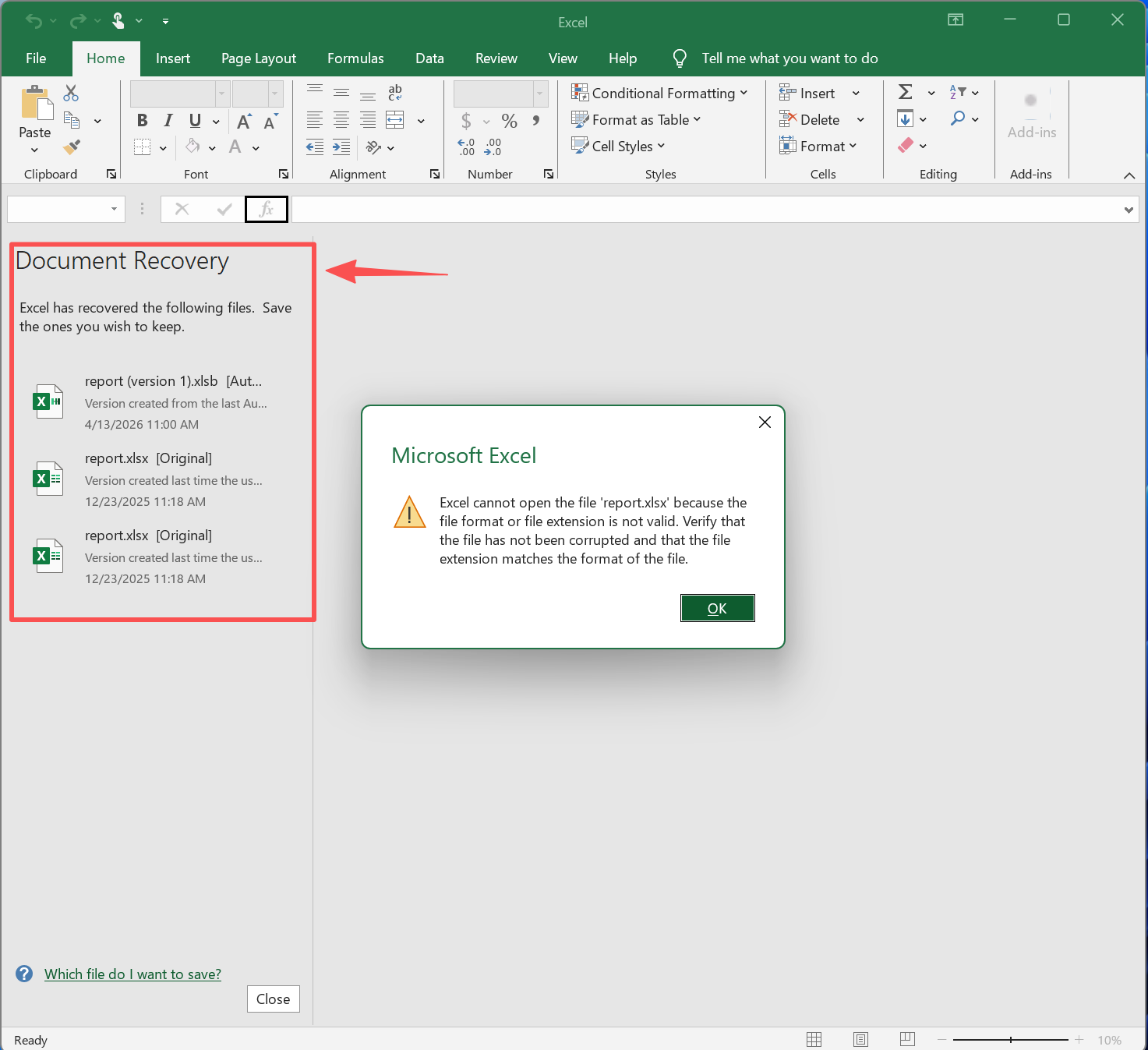
Method 1: Recover Files After an Excel Crash
If Excel stopped responding, Windows restarted, or power failed:
- Reopen Excel.
- Check Document Recovery.
- Open the newest usable version.
- Select Save As immediately.
This is usually the fastest way to recover Excel files after a crash because Excel may already have created a recovery copy.
Method 2: Recover an Unsaved Excel Workbook
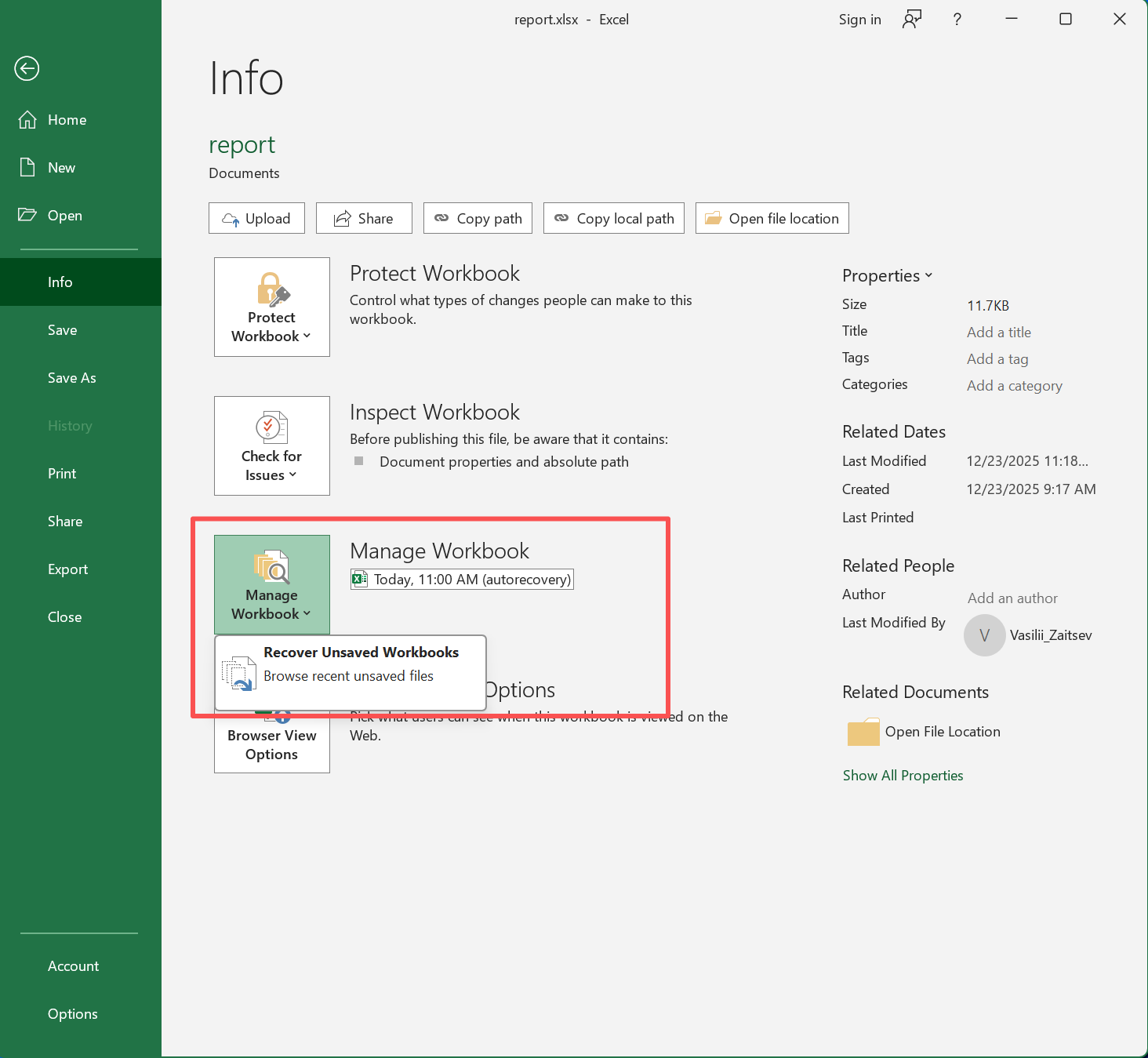
If you created a workbook but never saved it:
- Open Excel.
- Go to File > Info.
- Select Manage Workbook.
- Choose Recover Unsaved Workbooks.
- Open the file and select Save As.
However, the list may be empty if Excel never created recovery information. In that case, this Excel file recovery method cannot continue, so check the Excel recover files location manually.
Method 3: Find the Excel Recover Files Location
Sometimes the workbook exists, but the recovery pane does not show it. Therefore, checking the Excel recover files location can help.
Excel Recover Files Location on Windows
Common locations include:
C:\Users\[Username]\AppData\Roaming\Microsoft\Excel\
C:\Users\[Username]\AppData\Local\Microsoft\Office\UnsavedFiles\
For the most reliable path, check:
Excel > File > Options > Save > AutoRecover file location
Because Office versions and Windows setups differ, Excel’s own setting is more reliable than one fixed path.
Excel Recovery Location on Mac
On Mac, AutoRecover data may appear inside the user Library container. Since macOS hides Library by default, use Finder > Go > Go to Folder.
Also, if you close a workbook and choose Don’t Save, Excel may remove its AutoRecover copy. As a result, the expected recovery folder may contain nothing.
Method 4: Recover Files from an Earlier Version
If the workbook still exists but recent edits disappeared, look for an older version.
For OneDrive or SharePoint files:
- Open the workbook.
- Go to File > Info > Version History.
- Review available versions.
- Open the version you need.
- Restore it or save a copy.
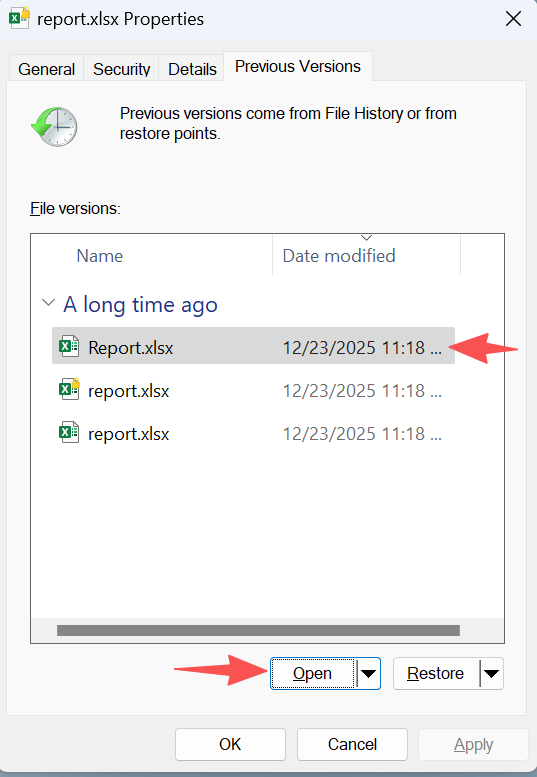
You can also check Properties > Previous Versions in Windows if File History or another backup was active.
Method 5: Check Recycle Bin
If you deleted an XLSX or XLS file normally:
- Open Recycle Bin.
- Find the workbook.
- Right-click it.
- Select Restore.
Windows returns the file to its original location. Therefore, this is the simplest way to recover Excel files after a normal deletion.
However, it will not help after Shift+Delete, an emptied Recycle Bin, or formatting.
Method 6: Recover Excel Files with Magic Data Recovery
When Excel’s built-in tools, Version History, and Recycle Bin cannot restore a previously saved workbook, you need a different approach.
Magic Data Recovery handles storage-level recovery. It supports common Excel formats such as .xlsx and .xls and can scan drives or removable storage for recoverable files. Therefore, it is useful for Shift+Delete, an emptied Recycle Bin, formatting, or deleted Excel files on USB drives and SD cards.
Why Choose Magic Data Recovery?
Magic Data Recovery does not replace Excel’s built-in tools. Instead, it solves a different problem.
AutoRecover helps when Excel created temporary recovery information. Version History helps when an older cloud copy exists. In contrast, Magic Data Recovery scans storage for recoverable file data. Therefore, it becomes a more suitable Excel recover files solution after permanent deletion, an emptied Recycle Bin, or formatting.
Its useful features include Excel-format support, drive-level scanning, filters, preview, and selective recovery. Consequently, it offers a practical next step when built-in methods no longer match the loss scenario.
How to Use Magic Data Recovery
Step 1: Download and Install Magic Data Recovery
Download Magic Data Recovery and install it on a drive different from the one that originally contained the lost Excel workbook. This reduces unnecessary writes and helps protect recoverable data.
Supports Windows 7/8/10/11 and Windows Server
Step 2: Select the Drive to Scan
Launch Magic Data Recovery. Then, choose the drive or storage device that previously stored the deleted Excel workbook and start the scan.

Step 3: Scan the Drive for Lost Excel Files
Magic Data Recovery automatically performs an Advanced Scan. Meanwhile, recoverable files appear as the scan continues. Afterward, use file type, path, or filename filters to locate .xlsx and .xls workbooks faster.

Step 4: Preview and Recover Excel Files
Next, preview detected files whenever possible. This helps you confirm the correct workbook and avoid unnecessary recovery. Finally, select the Excel files you want and save them to a different drive or storage location. Do not restore them to the same drive, because new writes may overwrite other recoverable data.

Method 7: Check Temporary Files
Temporary files may help when AutoRecover is empty.
- Press Windows + R.
- Enter
%temp%. - Sort by Date modified.
- Look for recent
.tmpfiles or related names. - Copy a likely file before testing it.
However, temporary files do not always contain a complete workbook. Therefore, this Excel files recovery option works only when a usable temporary copy exists; changing .tmp to .xlsx does not guarantee a valid file.
Method 8: Restore Backup Files from OneDrive or SharePoint
If you store workbooks in Microsoft 365 cloud storage, check Version History before recovery software.
Open the workbook in OneDrive or SharePoint, then review older versions. This method works well when someone changed a shared workbook, synchronization replaced a preferred version, or you saved unwanted edits.
As a result, users who need to recover Excel files after overwriting should usually check cloud history first.
Why Excel Recovery Files May Be Missing
Even after checking the Excel recover files location, you may find no usable copy.
AutoRecover was off. Excel cannot create recovery information when the feature is disabled.
The next recovery copy did not exist yet. A crash may happen before the next AutoRecover interval.
You chose Don’t Save. Excel may remove the temporary recovery copy.
Cleanup removed temporary data. Windows or third-party cleanup utilities can remove temporary files.
New data overwrote the deleted file. New files can reuse the storage space that held the workbook. Therefore, reduce drive activity after permanent deletion.
Excel Built-In Recovery vs. Magic Data Recovery
Situation | Excel built-in tools | Magic Data Recovery |
Excel crash | Best first choice | Usually unnecessary |
Unsaved workbook | Best first choice | Usually unnecessary |
Older saved version | Version History | Usually unnecessary |
File in Recycle Bin | Restore directly | Usually unnecessary |
Shift+Delete | Not designed for this | Suitable |
Emptied Recycle Bin | Not designed for this | Suitable |
Formatted drive | Not designed for this | Suitable |
In short, use Excel for unsaved work and older versions. However, when a previously saved workbook disappears from storage, Magic Data Recovery can provide a more appropriate Excel files recovery path.
Tips to Prevent Excel File Loss
After you recover Excel files successfully, reduce the risk of another loss. First, keep AutoRecover enabled. Next, use OneDrive or SharePoint when Version History fits your workflow. In addition, maintain a separate backup of important spreadsheets.
Finally, copy critical files from removable storage to a stable drive before major edits. These habits make future Excel files recovery emergencies less likely and reduce dependence on recovery tools.
Conclusion
The best way to recover Excel files depends on the loss scenario. Start with Document Recovery after a crash, use Recover Unsaved Workbooks for unsaved work, and check the Excel recover files location when recovery copies seem missing. For overwritten cloud files, Version History should usually come first.
However, permanent deletion, an emptied Recycle Bin, or formatted storage requires another approach. In those cases, Magic Data Recovery is worth considering because it can scan storage, filter results, preview detected Excel files, and restore selected workbooks to a safe location.
Therefore, when built-in methods cannot find a previously saved workbook, Magic Data Recovery provides a logical next step. Most importantly, stop writing new data to the affected drive and recover document files to another location.
Supports Windows 7/8/10/11 and Windows Server
FAQs
Where does Excel save recovery files?
On Windows, check File > Options > Save to see the current AutoRecover path. Unsaved Office files may also appear in the Microsoft Office UnsavedFiles folder. Because paths vary by Office version and system setup, checking Excel’s own settings is the most reliable way to find the Excel recover files location.
How do I recover an Excel file I never saved?
Open Excel and go to File > Info > Manage Workbook > Recover Unsaved Workbooks. If Excel created a recovery copy, open it and save it immediately. If the list is empty, check the configured AutoRecover folder and temporary files. However, disk recovery software cannot restore content if Excel never wrote that content to storage.
Can I recover an Excel file after clicking Don’t Save?
Possibly, but the chances are lower. First, check Recover Unsaved Workbooks, AutoRecover, temporary files, and Version History. If Excel removed the temporary copy after you chose Don’t Save, no recovery file may remain. Therefore, success depends on whether another saved, temporary, or cloud version still exists.
Can I recover permanently deleted Excel files?
Yes, in some cases. If you saved the workbook before permanent deletion, recovery software may locate its file data before new information overwrites it. Stop saving new files to the affected drive first. Then, an Excel file recovery tool such as Magic Data Recovery can scan the storage device.
How do I recover an overwritten Excel file?
Start with Version History if you store the workbook in OneDrive or SharePoint. You can also check Windows Previous Versions or another backup. These methods usually make more sense than deleted-file recovery because the workbook still exists. In this case, you need an earlier copy rather than a deleted file.
Why can’t I find my Excel AutoRecover file?
AutoRecover may have been off, Excel may not have reached the next save interval, cleanup tools may have removed temporary data, or you may have closed the workbook without saving. Also, do not rely only on a default folder. Check the exact Excel recover files location shown under File > Options > Save.
Can Magic Data Recovery recover XLSX files?
Yes. Magic Data Recovery supports common Excel document formats, including .xlsx and .xls. It is most useful after you permanently delete a previously saved workbook, lose it after formatting, or remove it from storage that Excel’s built-in tools cannot restore. For safer recovery, save restored files to a different drive.

Vasilii is a data recovery specialist with around 10 years of hands-on experience in the field. Throughout his career, he has successfully solved thousands of complex cases involving deleted files, formatted drives, lost partitions, and RAW file systems. His expertise covers both manual recovery methods using professional tools like hex editors and advanced automated solutions with recovery software. Vasilii's mission is to make reliable data recovery knowledge accessible to both IT professionals and everyday users, helping them safeguard their valuable digital assets.