
File Suddenly Disappeared from Folder? Fix It

A file suddenly disappeared from folder on your Windows PC, but you do not remember deleting it. Windows may hide or move the file, OneDrive may change its sync status, security software may quarantine it, or accidental deletion may be the cause.
Fortunately, a missing file does not always mean permanent data loss. This guide explains why a file suddenly disappeared from folder, how to diagnose the cause, and which recovery method to try first. If Windows checks fail and deletion seems likely, Magic Data Recovery can scan and recover lost files from the drive.
Important: Avoid creating, downloading, or copying new files to the affected drive until recovery finishes. New writes may reuse storage space that still contains recoverable data.
Supports Windows 7/8/10/11 and Windows Server
Table of Contents
File Suddenly Disappeared from Folder? Start With a Quick Diagnosis
Before trying every fix, match the symptom to the most likely cause.
What you notice | Likely cause | Try first |
One or two files vanish | Moved, hidden, or deleted | Search + Recycle Bin |
A folder looks empty after restart | Profile, sync, or hidden-file issue | Check profile + OneDrive |
Files vanish after a Windows update | Profile or location change | Check C:\Users |
A file disappears after a security alert | Antivirus quarantine | Check Protection History |
OneDrive files disappear | Sync or cloud deletion | Check OneDrive online |
A drive freezes or disconnects | File-system or hardware issue | Minimize drive use |
Therefore, diagnose first and recover second. This sequence works well when a file suddenly disappeared from folder and you need to distinguish a visibility problem from actual deletion. A moved file needs a search, while a deleted file may require a backup or recovery scan.
Why Did a File Suddenly Disappear from Folder?
When a file suddenly disappeared from folder, several common causes can explain it.
You Moved or Deleted the File
A drag-and-drop action can move a file into a nearby folder. Likewise, Delete sends many files to Recycle Bin, while Shift+Delete may bypass it.
First, search the PC. Then, check Recycle Bin before trying more advanced recovery methods.
Windows Hid the File
Sometimes a file disappeared but not deleted because Windows or an application changed its attributes. In that case, File Explorer may hide the file even though the data still exists in the original folder.
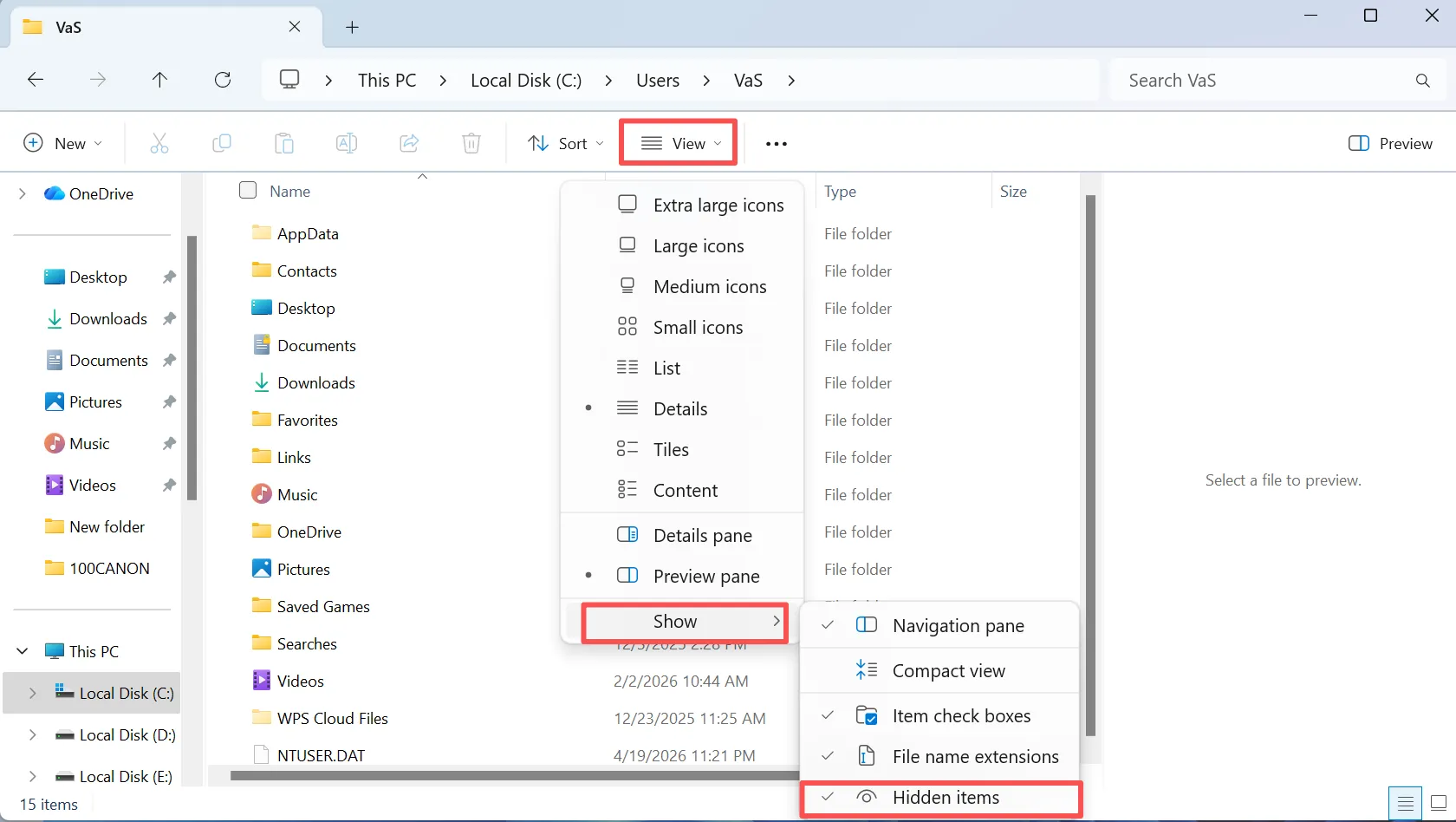
To check, open File Explorer and select View > Show > Hidden items. Microsoft lists this as the standard way to display hidden files in current Windows versions.
Windows Loaded a Different User Profile
Windows keeps personal folders under separate user profiles. Therefore, another profile can make Desktop, Documents, or Downloads appear empty.
Open C:\Users and inspect the available profile folders. This check becomes especially useful when files disappeared from desktop or you notice files missing after Windows update.
OneDrive Changed the File Location or Sync State
OneDrive can sync file changes across devices. For example, a deletion on another device may affect the copy you expect to see on your PC.
If OneDrive files disappeared, check OneDrive online, its Recycle Bin, sync status, and the account currently in use. Microsoft also allows users to restore eligible deleted files from the OneDrive Recycle Bin.
Security Software Quarantined the File
Antivirus software may move a suspicious file into quarantine. As a result, the file disappears from its normal folder.
Check Windows Security Protection History or your antivirus quarantine. However, verify the file before restoring it. Microsoft Defender lets users review detected and quarantined threats through Protection History.
File-System or Drive Problems Affected Access
A damaged file system or unstable drive can make files inaccessible. In addition, the drive may freeze, disconnect, slow down, or return read errors.
If files keep disappearing and the storage device behaves abnormally, reduce unnecessary writes and investigate the drive instead of repeatedly restoring individual files.
Malware or Cleanup Software Removed the File
Malware can hide, rename, encrypt, or delete files. Meanwhile, cleanup tools or scheduled scripts may remove files that match certain rules.
If the same file suddenly disappeared from folder more than once, inspect security tools, cleanup applications, sync software, and scheduled tasks. Repeated disappearance usually requires root-cause troubleshooting rather than another simple restore.
How to Fix File Suddenly Disappeared from Folder on Windows
If a file suddenly disappeared from folder, start with the least invasive checks. Then, move to recovery only when the file no longer appears in normal locations.
Method 1: Search the Entire PC
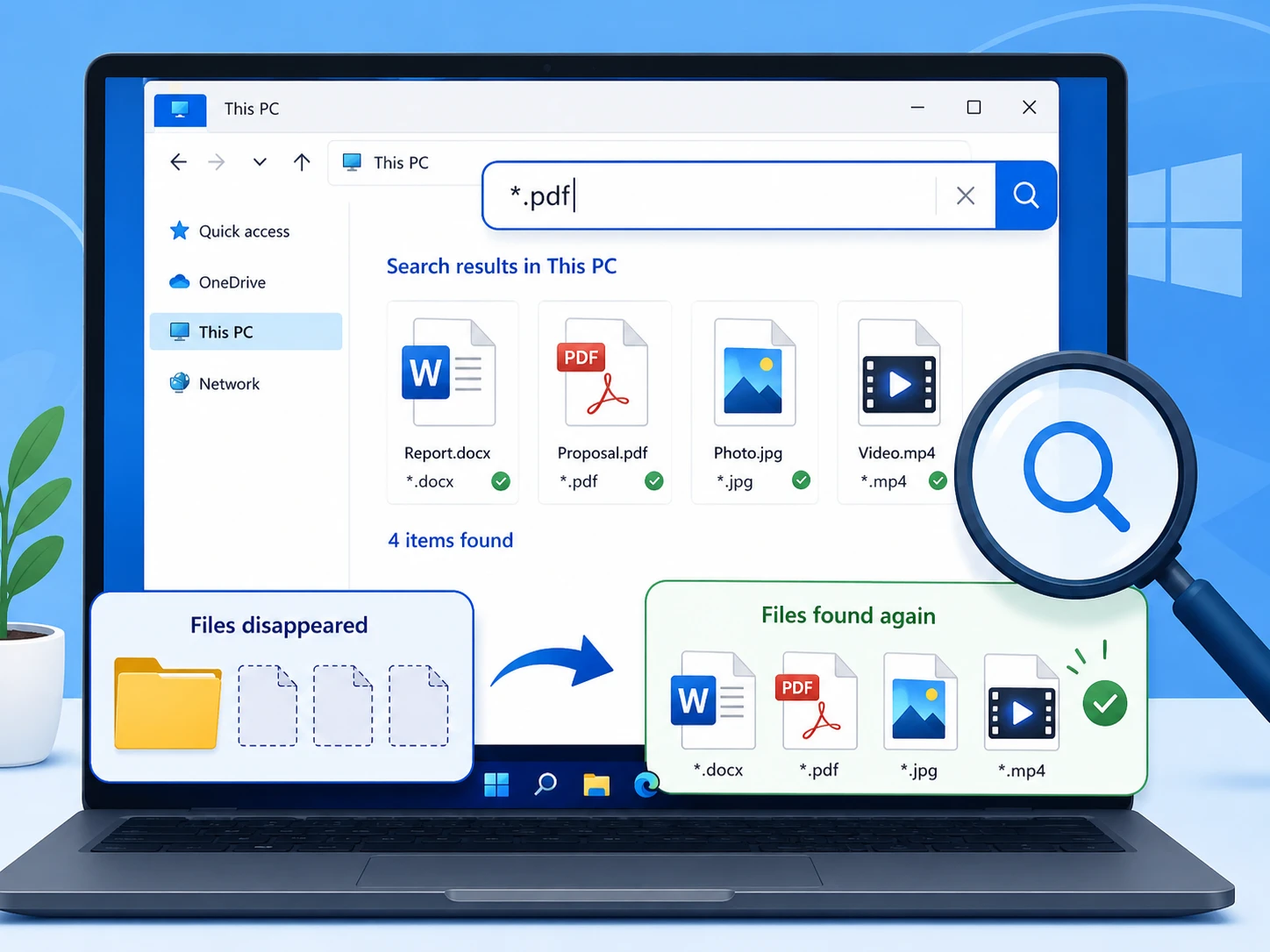
First, open File Explorer and search from This PC, not only from the original folder.
Try:
- the full filename;
- part of the filename;
- a file extension such as
*.docx; *.xlsx;*.jpg;*.pdf.
If Windows finds the item, right-click it and choose Open file location. This method often helps users find disappeared files after an accidental move.
Method 2: Check Recycle Bin
Next, open Recycle Bin and sort items by deletion date or original location.
If you find the missing file:
- Select it.
- Right-click it.
- Choose Restore.
Windows should return the file to its original location.
If Recycle Bin does not contain the file, however, continue with hidden-file, cloud, profile, and backup checks before assuming permanent loss.
Method 3: Show Hidden Files
For hidden files Windows 11, open File Explorer and choose:
View > Show > Hidden items
Then, return to the original folder. Microsoft confirms this navigation path for displaying hidden files and folders.
If the file appears, open its properties and review the Hidden option. Therefore, you may solve the issue without running any recovery software.
Method 4: Check OneDrive or Other Cloud Storage
If the folder syncs with OneDrive, sign in to OneDrive online and search for the filename.
In addition, check:
- OneDrive Recycle Bin;
- sync status;
- the Microsoft account currently signed in;
- other devices connected to the same account.
This step matters when OneDrive files disappeared, because the cloud may still contain a recoverable copy even when File Explorer no longer shows the local file.
Method 5: Check the Correct Windows User Folder
Open:
C:\Users
Next, locate your usual profile and inspect:
- Desktop;
- Documents;
- Downloads;
- Pictures;
- Videos.
This method can resolve files missing from folder Windows 11 after a profile change, account issue, or Windows update. Likewise, it may explain why familiar folders suddenly look empty.
Method 6: Review Windows Security Protection History
Open:
Windows Security > Virus & threat protection > Protection history
Then, look for an event related to the missing file.
Windows Security records detected and quarantined threats in Protection History.
If security software quarantined the file, confirm that it is safe before restoring it. Otherwise, you could reintroduce malware or another unwanted file to the system.
Method 7: Restore From a Backup or Previous Version
If you created a backup before the file suddenly disappeared from folder, use that copy before trying deleted-file recovery.
File History or Previous Versions may contain an earlier copy. Microsoft recommends navigating to the folder that previously contained the file, right-clicking it, and checking Restore previous versions when File History data exists.
Preview the available version first. Then, restore only the files you need.
Method 8: Recover Missing Files With Magic Data Recovery
What if Windows Search finds nothing, Recycle Bin is empty, the cloud has no copy, and no usable backup exists?
At this point, actual deletion becomes more likely.
When a file suddenly disappeared from folder and normal Windows methods fail, Magic Data Recovery provides a practical way to recover missing files from folder.
Instead of searching only known Windows locations, the software scans the selected drive for recoverable data. In addition, its workflow lets you review scan results, preview files, and recover only the items you need. Its current official workflow follows the same basic scan, preview, and recovery process.
For example, Magic Data Recovery may help when:
- you accidentally deleted a file;
- you used Shift+Delete;
- you already emptied Recycle Bin;
- Windows Search no longer finds the file;
- no usable backup exists;
- the file disappeared from its original folder and standard checks fail.
However, no recovery tool can guarantee every file. Recovery depends partly on whether new data has overwritten the original storage space. Therefore, minimize new writes to the affected drive.
How to Use Magic Data Recovery
If a file suddenly disappeared from folder and the earlier methods cannot locate it, scan the drive where the file originally existed.
Step 1: Download and Install Magic Data Recovery
First, download and install Magic Data Recovery. When possible, install it on a different drive from the one that contained the missing file.
This choice reduces extra writes to the affected storage space and helps preserve recoverable data.
Supports Windows 7/8/10/11 and Windows Server
Step 2: Select the Drive Where the File Disappeared
Next, launch Magic Data Recovery. On the main interface, select the drive that originally contained the missing folder or file. Then, start the scan.

Step 3: Scan the Drive for Missing or Deleted Files
Magic Data Recovery automatically runs an Advanced Scan. Meanwhile, it displays recoverable files as the scan progresses. Therefore, you can review available results while the software continues scanning.

Step 4: Preview the Files Before Recovery
Next, preview detected files to confirm their content. You can also use file names, file types, or available filters to narrow the results. As a result, you can focus on the files you actually need instead of recovering everything.

Step 5: Recover the Files to a Safe Location
Finally, select the files you need and start recovery. Save them to a different drive rather than the original location. This practice reduces the chance that new writes will overwrite other recoverable data.

Why Use Magic Data Recovery After the Built-In Fixes?
Each earlier method solves a different problem. Windows Search finds moved files. Hidden-file settings reveal invisible items. OneDrive may provide a cloud copy. Meanwhile, backups can return an earlier version.
However, those methods do not scan the storage device for deleted data. Therefore, Magic Data Recovery makes more sense when deletion appears likely and conventional checks fail.
Its scan-preview-recover workflow also gives users a practical advantage: they can inspect detected files before deciding what to recover. As a result, the software addresses the actual recovery problem without replacing simpler Windows fixes that should come first.
Method 9: Check for File-System or Hardware Problems
If a file suddenly disappeared from folder and the drive also freezes, disconnects, slows down, or shows read errors, consider a storage problem.
In this situation, minimize unnecessary drive use. If a mechanical hard drive makes unusual noises or contains irreplaceable data, avoid repeated repair attempts. Instead, consider professional data recovery, especially when the drive shows signs of physical failure.
What to Do If a File Suddenly Disappeared from Folder Repeatedly
When a file suddenly disappeared from folder once, an accidental move or deletion may explain it. However, repeated disappearance points to a broader issue.
First, review OneDrive and other cloud synchronization settings. Next, check Windows Security and run a malware scan.
In addition, inspect:
- cleanup utilities;
- backup software;
- scheduled tasks;
- shared-folder permissions;
- synchronization programs;
- drive health.
For important shared folders, file-access auditing can also help investigate future changes. As a result, you may collect useful evidence when a user or process changes files again.
How to Prevent File Suddenly Disappeared from Folder Problems
After you solve a file suddenly disappeared from folder problem, take several preventive steps:
- Keep a current backup of important files.
- Confirm which folders OneDrive or another cloud service syncs.
- Review Recycle Bin before permanent deletion.
- Check antivirus quarantine when trusted files vanish.
- Avoid aggressive cleanup tools on important folders.
- Watch for recurring drive or file-system errors.
- Keep critical data in more than one location.
Most importantly, use recovery software as a fallback rather than a replacement for backups. A current backup usually provides a faster and simpler recovery path when files go missing.
Conclusion: Fix File Suddenly Disappeared from Folder Safely
When a file suddenly disappeared from folder, start with simple checks. Search the PC, inspect Recycle Bin, show hidden items, review OneDrive, check the correct Windows profile, and inspect security quarantine. If a backup exists, use it first.
However, when these methods fail and deletion appears likely, Magic Data Recovery offers a practical next step. It scans the affected drive, shows recoverable results, supports file preview, and lets you restore selected data to a safer location.
Therefore, the recommendation comes from the problem it solves: Windows tools work well for moved, hidden, synced, or backed-up files, while Magic Data Recovery becomes useful to recover missing files from the drive.
If you need to recover missing files from folder after ordinary fixes fail, consider trying Magic Data Recovery. Most importantly, recover files to another drive when possible and create a reliable backup afterward.
Supports Windows 7/8/10/11 and Windows Server
FAQ About File Suddenly Disappeared from Folder
Why did a file suddenly disappear from folder without being deleted?
A file suddenly disappeared from folder may still exist somewhere on the PC. Windows may hide it, another profile may contain it, or a sync service may change its visible location. First, search from This PC. Then, enable hidden items and check OneDrive before assuming that deletion occurred.
Why are files missing from a folder but not in Recycle Bin?
Files may bypass Recycle Bin after Shift+Delete, some cleanup actions, or certain storage operations. However, they may also be hidden, moved, synced elsewhere, or stored under another profile. Check Windows Search, hidden items, cloud storage, and backups first. If those checks fail, consider permanently deleted files recovery.
Why did files disappear from my folder after a Windows update?
If files missing after Windows update appear suddenly, Windows may load another user profile or change how a folder maps to your account. Start by checking C:\Users, Desktop, Documents, and OneDrive. In addition, search the entire PC by filename before you use recovery software.
Can OneDrive make files disappear from a folder?
Yes. Synchronization can change what appears locally. For example, deleting a synced item on another device may affect the copy you expect on your PC. If OneDrive files disappeared, check the OneDrive website, online Recycle Bin, sync status, and Microsoft account before attempting deleted-file recovery.
Can antivirus software make a file disappear?
Security software can quarantine a suspicious file and remove it from its normal folder. Therefore, check Windows Security Protection History or your antivirus quarantine when a file vanishes after a security alert. However, verify the file before restoring it, because restoring malware can recreate the problem.
Can I recover a file that disappeared permanently?
Sometimes. If Windows no longer lists the file but new data has not overwritten its storage space, recovery software may still locate useful data. First, reduce new writes to the affected drive. Then, use Magic Data Recovery to scan, preview, and recover selected files to another location.
Why do files keep disappearing from the same folder?
If files keep disappearing, investigate recurring causes instead of restoring each file individually. Check cloud sync, antivirus actions, cleanup programs, scheduled tasks, shared-folder permissions, malware, and drive health. In addition, consider file-access auditing for important folders so you can gather better evidence if files vanish again.

Vasilii is a data recovery specialist with around 10 years of hands-on experience in the field. Throughout his career, he has successfully solved thousands of complex cases involving deleted files, formatted drives, lost partitions, and RAW file systems. His expertise covers both manual recovery methods using professional tools like hex editors and advanced automated solutions with recovery software. Vasilii's mission is to make reliable data recovery knowledge accessible to both IT professionals and everyday users, helping them safeguard their valuable digital assets.