
Recover Quarantined Files in Defender
Microsoft Defender can quarantine a trusted document, installer, archive, or utility before you notice the alert. In many cases, you can recover quarantined files without advanced tools.
This guide explains how to recover quarantined files in Microsoft Defender on Windows 11 and Windows 10. You will learn how to use Protection History, MpCmdRun, backups, and data recovery. If you searched recover quarantined files windows defender, first check whether Defender still holds the file in quarantine or has deleted it.
When Defender still holds the item, use Microsoft’s Restore option first. However, if the file no longer exists in quarantine, Magic Data Recovery can offer another hard drive recovery path.
Supports Windows 7/8/10/11 and Windows Server
Table of Contents
How to Recover Quarantined Files: Choose the Right Method
Before you start, identify what Defender did to the file. This quick check helps you avoid unnecessary steps and choose the right solution.
Situation | Best Solution |
Defender still holds the file in quarantine | Restore it from Windows Security |
Windows Security does not offer an easy restore path | Use MpCmdRun |
Defender removed the file | Check a backup or try Magic Data Recovery |
A company or school manages the PC | Contact IT |
Defender detects the restored file again | Verify it, then allow it only if trusted |
For most home users, Windows Security provides the fastest way to recover quarantined files. By contrast, recovery software makes sense only after Defender can no longer return the original item.
What Quarantine Means in Microsoft Defender
Microsoft Defender uses quarantine to isolate suspicious files so they cannot run normally. In other words, quarantine does not automatically mean permanent deletion.
If Defender still keeps the item in quarantine, Windows Security may offer a Restore action. Therefore, try that option before you install recovery software.
Quarantined vs. Removed vs. Deleted
A quarantined file still exists under Defender’s control. A removed file, however, may no longer remain available through quarantine. Likewise, a file deleted elsewhere may require a backup or recovery tool.
This difference matters because restoring quarantine data is not the same as recovering deleted data. Once you confirm the file’s status, you can choose the safest method and recover quarantined files without confusing quarantine restoration with deleted-file recovery.
Method 1: Recover Quarantined Files from Windows Security
Windows Security is the easiest place to start. In most cases, you can recover quarantined files through Protection History in a few steps.
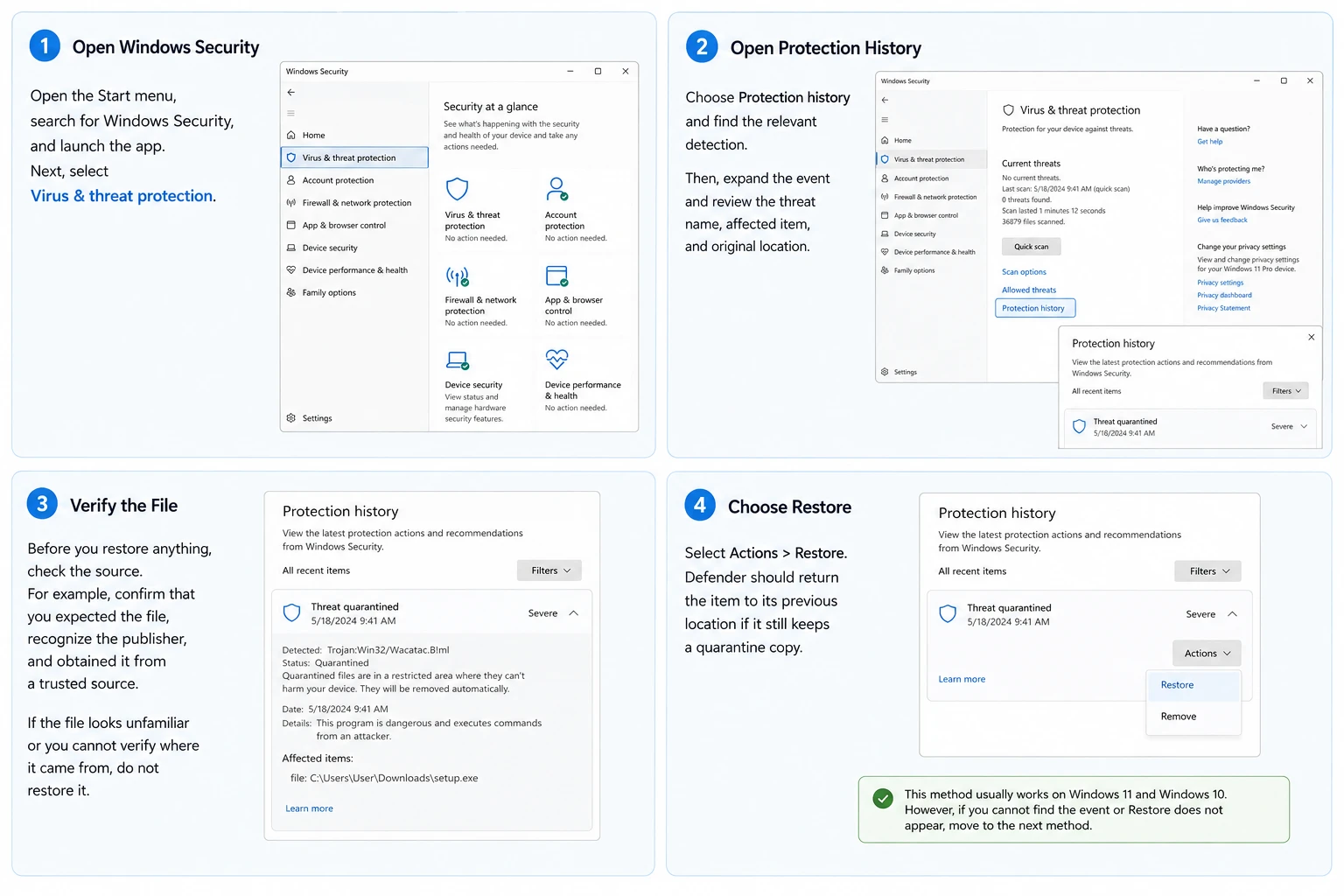
Step 1: Open Windows Security
Open the Start menu, search for Windows Security, and launch the app. Next, select Virus & threat protection.
Step 2: Open Protection History
Choose Protection history and find the relevant detection. Then, expand the event and review the threat name, affected item, and original location.
Step 3: Verify the File
Before you restore anything, check the source. For example, confirm that you expected the file, recognize the publisher, and obtained it from a trusted source.
If the file looks unfamiliar or you cannot verify where it came from, do not restore it.
Step 4: Choose Restore
Select Actions > Restore. Defender should return the item to its previous location if it still keeps a quarantine copy.
This method usually works on Windows 11 and Windows 10. However, if you cannot find the event or Restore does not appear, move to the next method.
Method 2: Use MpCmdRun to Recover Quarantined Files
Microsoft also provides the MpCmdRun command-line utility. Although it looks more technical than Windows Security, it can help you recover quarantined files when the graphical interface does not give you enough control.
List Quarantined Items
Open Command Prompt as an administrator. Next, switch to the current Microsoft Defender platform folder and run:
MpCmdRun.exe -Restore -ListAll
This command lists items that Defender still keeps in quarantine.
Restore a Specific Item
After you identify the file name, run:
MpCmdRun.exe -Restore -Name <filename>
Replace <filename> with the name from the list. As a result, Defender can return the selected item if a quarantine copy still exists.
However, MpCmdRun cannot restore data after Defender removes the quarantine copy. At that point, you need a backup or a deleted-file recovery method.
Method 3: Recover Files Removed by Defender with Magic Data Recovery
Sometimes you cannot recover quarantined files because Defender no longer holds the original item. In that situation, the problem changes from quarantine restoration to deleted-file recovery.
That is where Magic Data Recovery becomes relevant.
Magic Data Recovery does not replace Defender’s Restore function. Instead, it scans storage for recoverable data after normal quarantine recovery is no longer available.
According to Amagicsoft, Magic Data Recovery supports more than 5,000 file formats, including documents, photos, videos, archives, and other common data types. In addition, it works with Windows storage devices such as HDDs, SSDs, USB drives, and memory cards.
Its scan, filter, preview, and recovery workflow also makes the process approachable for users who do not want a highly technical recovery method.
When Magic Data Recovery Makes Sense
Consider Magic Data Recovery when:
- Defender removed the file instead of keeping it in quarantine.
- Protection History no longer provides a Restore option.
- You do not have a usable backup.
- The original file is important and cannot be downloaded again.
- You want to preview recoverable data before saving it.
Unlike Defender’s Restore option, Magic Data Recovery does not depend on an existing quarantine record. Therefore, it can search for recoverable data after the original file disappears from normal access.
This difference explains why the software works as a fallback rather than a replacement for Microsoft Defender. Windows Security handles active quarantine records, while Magic Data Recovery addresses deleted-file recovery after the normal Restore workflow is no longer available.
How to Recover a Removed File with Magic Data Recovery
If Microsoft Defender has already removed the file and no Restore option remains, Magic Data Recovery can scan the original storage location for recoverable data.
Before you begin, avoid creating, downloading, or copying unnecessary files to the affected drive. New data may overwrite storage space that still contains recoverable information.
Step 1: Download and Install Magic Data Recovery
Download Magic Data Recovery and install it on your Windows PC.
Whenever possible, choose a drive different from the one that originally stored the removed file. This approach reduces unnecessary writes to the affected drive and lowers the risk of overwriting recoverable data.
Supports Windows 7/8/10/11 and Windows Server
Step 2: Select the Drive Where the File Was Removed
Launch Magic Data Recovery. On the main interface, locate the drive or partition where the missing file was originally stored.
Next, select that location and start the scan. The software will search the chosen drive for lost and deleted data.

Step 3: Scan for Recoverable Files
Magic Data Recovery starts an Advanced Scan to examine the selected location. Meanwhile, available results appear in the interface as the scan progresses. Therefore, you can begin reviewing detected files without waiting for every stage of the scan to finish.
If the program finds many items, use the available file type, path, name, or other filtering options to narrow the results. This makes it easier to locate the file that Microsoft Defender removed.

Step 4: Recover the Removed File
Once you locate the target file, choose the file you need and start the recovery process. Save recovered data to a different drive.
Avoid saving recovered files back to the same location immediately. Otherwise, new writes may overwrite other recoverable data that still remains on the drive.

If Defender removed the original file, Magic Data Recovery can provide a more relevant solution than repeatedly checking Protection History. However, no recovery software can guarantee that every deleted file will return intact.
Recovery success depends on factors such as overwriting, drive condition, file-system behavior, and how much you have used the affected storage since deletion.
For example, suppose Defender removes an important ZIP archive and no Restore option remains. If you also lack a backup, scanning the original drive for recoverable data gives you a logical next step without disabling or weakening Defender.
Method 4: Restore the File from a Backup
A backup may provide the safest route when you can no longer recover quarantined files through Defender.
First, check OneDrive, Windows File History, a backup drive, another computer, or your organization’s backup system.
If the missing file originally came from a legitimate software vendor, you can also download a fresh copy from the official website. Therefore, compare file recovery with the safety and convenience of obtaining a clean replacement.
For executable files in particular, downloading a current copy from the developer’s official website may make more sense than restoring an older version.
What to Do After You Recover Quarantined Files
Defender may detect the restored item again. If that happens, do not disable Microsoft Defender simply to keep one file.
Instead, verify the file’s source, publisher, digital signature, and expected behavior. Then, if you have strong evidence that Defender produced a false positive, review the new detection in Protection History and choose Allow on device.
For recurring false positives, a narrowly scoped exclusion may help. However, avoid excluding an entire drive or a large folder without a clear reason. A precise exclusion limits unnecessary security risks.
You can also report a suspected false positive to Microsoft or contact the software developer. Consequently, future Defender definitions may identify the legitimate file more accurately.
Why You May Fail to Recover Quarantined Files
Several problems can prevent a normal restore. Fortunately, each situation has a practical next step.
Defender Removed the File
If Defender removed the original item, Restore may no longer help. First, check your backups and the original download source. If neither option works, Magic Data Recovery may be worth trying before new disk activity overwrites the deleted data.
Protection History No Longer Shows the Event
Microsoft states that Protection History keeps events for two weeks. Therefore, an older detection may disappear even if you remember seeing it earlier.
Importantly, this does not mean that every quarantined file automatically disappears after exactly two weeks. The Protection History record and the underlying quarantine state are not necessarily the same thing.
You Do Not Have Administrator Permission
Some Defender actions require administrator access. Therefore, make sure you use an appropriate account.
If you work on a managed computer, contact the administrator instead of trying to bypass security controls.
An Organization Manages the Device
Business and school devices may use additional Microsoft Defender policies. As a result, your IT team may control quarantine restoration, exclusions, and other security settings.
In this situation, contact IT before making changes.
Best Practices Before You Recover Quarantined Files
Before and after recovery, follow these safety tips:
- Confirm that the file came from a trusted source.
- Check the publisher or digital signature when available.
- Keep Windows and Microsoft Defender updated.
- Avoid disabling real-time protection to restore one file.
- Maintain regular backups of important data.
- Report likely false positives to Microsoft or the software vendor.
- Save recovered data to another drive when practical.
These habits help you recover quarantined files without weakening your PC’s security.
In addition, avoid writing large amounts of new data to a drive when you need deleted-file recovery. New data can overwrite storage space that still contains parts of the missing file.
Conclusion: The Best Way to Recover Quarantined Files
The safest way to recover quarantined files depends on the file’s current status. If Defender still keeps the item in quarantine, start with Windows Security. Next, use MpCmdRun if you need another official restoration method.
If Defender has already removed the file, check your backups and the original source first. When those options fail, Magic Data Recovery offers a practical fallback because it scans the storage device for deleted data instead of relying on Defender’s quarantine record.
In addition, its support for common file types, multiple Windows storage devices, Advanced Scan, filtering, preview, and straightforward recovery workflow makes it suitable for everyday hard drive recovery.
That is why Magic Data Recovery fits naturally into this guide. It addresses the point where Microsoft Defender’s normal Restore workflow can no longer solve the problem rather than competing with a built-in feature that already works well for active quarantine items.
Most importantly, only restore files you trust. That way, you can protect your PC while giving important data the best reasonable chance of recovery.
Supports Windows 7/8/10/11 and Windows Server
FAQ About How to Recover Quarantined Files
Where Are Windows Defender Quarantined Files?
You can view quarantined detections in Windows Security > Virus & threat protection > Protection history. Usually, you do not need to browse Defender’s protected folders manually. Instead, review the detection in Protection History and choose Restore only when you trust the file. This approach gives most Windows users a safer and simpler recovery path.
Can I Recover Quarantined Files in Windows 11?
Yes. If Defender still keeps the item in quarantine, open Windows Security, go to Virus & threat protection, choose Protection history, select the detection, and use Restore. Before you restore it, however, verify that the file came from a trusted source. Otherwise, you could return a genuinely harmful file to normal access.
What Does Recover Quarantined Files Windows Defender Mean?
The search usually describes two situations. First, Defender may still hold the file in quarantine, so Windows Security or MpCmdRun can restore it. Alternatively, Defender may have removed the item already. In that case, check backups, download a trusted replacement, or consider deleted-file recovery software.
Can I Recover a File After Microsoft Defender Removes It?
Possibly. Once Defender removes a file and no quarantine copy remains, normal Restore may no longer work. First, check OneDrive, File History, backups, or the original source. If those options fail, Magic Data Recovery can scan the affected storage device for recoverable data, although overwriting and drive condition can affect the result.
Why Is There No Restore Button in Windows Defender?
Defender may have removed the file instead of keeping it in quarantine, your account may lack permission, or the related event may no longer appear. First, check whether MpCmdRun can list the item. If it cannot, review your backups or try deleted-file recovery. On a managed PC, contact your administrator before changing security settings.
Will Defender Quarantine the File Again After I Restore It?
It can. If Defender detects the restored file again, check its source, publisher, signature, and expected behavior before you act. If you have strong evidence of a false positive, review the new detection and allow the file. However, avoid disabling Defender or creating a broad exclusion simply to prevent another alert.
Can Magic Data Recovery Recover Quarantined Files Directly?
Use Windows Security or MpCmdRun first when Defender still holds the file in quarantine. Magic Data Recovery becomes more useful after Defender removes the file and no Restore option remains. In that situation, the software can scan the affected drive for recoverable data and let you preview results before saving the files you need.

Vasilii is a data recovery specialist with around 10 years of hands-on experience in the field. Throughout his career, he has successfully solved thousands of complex cases involving deleted files, formatted drives, lost partitions, and RAW file systems. His expertise covers both manual recovery methods using professional tools like hex editors and advanced automated solutions with recovery software. Vasilii's mission is to make reliable data recovery knowledge accessible to both IT professionals and everyday users, helping them safeguard their valuable digital assets.