
Allocation Unit Size: Cluster Size and Sectors in Windows
Allocation unit size is the size of a cluster—the unit a file system uses to allocate storage space on a volume. In Windows formatting tools, “allocation unit size” and “cluster size” describe the same setting. A cluster contains one or more logical sectors, but changing its size does not change the drive’s sector format.
This setting appears when formatting a USB drive, external disk, or Windows data volume. It affects space efficiency and some file system features. This guide covers Windows 10 and Windows 11, focusing on NTFS while explaining the relevant differences for FAT32 and exFAT.
Table of Contents
How File Systems Allocate Storage
A file system needs to track which storage locations belong to each file and which remain available. Clusters provide a manageable unit for that bookkeeping.
When a file needs space outside its metadata record, the file system allocates clusters to hold its contents. As the file grows, it can receive additional clusters. Those clusters do not necessarily sit next to one another: the file system records their locations so Windows can retrieve the complete file.
On NTFS volumes, file records and data mappings describe where file contents are stored. Some small files can instead keep their contents inside a Master File Table record, without a separate allocation of data clusters.
FAT32 uses a different structure. Its File Allocation Table tracks the cluster chains belonging to files.
The allocation unit size applies to the formatted volume, rather than to every partition on the physical disk. Two volumes on the same drive can therefore use different cluster sizes.
Cluster vs. Sector: Key Differences
A cluster belongs to the file system’s allocation scheme. A sector belongs to the storage addressing and reporting layers beneath it.
Windows also distinguishes between logical sectors and reported physical sectors.
Term | What it describes | Example |
Allocation unit or cluster | The unit used to allocate file system storage | A 4,096-byte NTFS cluster |
Logical sector | The unit used to address storage locations | A 512-byte logical sector |
Physical sector | The physical sector size reported through the storage device and driver | A reported 4,096-byte physical sector |
Example: A volume with 4,096-byte clusters and 512-byte logical sectors has eight logical sectors per cluster.
On a 512e drive, Windows can see 512-byte logical sectors while the device reports 4,096-byte physical sectors. A 4Kn drive reports 4,096 bytes for both.
Choosing 4 KB clusters does not convert a 512e drive into a 4Kn drive. Likewise, choosing 64 KB clusters does not create 64 KB hardware sectors.
Cluster size is also different from partition alignment. Cluster size describes allocation length; alignment concerns where a partition or operation begins relative to underlying storage boundaries. A particular cluster size alone does not prove correct alignment.
File Size, Allocated Space, and Cluster Slack
In File Explorer, Size describes a file’s logical length. Size on disk reflects its allocated storage.
For an ordinary, uncompressed, nonsparse file stored outside its NTFS file record, allocation generally rounds up to a whole number of clusters. Unused space at the end of the final allocated cluster is commonly called file slack.
A Practical Allocation Example
Example: Consider a file containing exactly 10,240 bytes of data.
Cluster size | Clusters required | Allocated file data space | Unused space in the final cluster |
4,096 bytes | 3 | 12,288 bytes | 2,048 bytes |
65,536 bytes | 1 | 65,536 bytes | 55,296 bytes |
This calculation describes the file’s data allocation. It excludes directory entries and other file system metadata.
For one file, the difference may be insignificant. Across many small files, however, larger clusters can consume considerably more space.
The effect is less pronounced for files that are already large relative to the cluster size. A collection of large videos has a different allocation pattern from a folder containing thousands of small documents or configuration files.
Exceptions to Standard Cluster Allocation
NTFS resident data, compression, and sparse files can change the relationship between logical length and allocated space. Consequently, a tiny file is not a reliable tool for measuring cluster size.
Folder totals also depend on which files Windows can enumerate. A difference between a folder’s reported size and the volume’s used capacity does not, by itself, prove excessive slack or corruption.
Check the volume’s actual allocation unit size before drawing conclusions.
Choosing an Allocation Unit Size in Windows
For general Windows use, keep the formatter’s default allocation unit size unless a documented requirement justifies another value.
Windows selects defaults according to the file system and volume size. “Default” therefore does not mean the same numerical value for every device or format.
A 4,096-byte allocation unit—often displayed as 4 KB—is common for ordinary NTFS volumes. Technically, 4,096 bytes is 4 KiB; Windows interfaces and documentation frequently use “KB” for this setting.
Situation | Practical starting point | What to consider |
Everyday NTFS data volume | Windows default | Suitable for mixed documents, applications, photos, and other files |
NTFS volume holding many small files | Default, commonly 4,096 bytes | Large clusters can increase unused allocation space |
Volume requiring standard NTFS file compression | A supported cluster size no larger than 4,096 bytes | Standard NTFS compression is unavailable above this size |
Dedicated application or server storage | The application’s documented requirement | A workload-specific value is not a general desktop recommendation |
FAT32 or exFAT removable storage | Formatter or device default | File system, volume capacity, and receiving-device compatibility matter |
Cluster Size and Storage Performance
Larger clusters reduce the number of allocation units needed to represent a given amount of data. Some applications and storage workloads benefit from particular allocation sizes.
That does not establish a universal speed improvement. Performance also depends on request sizes, caching, fragmentation, hardware, and application behavior.
Microsoft provides specific formatting guidance for workloads such as hosting very large VHDX files. Such guidance should not be generalized into “64 KB is best for every SSD.”
An SSD does not require a larger cluster size simply because it uses flash memory.
Volume Capacity and File System Requirements
NTFS volume limits depend partly on cluster size. For example, Microsoft lists approximately 16 TB as the supported NTFS volume limit with 4 KB clusters. Very large volumes may therefore require a different configuration.
FAT32 and exFAT have their own allocation rules. Do not transfer an NTFS recommendation directly to a removable drive formatted as exFAT. The exFAT file system guide explains its use for portable storage and large files.
If an existing drive works correctly and has no demonstrated allocation problem, changing its cluster size usually offers little practical benefit.
Checking Allocation Unit Size in Windows
Checking the existing value does not require formatting the drive.
First, identify the correct volume in File Explorer or Disk Management. Confirm its drive letter, label, capacity, and file system.
The commands below use E: as an example. Replace it with the actual target volume. The screenshots use C: from the source document’s example system.
Check with Windows PowerShell
Open Windows PowerShell as administrator and run:
Get-Volume -DriveLetter E | Format-List
Find these properties:
- DriveLetter: confirms the selected volume.
- FileSystem: identifies its format.
- AllocationUnitSize: reports the allocation unit size in bytes.
A value of 4096 means 4,096-byte clusters. A value of 65536 means 65,536-byte clusters.
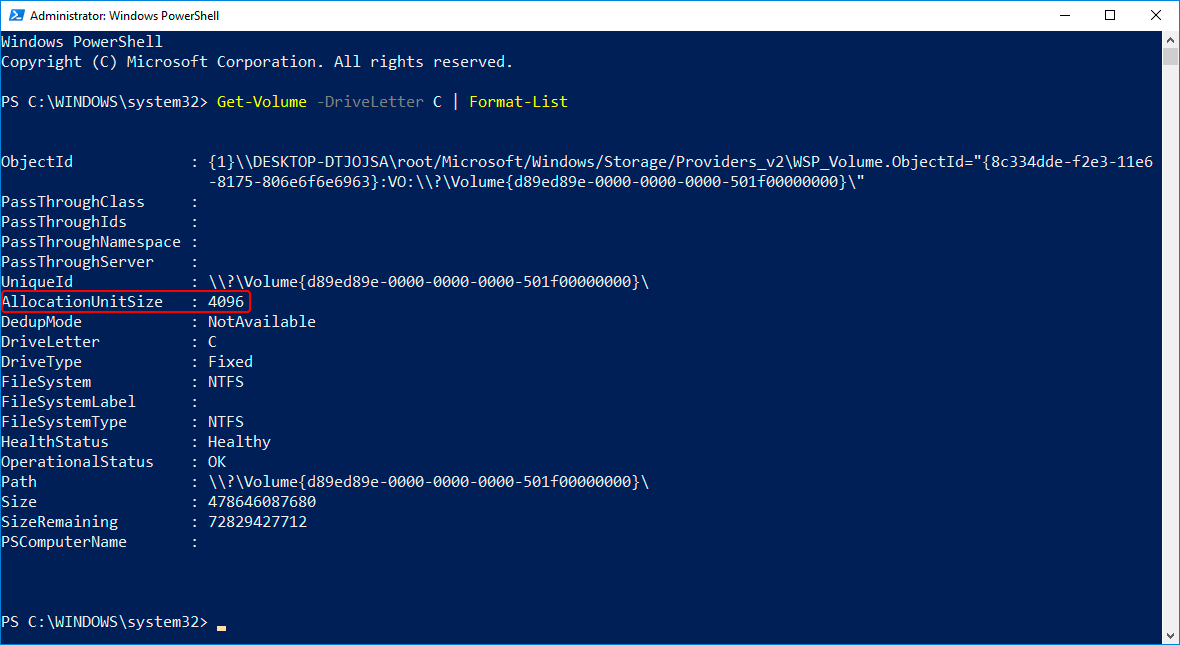
Windows PowerShell displays AllocationUnitSize as 4096 for the example NTFS volume. Source: 7thSense, “File System File Size and Size on Disk,” page 6; historical interface example.
For a shorter result, select only the relevant properties:
Get-Volume -DriveLetter E |- Select-Object DriveLetter, FileSystem, AllocationUnitSize
If the property is unavailable or the command cannot query the volume, do not interpret that result as a zero-byte cluster size. Confirm the target and use a suitable file system-specific query.
Check an NTFS Volume with Fsutil
In an administrator Command Prompt or Terminal, run:
- fsutil fsinfo ntfsinfo E:
Look for Bytes Per Cluster. This is the NTFS allocation unit size.
The output can also contain Bytes Per Sector and Bytes Per Physical Sector. These describe sector properties and should not be substituted for the cluster value.
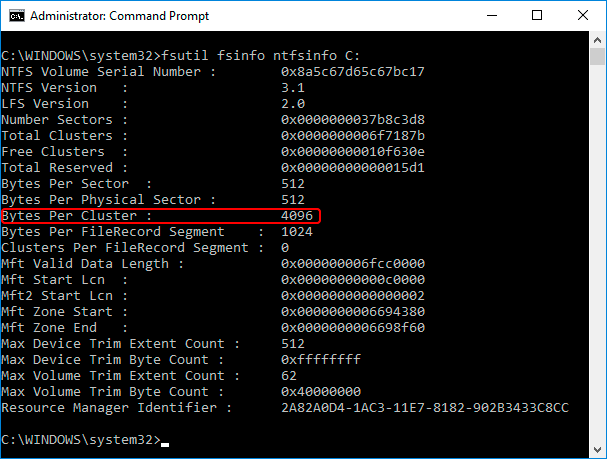
The example reports 4,096 bytes per cluster and 512 bytes per logical and physical sector. Source: 7thSense, “File System File Size and Size on Disk,” page 6; these values describe that example volume.
For additional sector information, use:
- fsutil fsinfo sectorinfo E:
The ntfsinfo query is specific to NTFS. Its failure on exFAT does not demonstrate that the drive is damaged.
These commands query information; they do not change the allocation unit size or repair the file system.
Limitations of the Windows Format Dialog
The Windows Format dialog configures a proposed formatting operation. Its selected allocation value should not replace a query of the existing volume.
Use PowerShell or Fsutil to inspect the current configuration. There is no need to click Start in a formatting window just to discover it.
Changing Cluster Size and Protecting Existing Files
Windows’ built-in formatting tools set the allocation unit size when creating the file system. They do not provide a simple in-place cluster-size setting for an existing volume.
For a healthy, nonsystem data volume, the straightforward approach is:
- Copy all required files to a separate healthy storage device.
- Open representative files from that copy and confirm the backup is complete.
- Identify the original volume again by drive letter, label, and capacity.
- Reformat it using the intended file system and allocation unit size.
- Query the formatted volume to confirm the new setting.
- Restore the files and verify their contents.
Formatting removes normal access to existing files. Quick Format is not a way to preserve them while changing cluster size.
A Windows system volume requires a separate backup and restoration or deployment plan. Do not treat formatting the running Windows volume as an ordinary data-drive adjustment.
Some third-party utilities advertise changes without reformatting. Such operations still modify file system structures and require a verified backup.
Defragmenting a volume does not change its cluster size. Enlarging a partition also does not automatically replace the existing allocation unit size.
Cluster Size Settings and Drive Health
A larger-than-expected allocation unit can reflect an earlier formatting choice, another operating system, or a specialized workload. It does not automatically indicate drive damage.
The number alone is not a diagnosis.
Observation | What it may indicate | Appropriate next step |
Large clusters, but files open normally | A formatting choice | Assess actual space usage before changing anything |
Many small files occupy much more allocated space | Allocation overhead may contribute | Confirm cluster size and file characteristics |
Windows asks to format the drive | Windows cannot recognize or access the file system normally | Cancel the prompt and protect important files |
Repeated I/O errors or disconnections | Possible connection, device, or media trouble | Investigate stability before scanning or reformatting |
Files disappeared after formatting | A data-loss event | Stop writing to the affected device |
Changing cluster size does not repair physical media damage. If read errors suggest an HDD problem, follow a suitable hard drive bad-sector diagnostic workflow.
If formatting has already removed access to files, check backups first and review the options for recovering files from a formatted hard drive. Recovery depends on what remains readable; overwritten data and SSD TRIM can prevent it.
File recovery and choosing a new allocation unit size are separate tasks. Protect the files before rebuilding the volume.
FAQs
Is allocation unit size the same as cluster size?
Can different partitions on one disk have different cluster sizes?
Does a larger cluster size increase maximum file size?
Can a 4 KB cluster contain several small files?
Will changing cluster size recover missing disk capacity?

Jason is a data recovery and technical support specialist with over 15 years of hands-on experience. He has worked extensively with frontline users, troubleshooting difficult data loss cases and providing practical recovery solutions for accidental deletion, formatted drives, damaged file systems, lost partitions, system failures, and other recovery emergencies. His expertise also includes backup and restoration, file repair, and disaster recovery, with a strong emphasis on safe, reliable, and technically accurate guidance.