
How to Recover Formatted Photos from Android Phone
Formatting an Android phone or memory card can make years of photos disappear in seconds. Fortunately, some files may still remain recoverable. This guide explains how to recover formatted photos from Android phone storage, Google Photos, local backups, and removable SD cards. It also shows when Magic Data Recovery offers a practical SD card recovery solution without making unrealistic promises.
Before you begin, stop using the affected phone or SD card. Do not take new pictures, install apps, record videos, or format the storage again. Every new file may overwrite lost photo data.
Supports Windows 7/8/10/11 and Windows Server
Table of Contents
Can You Recover Formatted Photos from an Android Phone?
In many cases, you can recover formatted photos. However, the correct method depends on the storage location, format type, encryption, and any new activity after the loss.
Therefore, first identify where Android stored the missing images:
Situation | Best first action |
Google Photos backed up the images | Check the correct account and Trash |
You formatted a portable SD card | Remove it and scan it on a computer |
Android used the card as internal storage | Check backups before scanning |
You factory-reset the phone | Check cloud, computer, and brand backups |
The phone or card has physical damage | Stop DIY attempts and seek professional help |
What to Do Before You Recover Formatted Photos
First, stop taking photos and downloading files. Next, avoid installing recovery apps on the affected phone because installation creates new data.
If the photos were on a portable SD card, turn off the phone and remove the card. Then, connect it to a Windows computer with a reliable card reader. Also cancel any request to format or repair the card.
Finally, prepare a folder on your computer for restored photos. Never save recovered files to the same SD card, since new writes may overwrite other recoverable data.
Method 1: Recover Formatted Photos from Google Photos
The safest answer to how to recover formatted photos from Android phone storage often starts with a backup.
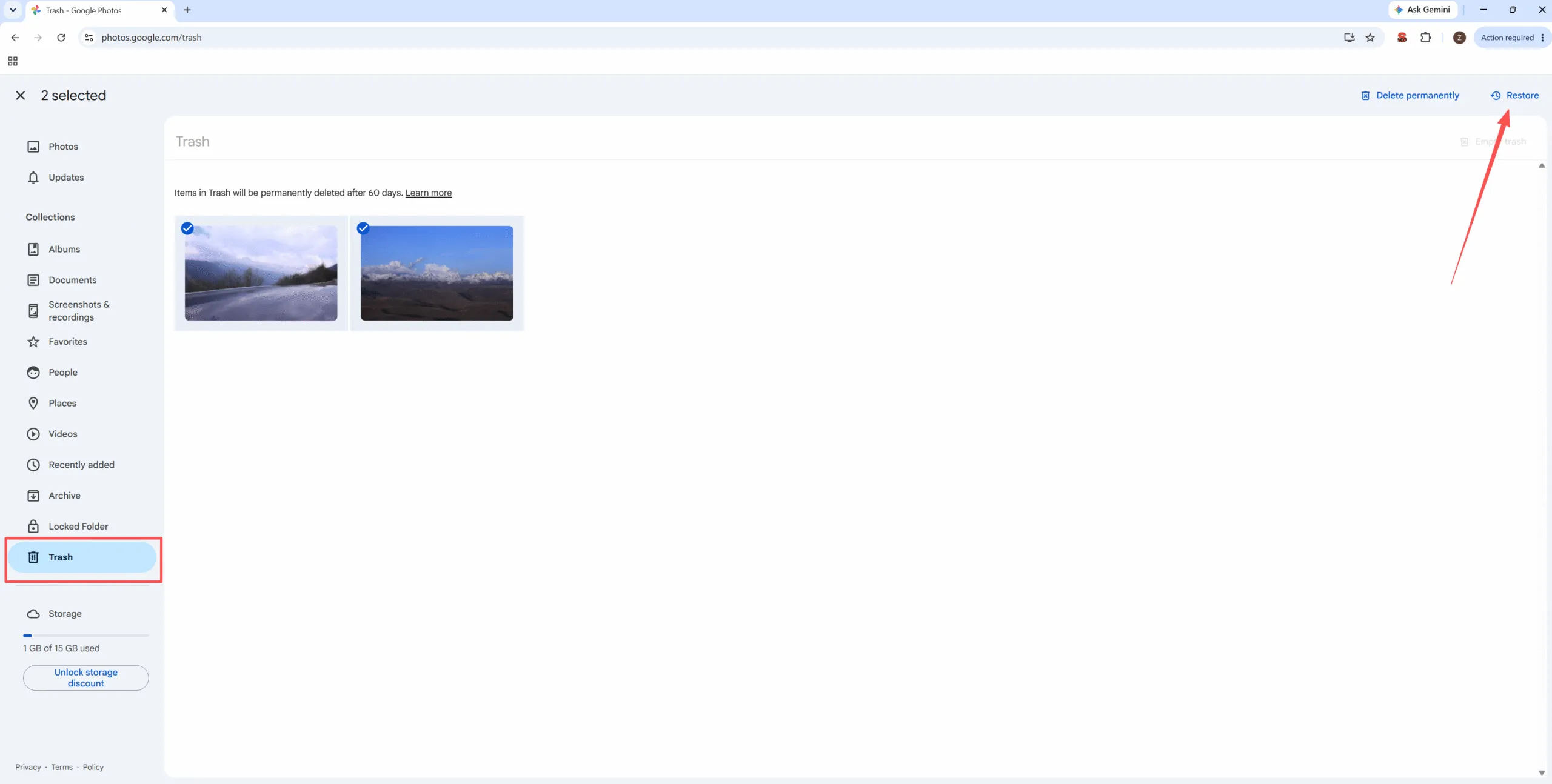
Open Google Photos on another device and sign in with the account used before formatting. Next, check the main library, Trash, Archive, and every Google account connected to the phone. Many users simply search the wrong account.
Google normally keeps backed-up photos in Trash for 60 days. On supported Android devices, it may keep unbacked photos for 30 days. However, Google Photos cannot restore an item after permanent deletion.
In addition, check Google Drive, OneDrive, Samsung Cloud, your computer, NAS, email attachments, and messaging apps. These copies may have lower resolution, but they can still preserve valuable memories without touching the formatted storage.
Method 2: Recover Formatted Photos from SD Card
A removable memory card usually offers a clearer recovery path than Android internal storage. After a quick format, the file system may stop showing the images even though some photo data remains.
For this reason, desktop software may recover formatted photos from SD card storage before new data replaces them. Remove the card from the phone and connect it directly to a Windows computer.
Why Use Magic Data Recovery for an Android SD Card?
Magic Data Recovery helps when Android and File Explorer no longer display photos, but recoverable data may remain on the card.
The software supports SD and microSD cards. It also recognizes JPG, PNG, HEIC, and many camera RAW formats. Moreover, users can scan the card, filter results, preview photos, and restore selected files.
For example, suppose you formatted a microSD card that Android used as portable storage. Magic Data Recovery can scan it through a card reader without installing another app on the affected phone. As a result, the process reduces unnecessary writes and lets you preview files before recovery.
However, no program can restore files that new data has fully overwritten. Likewise, software may not help with severe physical damage or a card encrypted as Android internal storage.
How to Recover Formatted Photos from SD Card with Magic Data Recovery
Follow these steps to recover formatted photos from SD card storage safely.
Step 1: Download and Install Magic Data Recovery
Download Magic Data Recovery and install it on your computer. Do not install the program on the formatted SD card because new data may overwrite recoverable photos.
Supports Windows 7/8/10/11 and Windows Server
Step 2: Select the Formatted SD Card
Insert the SD card into your computer through a card reader. Then, open Magic Data Recovery and locate the card on the main interface. Confirm its drive letter and capacity before scanning.

Step 3: Scan the SD Card for Lost Photos
After you select the card, Magic Data Recovery starts an Advanced Scan automatically. Meanwhile, recoverable photos and other files appear as the scan progresses. Let the scan finish for a more complete result.

Step 4: Preview Photos Before Recovery
Next, preview the images to confirm that they open correctly. You can also filter results by file type, size, date, or original folder. Therefore, you can focus on the photos you actually need.

Step 5: Recover Formatted Photos to Your Computer
Finally, select the target photos and click the recovery button. Save them to a folder on your computer. Do not restore them to the same SD card because that action may overwrite other recoverable files.

Afterward, open several restored photos and verify their quality before you format or reuse the card.
Android Internal Storage Recovery Limits
People often search for how to recover formatted photos from Android phone storage after a factory reset. Unfortunately, internal storage creates a harder problem than a portable SD card.
Modern Android phones often encrypt user files. Moreover, a factory reset may remove the encryption information required to read old storage blocks. Most desktop tools also cannot scan a phone like an ordinary disk because USB transfer does not provide raw storage access.
Rooting cannot recreate overwritten data, while bootloader unlocking may trigger another wipe. Therefore, start with cloud backups, computer copies, and synced apps. If the photos have exceptional value, contact a reputable mobile recovery service.
Internal Storage vs. SD Card Recovery
This comparison clarifies how to recover formatted photos from Android phone storage:
Factor | Android internal storage | Portable SD card |
Direct computer scan | Usually restricted | Usually possible through a reader |
Encryption | Common | Depends on card settings |
Recovery software | Limited and device-dependent | A strong use case |
Best first step | Check backups | Stop using and scan the card |
If Android configured the card as internal or adoptable storage, the phone may have encrypted it. Consequently, a card reader may detect it but fail to produce usable photos.
Common Mistakes When Recovering Formatted Photos
Avoid taking new photos, installing several recovery apps, formatting the card again, or saving restored files to the source card. Also avoid rooting or unlocking the phone without checking wipe risks.
Most importantly, ignore “100% guaranteed recovery” claims. Instead, protect the source first and test low-risk options.
How to Prevent Android Photo Loss
Once you recover formatted photos, turn on Google Photos backup and confirm that recent images appear online. In addition, keep another copy on a computer or NAS. Before a factory reset, verify the backup and replace any SD card that disconnects, reports errors, or becomes unusually slow.
Conclusion: How to Recover Formatted Photos from Android Phone
The best answer to how to recover formatted photos from Android phone storage depends on where Android kept the files. First, check Google Photos and other backups. Next, search computers, cloud drives, messaging apps, and old devices.
When the photos came from a portable SD or microSD card, Magic Data Recovery provides a practical SD card recovery solution. It scans the card, filters results, previews images, and restores selected photos to your computer. Therefore, it solves the core problem without requiring risky phone modifications.
Magic Data Recovery works best for readable removable cards that have not suffered heavy overwrite or physical damage. It also avoids unrealistic promises about encrypted internal storage. That clear scope makes it a trustworthy choice when you need to recover formatted photos from SD card storage.
For a focused recover formatted photos Android solution involving a removable memory card, try Magic Data Recovery and review the scan results before restoring your photos.
Supports Windows 7/8/10/11 and Windows Server
FAQ
Can I recover photos after formatting an Android phone?
You may recover them if Google Photos or another service created a backup. In addition, a portable SD card may still contain recoverable data after a quick format. However, recovery from factory-reset internal storage remains difficult because modern Android devices often use encryption and restrict raw storage access.
Can I recover formatted photos without a backup?
You may recover formatted photos from a portable SD card when new data has not overwritten the original files. First, stop using the card and scan it through a computer. By contrast, a factory-reset phone without a backup offers much lower recovery odds, especially when Android encrypted its internal storage.
How can I recover formatted photos from an SD card?
Remove the card from the Android phone and connect it to Windows with a card reader. Next, scan it with a reliable recovery tool, preview the results, and save selected photos to the computer. To protect remaining data, do not format the card again or restore files to it.
Can Magic Data Recovery scan an Android SD card?
Yes. Magic Data Recovery can scan an SD or microSD card when Android used it as portable storage and Windows detects it. The software can search for lost photos, filter results, and preview images before recovery. However, an encrypted card configured as internal storage may require a different approach.
Do I need to root my Android phone?
No. Rooting should not be your first recovery step. It may create new data, introduce security risks, or require bootloader unlocking. Moreover, some manufacturers erase the phone during unlocking. Start with backups and removable-card recovery instead because these options create less risk for your remaining data.
Can I recover photos after a factory reset?
Start by checking Google Photos, manufacturer cloud services, computer backups, and synced apps. Unfortunately, direct recovery from internal storage may fail after a factory reset because encryption and secure deletion can make old data unreadable. A professional service can assess valuable cases, but it still cannot guarantee success.
Where should I save recovered photos?
Save restored photos to a folder on your computer. Do not save them to the formatted SD card because new writes may overwrite other recoverable data. Afterward, open several files and verify their quality. Once you confirm the recovery, create another backup before you reuse the card.

Vasilii is a data recovery specialist with around 10 years of hands-on experience in the field. Throughout his career, he has successfully solved thousands of complex cases involving deleted files, formatted drives, lost partitions, and RAW file systems. His expertise covers both manual recovery methods using professional tools like hex editors and advanced automated solutions with recovery software. Vasilii's mission is to make reliable data recovery knowledge accessible to both IT professionals and everyday users, helping them safeguard their valuable digital assets.