
R Studio Data Recovery: Best Guide
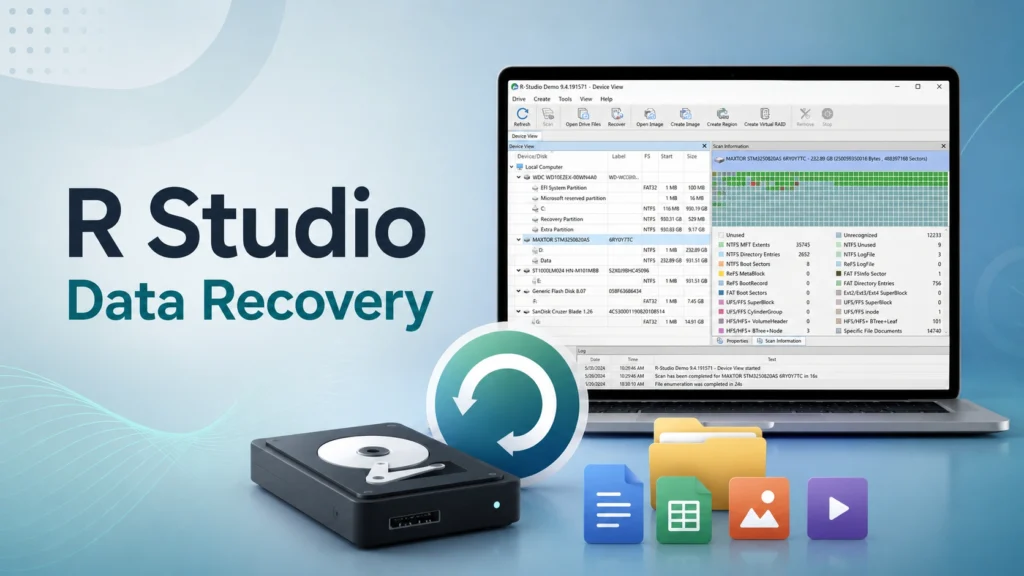
When people search for r studio data recovery, they usually need one thing fast: a safe way to get lost files back. Maybe you deleted a folder, formatted an external hard drive, reinstalled Windows, or opened a USB drive only to see a RAW file system error.
However, the search term can be confusing. “RStudio” is also the name of a popular programming environment, while “R-Studio” is professional data recovery software. So, this guide explains what r studio recovery usually means, when R-Studio makes sense, and why Magic Data Recovery may be a better fit for everyday users who want a simpler recovery process.
You will also learn how to avoid common mistakes, how recovery software works, and how to choose between rstudio data recovery and Magic Data Recovery without wasting time or risking more data loss.
Supports Windows 7/8/10/11 and Windows Server
Table of Contents
What Does R Studio Data Recovery Mean?
In most recovery-related searches, r studio data recovery refers to R-Studio by R-Tools Technology, not the RStudio coding IDE. R-Studio is a powerful disk recovery tool designed for damaged, formatted, repartitioned, or deleted disks. Its official product page highlights support for many file systems, damaged RAID recovery, network recovery, disk imaging, and professional recovery workflows.
That makes r studio recovery useful for technicians, IT administrators, and advanced users. For example, it can help with complex partition loss, unsupported file systems, RAID arrays, and disk images. In addition, independent reviews note that R-Studio includes file preview, SMART monitoring, and recovery from cases such as emptied Recycle Bin, virus damage, power loss, reformatting, repartitioning, and corruption.
Still, many home users do not need that level of complexity. They need a tool that helps them select a drive, scan it, preview files, and recover data to another location. This is where Magic Data Recovery becomes a practical alternative.
Common Situations Where Users Need R-Studio Recovery
People search for rstudio recovery after several common data loss events. The most frequent scenarios include:
- Accidentally deleting important files.
- Emptying the Recycle Bin.
- Formatting an HDD, SSD, USB drive, or SD card.
- Losing files after system reinstallation.
- Seeing a RAW drive or “You need to format the disk” message.
- Losing a partition after resizing or reinstalling Windows.
- File system damage caused by power failure or virus activity.
- External drive corruption after unsafe removal.
In these cases, the first rule is simple: stop using the affected drive. New files may overwrite the old data. Also, do not install recovery software on the same drive that lost data. Magic Data Recovery’s user guide gives the same practical advice: install the software on another disk, avoid writing new data to the affected drive, and recover files to a safe location instead of the original drive.
R-Studio Recovery Review: Strengths and Limits
R-Studio has a strong reputation because it gives advanced users deep control. It supports many file systems, including NTFS, FAT, exFAT, ReFS, HFS/HFS+, APFS, XFS, UFS, and Ext2/3/4. It also supports RAID reconstruction, raw file recovery, disk imaging, network recovery, and SMART monitoring.
These features make r studio data recovery powerful in demanding cases. For example, a technician may use it when a RAID array fails, a partition table breaks, or a disk image needs detailed analysis.
However, that power can feel overwhelming for ordinary users. R-Studio may ask users to choose scan regions, file systems, sector ranges, known file types, and recovery settings. If you understand partitions, file signatures, RAID parameters, and disk images, this flexibility helps. If you only want your photos or documents back, the process may feel technical.
That does not mean R-Studio is a bad tool. It means the tool fits a more advanced audience. For home users, a simpler solution often reduces mistakes.
Magic Data Recovery vs R-Studio: Which Is Better for You?
Both tools aim to recover lost data, but they serve different users. Here is a practical comparison.
Comparison Point | R-Studio Recovery | Magic Data Recovery |
Best for | IT users, technicians, RAID cases, advanced recovery | Home users, office users, students, small businesses |
Interface | Feature-rich but more technical | Clear workflow for non-technical users |
Recovery cases | Deleted, formatted, damaged, repartitioned, RAID, network recovery | Deleted files, formatted drives, file system errors, lost partitions, OS reinstall data loss, virus-related loss |
Learning curve | Higher | Lower |
Main advantage | Deep control and professional features | Simple steps, preview, filters, safer everyday workflow |
Ideal user | Someone comfortable with disk structures | Someone who wants files back without technical setup |
Magic Data Recovery supports recovery from hard drives, SSDs, USB flash drives, SD cards, memory cards, and other storage media. Its guide lists support for common file systems such as FAT/exFAT, NTFS, ReFS, and EXT2/3/4, along with common documents, photos, videos, audio files, archives, and PST files.
Therefore, if your case involves everyday file loss, Magic Data Recovery is often easier to use than r studio recovery.
Supports Windows 7/8/10/11 and Windows Server
Why Magic Data Recovery Is Easier for Ordinary Users
Magic Data Recovery focuses on solving real user problems without asking users to understand complex recovery terms. The workflow is straightforward:
- Select the affected drive.
- Start scanning.
- Preview found files.
- Choose what you need.
- Save recovered files to another location.
This process matters because many failed recoveries happen due to user error. For example, users may recover files back to the same drive, format a partition before scanning, or keep using the device after data loss. Magic Data Recovery reduces those risks by using a guided process.
It also fits many real-world situations, including:
- Recovering deleted work documents.
- Restoring photos from a formatted SD card.
- Recovering files from a corrupted USB flash drive.
- Finding files after Windows reinstallation.
- Recovering data from a missing or RAW partition.
- Restoring files after virus damage makes folders disappear.
Amagicsoft’s documentation also explains that lost partitions can result from formatting, file system errors, system reinstallation, partition table damage, or malware-related corruption, and it recommends recovering data first before repairing or rebuilding partitions.
That approach is safer for ordinary users because it avoids risky manual commands.
How to Use Magic Data Recovery for Lost Files
Follow these steps if you need a simple alternative to rstudio data recovery.
Step 1: Stop Using the Affected Drive
Do not copy new files to the drive. Do not install software on it. If the lost files were on an external device, disconnect it until you are ready to scan.
Step 2: Install Magic Data Recovery on a Safe Drive
Install the software on a different drive or another working computer. This helps avoid overwriting recoverable data.
Supports Windows 7/8/10/11 and Windows Server
Step 3: Select the Target Device
Open Magic Data Recovery and choose the drive, USB device, SD card, or partition where the files were lost.

Step 4: Scan and Preview Files
Run the scan and let the software list recoverable files. Then use preview, file type filters, size filters, date filters, or search terms to locate important files faster. Magic Data Recovery’s user guide specifically recommends previewing recoverable files and using filters or filename fragments to narrow results.

Step 5: Recover Files to Another Location
Save recovered files to a different drive, not the original one. For example, recover files from a USB drive to your computer’s internal disk, or recover files from your system drive to an external hard drive.

Best Practices Before Any Data Recovery
Whether you use r studio data recovery, rstudio recovery, or Magic Data Recovery, the same best practices apply.
First, stop writing data to the affected storage device. Second, recover files to another drive. Third, avoid CHKDSK, DiskPart, or formatting commands before recovery if files matter. These tools may change disk structures and make recovery harder.
Also, check for physical damage. If a hard drive clicks, spins abnormally, overheats, or fails to appear in BIOS or Disk Management, software may not be enough. In that case, stop powering the device and contact a professional recovery lab.
Finally, do not trust tools that promise guaranteed recovery. No software can recover overwritten files. A reliable tool should let you scan, preview, and decide before saving recovered files.
When R-Studio May Still Be the Better Choice
Magic Data Recovery is the better recommendation for most ordinary users. However, R-Studio may still be suitable in advanced cases.
Choose R-Studio if you need:
- RAID reconstruction.
- Network-based recovery.
- Advanced disk imaging.
- Low-level file system analysis.
- Hex viewer or sector-level inspection.
- Cross-platform recovery for advanced Mac, Linux, or Unix file systems.
R-Studio’s official documentation clearly positions the software as a full-featured solution for complex disk recovery and professional workflows.
However, if you only need to recover deleted, formatted, corrupted, or lost files from a Windows PC, external drive, USB drive, SD card, or SSD, Magic Data Recovery offers a clearer path.
Final Verdict: Magic Data Recovery Is the Better Everyday Solution
R studio data recovery is a strong search topic because R-Studio is a powerful recovery tool. It can handle difficult cases and gives experts detailed control. Yet that same complexity can slow down users who simply want their documents, photos, videos, or project files back.
Magic Data Recovery is recommended because it focuses on practical recovery problems: accidental deletion, formatting, file system errors, OS reinstallation data loss, virus-related damage, RAW partitions, and missing files. It gives users a simple workflow, useful preview options, and safer recovery habits without requiring professional knowledge.
If you are looking for a more efficient and user-friendly solution, try Magic Data Recovery before moving to a complex technical workflow.
Supports Windows 7/8/10/11 and Windows Server
FAQs
Is R Studio Data Recovery the same as RStudio IDE?
No. R studio data recovery usually refers to R-Studio, a disk recovery tool, while RStudio IDE is a programming environment for R developers. The names look similar, which causes confusion. If you lost files, you need recovery software such as R-Studio or Magic Data Recovery, not the coding IDE.
Is R-Studio recovery good for beginners?
R studio recovery is powerful, but it may feel complex for beginners. It includes advanced options for file systems, partitions, disk images, RAID arrays, and scan settings. If you understand storage structures, it works well. If you want a simpler process, Magic Data Recovery is usually easier to follow.
Can Magic Data Recovery recover formatted drives?
Yes. Magic Data Recovery can help recover files from formatted HDDs, SSDs, USB drives, memory cards, and external storage devices. For the best result, stop using the formatted drive immediately. Then scan it and save recovered files to another location instead of the original drive.
Can I recover files after reinstalling Windows?
In many cases, yes. Recovery depends on whether new system files overwrote your old data. If you reinstalled Windows on the same partition, act quickly and avoid installing more programs. Magic Data Recovery can scan the affected drive and help locate recoverable documents, photos, videos, and other files.
Is Magic Data Recovery better than RStudio data recovery?
It depends on your needs. Rstudio data recovery tools like R-Studio offer advanced control for technical cases. Magic Data Recovery is better for ordinary users who want a simpler workflow. It helps with common data loss scenarios without requiring RAID knowledge, sector settings, or complex file system decisions.
Can recovery software fix virus-damaged files?
Recovery software can help if a virus hides, deletes, corrupts, or damages file system records. However, it cannot always repair encrypted ransomware files or overwritten data. Before recovery, remove the malware or scan the computer with trusted security software. Then recover files to a clean, separate storage device.
Should I recover files to the same drive?
No. You should never save recovered files back to the same drive you are scanning. Doing so may overwrite other recoverable data. Always choose a different disk, external drive, or safe partition. This rule applies to Magic Data Recovery, rstudio recovery, and almost every recovery tool.
What should I do if the drive makes clicking noises?
Stop using the drive immediately. Clicking noises, repeated spin-up sounds, overheating, or BIOS detection failure may indicate physical damage. Software recovery can make the situation worse if the drive is failing mechanically. In that case, contact a professional data recovery service before running any scan.

Jason has over 15 years of hands-on experience in the computer data security industry. He specializes in data recovery, backup and restoration, and file repair technologies, and has helped millions of users worldwide resolve complex data loss and security issues.