
Device Manager: How to Open, Use, and Fix Hardware Issues in Windows
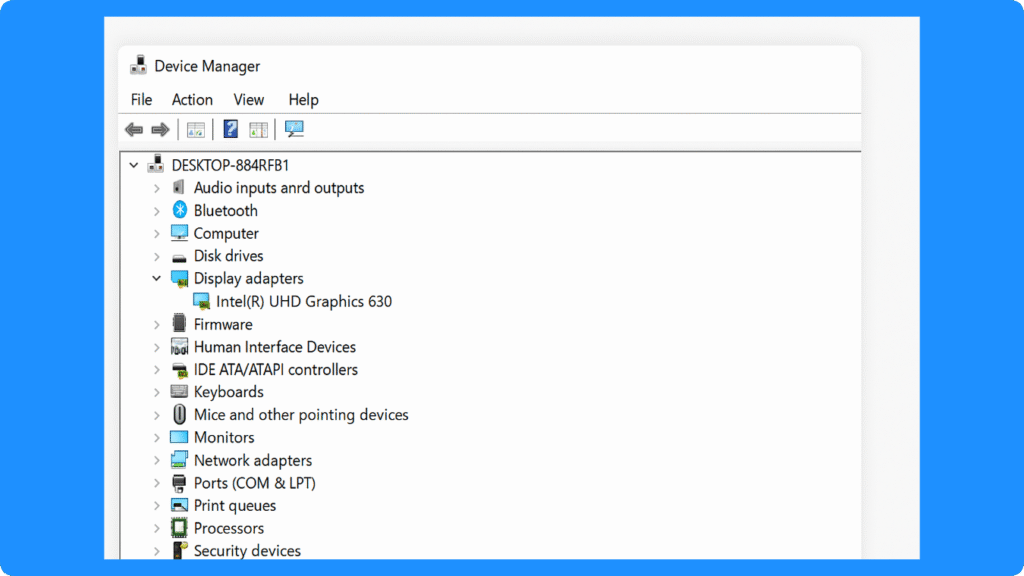
What is Device Manager? Device Manager is a built-in Windows tool that lets you view hardware devices, check device status, update drivers, roll back drivers, uninstall devices, enable or disable hardware, and troubleshoot driver or hardware problems. It is commonly used when a device is not working, a driver is missing, or Windows shows a yellow exclamation mark next to a device.
In Windows 11 and Windows 10, Device Manager helps you manage graphics cards, network adapters, audio devices, USB controllers, disk drives, keyboards, mice, Bluetooth devices, printers, and other hardware connected to your PC. If your computer cannot recognize a device, loses access to a drive, has no sound, cannot connect to Wi-Fi, or shows driver errors, Device Manager is often one of the first places to check.
This guide explains what Device Manager does, how to open Device Manager in different ways, how to update, roll back, uninstall, enable, or disable drivers, what common Device Manager icons mean, and how to fix common hardware and driver problems safely.
Quick Answer: Device Manager is a Windows system utility for managing hardware and drivers. To open it, right-click Start and choose Device Manager, or press Win + R, type devmgmt.msc, and press Enter.
Table of Contents
Core Functions of Device Manager
1. Device Monitoring
Firstly, This tool displays all recognized hardware components in categorized lists, including processors, storage controllers, graphics adapters, network adapters, USB devices, and peripherals. Additionally, status indicators, such as warning symbols or error codes, provide immediate feedback about device health. This centralization simplifies device management and helps maintain overall system stability.
2. Driver Management
Users can view current driver details, update outdated drivers, roll back drivers, or uninstall them. Correct driver management ensures compatibility with the latest Windows updates and enhances device performance.
3. Conflict Resolution
It also identifies resource conflicts, such as IRQ, I/O, or DMA issues. If automatic allocation fails, IT professionals can manually adjust device resources via Device Manager control panel.
4. Hardware Configuration
Advanced users can modify device settings, enable or disable devices, and configure power management features, such as allowing a device to wake the system from sleep.
What Is Device Manager in Windows?
Device Manager is a Windows management console that lists the hardware devices installed on or connected to your computer. It organizes devices into categories such as Display adapters, Disk drives, Network adapters, Sound, video and game controllers, Bluetooth, Keyboards, Mice, Universal Serial Bus controllers, and more.
You can use Device Manager to check whether Windows recognizes a device correctly. If a device has a problem, Device Manager may show a warning icon, an error code, or a device status message. These signals can help you identify whether the issue is caused by a missing driver, outdated driver, disabled device, hardware conflict, or device connection problem.
Device Manager is especially useful when:
A device is not working after a Windows update.
A driver is missing or corrupted.
A USB device, external drive, audio device, or network adapter is not recognized.
A yellow exclamation mark appears next to a device.
You need to update, roll back, uninstall, enable, or disable a driver.
You want to check the exact hardware name before downloading a driver from the manufacturer.
How to Open Device Manager in Windows 11 and Windows 10
There are several ways to open Device Manager. The fastest method is usually the Win + X menu or the Run command.
Method 1: Open Device Manager from the Start Menu
- Click Start.
- Type Device Manager.
- Select Device Manager from the search results.
This method is simple and works well for most Windows users.
Method 2: Open Device Manager with Win + X
- Right-click the Start button.
- Select Device Manager from the menu.
You can also press Win + X on your keyboard and then choose Device Manager.
Method 3: Open Device Manager with the Run Command
- Press Win + R.
- Type devmgmt.msc.
- Press Enter.
This is one of the fastest ways to open Device Manager, especially for advanced users.
Method 4: Open Device Manager from Control Panel
- Open Control Panel.
- Go to Hardware and Sound.
- Select Device Manager under Devices and Printers.
This method is useful if you are already using Control Panel for other hardware settings.
Method 5: Open Device Manager from Computer Management
- Right-click Start.
- Select Computer Management.
- Click Device Manager in the left panel.
This method is useful for IT users who also need Disk Management, Event Viewer, or Services.
What Can You Do in Device Manager?
Device Manager is mainly used to manage hardware devices and drivers. It does not replace Windows Update or manufacturer driver tools, but it gives you direct control over individual devices.
Update Drivers
You can update a driver when a device is not working correctly, a new device is not recognized, or a manufacturer provides a newer driver.
Steps:
- Open Device Manager.
- Expand the device category.
- Right-click the target device.
- Select Update driver.
- Choose Search automatically for drivers or Browse my computer for drivers.
- Follow the on-screen instructions.
- Restart your PC if required.
Use Search automatically for drivers if you want Windows to look for a suitable driver. Use Browse my computer for drivers if you already downloaded a driver from the manufacturer.
Roll Back Drivers
If a device stops working after a driver update, you can roll back to the previous driver.
Steps:
- Open Device Manager.
- Right-click the device.
- Select Properties.
- Open the Driver tab.
- Click Roll Back Driver.
- Choose a reason and confirm.
- Restart your computer.
If the Roll Back Driver button is grayed out, Windows does not have a previous driver available for that device.
Uninstall Devices
Uninstalling a device can help when the driver is corrupted or the device is not working correctly.
Steps:
- Open Device Manager.
- Right-click the problem device.
- Select Uninstall device.
- Confirm the action.
- Restart your computer.
After restart, Windows may reinstall the device automatically. For some hardware, you may need to install the correct driver from the manufacturer.
Enable or Disable Devices
You can disable a device temporarily without removing the driver.
Steps:
- Open Device Manager.
- Right-click the device.
- Select Disable device.
- Confirm the action.
To turn it back on, right-click the device again and choose Enable device.
This is useful when troubleshooting network adapters, Bluetooth devices, cameras, audio devices, or touchpads. Do not disable critical system devices unless you know what they do.
View Device Properties and Error Codes
Device Manager can show detailed information about a device.
Steps:
- Right-click the device.
- Select Properties.
- Check the General tab.
- Read the Device status message.
- Check the Driver tab for driver provider, date, version, and rollback options.
If Windows shows an error code, use it to identify the exact problem before changing drivers or hardware settings.
Device Manager Icons and What They Mean
Device Manager uses icons to show device status. Understanding these icons can help you diagnose problems faster.
| Icon or Status | Meaning | What to Do |
|---|---|---|
| Yellow exclamation mark | Windows detects a problem with the device, often related to a missing, outdated, corrupted, or incompatible driver | Open Properties, check Device status, then update, reinstall, or roll back the driver |
| Down arrow | The device is disabled | Right-click the device and select Enable device |
| Unknown device | Windows detects hardware but cannot identify it correctly | Check Hardware IDs, install the correct manufacturer driver, or run Windows Update |
| No warning icon | The device is recognized and working normally | No action is usually needed |
| Device not showing | The device may be disconnected, hidden, disabled in BIOS/UEFI, or not detected by Windows | Check connections, enable hidden devices, restart Windows, or check BIOS/UEFI settings |
A yellow exclamation mark does not always mean the hardware is physically broken. In many cases, it means Windows needs the correct driver or the existing driver is not working properly.
How to Fix a Yellow Exclamation Mark in Device Manager
A yellow exclamation mark is one of the most common Device Manager problems. It usually means Windows has detected a problem with the device or its driver.
Try these fixes in order:
- Open Device Manager.
- Right-click the device with the yellow exclamation mark.
- Select Properties.
- Read the Device status message.
- Write down any error code.
- Click Update driver.
- If updating does not work, try Roll Back Driver.
- If rollback is unavailable, select Uninstall device and restart the PC.
- Download the correct driver from the device or PC manufacturer.
- Restart Windows and check Device Manager again.
If the device is an external drive, USB device, printer, Bluetooth adapter, or network adapter, also check the cable, port, power supply, and physical connection.
How to Find a Missing or Unknown Device
Sometimes Windows shows Unknown device or does not show the device at all. This can happen after reinstalling Windows, connecting new hardware, updating the system, or using an older device.
Try these steps:
- Open Device Manager.
- Click View.
- Select Show hidden devices.
- Check Other devices, Universal Serial Bus controllers, Disk drives, Network adapters, and System devices.
- Right-click the unknown device.
- Select Properties.
- Open the Details tab.
- Choose Hardware Ids from the Property menu.
- Copy the hardware ID and use it to find the correct driver from the official manufacturer website.
Avoid downloading drivers from unknown websites. The safest sources are Windows Update, the PC manufacturer, the motherboard manufacturer, or the hardware manufacturer.
When Should You Update Drivers in Device Manager?
You do not need to update every driver manually just because a newer version exists. Updating drivers is most useful when there is a specific problem or compatibility need.
You should consider updating a driver when:
A device is not working correctly.
Windows shows a yellow exclamation mark.
A device is missing after a Windows update.
You installed new hardware.
A manufacturer recommends a driver update for your model.
A graphics, audio, network, or storage device has a known issue.
You should be careful with driver updates when:
The device is working normally.
A third-party tool claims many drivers are outdated but Windows shows no issue.
The driver comes from an unknown website.
The driver is not designed for your exact device model.
For critical components such as chipset, storage controller, graphics card, and network adapter, downloading drivers from the official manufacturer website is usually safer than using random driver updater tools.
Device Manager vs Windows Update: Which Should You Use?
Device Manager and Windows Update can both help with drivers, but they are not the same.
| Tool | Best For | Notes |
| Device Manager | Updating, rolling back, uninstalling, enabling, disabling, and checking individual devices | Best for troubleshooting a specific hardware problem |
| Windows Update | Installing recommended and optional driver updates from Microsoft and device partners | Best for general system driver maintenance |
| Manufacturer website | Getting the latest driver for a specific PC, motherboard, graphics card, printer, or accessory | Best when Windows does not find the correct driver |
A good troubleshooting workflow is:
- Check the device status in Device Manager.
- Try Windows Update or Device Manager update.
- If the problem continues, download the driver from the official manufacturer website.
- If the new driver causes problems, use Roll Back Driver or uninstall the device.
What to Do If a Drive Becomes Unreadable After a Driver or Hardware Issue
Device Manager can help identify whether a disk drive, USB drive, external hard drive, SD card reader, or storage controller is detected by Windows. However, it cannot recover lost files by itself.
If a drive becomes unreadable, disappears from File Explorer, shows a driver problem, or asks to be formatted, avoid writing new data to the drive. Do not repeatedly format, initialize, or repair the drive before checking whether important files are recoverable.
In this situation, Magic Data Recovery can help scan the affected drive and recover lost files from deletion, formatting, file system errors, partition problems, or inaccessible storage devices when the original data has not been overwritten.
Use Device Manager to check whether Windows can detect the device. Use Magic Data Recovery when the main problem becomes data loss or inaccessible files.
Conclusion
Device Manager is a built-in Windows tool for viewing, managing, and troubleshooting hardware devices and drivers. You can use it to open device properties, update drivers, roll back drivers, uninstall devices, enable or disable hardware, check error codes, and fix common driver problems.
To open Device Manager quickly, right-click Start and choose Device Manager, or press Win + R, type devmgmt.msc, and press Enter. If you see a yellow exclamation mark, an unknown device, or a disabled device, open the device properties first and check the Device status message before changing drivers.
For driver problems, Device Manager is useful for targeted troubleshooting. For general driver updates, Windows Update and official manufacturer websites are usually safer sources. If a storage device becomes unreadable or files are lost after hardware or driver issues, Magic Data Recovery can help scan the device and recover lost data when it has not been overwritten.
Supports Windows 7/8/10/11 and Windows Server
FAQ:
What is Device Manager?
How do I open Device Manager in Windows 11?
How do I open Device Manager in Windows 10?
What does a yellow exclamation mark mean in Device Manager?
How do I update drivers in Device Manager?
Should I uninstall a device in Device Manager?
What is Roll Back Driver in Device Manager?
How do I fix an unknown device in Device Manager?
Is Device Manager the same as Windows Update?
Can Device Manager recover lost files?

Erin Smith is recognized as one of the most professional writers at Amagicsoft. She has continually honed her writing skills over the past 10 years and helped millions of readers solve their tech problems.