
Virtual Disk Service Error: Causes & Solutions
Seeing a virtual disk service error message can be unsettling, especially when it appears during critical tasks such as formatting a drive, extending a volume, or initializing a new disk using tools such as Disk Management, DiskPart, or third-party disk utilities. Many users immediately worry about permanent data loss. Don’t panic. In most cases, this error indicates a management-level limitation or configuration conflict within Windows—not a destroyed disk or erased files.
The key is understanding why the error occurred and how to respond without making the situation worse. This guide explains what this error means, why common messages like virtual disk service error the volume size is too big appear, and how to resolve these issues step by step while keeping your data safe.
Table of Contents
What Is a Virtual Disk Service Error?
After understanding the broader context, it helps to define the term more precisely. This error is a Windows system-level response generated when the Virtual Disk Service (VDS) cannot safely complete a disk operation requested by the user or an application.
Rather than indicating immediate data destruction, this error signals that a requested action—such as creating, formatting, extending, or converting a volume—violates technical constraints enforced by Windows. These constraints may relate to disk layout rules, file system limits, service availability, or missing disk objects.
In practical terms, the error acts as a safeguard. It prevents Windows from performing operations that could result in inconsistent disk structures or irreversible data loss. This is why stopping and diagnosing the issue before retrying any disk modification is critical.
Common error messages include:
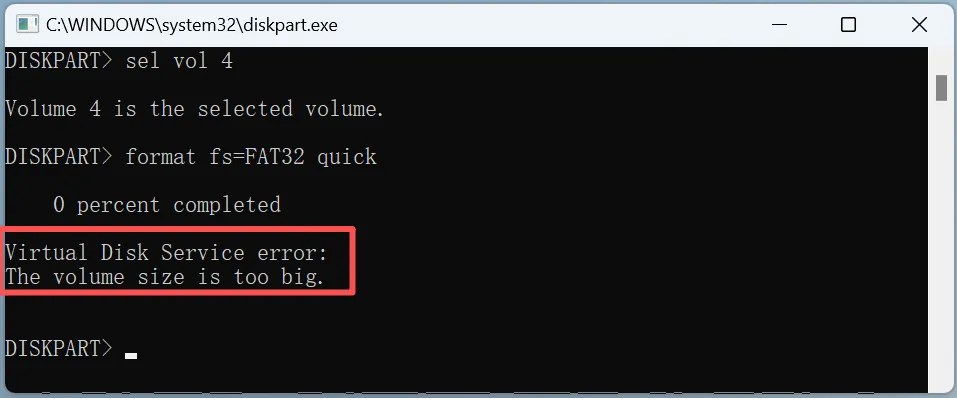
- Virtual Disk Service error: The volume size is too big
- Virtual Disk Service error: The object is not found
- Virtual Disk Service error: There is not enough usable space
Each message reflects a specific category of limitation or misconfiguration, which determines the correct and safest resolution path.
Why Do I Have a Virtual Disk?
Virtual disks are not always “virtual machines.” Windows uses virtual disk concepts for:
- Storage Spaces
- VHD and VHDX files
- RAID and software-defined storage
Even standard physical disks are managed through the Virtual Disk Service abstraction layer.
What Is the Virtual Disk Service?
The Virtual Disk Service is a Windows background service that enables disk management at the system level. According to Microsoft documentation, VDS acts as an abstraction layer between disk hardware, volume managers, and user-facing tools such as Disk Management and DiskPart.
In practical terms, VDS is responsible for:
- Detecting physical and virtual disks
- Managing partitions and volumes
- Coordinating operations like formatting, resizing, and mounting
- Enforcing file system and disk layout rules (MBR, GPT, NTFS, FAT32)
When VDS encounters a condition that violates these rules, it stops the operation and returns a virtual disk service error instead of proceeding unsafely.
Virtual Disk Service Error: The Volume Size Is Too Big
The virtual disk service error the volume size is too big typically occurs when attempting to create or format a partition that exceeds the limitations of the selected file system or partition style.
Common Causes
1. FAT32 File System Limitations
FAT32 cannot support volumes larger than 32 GB when formatted using Windows built-in tools, even though the theoretical limit is higher.
2. MBR Partition Size Limit
Disks using the Master Boot Record (MBR) partition style are limited to 2 TB per disk. Any attempt to create or extend a volume beyond this limit will fail.
3. Incorrect Disk Conversion
Trying to create a large volume without converting the disk to GPT can trigger this error.
How to Fix the Volume Size Is Too Big Error
Follow these steps carefully:
Step 1: Check Disk Partition Style
- Press
Win + X→ Disk Management - Right-click the disk → Properties → Volumes
- Confirm whether the disk is MBR or GPT
Step 2: Convert MBR to GPT (If Needed)
If the disk is larger than 2 TB, it must be GPT. Use Disk Management or DiskPart after backing up data.
Step 3: Choose an Appropriate File System
- Use NTFS or exFAT for large volumes
- Avoid FAT32 for modern storage unless compatibility is required
If the operation fails and the partition becomes RAW or unallocated, stop immediately to avoid overwriting data.
Virtual Disk Service Error: The Object Is Not Found
The error Virtual Disk Service error: The object is not found indicates that Windows cannot locate a required disk object, such as a volume, partition, or logical disk.
Why This Happens
- Corrupted partition table
- Offline or uninitialized disk
- Missing volume GUID
- Disk metadata damage caused by sudden power loss or improper removal
How to Fix the Object Is Not Found Error
Step 1: Refresh Disk Management
Close and reopen Disk Management to force a rescan.
Step 2: Bring the Disk Online
Right-click the disk → Select Online.
Step 3: Use DiskPart Carefully
Open Command Prompt as Administrator:
diskpart
list disk
select disk X
list volume
If the volume is missing, do not create a new one yet.
At this stage, data recovery should be prioritized before structural changes.
Can Disk Errors Be Fixed Without Data Loss?
Yes. These kind of errors are logical errors, not physical failures. This means the disk structure is damaged, but the underlying data blocks remain recoverable.
Before formatting, deleting, or recreating volumes, it is strongly recommended to scan the disk using a read-only professional recovery tool.
Magic Data Recovery is designed to analyze disks affected by VDS errors safely. It works without modifying the original disk structure, allowing you to recover files before making irreversible changes.
When to Use Data Recovery Software
If a virtual disk service error results in:
Stop all write operations immediately. Running repair commands too early can permanently overwrite recoverable data.
Magic Data Recovery provides a controlled, step-by-step recovery process that allows you to restore files first, then safely repair or reinitialize the disk.
Conclusion
A virtual disk service error indicates a management-level conflict, not instant data loss. By understanding errors such as virtual disk service error the volume size is too big and the object is not found, you can take calm, methodical steps to resolve the issue safely.
When data matters, recover first, repair second. Magic Data Recovery can help you recover files safely before making disk changes.
Supports Windows 7/8/10/11 and Windows Server
FAQ
How do I fix virtual disk service error?
What is a virtual disk service?
How to fix virtual disk service error the object is not found?
Can disk error be fixed?
Can I disable virtual disk service?
How do I disable virtual service?
How do I enable virtual disk service?
Why do I have a virtual disk?

Vasilii is a data recovery specialist with around 10 years of hands-on experience in the field. Throughout his career, he has successfully solved thousands of complex cases involving deleted files, formatted drives, lost partitions, and RAW file systems. His expertise covers both manual recovery methods using professional tools like hex editors and advanced automated solutions with recovery software. Vasilii's mission is to make reliable data recovery knowledge accessible to both IT professionals and everyday users, helping them safeguard their valuable digital assets.