
Unallocated Disk Partition Recovery: A Safe Guide

Seeing a hard drive or partition marked as Unallocated in Disk Management can be alarming. Many users immediately worry that all data has been deleted permanently. In reality, unallocated disk partition recovery is often possible if the right steps are taken early and carefully.
An unallocated partition usually means the system has lost track of the partition structure—not necessarily the files themselves. However, incorrect actions such as initializing or formatting the disk may overwrite critical metadata, making partition recovery much harder.
This guide explains what unallocated partitions are, why they occur, and—most importantly—how unallocated hard disk partition recovery can be done safely. You will also learn why using a professional recovery tool like Magic Data Recovery is often the most reliable option.
Supports Windows 7/8/10/11 and Windows Server
Wondering if your files can be recovered? Find out in seconds with our quick check below.
Data Recovery Assessment
Answer 3 quick questions to estimate your recovery chances
Table of Contents
What Is an Unallocated Disk Partition?
An unallocated disk partition refers to a section of a hard drive that is not assigned to any active partition. Because it lacks a valid file system reference, the operating system cannot access or display the data stored there.
In Windows Disk Management, unallocated space typically appears as:
- Black bars instead of blue
- No drive letter
- No recognized file system (NTFS, FAT32, exFAT)
Importantly, unallocated does not always mean empty. In many real-world cases, the data still exists on the disk but is temporarily inaccessible.
Why Does a Hard Disk Partition Become Unallocated?
Understanding the cause is essential before attempting unallocated disk partition recovery, as different scenarios carry different risks.
Common Causes Include:
- Accidental partition deletion
- Corrupted partition table (MBR or GPT damage)
- Improper system shutdowns or power failures
- Disk errors or bad sectors
- Virus or malware attacks
- Failed OS installation or disk cloning
In practical recovery cases, accidental deletion and partition table corruption are the most frequent reasons users encounter unallocated hard drives.
Is Unallocated Disk Partition Recovery Possible?
Yes, unallocated hard disk partition recovery is possible in many cases. The success rate depends on several factors:
- Whether the disk has been written to after becoming unallocated
- The extent of partition table damage
- Whether the disk was initialized or formatted
- The recovery method used
From a data safety perspective, scanning the disk with a read-only recovery tool is far safer than attempting to rebuild the partition structure immediately.
Partition Recovery vs. Data Recovery: Which Comes First?
This distinction is often overlooked, yet it is critical for safe unallocated disk partition recovery.
Partition Recovery
- Attempts to restore the original partition structure
- Faster if successful
- Riskier if metadata is severely damaged
Data Recovery
- Scans the disk sector by sector
- Recovers files regardless of partition status
- Safer when the cause is unclear
Best practice:
When data is important, recovering files first is the safest approach. Once files are secured, you can attempt structural repairs without fear of data loss.
How to Recover Data from an Unallocated Disk Partition Safely
For users who want to minimize risk, data recovery should be the first step.
Why Magic Data Recovery Is Recommended
Magic Data Recovery can handle scenarios like unallocated disk partition recovery, where the operating system cannot recognize the partition but data still exists.
Key Advantages:
- Supports recovery from unallocated space
- Works with NTFS, FAT32, and exFAT
- Read-only scanning prevents further damage
- Recovers documents, photos, videos, and system files
- User-friendly interface for non-technical users
Typical Recovery Scenario
A user accidentally deletes a partition while resizing disks. The drive shows as unallocated, but files are still intact. Magic Data Recovery scans the disk, detects lost file structures, and allows selective recovery before any repair attempts.
If you are looking for a reliable solution, Magic Data Recovery offers a practical and safer alternative to manual repair tools.
How to Use Magic Data Recovery for Unallocated Disk Partition Recovery
When dealing with unallocated disk partition recovery, the safest approach is to extract your files first—before attempting any structural fixes. Magic Data Recovery is designed for this exact scenario, allowing you to recover data from unallocated space without modifying the disk.
Step 1: Download and Install Magic Data Recovery
Start by downloading Magic Data Recovery and installing it on a different drive from the unallocated disk. Installing recovery software on the affected drive may overwrite existing data, which significantly reduces recovery success.
Supports Windows 7/8/10/11 and Windows Server
Step 2: Select the Unallocated Hard Drive
After launching the software, you will see a list of detected storage devices. Select the hard drive that appears as unallocated and begin the scan. Even if the partition has no drive letter, Magic Data Recovery can still access the underlying data.
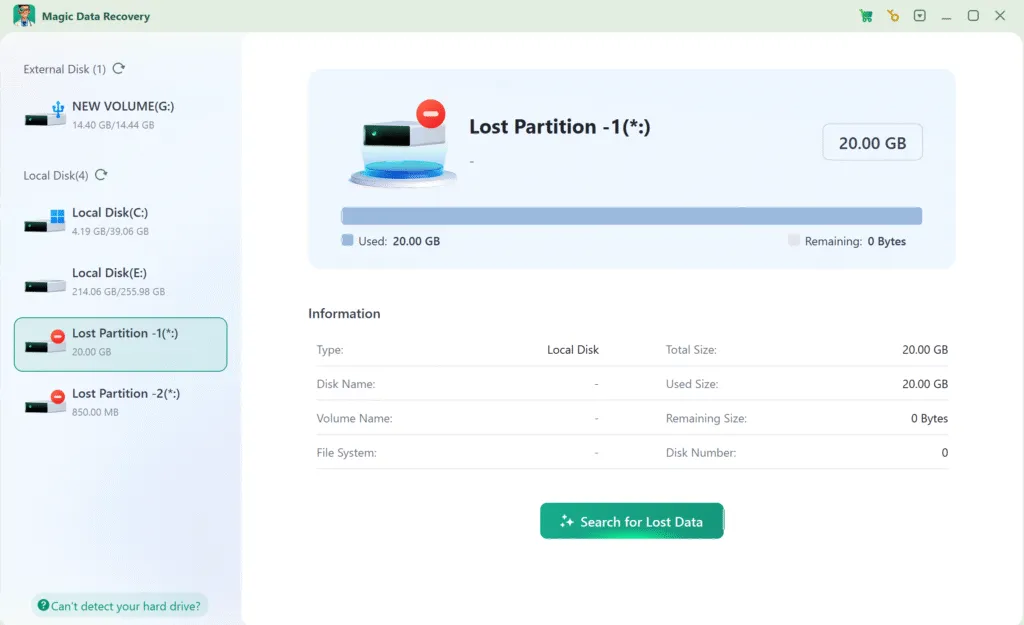
Step 3: Scan the Disk for Recoverable Data
The software automatically runs an advanced scan optimized for unallocated hard disk partition recovery. As the scan progresses, recoverable files are displayed in real time, allowing you to assess results without waiting for the entire process to finish.

Step 4: Preview Files Before Recovery
Before restoring any files, use the built-in preview feature to verify file integrity. This step is especially useful when recovering from unallocated space, as it helps confirm that files are intact and worth restoring.

Step 5: Recover Files to a Secure Location
Select the files you want to recover and save them to a separate drive or external storage device. Writing recovered data back to the same unallocated hard drive can overwrite remaining data and should always be avoided.

Common Mistakes to Avoid During Unallocated Disk Partition Recovery
Many data loss cases worsen due to incorrect actions. Avoid the following:
- Initializing the disk immediately
- Creating a new volume before recovery
- Formatting the unallocated space
- Installing recovery software on the affected disk
These actions can permanently overwrite recoverable data.
Conclusion
Unallocated disk partition recovery requires careful decision-making. While some tools can repair partitions, they also carry a high risk of data loss if used incorrectly. Magic Data Recovery focuses on what matters most—retrieving your data safely from the lost partition before any structural changes are made. Its read-only scanning, broad file support, and ease of use make it a reliable choice for both accidental deletion and corrupted partition scenarios.
If your hard drive has become unallocated and your files matter, starting with Magic Data Recovery is a practical and responsible lost partition data recovery solution.
Supports Windows 7/8/10/11 and Windows Server
FAQ: Unallocated Disk Partition Recovery
How to recover an unallocated partition?
Does unallocated mean deleted?
How to fix an unallocated hard drive using cmd?
How to move an unallocated partition to a C drive?
How to make an unallocated drive usable?
How to recover an accidentally deleted partition?
How to make an unallocated partition active?
How to get rid of an unallocated partition?

Vasilii is a data recovery specialist with around 10 years of hands-on experience in the field. Throughout his career, he has successfully solved thousands of complex cases involving deleted files, formatted drives, lost partitions, and RAW file systems. His expertise covers both manual recovery methods using professional tools like hex editors and advanced automated solutions with recovery software. Vasilii's mission is to make reliable data recovery knowledge accessible to both IT professionals and everyday users, helping them safeguard their valuable digital assets.