
How to Fix “File Is Too Large for the Destination File System” (6 Ways)
Have you ever tried to copy a high-definition movie, a virtual machine disk, or a large database to a USB drive, only to be stopped by a frustrating message? Even when you have hundreds of gigabytes of free space, Windows may insist that the “file is too large for the destination file system.”
This error occurs because of an outdated file system limitation. In this guide, we will show you 6 proven ways to bypass the 4GB limit and transfer your large files successfully.
Table of Contents
Why Is the File Too Large for the Destination?
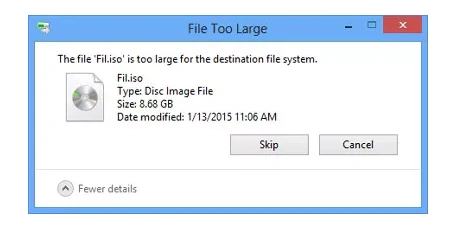
While FAT32 is highly compatible with many devices, it has a hard technical limit: it cannot handle any individual file larger than 4GB. Even if your drive has 1TB of empty space, a single 4.01GB file will trigger the error. To fix this, you must switch to a modern file system or use alternative transfer methods.
File System | Max Single File Size | Best Use Case |
FAT32 | 4 GB | Older devices, Car stereos, BIOS updates |
NTFS | 16 TB – 256 TB | Windows Internal Drives, Gaming PCs |
exFAT | 128 PB | Large USBs, Mac & Windows cross-platform |
6 Ways to Fix “File Is Too Large for Destination File System”
Method 1: Convert FAT32 to NTFS without Data Loss (CMD)
If you have existing files on your drive and do not want to delete them, you can use the Windows Command Prompt to convert the file system.
- Connect your USB or external drive to your PC.
- Press Windows + S, type
cmd, and Run as Administrator. - Type:
convert X: /fs:ntfs(Replace X with your actual drive letter). - Press Enter. This process safely upgrades your file system without wiping your data.
Method 2: Format the Drive to NTFS or exFAT
If the drive is empty or you have a backup, formatting is the quickest way to remove the 4GB limit.
- Open File Explorer and right-click your USB drive.
- Select Format…
- Choose NTFS (for Windows only) or exFAT (recommended for USB drives used on both Mac and Windows).
- Click Start. Note: This will erase all existing data.
Method 3: Split Large Files into Smaller Pieces
When you cannot modify the destination drive (e.g., a shared drive), you can split the file using WinRAR or 7-Zip.
- Right-click the large file and select Add to archive.
- Find the “Split to volumes, size” option.
- Select 4095MB or FAT32. The software will create several smaller files that fit on your drive.
Method 4: Use Disk Management to Re-partition
Sometimes, Windows Explorer fails to format large drives (like 64GB or 128GB) to anything other than FAT32.
- Right-click the Start button and select Disk Management.
- Locate your USB drive, right-click the partition, and choose Format.
- Manually select exFAT or NTFS to bypass the standard limitations of the “Quick Format” tool.
Method 5: Compress the File
If your file is only slightly over 4GB (e.g., 4.2GB), simple compression might work.
- Right-click the file and choose Send to > Compressed (zipped) folder.
- Check if the resulting
.zipfile is under 4GB. If so, it will now copy to your FAT32 drive without errors.
Method 6: Upload to Cloud Storage
In a modern workspace, physical drives aren’t always necessary.
- Upload your 5GB+ file to Google Drive, OneDrive, or Dropbox.
- Log in to the destination computer and download the file. Since cloud providers use their own high-capacity servers, the FAT32 limit of your local USB drive no longer applies.
Warning: How to Recover Data After a Conversion Failure?
Modifying file systems is generally safe, but risks always exist. A sudden power outage during a convert command, an accidental format of the wrong partition, or a “RAW” file system error can make your important data vanish instantly.
If you find that your files are missing or the drive becomes inaccessible after trying to fix the file system, we highly recommend using Magic Data Recovery.

Magic Data Recovery is a professional-grade tool designed for these exact scenarios. It supports:
- Format Recovery: Retrieve files from drives accidentally formatted to NTFS/exFAT.
- File System Error Fix: Recover data from “RAW” drives or interrupted CMD conversions.
- Deleted File Recovery: Quickly scan and restore files deleted during the transfer process.
- Universal Compatibility: Works on USB flash drives, SD cards, HDDs, and SSDs.
Important: Stop using the drive immediately to prevent overwriting. Run Magic Data Recovery to restore your files before they are gone forever.
Conclusion
The “file is too large for destination file system” error is a relic of the FAT32 era, but it is easily fixed. For most users, Method 1 (CMD conversion) or Method 2 (Formatting to exFAT) provides the fastest solution.
Always remember that changing partition structures or formatting drives carries a risk of data loss. If anything goes wrong during the process, don’t panic—tools like Magic Data Recovery are available to ensure your valuable photos, documents, and videos are never lost for good. Choose the method that fits your needs and get your files moving again!
Supports Windows 7/8/10/11 and Windows Server
FAQs
How do I fix file too large for destination file system?
How do I transfer files bigger than 4GB to FAT32?
Why can't I copy a 5GB file to USB?
Can I format a 128GB flash drive to FAT32?
How to transfer a 20 GB file?
How do I convert FAT32 to NTFS?
How do I bypass 4GB limit on FAT32?
How to format a 64 GB drive to FAT32?
Why can't I transfer a file over 4GB?

Jason has over 15 years of hands-on experience in the computer data security industry. He specializes in data recovery, backup and restoration, and file repair technologies, and has helped millions of users worldwide resolve complex data loss and security issues.