
Fix SMART Hard Disk Error 301 on HP Laptop & Recover Data
You’re working on your HP laptop when suddenly a stark warning appears: “Smart Hard Disk Error 301.” Your heart sinks. This ominous message is not a minor glitch; it’s your hard drive’s built-in monitoring system (SMART) urgently reporting a critical failure. For HP laptop users, this often precedes complete drive failure, risking precious documents, photos, work projects, and memories.
This article serves as your comprehensive guide and HDD recovery solution. We will demystify the SMART hard disk error, explain why the 301 code is particularly serious for HP computers, and walk you through practical steps to address it. Most importantly, we understand that your primary concern is data recovery. When diagnostics and temporary fixes aren’t enough, having a powerful tool like Magic Data Recovery can be the difference between permanent loss and a full recovery. Let’s navigate this crisis together.
Supports Windows 7/8/10/11 and Windows Server
Table of Contents
What is a SMART Hard Disk Error? Understanding the Warning
Before diving into the 301 code, let’s clarify the core concept. SMART (Self-Monitoring, Analysis, and Reporting Technology) is a diagnostic system embedded in hard drives and SSDs. It constantly checks various drive attributes like read/write error rates, spin-up time, reallocated sectors, and temperature.
A Smart Hard Disk Error is the alarm bell. It means the drive’s internal diagnostics have detected one or more parameters exceeding safe thresholds, indicating physical degradation or electronic failure. Essentially, the drive is telling you, “I am about to fail.” Ignoring this warning often leads to inaccessibility, crashes, and severe data loss.
Decoding the SMART Hard Disk Error 301 on HP Laptops
The Smart Hard Disk Error 301 is a specific implementation of the SMART warning commonly found on HP and Compaq computers. It typically translates to “Imminent Hard Drive Failure.” The “301” is HP’s system event ID logged alongside the SMART failure.
What triggers this error? The most common culprits are:
- Bad Sectors: Physical damage on the drive platters where data can no longer be reliably read or written.
- Mechanical Failure: Issues with the drive’s read/write heads, spindle motor, or bearings.
- Unstable Performance: A sharp increase in read/write errors or excessive reallocation of sectors.
When you see Error 301, the drive is likely in its final stages of functionality. The immediate priority should be securing your data.
Immediate Actions When You See the SMART 301 Error
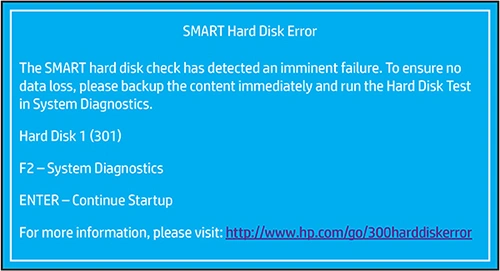
Do not panic, but act swiftly and methodically. Here is your action plan:
- Stop Using the Laptop Immediately: Continued use stresses the failing drive, causing further damage and overwriting deleted files you might hope to recover.
- Backup Your Data (If Possible): If the drive is still partially accessible, immediately copy your most critical files to an external drive or cloud storage. However, with a 301 error, the drive may freeze or crash during this process.
- Diagnose the Drive: Boot into HP PC Hardware Diagnostics (usually by pressing
F2at startup). Run the hard drive test. A “FAIL” result confirms the physical issue. A “PASS” might indicate a logical problem, but Error 301 is rarely false. - Connect the Drive as External: For advanced users, carefully remove the drive from the HP laptop and connect it to another working computer using a USB to SATA adapter. This can sometimes allow data access without the laptop’s boot process straining the drive.
How to Attempt to Fix SMART Hard Disk Error 301
These methods might temporarily clear the warning or extend drive life slightly, but they are not permanent solutions for a physically failing drive. Consider them last-ditch efforts to gain a brief window for data recovery.
Method 1: Run CHKDSK in Windows
This checks the file system for logical errors, not physical ones. It can help if the issue is minor corruption.
- In the Windows search bar, type
cmd, right-click “Command Prompt,” and select “Run as administrator.” - Type
chkdsk C: /f /rand press Enter. (ReplaceC:with your drive letter if different). - The process will schedule a scan on the next reboot. Allow it to complete.
Warning: CHKDSK is intensive. On a drive with Error 301, it could push it over the edge. Use with extreme caution.
Method 2: Update or Roll Back Disk Drivers
Corrupted drivers can sometimes cause misreported errors.
- Open Device Manager (search in the Start menu).
- Expand “Disk drives,” right-click your hard drive, and select “Properties.”
- Go to the “Driver” tab and try “Update Driver” or “Roll Back Driver” if available.
Method 3: Disable SMART Warning in BIOS (Not Recommended)
This only hides the error message; it does not fix the drive. The failure will still occur.
- Restart your HP laptop and press
F10repeatedly to enter BIOS Setup. - Navigate to “Storage” > “Smart Hard Disk Error” or a similar option.
- Select “Disabled.”
- Save and exit.
This is a risky practice. You lose the early warning system, potentially leading to a sudden, catastrophic failure without any chance to back up data.
The Critical Step: Recovering Your Data from the Failing Drive
Once a drive reports Smart Hard Disk Error 301, time is your enemy. Your best course of action is to focus on data recovery before attempting repairs or continuing use.
Professional data recovery services can cost thousands of dollars. For many users, a powerful and specialized software tool offers a more accessible and cost-effective first line of defense. This is where a solution like Magic Data Recovery becomes invaluable.

Supports Windows 7/8/10/11 and Windows Server
Why Magic Data Recovery is the Recommended Solution
When dealing with a failing drive displaying Error 301, you need software that is both robust and gentle. Magic Data Recovery is designed for precisely this scenario.
It Solves Your Core Pain Point:
- Reads from Unstable Drives: It employs advanced algorithms to safely read data from drives with bad sectors or physical issues, minimizing further stress.
- Comprehensive Recovery: It handles all the data loss consequences of a SMART failure: accidentally deleted files during panic, partitions lost due to corruption, and data from formatted or inaccessible drives.
Key Advantages for This Situation
- Deep Scan Technology: Goes beyond simple file tables to perform a sector-by-sector scan, crucial for finding data when the drive’s structure is damaged.
- Wide Format Support: Recovers data from NTFS, FAT32, exFAT, and more, covering all common file systems used by HP laptops.
- File Preview Function: Before recovery, you can preview photos, documents, and videos to verify their integrity, ensuring you recover what matters.
- User-Friendly Interface: Despite its advanced capabilities, the step-by-step wizard is clear, making it accessible even for non-technical users in a stressful situation.
Typical Use Case for an HP Laptop with Error 301
- You connect the failing HP laptop drive to a healthy Windows PC as a secondary or external drive.
- You install and run Magic Data Recovery on the healthy PC.
- You select the failing drive for scanning. The software uses its deep scan mode to carefully navigate around bad sectors.
- After the scan, you browse the recoverable file structure, preview key files, and select the data you need.
- You recover the selected files to a different, healthy drive—never back to the failing one.
Why It’s a More Reliable First Attempt
Compared to free tools or manual commands like CHKDSK, Magic Data Recovery is built with failing drive scenarios in mind. Its read mechanisms are less aggressive, prioritizing data extraction over file system repair. While no software can guarantee recovery from severe physical damage, it represents your highest-probability, lowest-risk DIY option. If software recovery fails, it typically does not preclude later seeking professional service.
If you are looking for an efficient and proven software solution to tackle the data loss from a SMART failure, we recommend trying Magic Data Recovery. It provides the specialized toolset you need during this critical time.
Conclusion
The Smart Hard Disk Error 301 on your HP laptop is a serious alert, but not an unbeatable one. The logical path is clear: prioritize your data immediately. Attempt hardware diagnostics and cautious fixes only if the drive is stable enough. Your primary goal should be data recovery.
For most users, employing dedicated data recovery software offers the best balance of effectiveness, control, and cost. A tool like Magic Data Recovery is specifically engineered to handle the complex data loss scenarios that accompany a smart hard disk error, from deletion and formatting to severe file system corruption. By acting quickly and using the right tool, you can navigate this hardware crisis and successfully recover your files from the drive before replacing the faulty drive.
Ready to recover your files? Download Magic Data Recovery and start scanning your drive safely today.
Supports Windows 7/8/10/11 and Windows Server
FAQs
How do I fix SMART hard disk error 301?
How do I fix error 301?
Can a SMART disk error be fixed?
How long will my hard drive last with a SMART error?
Can I ignore a SMART error?
How to reset a corrupted HDD?
How to resolve 301 error?
How to repair hard drive with chkdsk?

Jason has over 15 years of hands-on experience in the computer data security industry. He specializes in data recovery, backup and restoration, and file repair technologies, and has helped millions of users worldwide resolve complex data loss and security issues.