
How to Fix USB Drive & USB Flash Drive Not Detected
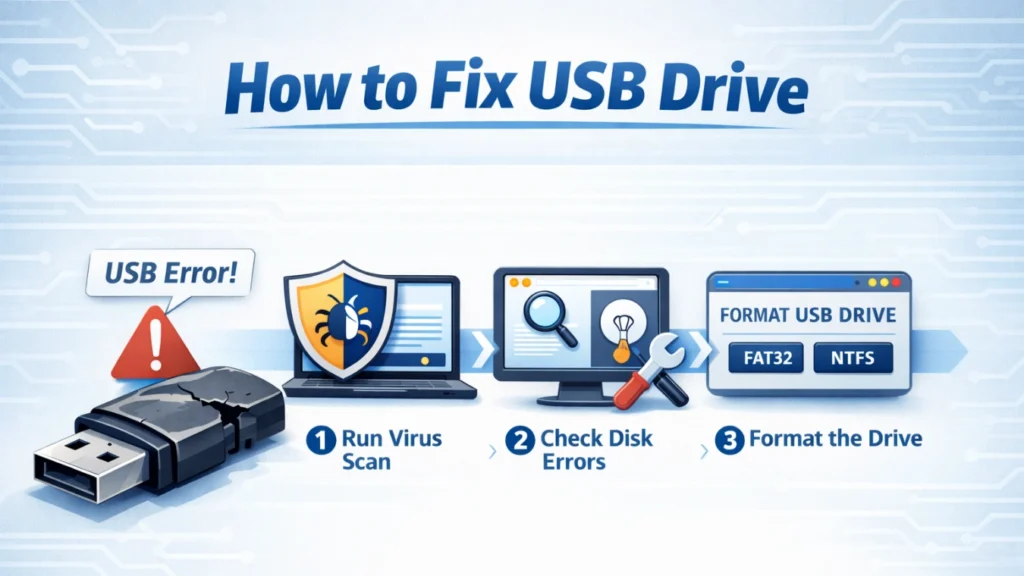
Few things feel more frustrating than plugging in a flash drive and realizing it won’t show up. If you are searching for how to fix USB drive problems or wondering how to fix USB flash drive not detected, you are not alone. This issue affects students, office workers, photographers, and anyone who relies on portable storage.
In many cases, the USB drive is not permanently damaged. With the right approach, you can often fix recognition errors, restore access, and avoid unnecessary data loss. This guide explains practical solutions, common mistakes, and safe next steps when your files matter most.
Table of Contents
Why USB Drives Stop Being Detected
Before trying fixes, it helps to understand why the issue happens. A USB drive may stop appearing for several reasons.
Some of the most common causes include:
- Faulty or loose USB ports
- Outdated or corrupted USB drivers
- File system errors that turn the drive RAW
- Missing or conflicting drive letters
- Partition problems
- Power supply limits on laptops or hubs
- Physical wear on the flash memory
For example, many users first notice the problem after unplugging the drive too quickly or moving files during a sudden shutdown. That’s why learning how to fix USB drive detection issues early can prevent bigger trouble later.
Start with Simple Checks First
When dealing with how to fix USB flash drive not detected, always begin with the easiest solutions. These quick steps often save time.
1. Try Another USB Port or Computer
Sometimes the drive works fine, but the USB port does not.
Do this first:
- Unplug the USB drive
- Plug it into a different port
- Test it on another laptop or desktop
If the USB works elsewhere, your computer settings likely cause the issue. On the other hand, if it fails everywhere, the drive itself may have a problem.
2. Restart Your Computer
A restart may sound simple, but it often clears temporary USB controller conflicts.
In many real-world cases, users fix how to fix USB drive problems just by rebooting Windows and reconnecting the flash drive.
3. Check Disk Management for Hidden USB Drives
Even if File Explorer shows nothing, Windows may still detect the drive internally.
To check:
- Press Win + X
- Select Disk Management
- Look for your USB drive in the list
You may see:
- A drive without a letter
- Unallocated space
- A RAW file system
Each situation requires a different fix.
4. Assign a New Drive Letter
Drive letter conflicts often explain how to fix USB flash drive not detected errors.
To fix this:
- Open Disk Management
- Right-click the USB partition
- Select Change Drive Letter and Paths
- Choose Add or Change
- Pick a new unused letter
After that, Windows usually shows the drive immediately.
5. Update or Reinstall USB Drivers
Drivers play a major role in USB detection. Therefore, updating them often solves recognition issues quickly.
Steps:
- Press Win + R, type devmgmt.msc
- Expand Universal Serial Bus controllers
- Right-click the USB device
- Select Uninstall device
- Restart your computer
Windows will reinstall the driver automatically.
This method works well when you need how to fix USB drive errors caused by corrupted system drivers.
6. Disable USB Selective Suspend (Power Saving Fix)
Laptops sometimes turn off USB ports to save power. As a result, the flash drive may disconnect or fail to appear.
To disable this setting:
- Open Control Panel
- Go to Power Options
- Click Change advanced power settings
- Expand USB settings
- Disable USB selective suspend
This step helps prevent repeated “USB not recognized” issues.
7. Fix File System Errors with CHKDSK
File system corruption often triggers how to fix USB flash drive not detected searches.
If Windows assigns a drive letter, run CHKDSK:
- Open Command Prompt as Administrator
- Type:
chkdsk X: /f
(Replace X with your USB drive letter.)
CHKDSK repairs minor logical errors and may restore access. However, avoid running repeated repair commands if the drive contains important files and behaves abnormally.
8. Format the USB Drive Only as a Last Option
Formatting can solve serious errors, but it removes stored data.
Only format if:
- You already backed up your files
- Recovery is complete
- The drive contains nothing important
To format:
- Open Disk Management
- Right-click the USB drive
- Select Format
- Choose NTFS or exFAT
Formatting may fix the drive, but it does not protect your data. For this reason, always think carefully before using this step.
Common Mistakes to Avoid
Many users accidentally worsen the situation while trying how to fix USB drive problems.
Avoid these mistakes:
- Unplugging the drive during file transfers
- Formatting immediately when Windows prompts
- Using unknown “quick fix” tools from unsafe websites
- Ignoring warning signs like slow speed or frequent disconnects
Instead, take a calm step-by-step approach. That usually leads to better outcomes.
When USB Detection Problems Lead to Data Loss
Sometimes a USB drive stops working because of deeper issues, such as:
- Severe file system corruption
- Sudden power interruption
- Partition table damage
- Improper removal over time
In these cases, the drive may appear as RAW or unallocated, and your files may become inaccessible.
At this stage, fixing the USB detection alone may not bring your data back.
Recover Lost Data with Magic Data Recovery
If USB recognition problems cause file loss, you may need a recovery-focused solution before formatting.
This is where Magic Data Recovery can help.
Magic Data Recovery is useful when:
- The USB drive becomes RAW
- Windows asks you to format the disk
- Files suddenly disappear
- The drive shows up but cannot be opened

Why it stands out
Compared with risky trial-and-error fixes, Magic Data Recovery offers:
- Support for corrupted USB file systems
- Recovery for photos, videos, and documents
- A simple interface for everyday users
- A safer option before irreversible actions
For example, if your flash drive suddenly displays “You need to format the disk,” Magic Data Recovery may allow you to scan and restore important files first.
If you want a more efficient and reliable way to recover lost USB data, you may consider trying Magic Data Recovery.
Supports Windows 7/8/10/11 and Windows Server
Conclusion
USB detection issues can feel stressful, but most cases have practical solutions. By following this guide on how to fix USB drive problems, you can resolve many common errors, including how to fix USB flash drive not detected situations.
Start with basic checks, move through driver and disk fixes carefully, and avoid formatting too soon. When file system corruption leads to data loss, Magic Data Recovery provides a trusted recovery option before taking irreversible steps.
With the right approach, you can fix the drive, protect your files, and prevent the issue from happening again.
FAQs
Why is my USB drive not detected by my computer?
How do I fix a USB flash drive not detected in Windows 10 or 11?
Can a corrupted USB drive be repaired without formatting?
Why does my USB drive show up in Disk Management but not File Explorer?
What causes a USB drive to become RAW?
Is it safe to format a USB drive that is not detected?
Can I recover data from a USB drive that is not recognized?
How can I prevent USB flash drive detection problems in the future?

Jason is a data recovery and technical support specialist with over 15 years of hands-on experience. He has worked extensively with frontline users, troubleshooting difficult data loss cases and providing practical recovery solutions for accidental deletion, formatted drives, damaged file systems, lost partitions, system failures, and other recovery emergencies. His expertise also includes backup and restoration, file repair, and disaster recovery, with a strong emphasis on safe, reliable, and technically accurate guidance.