
CHKDSK Cannot Recover Master File Table: Fix & Data Recovery Guide
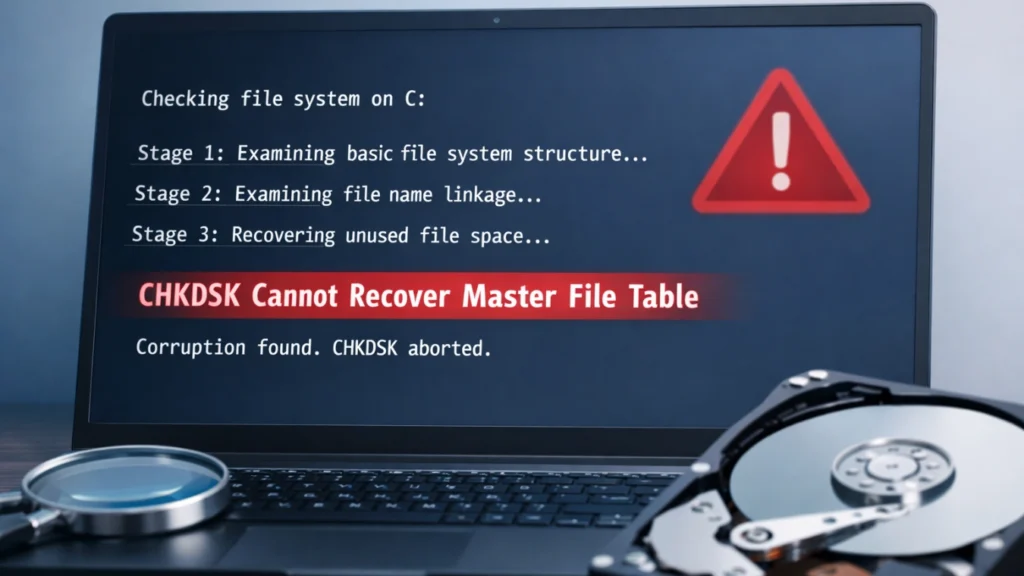
When you encounter the error “chkdsk cannot recover master file table”, it often signals a serious file system issue that can lead to inaccessible files or complete data loss. Many users run CHKDSK expecting a fix, only to find the situation worse.
This guide explains what the error means, why it happens, and—most importantly—how to recover your data safely. We’ll also introduce a reliable data recovery solution to help you regain access without risking further damage.
Table of Contents
What Does chkdsk cannot recover master file table Mean?
The Master File Table (MFT) is the core of the NTFS file system. It stores metadata about every file on your drive.
When you see “chkdsk cannot recover master file table”, it means:
- The MFT is corrupted or unreadable
- CHKDSK failed to repair the file system
- The disk structure is severely damaged
As a result, your files may appear missing, inaccessible, or the drive may not open at all.
Common Causes of MFT Corruption
Understanding the root cause helps prevent future issues. Common triggers include:
1. Sudden Power Loss
Unexpected shutdowns interrupt disk operations and damage file tables.
2. Bad Sectors
Physical damage on the disk can corrupt MFT records.
3. Virus or Malware Attacks
Malicious software may alter file system structures.
4. Improper Disk Removal
Removing external drives without safe ejection can corrupt data.
5. Aging Storage Devices
Old HDDs or SSDs are more prone to structural failures.
Symptoms You Should Not Ignore
Before the error appears, you may notice:
- Files missing or renamed strangely
- Drive asking to be formatted
- Extremely slow disk access
- Frequent CHKDSK prompts
These signs often precede chkdsk cannot recover master file table errors.
Can CHKDSK Fix This Error?
CHKDSK is useful for minor file system errors. However:
- It may fail with severe MFT corruption
- It can overwrite file structures
- It may cause further data loss in some cases
👉 Important tip: Avoid repeated CHKDSK attempts if data is critical.
Best Solution: Recover Data First (Recommended Approach)
Before attempting repairs, your priority should be data recovery.
Why Data Recovery Comes First
- Repair tools may overwrite recoverable data
- MFT corruption often hides, not deletes, files
- Recovery success decreases after repeated fixes
Professional Solution: Magic Data Recovery
When dealing with chkdsk cannot recover master file table, using a dedicated recovery tool is often the safest approach.
What Problems It Solves
- Recover data from corrupted MFT
- Access drives that Windows cannot open
- Restore deleted or lost files after CHKDSK failure
Key Advantages (Unique Selling Points)
- Deep scan technology for damaged file systems
- Supports NTFS, FAT32, exFAT, and more
- Preview before recovery to ensure accuracy
- Non-destructive recovery process
Real Use Scenarios
- External hard drive shows “cannot access drive”
- USB drive becomes RAW after CHKDSK
- System crash leads to missing files
Why It’s More Reliable
Unlike CHKDSK, Magic Data Recovery does not attempt to “fix” the disk first. Instead, it extracts your data safely, reducing the risk of permanent loss.
👉 If you are looking for a more efficient and safer solution, consider trying Magic Data Recovery.
Step-by-Step: How to Recover Data
To get started, follow these simple steps to recover your lost files using Magic Data Recovery:
1. Download and Install Magic Data Recovery: Begin by downloading the software from the official website and installing it on your computer.
Supports Windows 7/8/10/11 and Windows Server
2. Launch the Software: Open the software, and you’ll be greeted with an easy-to-use interface.
3. Select the Drive: Choose the drive or partition where your lost file was stored. The program supports internal and external storage devices.

4. Click “Search for lost data” to scan your lost files: It will start a quick scan then a deep scan for files that were deleted a long time ago.

5. Preview and Recover: Once the scan is complete, Magic Data Recovery will display the recoverable lost files. Preview them to confirm that they are intact, then select the ones you wish to restore and click Recover.

Save recovered files to a safe location (not the original disk).
Alternative Fixes (After Data Recovery)
Once your data is safe, you can attempt repairs:
1. Format the Drive
- Quick solution for severe corruption
- Erases all data (only do after recovery)
2. Use Disk Management
Reinitialize or recreate partitions if needed.
3. Replace Failing Hardware
If bad sectors persist, consider replacing the drive.
Prevention Tips
To avoid future MFT issues:
- Always eject external drives safely
- Use a UPS for power stability
- Run antivirus regularly
- Back up important data frequently
Conclusion
The error chkdsk cannot recover master file table indicates serious file system damage that CHKDSK alone cannot fix. Attempting repairs without recovering data first can worsen the situation.
Magic Data Recovery stands out as a practical solution because it focuses on safely retrieving your files before any repair actions. Its deep scan capability and non-destructive approach make it a reliable choice for users facing MFT corruption.
Supports Windows 7/8/10/11 and Windows Server
FAQs
What causes chkdsk cannot recover master file table?
This error usually occurs due to severe file system corruption, often caused by power loss, bad sectors, or malware. When the MFT is damaged beyond repair, CHKDSK cannot rebuild it, resulting in inaccessible data and potential file loss.
Can I fix the MFT without losing data?
In most cases, repairing the MFT directly risks overwriting existing data. The safer approach is to recover your files first using a data recovery tool, then repair or format the drive afterward to restore functionality.
Is CHKDSK safe to use in this situation?
CHKDSK is helpful for minor issues, but with serious MFT corruption, it can worsen data loss. It attempts to fix file structures, which may overwrite recoverable data. Use it only after securing your files.
How do I know if my MFT is corrupted?
Common signs include missing files, inaccessible drives, RAW file system errors, and frequent disk scan prompts. If CHKDSK reports it cannot recover the master file table, the corruption is severe.
Can I recover data from a RAW drive?
Yes, data can often be recovered from RAW drives because files are usually still present but inaccessible. Tools like Magic Data Recovery can scan the disk and retrieve files without needing a working file system.
How long does data recovery take?
Recovery time depends on disk size and damage level. A deep scan can take several hours for large drives. However, modern tools optimize scanning to balance speed and recovery accuracy.
Is the hard drive permanently damaged?
Not always. Logical errors like MFT corruption can be fixed after data recovery. However, if physical damage (bad sectors) exists, the drive may continue to fail and should be replaced.
What is the safest way to prevent this issue?
Regular backups are the most effective prevention method. Additionally, avoid sudden shutdowns, safely eject external drives, and monitor disk health to reduce the risk of MFT corruption.

Jason is a data recovery and technical support specialist with over 15 years of hands-on experience. He has worked extensively with frontline users, troubleshooting difficult data loss cases and providing practical recovery solutions for accidental deletion, formatted drives, damaged file systems, lost partitions, system failures, and other recovery emergencies. His expertise also includes backup and restoration, file repair, and disaster recovery, with a strong emphasis on safe, reliable, and technically accurate guidance.