
Excel Auto Recovery File Location: Find & Recover

Many users search for the excel auto recovery file location after Excel crashes. However, even when they find the folder, the file often does not appear. Therefore, frustration quickly builds, especially when important work is involved.
In this guide, you will not only learn where the excel auto recovery file location is, but also understand why it sometimes fails. Moreover, you will discover practical Excel recovery methods and reliable solutions—including tools like Magic Data Recovery—that can help retrieve lost Excel files even when standard recovery options no longer work.
Supports Windows 7/8/10/11 and Windows Server
Table of Contents
What Is Excel Auto Recovery File Location and How It Works
The excel auto recovery file location is a system folder where Excel temporarily stores backup versions of your work. These files help recover Excel files after unexpected interruptions.
How AutoRecover Saves Data
First, Excel automatically creates temporary files at set intervals. Next, it saves them in a hidden directory. Then, when Excel restarts after a crash, it loads these files into the recovery panel.
However, this process is not permanent. If you close Excel normally, it removes most temporary files. As a result, users often cannot find anything in the excel auto recovery files location.
AutoRecover vs AutoSave
Although both features protect your data, they serve different purposes.
- AutoRecover stores temporary local backups
- AutoSave continuously saves files to cloud storage
Therefore, relying only on AutoRecover creates risk, especially in unstable environments.
Excel Auto Recovery File Location Windows 10 Explained
If you use Windows 10, the excel recovery usually follows a default structure. However, settings or Office versions may change it.
Default Excel Auto Recovery File Location
C:\Users\YourUsername\AppData\Roaming\Microsoft\Excel\
Alternatively:
%appdata%\Microsoft\Excel\
These directories store .asd or .xlsb files, which represent AutoRecover data.
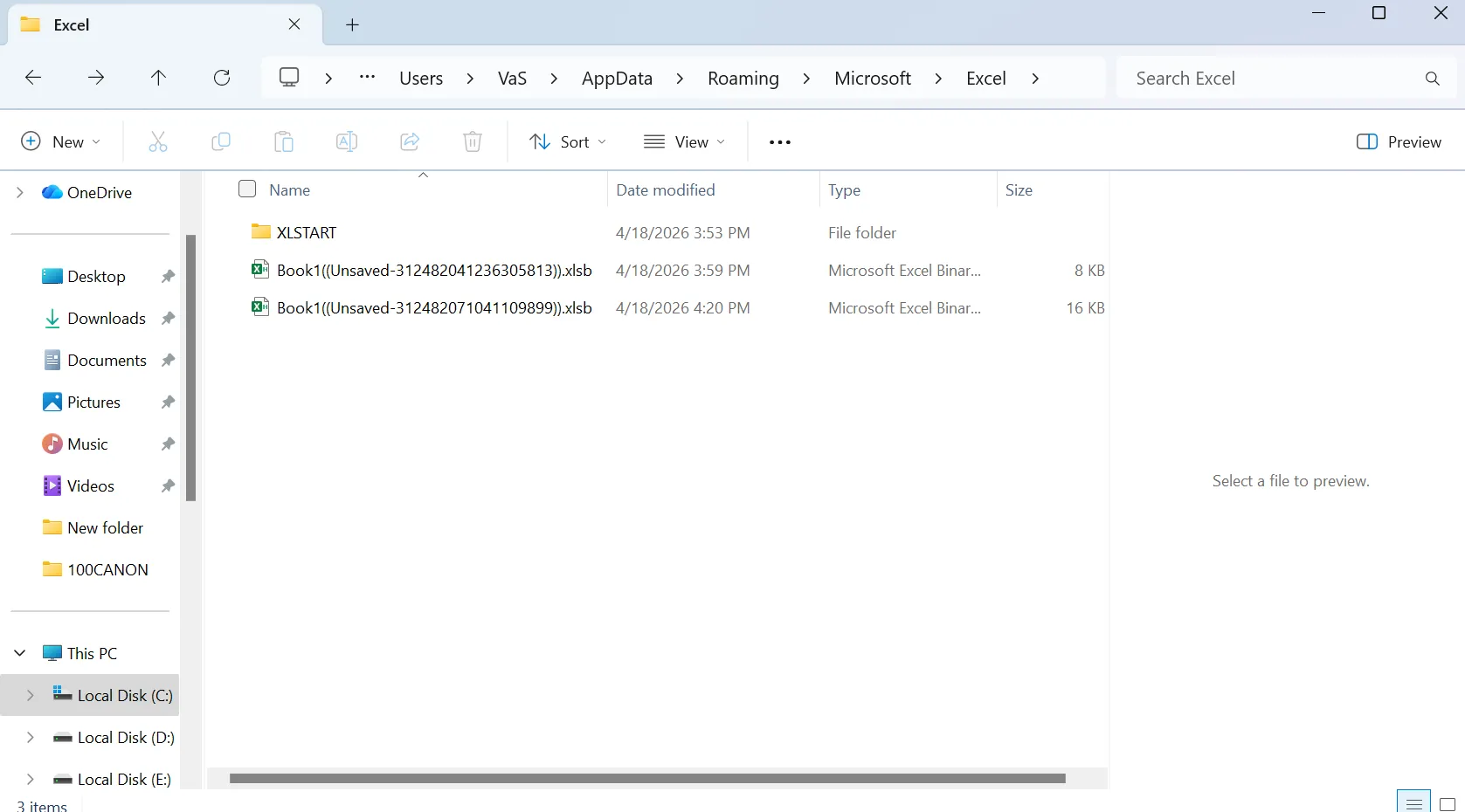
What If You Can’t See the AppData Folder
In many cases, users cannot access the excel auto recovery file location because the AppData folder is hidden by default. Therefore, you need to enable hidden files in Windows first.
Steps to show hidden files in Windows 10:
1. Open File Explorer
2. Click the View tab at the top
3. Find and check Hidden items

4. Navigate back to your user folder
5. Open AppData → Roaming → Microsoft → Excel
After enabling this option, you should be able to access the correct excel auto recovery files location without issues.
How to Check Excel Auto Recovery Files Location in Excel
If the default path does not work, you should confirm the exact location inside Excel.
Steps:
1. Open Excel
2. Click File → Options → Save
3. Locate the AutoRecover file path
4. Copy and open it in File Explorer
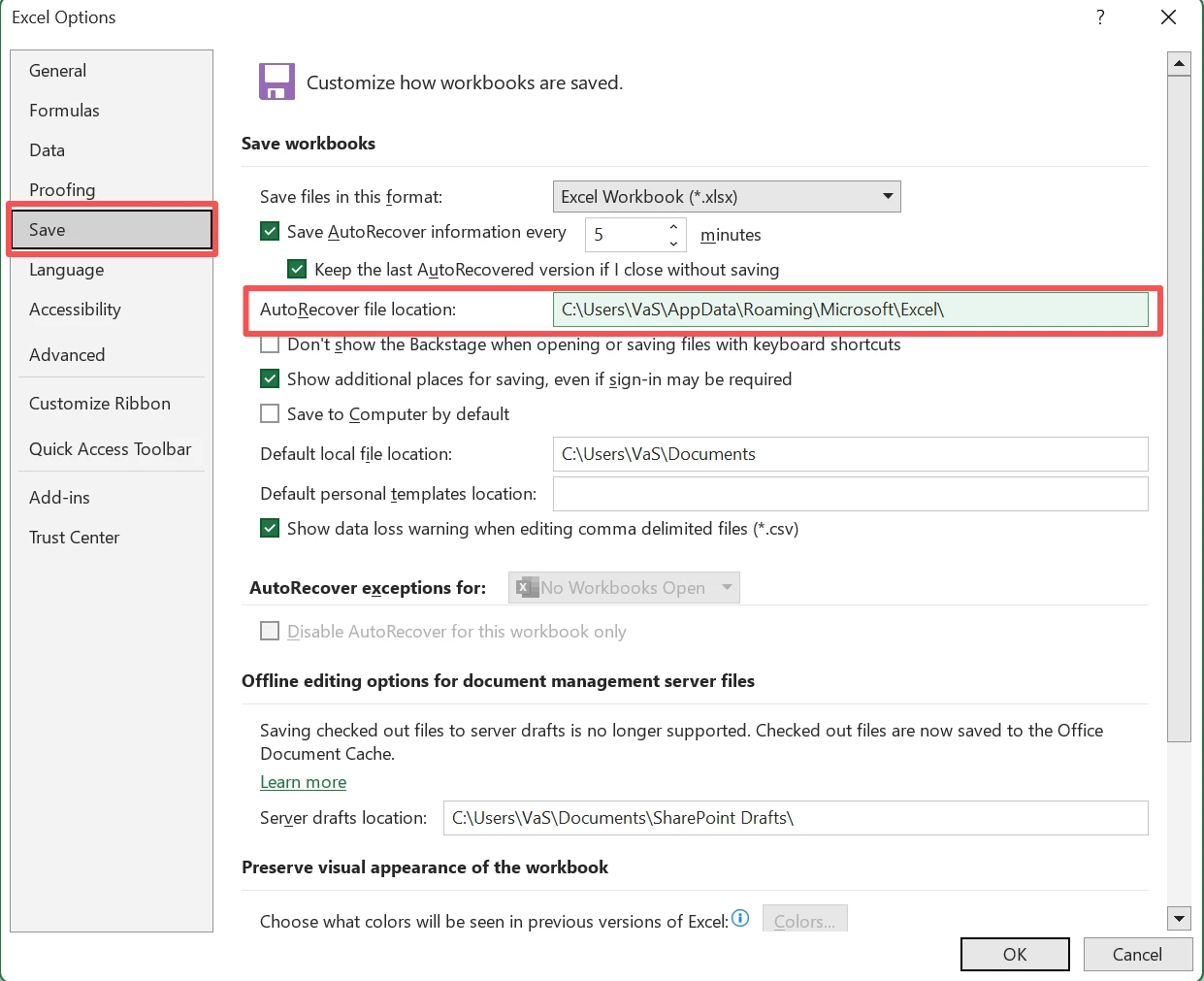
This method ensures you access the correct excel auto recovery files location configured on your device.
Why Excel Auto Recovery File Location May Be Empty
Even after checking the recovery file location, many users still cannot find their files. This situation is common, and it usually happens for specific reasons.
Excel Closed Normally
When Excel shuts down properly, it deletes temporary files. Therefore, the recovery files location becomes empty.
AutoRecover Disabled
If AutoRecover is not enabled, Excel never creates backup files. Consequently, no data exists in the recovery folder.
File Was Never Saved
Unsaved files depend entirely on temporary storage. However, this storage can disappear quickly, especially after system changes.
System Cleanup Removed Files
Windows cleanup tools may remove temporary files. As a result, the recovery file location may show no results.
How to Recover Files from Excel Auto Recovery File Location
Before trying advanced solutions, you should use Excel’s built-in recovery options. These methods often work if temporary files still exist.
Method 1 – Document Recovery Panel
After a crash, Excel usually displays a recovery panel.
- Restart Excel
- Select a recovered version
- Save the file immediately
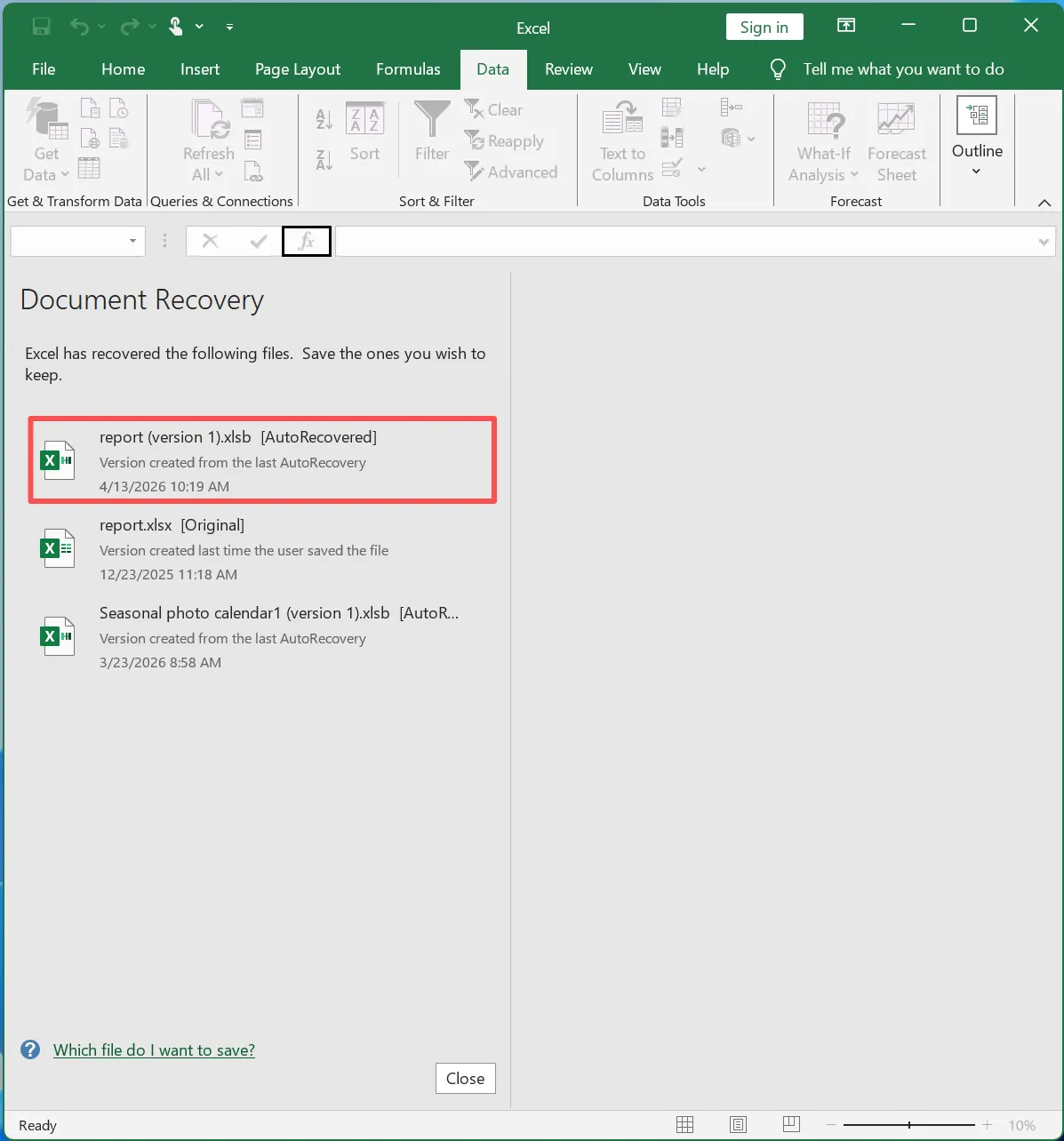
Method 2 – Recover Unsaved Workbooks
- Open Excel
- Go to File → Info → Manage Workbook
- Click Recover Unsaved Workbooks
- Save the file

Method 3 – Open AutoRecover Files Manually
- Navigate to the recovery file location
- Locate
.asdor.xlsbfiles - Open them in Excel
- Save them quickly
What If Excel Auto Recovery File Location Is Empty
Sometimes, the recovery file location shows nothing at all. In this case, built-in methods no longer help.
This situation usually means:
- The file was deleted
- Temporary data was overwritten
- Excel failed to create backup files
Therefore, you need a deeper recovery approach that does not rely on temporary storage.
Recover Lost Excel Files with Magic Data Recovery
If you cannot find the recovery files, Magic Data Recovery becomes a practical solution. Instead of relying on temporary files, it scans the disk directly.
What Problem It Solves
It recovers files that no longer appear in the excel auto recovery files location. In other words, it works even after deletion or system cleanup.
Key Advantages
- Advanced Scan locates lost Excel files
- Supports missing or damaged file systems
- Recovers temporary and deleted data
- Allows preview before recovery
Real Scenario
For instance, if Excel crashes and the AutoRecover folder is empty, the file may still exist on the disk. Therefore, Magic Data Recovery can locate it through sector-level scanning.
How to Use Magic Data Recovery for Lost Excel Files
Step 1: Download and Install Magic Data Recovery
Install the software on a different drive to avoid overwriting lost data.
Supports Windows 7/8/10/11 and Windows Server
Step 2: Select the Location to Scan
Choose the drive where your Excel file was stored.

Step 3: Scan for Lost Files
The software performs an Advanced Scan and lists recoverable files.

Step 4: Preview and Recover Files
Preview files to confirm content before recovery. You can just select the files you need and recover them to a safe location.

Why It Is More Reliable
Excel depends on temporary files. However, this tool searches the entire disk. Therefore, it offers a higher chance of recovery, especially when the recovery file location is empty.
If you want a more dependable solution, this approach is worth trying.
Tips to Prevent Losing Excel Files Again
- Set AutoRecover interval to 1 minute
- Save files regularly
- Use cloud storage solutions
- Avoid sudden shutdowns
These steps significantly reduce the need to rely on recovery tools.
Conclusion
The excel auto recovery file location provides a useful safety net, but it does not guarantee recovery. Therefore, you should treat it as a first step rather than a complete solution.
When the excel auto recovery files location is empty, Magic Data Recovery offers a more reliable option. It scans deeper and retrieves files that Excel cannot restore. For users who want a safer and more complete Excel recovery method, this tool delivers consistent results.
Supports Windows 7/8/10/11 and Windows Server
FAQs
Where is the excel auto recovery file location in Windows 10?
The excel auto recovery file location windows 10 is usually located in the AppData folder under %appdata%\Microsoft\Excel\. However, Excel settings can modify this path. Therefore, checking the location inside Excel ensures you access the correct folder.
Why is my excel auto recovery files location empty?
This issue occurs when Excel deletes temporary files after a normal shutdown. Additionally, system cleanup tools may remove these files. Therefore, even if AutoRecover was enabled, the excel auto recovery files location can still appear empty.
How can I recover files if I cannot find recovery files?
First, try Excel’s built-in recovery options. However, if they do not work, you should use a data recovery tool. These tools scan the disk directly and recover files that no longer exist in the recovery file location.
What file format does Excel AutoRecover use?
Excel uses .asd files to store AutoRecover data. These files contain temporary workbook content. Therefore, you can open them manually if you locate them in the excel auto recovery file location.
Can I change excel auto recovery file location?
Yes, Excel allows you to change the recovery path. You can do this in File → Options → Save. Therefore, you can store AutoRecover files in a more accessible and secure location.
Is AutoRecover enough to protect Excel files?
AutoRecover helps in crash scenarios, but it does not provide full protection. Therefore, combining it with AutoSave or regular backups ensures better data security and reduces the risk of permanent loss.
What is the best solution when recovery files are missing?
If the excel auto recovery file location windows 10 is empty, a recovery tool offers the best chance of success. It scans deeper and retrieves deleted files. Therefore, it works even when Excel cannot restore your data.

Vasilii is a data recovery specialist with around 10 years of hands-on experience in the field. Throughout his career, he has successfully solved thousands of complex cases involving deleted files, formatted drives, lost partitions, and RAW file systems. His expertise covers both manual recovery methods using professional tools like hex editors and advanced automated solutions with recovery software. Vasilii's mission is to make reliable data recovery knowledge accessible to both IT professionals and everyday users, helping them safeguard their valuable digital assets.