
Recuva Restore Deleted Files: Does It Really Work?
That mini-heart attack when you accidentally empty the Recycle Bin is bad enough—but it is even worse when you download a tool hoping for a miracle, only to be left staring at a frozen screen. If you are asking yourself, ” Can Recuva restore deleted files?” the honest answer for 2026 is: It depends entirely on your drive storage technology.
While Recuva used to be the go-to recommendation for recovering lost photos or documents, modern Windows updates and advanced hardware have left this legacy freeware lagging behind. If you have already tried it and faced a deep scan stuck error, or if your recovered videos came back completely corrupted, you now know its limitations firsthand.
Therefore, this guide delivers a straightforward review of whether Recuva can actually solve your data loss crisis today, why it frequently fails on modern systems, and why switching to Magic Data Recovery is the ultimate solution to recover deleted files.
Supports Windows 7/8/10/11 and Windows Server
Table of Contents
The Science: How Do Data Recovery Tools "Undelete" Files?
To understand how to successfully recover permanently deleted files windows 11, you must first understand how Windows handles data deletion. Specifically, when you delete a file and empty the Recycle Bin, the operating system does not physically grind that data to dust. Instead, Windows simply deletes the file’s “pointer” and marks that specific space on your hard drive as “available for writing.”
Consequently, your original file remains completely intact on the storage sectors until new data overwrites it. For this reason, it creates a critical window of opportunity known as the “Golden Hour” of data recovery. If you act quickly, tools designed to Recuva restore deleted files can easily scan these orphaned sectors and piece the data back together.
Critical Safety Warning: To prevent permanent data overwriting, stop using the affected storage drive immediately. In addition, do not install new software, download browser files, or stream videos onto the drive you wish to rescue.
The Limits of Recuva: Why It Fails to Recuva Restore Deleted Files in 2026
Although the tool is excellent for basic tasks, it has not received a major core engine overhaul in years. Because of this legacy architecture, users frequently hit a wall when attempting to recover permanently deleted files windows 11 systems utilize today. When people attempt to Recuva restore deleted files on modern computing systems, they often face unexpected barriers that old file systems simply did not have.
The Modern SSD & TRIM Complication
Most modern laptops and desktop computers now utilize Solid State Drives (SSDs) instead of traditional HDDs. Furthermore, modern SSDs employ an internal optimization command called TRIM. When you delete a file, TRIM actively commands the drive to purge the underlying data blocks during idle times to keep write speeds high. As a result, the regular process to Recuva restore deleted files struggles immensely with TRIM-enabled SSDs, often showing zero results or returning completely empty, corrupted file shells.
The Large File Fragmentation Issue
Have you ever tried to restore a large 4K video file or a massive ZIP archive using Recuva, only to find it unplayable? In fact, this happens because large files are rarely stored in one continuous block on your drive. Instead, they are split into fragments across various storage sectors. Consequently, the basic engine built to Recuva restore deleted files lacks the advanced logical rebuilding mechanisms required to stitch fragmented sectors back together properly.
Common Performance Glitches
Many users report frustrating technical hiccups during intensive recovery sessions. For example, a highly documented issue is getting a Recuva deep scan stuck error at 0% or 99%, causing the software to crash entirely on high-capacity drives. Because it hangs indefinitely, users cannot finish the step to Recuva restore deleted files, leaving their data stranded. Furthermore, the software cannot natively parse complex raw partition loss, severely damaged file systems, or RAW external media.
The Pro Alternative: Hit a Wall with Recuva Restore Deleted Files?
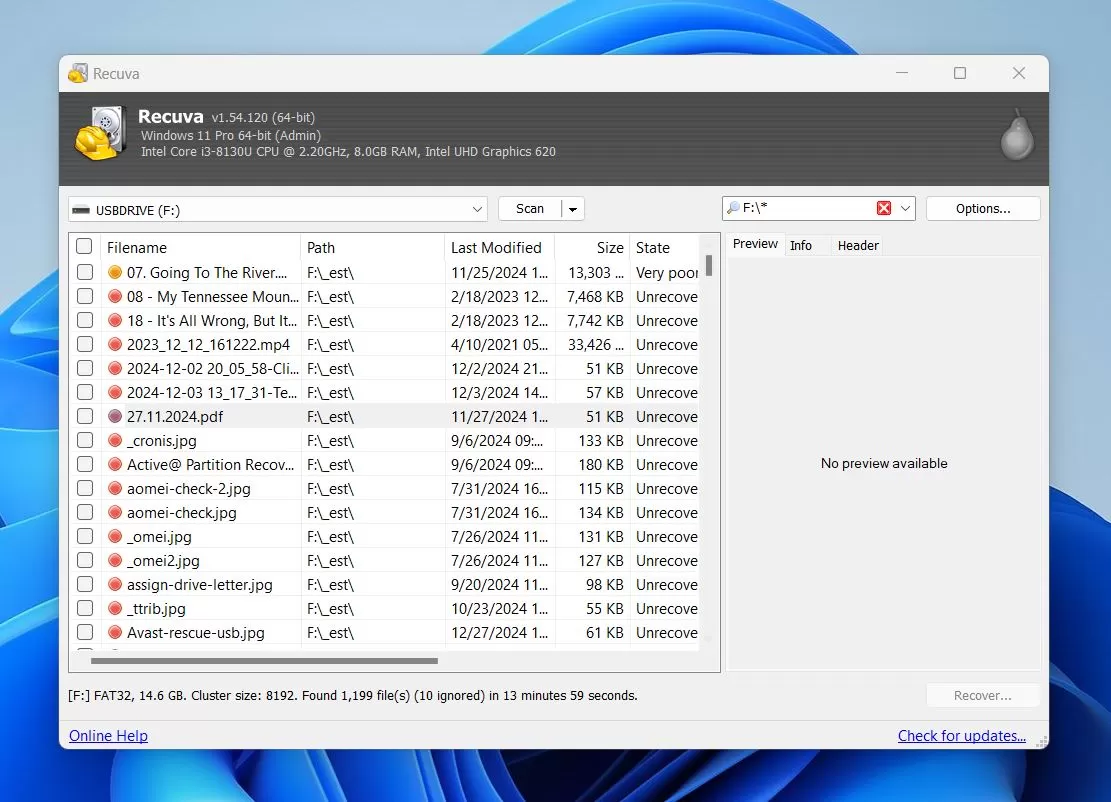
When the free utility fails, displays your critical files with a red status icon, or cannot find your lost partition, you need a professional-grade solution. Therefore, if you are looking for a highly effective Recuva free data recovery alternative that bypasses these structural flaws, Magic Data Recovery provides the advanced technology required to tackle complex scenarios. It acts as the ultimate safety net when you realize you cannot Recuva restore deleted files due to deep drive corruption.
Solving the Toughest Data Loss Points
Unlike legacy utilities, Magic Data Recovery is built to handle the rigorous demands of modern Windows environments. Specifically, it addresses the precise pain points where free tools fall short when you fail to Recuva restore deleted files:
- Advanced Heuristic Sector Analysis: When file allocation tables are destroyed or corrupted, the software goes beyond surface listings. Instead, it reads raw binary data blocks directly, recognizing unique file signatures to reconstruct files that standard scans miss.
- Intelligent Fragment Stitching: In addition, the tool utilizes proprietary rebuilding algorithms. It intelligently matches scattered fragments of large videos, high-resolution images, and complex documents, ensuring your rescued files actually open successfully without corruption.
Typical Real-World Scenarios
For instance, consider a situation where you accidentally format a local drive volume containing years of critical business data. While basic tools will view the formatted system as empty and fail to Recuva restore deleted files, Magic Data Recovery reconstructs the previous partition structure. Similarly, if your primary flash drive suddenly displays a “RAW” error and Windows demands you format it, this utility bypasses the file system error to rescue your data safely.
Step-by-Step Guide: How to Use Magic Data Recovery as the Ultimate Recuva Alternative
When a standard utility fails to locate your missing files, switching to an advanced software engine is the most effective next step. Below is a comprehensive guide on how to use Recuva alternatives like Magic Data Recovery to retrieve your lost files safely and efficiently, ensuring an unparalleled success rate compared to basic attempts to Recuva restore deleted files.
Step 1: Download and Install Magic Data Recovery
First, download the setup file for Magic Data Recovery. You must install the software on a separate partition or drive away from the target location where your lost data used to live. Therefore, this simple precaution avoids accidental sector overwriting and keeps your files intact.
Supports Windows 7/8/10/11 and Windows Server
Step 2: Select the Target Partition to Scan
Secondly, launch the desktop program. From the primary dashboard layout, identify and choose the specific storage drive or lost partition where your files were originally deleted. Once selected, initiate the automated scanning process.

Step 3: Scan the Location for Deleted Files
Subsequently, the application will automatically perform an Advanced Scan of your storage media. As the engine digs deep into the drive sectors, it dynamically populates a real-time list of all recoverable items found during the process.

Step 4: Preview Deleted Files Before Recovery
Next, before proceeding to the final step, make use of the built-in visual preview panel. This feature allows you to verify the actual content and integrity of documents or images, ensuring you restore exactly what you need.

Step 5: Recover Files to a Safe Location
Finally, mark the checkboxes next to the items you wish to save, then execute the restoration. Always select a different destination drive, such as a separate internal disk or a cloud directory, to prevent file corruption.

Side-by-Side Comparison: Recuva vs. Magic Data Recovery
To help you understand which tool fits your current situation, let us look at how these two programs compare across critical performance metrics:
Performance Metric | Recuva | Magic Data Recovery |
Primary Scan Technology | Basic File Allocation Table Scan | Low-Level Heuristic & Sector Scanning |
Large Video Stitching | Poor; files are frequently corrupted | Excellent; advanced fragmentation rebuild |
Handling RAW / Formatted Drives | Rarely successful on RAW filesystems | Fully supported file structure recovery |
Scan Stability | High risk of deep scan errors | Advanced memory management prevents crashes |
Free Evaluation Tier | Free basic version available | 500MB free data limit for file restoration |
Conclusion
In short, using free software to Recuva restore deleted files is a wise first step for simple, immediate data mishaps on older storage media. It costs nothing and provides a user-friendly wizard for basic deleted file recovery.
However, data recovery is highly time-sensitive. If you are dealing with irreplaceable files, a formatted device, or a modern SSD, relying on outdated freeware to Recuva restore deleted files can inadvertently overwrite your remaining data headers. Therefore, we highly recommend Magic Data Recovery because its advanced low-level heuristic scanning engine ensures a significantly higher success rate for modern file systems.
To prevent future heartaches, always implement the 3-2-1 backup rule: keep three copies of your data, stored on two different types of media, with one copy located completely offsite or in cloud storage.
Supports Windows 7/8/10/11 and Windows Server
FAQs About Recuva Restore Deleted Files
Why is my Recuva deep scan stuck at 0% or 99%?
This bug typically points to bad sectors on your physical drive or conflicts with antivirus programs. To fix this, temporarily disable your real-time security tools, close all background software, and launch the program as an Administrator. However, if the scan still hangs, the drive likely suffers from physical hardware issues.
Why are my recovered files corrupted and unable to open?
If a file opens with an error message, its original storage blocks were likely partially overwritten before you initiated the recovery process. Alternatively, the free tool failed to stitch fragmented blocks together properly. Therefore, you should switch to a premium solution that offers an intact pre-recovery preview.
Can Recuva recover data from a fully formatted drive?
A standard quick scan will not find files on a formatted drive. Because of this, you must enable the deep scan option to search for lingering data signatures. However, if the formatting changed the underlying file system structure, a basic tool will fail to read anything.
How can I recover permanently deleted files Windows 11 securely?
First, stop writing any new data to the drive immediately. Next, download a professional utility like Magic Data Recovery on an unaffected drive partition. Finally, run an advanced heuristic scan, preview the intact files, and save them to a safe alternative disk.
What should I do if a Recuva deep scan stuck error occurs?
First, do not force-restart your computer repeatedly, as this can worsen drive damage. Instead, safely close the frozen software through Task Manager. After that, deploy Magic Data Recovery to safely clone or extract data from the problematic drive sectors without crashing.
Why does Recuva struggle to recover modern video files?
Large video files like MP4 or MOV are usually split into multiple fragments across different drive sectors. Because Recuva lacks modern rebuilding algorithms, it simply links the headers without stitching the actual content fragments, resulting in unplayable, corrupted video files.

Vasilii is a data recovery specialist with around 10 years of hands-on experience in the field. Throughout his career, he has successfully solved thousands of complex cases involving deleted files, formatted drives, lost partitions, and RAW file systems. His expertise covers both manual recovery methods using professional tools like hex editors and advanced automated solutions with recovery software. Vasilii's mission is to make reliable data recovery knowledge accessible to both IT professionals and everyday users, helping them safeguard their valuable digital assets.