
How to Recover Files from BitLocker Drive Safely
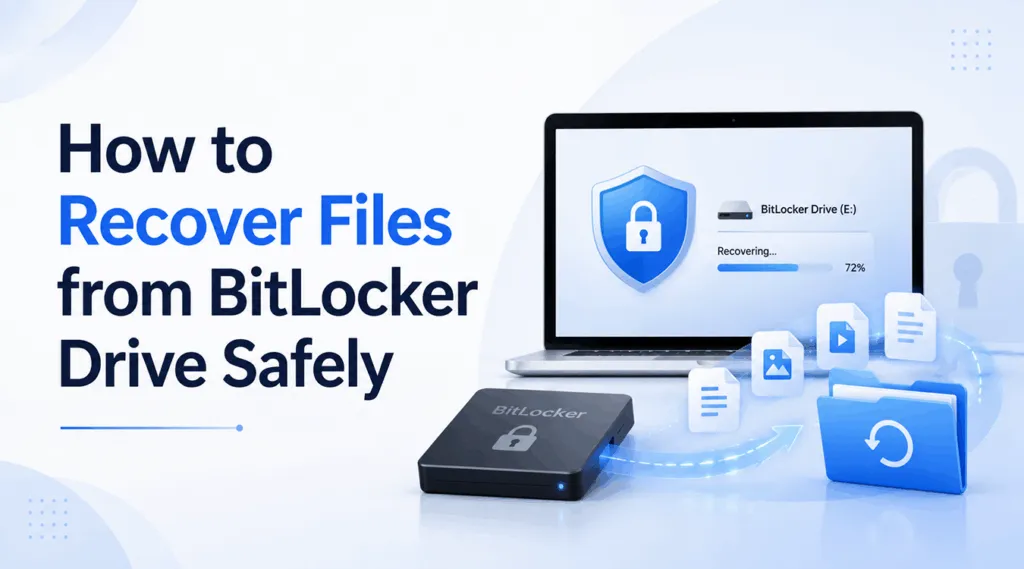
When an encrypted volume stops opening or important data disappears, many users need to recover files from BitLocker drive storage quickly. However, BitLocker access and file recovery are different problems. A drive may remain locked because Windows needs a password or 48-digit recovery key. In other cases, the drive opens, but deletion, formatting, partition damage, or file-system corruption has removed files from view.
Fortunately, you do not always need to decrypt the entire disk through Windows first. Magic Data Recovery can recognize a BitLocker-protected volume, request the correct password or recovery key, and scan its protected file structures. This guide explains how to recover files from BitLocker drive media safely.
Supports Windows 7/8/10/11 and Windows Server
Table of Contents
Can You Recover Files from BitLocker Drive Storage?
In many cases, yes. You can recover files from BitLocker drive storage when you have the correct password, recovery key, or another authorized access method. After Magic Data Recovery verifies the credentials, it can search the protected volume for deleted, formatted, or inaccessible files.
Recovery depends on what happened afterward. A deleted file or quick-formatted volume may still contain useful data, while overwriting, secure erasure, heavy reuse, or SSD TRIM can reduce recovery chances. However, if the drive clicks, overheats, or disconnects repeatedly, stop using it and seek professional help.
BitLocker Access vs. File Recovery
BitLocker blocks unauthorized access through encryption. Microsoft describes its recovery key as a unique 48-digit number and notes that it may appear in a Microsoft account, work or school account, printout, or USB device. File recovery, by contrast, searches for data that no longer appears in the file system.
If Windows has already unlocked the volume, Magic Data Recovery can scan it directly. Alternatively, choose a locked BitLocker volume inside the program and enter the password or recovery key when prompted. This method lets you recover files from BitLocker drive storage without full Windows decryption.
Before You Recover Files from BitLocker Drive Media
First, stop using the affected volume because downloads, installations, and copied data can overwrite recoverable content. Install Magic Data Recovery on another healthy partition. Next, do not format the drive merely because Windows calls it RAW, and avoid CHKDSK before securing important files. Finally, prepare another physical drive for the results. These precautions improve your chance to recover files from BitLocker drive storage safely.
How to Recover Files from BitLocker Drive with Magic Data Recovery
Magic Data Recovery can identify a BitLocker drive, request valid credentials, scan for lost data, preview supported files, and save selected results elsewhere.
Step 1: Download and Install Magic Data Recovery
Download Magic Data Recovery and install it on a healthy partition, not on the BitLocker drive that contains the missing files. This prevents the installation from overwriting recoverable content.
Supports Windows 7/8/10/11 and Windows Server
Step 2: Select the BitLocker Drive
Launch the program and identify the affected volume by its capacity, drive letter, partition details, and lock icon. If Windows has unlocked it, begin scanning. Otherwise, enter the BitLocker password or 48-digit recovery key when Magic Data Recovery asks. After verification, it can read the protected structures without decrypting the entire disk first.

Step 3: Enter the Key and Start the Scan
Enter the correct password or recovery key. Magic Data Recovery starts an Advanced Scan and lists recoverable content as it works. Nevertheless, let the process finish whenever possible, especially after formatting or partition loss.

Step 4: Preview Files Before Recovery
Next, filter the results by name, type, path, or size. Then preview important files before selecting them. A working preview gives you a better sign of integrity than a familiar name alone.

Step 5: Recover Files to a Safe Location
Finally, save the target files to another physical drive. Never use the original BitLocker volume as the destination because new writes may overwrite files that the software has not copied yet.

This process helps you recover files from BitLocker drive storage without waiting for full Windows decryption. However, you must still provide valid credentials because Magic Data Recovery does not bypass BitLocker.
Why Choose Magic Data Recovery?
Magic Data Recovery helps when you have valid credentials, but deletion, formatting, partition damage, or logical corruption has made files unavailable. Instead of forcing full-drive decryption, the program can accept the BitLocker key and begin scanning.
For example, if an unexpected shutdown leaves a BitLocker partition RAW, select it in Magic Data Recovery, enter the valid key, and scan for the files you need. Moreover, filters and previews let you review common documents, images, videos, audio, and archives before recovery.
The workflow stays clear: authorize access, scan, preview, and save elsewhere. Therefore, Magic Data Recovery offers a practical way to recover files from BitLocker drive storage without claiming to break encryption.
Recover Files from BitLocker Drive After Formatting
A quick-formatted BitLocker volume may still contain useful data, while a full format, secure erase, heavy reuse, or SSD TRIM can make recovery far less likely. BitLocker metadata also matters because software needs valid credentials and usable encryption information.
Therefore, stop using the drive, avoid new partitions, select the volume in Magic Data Recovery, and enter the key. Then scan and save results elsewhere. This gives you the best practical chance to recover files from BitLocker drive media after formatting.
Recover Data from a Corrupted BitLocker Drive
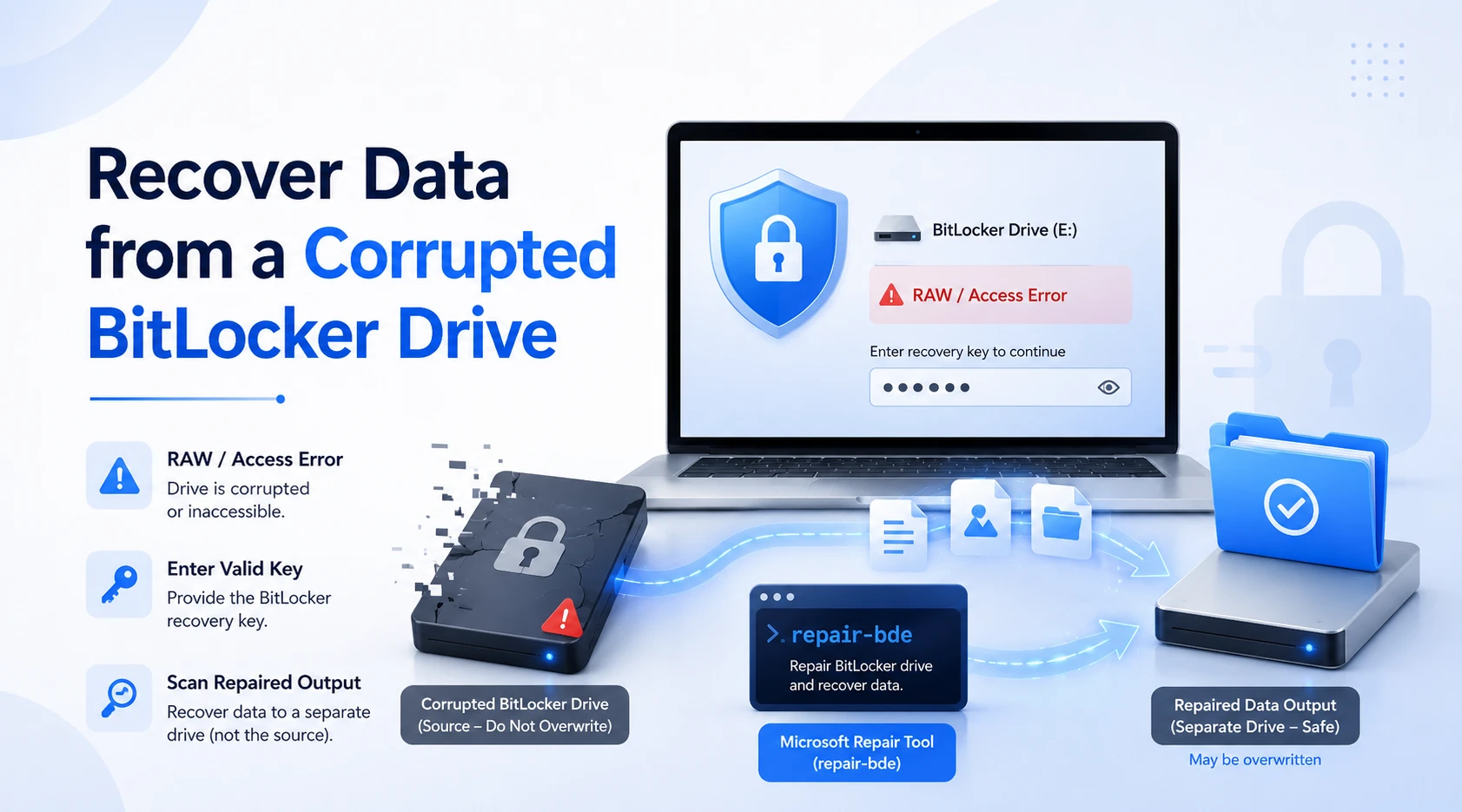
Logical corruption may stop Windows from mounting a BitLocker volume even when you have the correct key. For instance, the drive may appear RAW or return an access error.
Magic Data Recovery may still scan a detectable encrypted volume after you provide valid credentials. However, severe metadata damage may require Microsoft’s repair-bde tool. Microsoft states that repair-bde attempts to reconstruct critical parts of a damaged BitLocker drive and writes salvaged content to another destination. It also overwrites that destination, while some cases require a backup key package.
Consequently, verify every drive letter before using the command. Afterward, inspect the repaired output and scan it if important files remain missing.
Can You Recover Files from BitLocker Drive Without a Key?
Usually, no. To recover files from BitLocker drive storage, you need a valid password, recovery key, or another authorized access method. Magic Data Recovery can accept the key directly, but it cannot bypass BitLocker encryption.
If you cannot find the key, check every Microsoft account linked to the device. In addition, review work or school accounts, printouts, USB devices, saved text files, and password managers. Microsoft recommends matching the first eight digits of the recovery key ID with the stored key when several keys appear.
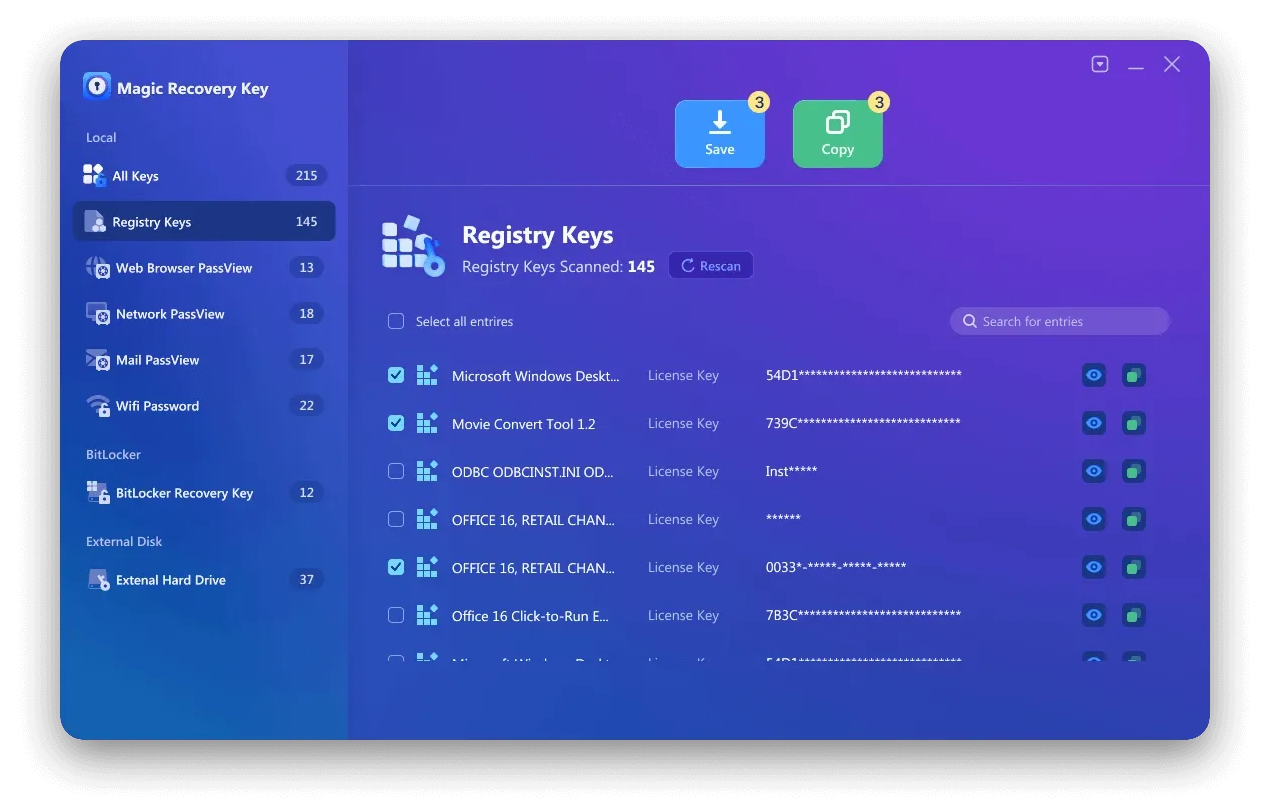
If the recovery key may still be stored on the computer, you can also try Magic Recovery Key. It can scan the system for stored BitLocker recovery keys and help you retrieve and back up an available key before continuing with data recovery. However, it cannot bypass encryption when no recoverable key exists.
Avoid tools that promise instant decryption without credentials. Users sometimes search recover files BitLocker drive hoping for a one-click bypass, but trustworthy software must preserve BitLocker protection.
Supports Windows 7/8/10/11 and Windows Server
When Should You Use a Professional Service?
Software works best on a stable, detectable drive. Therefore, turn off a device that clicks, overheats, disconnects, or disappears from BIOS. Professional help also makes sense for irreplaceable data because repeated attempts can worsen physical damage.
How to Prevent Future BitLocker Data Loss
BitLocker does not replace a backup. Store the recovery key in two secure places, confirm that it matches the correct key ID, and keep another copy of important files through OneDrive, File History, a network location, or a separate disk. Most importantly, test the backup occasionally.
Conclusion: Recover Files from BitLocker Drive Safely
The best way to recover files from BitLocker drive storage depends on the volume’s condition. Stop new writes, locate the correct credentials, and then scan, repair severe logical damage, or seek professional help when hardware fails.
Magic Data Recovery is a practical choice because it accepts BitLocker credentials inside the program and scans the protected volume without full Windows decryption. Its filtering and preview tools also help users focus on valuable files.
Most importantly, the software does not claim to break BitLocker. It uses valid credentials to search for files lost through deletion, formatting, partition damage, or logical corruption. For users who need to recover files from BitLocker drive storage safely, that balance makes Magic Data Recovery a sensible solution.
Supports Windows 7/8/10/11 and Windows Server
FAQs
Do I Need to Decrypt the Entire BitLocker Drive First?
No. Magic Data Recovery can identify a BitLocker-protected volume and request the correct password or 48-digit recovery key. After it verifies the credentials, the program can scan the encrypted file structures directly. Therefore, you do not need to complete a full Windows decryption before starting recovery.
Can Magic Data Recovery Scan a Locked BitLocker Drive?
Yes, provided that you have valid BitLocker credentials. Select the locked volume in Magic Data Recovery and enter the password or recovery key when prompted. The program can then interpret the protected file system and search for deleted, formatted, or inaccessible files without decrypting the whole disk first.
Can Magic Data Recovery Bypass BitLocker Encryption?
No. Magic Data Recovery cannot bypass BitLocker or recover readable content without authorized credentials. Its direct key-entry feature simplifies the process, but you must still provide the correct password or recovery key. This limitation preserves BitLocker security while supporting legitimate file recovery.
Can I Recover a Formatted BitLocker Drive?
Possibly. A quick-formatted drive may still contain recoverable data when new files have not overwritten the original content and the encryption metadata remains usable. However, a full overwrite, secure erase, extensive reuse, or SSD TRIM can greatly reduce the chance of recovering complete files.
What If My BitLocker Drive Appears as RAW?
If the drive remains detectable, select it in Magic Data Recovery and enter the valid BitLocker key when requested. The program may scan the protected structures even when File Explorer cannot mount the volume normally. However, stop immediately if the device clicks, overheats, or disconnects repeatedly.
Where Should I Save the Recovered Files?
Save recovered files to another physical drive or storage device. Never restore them to the original BitLocker volume during the scan. Writing new data to the source can overwrite additional deleted content and reduce the number of files that the software can recover.
Can I Recover BitLocker Files When Windows Will Not Boot?
Yes, in some cases. Connect the affected disk to another working Windows computer, launch Magic Data Recovery, and select the BitLocker volume. Enter the correct password or recovery key when prompted. Then scan the disk and save the recovered files to a separate storage device.

Vasilii is a data recovery specialist with around 10 years of hands-on experience in the field. Throughout his career, he has successfully solved thousands of complex cases involving deleted files, formatted drives, lost partitions, and RAW file systems. His expertise covers both manual recovery methods using professional tools like hex editors and advanced automated solutions with recovery software. Vasilii's mission is to make reliable data recovery knowledge accessible to both IT professionals and everyday users, helping them safeguard their valuable digital assets.