
Recover Files Corrupted SD Card Guide
An SD card can fail without warning. Your camera may show a card error, Windows may ask you to format the device, or important folders may suddenly disappear. If you searched for recover files corrupted SD card, you probably want to restore photos, videos, or documents without making the problem worse.
Fortunately, corruption does not always mean permanent data loss. In many cases, you can recover files from a corrupted SD card when the device still appears in Windows and no new data has overwritten the missing files.
First, stop using the card. Do not take more photos, copy new files, format the device, or run repair commands. Instead, begin with the low-risk checks or SD card recovery in this guide. A faulty reader, missing drive letter, or temporary connection problem can look like serious corruption.
This guide explains how to inspect the card, try simple fixes, recover inaccessible files, and repair the storage afterward. If the basic checks fail, you will also learn how Magic Data Recovery can scan a detectable SD card and save recoverable files before you change its file system.
Supports Windows 7/8/10/11 and Windows Server
Table of Contents
Can You Recover Files from a Corrupted SD Card?
Yes, in many situations. However, the result depends on whether the SD card has logical corruption or physical damage.
Logical corruption affects the file system, partition information, or folder records. For example, Windows may display the card as RAW, request formatting, or hide folders that worked normally before. Although Windows cannot access the files through the damaged structure, the original data may still remain on the storage.
Therefore, you may still recover files from a corrupted SD card when the computer detects the device but cannot open its contents.
Physical damage creates a different problem. A cracked card, damaged contacts, water exposure, or failed controller may stop recovery software from reading the memory. In that case, repeated scanning may not help.
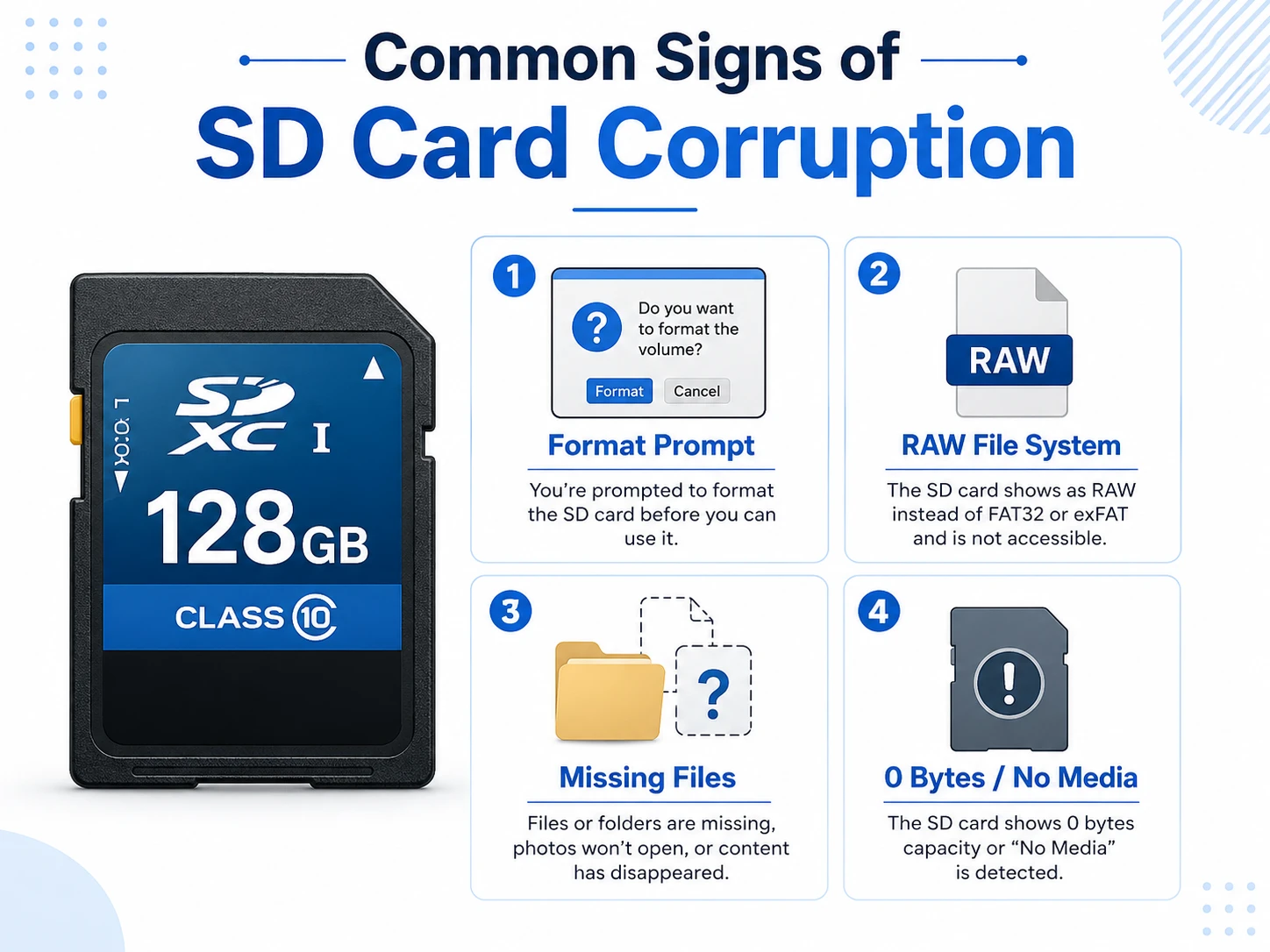
Symptom | Recommended action |
Windows asks you to format the card | Cancel the prompt and recover files first |
The card appears as RAW | Scan before repair |
Windows shows the expected capacity | Software recovery may be possible |
The card shows 0 bytes or “No Media” | Consider professional recovery |
The card has visible physical damage | Stop using it and seek expert help |
Before You Recover Files from a Corrupted SD Card
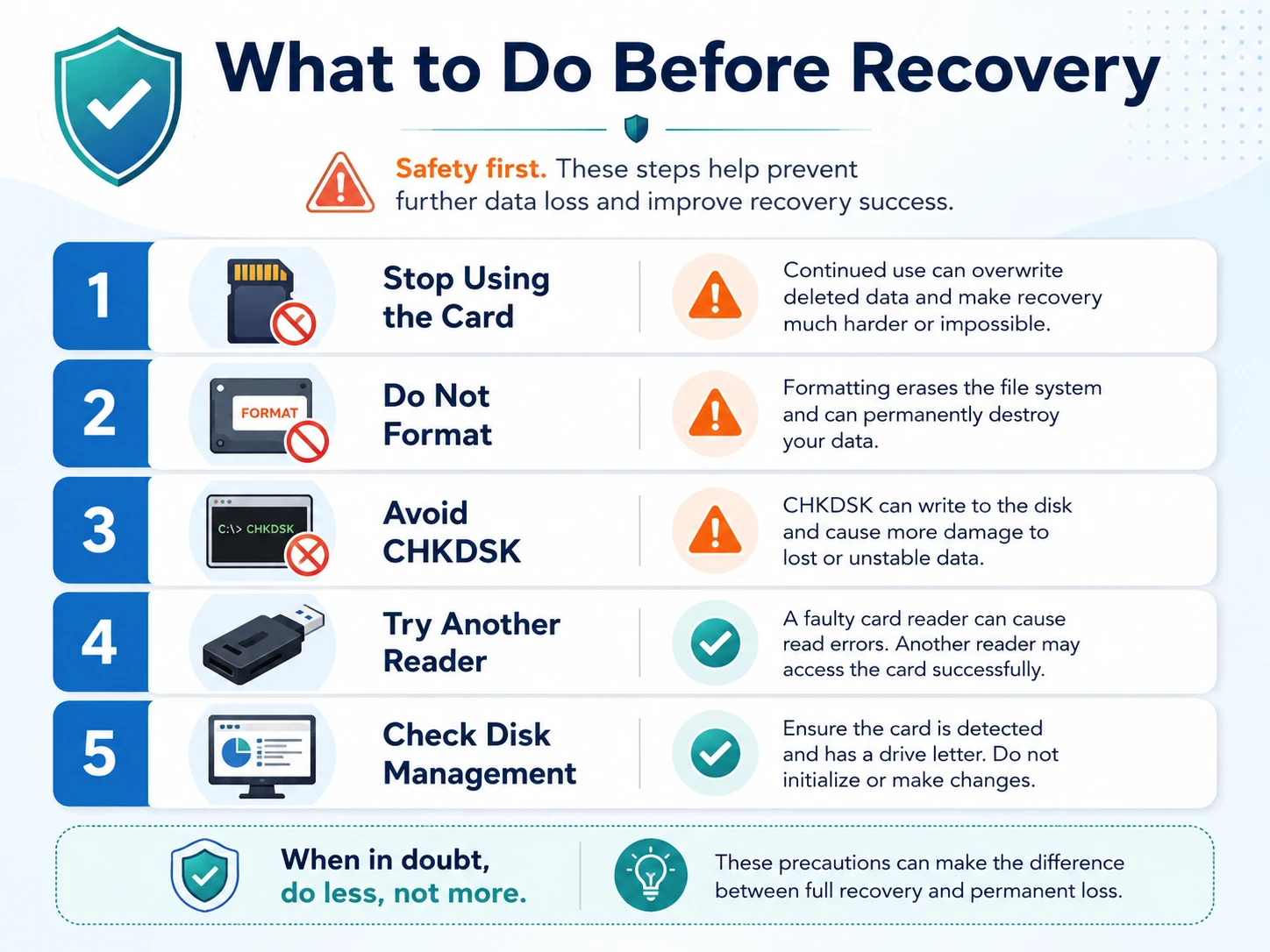
Before you try any repair, protect the remaining data. First, remove the SD card from the camera, phone, drone, dashcam, or other device. Do not edit files or copy new content to the card. New data may overwrite storage areas that still contain inaccessible photos, videos, or documents.
Next, cancel any format prompt. Formatting creates a new file system, but it does not copy your missing files to safety. Therefore, recovery should come before formatting.
In addition, avoid CHKDSK while important files remain inaccessible. CHKDSK can fix some file-system errors, but it changes file-system information during the repair process.
Finally, inspect the card reader and USB connection. Dust, worn contacts, unstable adapters, and faulty USB ports can create read errors that resemble storage corruption.
Try These Simple Fixes to Recover Files from a Corrupted SD Card
Not every unreadable SD card needs recovery software. Therefore, start with the following low-risk checks. They may help you recover files from a corrupted SD card without changing the file system.
Method 1: Try Another Card Reader or Computer
First, connect the card through another compatible reader. Then, use a different USB port and test the device on another Windows computer.
A damaged reader may interrupt communication between the card and the computer. Likewise, an unstable USB hub can cause random connection errors.
If the card opens, copy important files to the computer immediately. However, do not rename, move, edit, or delete files directly on the card. Copying keeps the original data in place until you confirm that the new copies work correctly.
Method 2: Check the SD Card in Windows Disk Management
If File Explorer does not show the card, check Disk Management:
- Right-click the Start button.
- Select Disk Management.
- Find the SD card by checking its storage capacity.
- Review whether Windows shows it as Healthy, RAW, Unallocated, or without a drive letter.
A card that displays approximately the correct capacity may still suit logical data recovery. On the other hand, a device that shows 0 bytes or “No Media” may have a controller or hardware problem.
Disk Management can also show a card that File Explorer cannot open. As a result, this check helps you understand whether Windows still recognizes the storage.
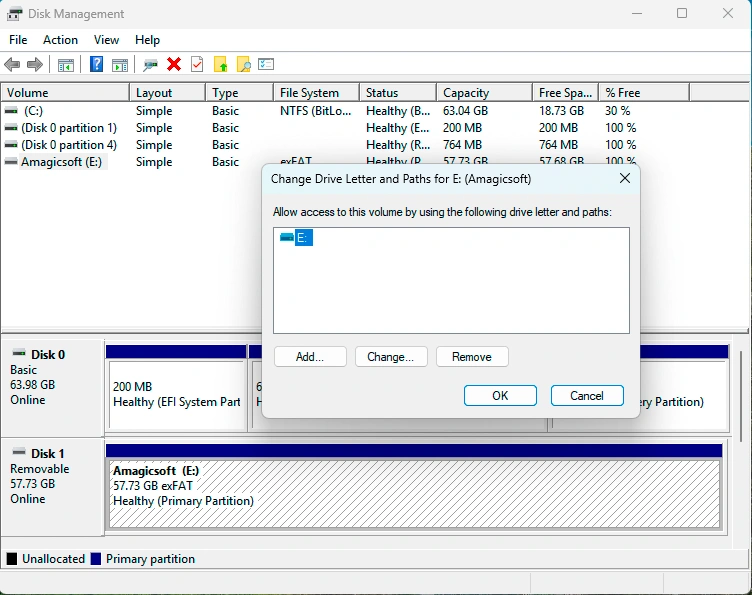
Method 3: Assign a Drive Letter
Sometimes Windows detects the SD card but does not assign a drive letter.
To add one:
- Right-click the SD card volume in Disk Management.
- Select Change Drive Letter and Paths.
- Choose Add or Change.
- Select an unused drive letter.
- Open File Explorer again.
This method may solve a drive-letter conflict. However, it cannot rebuild damaged folders, repair a RAW file system, or restore deleted data.
Method 4: Check Hidden Files and Existing Backups
If the card opens but some folders are missing, turn on Hidden items in File Explorer. Meanwhile, check OneDrive, Google Drive, iCloud Photos, Windows File History, camera import folders, and other backup locations. You may already have another copy of the missing content.
A working backup remains the safest solution because it avoids additional access to the affected card. Therefore, always check backups before you start a full recovery scan.
Together, these basic checks may help users who search for recover files corrupted SD card solutions without making unnecessary changes to the storage.
What If the Simple SD Card Fixes Do Not Work?
The methods above can solve reader problems, missing drive letters, hidden files, and some connection issues. However, they cannot extract files from a RAW partition or rebuild a damaged file system. At this point, avoid random repair commands.
Formatting may make the SD card usable again, but it does not protect inaccessible files. Likewise, CHKDSK focuses on file-system repair rather than general data recovery.
Therefore, when Windows still shows the card with a reasonable capacity but cannot open its contents, recovery software becomes a practical next step. A scan-first approach may help you recover files from a corrupted SD card before you change the damaged storage structure.
This order matters because data recovery and file-system repair have different goals. Recovery focuses on copying files to safety. Repair focuses on making the storage usable again.
How to Recover Files from a Corrupted SD Card with Magic Data Recovery
If the basic checks do not restore access but Windows still detects the card, Magic Data Recovery can scan the storage and help locate the files.
This approach may help when:
- Windows asks you to format the SD card.
- The card appears as RAW.
- Folders disappear after an interrupted transfer.
- Photos, videos, or documents become inaccessible.
- Windows still displays the expected storage capacity.
For users looking for a practical recover files corrupted SD card workflow, the following steps focus on data recovery before repair.
Step 1: Download and Install Magic Data Recovery
Download Magic Data Recovery and install it on your computer. Do not install the program on the corrupted SD card. New files may overwrite data that remains recoverable.
Supports Windows 7/8/10/11 and Windows Server
Step 2: Select the Corrupted SD Card
Connect the SD card through a stable card reader. Then, open Magic Data Recovery. On the main interface, locate the affected card by checking its name and storage capacity. Make sure you select the correct device before you start the scan.

Step 3: Scan the SD Card for Lost or Inaccessible Files
Magic Data Recovery starts an Advanced Scan automatically. Meanwhile, recoverable photos, videos, documents, and other files appear as the scan continues. Allow the scan to finish when possible because a complete scan may find additional files.
In addition, keep the card connected and avoid running CHKDSK, formatting tools, or other repair utilities during the process.

Step 4: Preview Files Before Recovery
After the scan, review the results and use the preview feature to check important files. You can also browse folders or filter results by file type. As a result, you can focus on the photos, videos, documents, or other content you actually need.
For example, preview several important photos or documents before recovery. When you review videos, also check the file size because a filename alone does not confirm that the complete content remains available.

Step 5: Recover Files to a Safe Location
Finally, select the files you want to restore and save them to your computer or another healthy storage location. Do not save recovered data back to the corrupted SD card. Otherwise, new writes may overwrite other recoverable files or create additional problems.
After recovery, open several restored photos, videos, and documents. This final check confirms that the files work before you repair, format, or replace the SD card.

Why Use Magic Data Recovery After the Basic Checks?
Magic Data Recovery fits the point where basic troubleshooting ends and file recovery begins. Unlike formatting, a recovery scan focuses on finding files and copying them elsewhere. Moreover, the graphical workflow does not require command-line knowledge.
The preview feature also lets users review supported files before saving them. Therefore, users can focus on important content instead of restoring every result blindly.
Magic Data Recovery may suit situations where:
- Windows detects the card but cannot open it.
- The SD card appears as RAW.
- A transfer interruption makes folders inaccessible.
- The computer still shows the correct storage capacity.
- The user wants to preview files before recovery.
For users who want to recover files from a corrupted SD card without starting with CHKDSK or formatting, this workflow provides a clear next step.
However, no recovery software can restore data that new files have completely overwritten. Likewise, software cannot read memory chips that have physically failed.
Therefore, use the program when the card remains detectable and stable enough to scan. If the card disconnects constantly, becomes unusually hot, shows no valid capacity, or has visible damage, stop using it and consider professional recovery.
How to Recover Files from a Corrupted Flash Drive
The same safety-first process applies when you need to recover files from a corrupted flash drive.
Although a USB flash drive connects directly to a computer, it can show many of the same problems as an SD card. For example, Windows may request formatting, display the device as RAW, hide folders, or deny access after an interrupted transfer.
First, stop using the flash drive. Then, try another USB port or computer and check the device in Disk Management.
To recover files from a corrupted flash drive:
- Connect the drive directly to a stable USB port.
- Cancel any request to format it.
- Check its capacity in Disk Management.
- Look for copies in existing backups.
- Scan the device if Windows still recognizes it.
- Preview important files.
- Save recovered data to another healthy location.
For example, an interrupted file transfer may damage folder information and make the USB drive appear RAW. In that situation, a scan-first approach may help you recover files from a corrupted flash drive before file-system repair.
However, stop software attempts when the drive shows 0 bytes, reports “No Media,” disconnects repeatedly, or becomes unusually hot. These symptoms may point to hardware failure.
Repair the Card After You Recover Files from a Corrupted SD Card
Once you recover files from a corrupted SD card and confirm that the copies open correctly, you can repair, format, or replace the device.
Run CHKDSK
Open Command Prompt as an administrator and enter:
chkdsk X: /f
Replace X: with the SD card’s drive letter.
The /f option tells CHKDSK to fix file-system errors. However, run the command only after recovery because CHKDSK changes file-system structures while it repairs them.
After the process finishes, open the card and check whether Windows can access it normally. Even if the repair works, keep the recovered files in a separate location.

Format the SD Card
If CHKDSK does not solve the problem, formatting may create a clean file system.
First, verify that your recovered photos, videos, documents, and other files open correctly. Then, format the card with the file system recommended by your camera, phone, or other device.
Remember, formatting repairs storage usability; it does not recover inaccessible files.
Replace the Card If Errors Return
Even if the card works again, watch for repeated problems.
For example, recurring RAW errors, missing files, connection drops, or write failures may indicate worn flash memory or controller damage.
Therefore, replace an unreliable card and never keep the only copy of important data on removable storage.
What Affects Your Chance to Recover Files from a Corrupted SD Card?
No honest recovery guide can promise a guaranteed result.
Your chance to recover files from a corrupted SD card depends on the device condition, the type of damage, and what happened after the files became inaccessible.
Factor | Likely effect |
You stopped using the card quickly | Helps preserve recoverable data |
You added new photos or files | May overwrite older content |
The card shows the correct capacity | Gives recovery software better access |
The card received a quick format | Files may remain if nothing overwrote them |
New content fully overwrote the storage | Recovery may become impossible |
The card has physical damage | Professional recovery may be necessary |
Therefore, act early and avoid unnecessary writes. The fewer changes you make after the problem appears, the better your recovery chances may remain.
Tips to Prevent Future SD Card and Flash Drive Corruption
After recovery, follow these habits:
- Eject removable storage safely.
- Do not remove a card during recording or file transfer.
- Keep at least one additional copy of important files.
- Replace cards that produce repeated errors.
- Use reliable card readers and USB ports.
- Protect storage from heat, moisture, and physical stress.
- Never store valuable data in only one location.
In addition, copy important photos and videos soon after you create them. A simple backup routine can prevent a storage error from becoming permanent data loss.
Although these habits cannot repair existing damage, they can reduce the chance that you will need to recover files from a corrupted SD card again.
Conclusion
To recover files from a corrupted SD card, start with the safest checks. Stop using the device, test another reader, try another computer, inspect Disk Management, assign a drive letter when necessary, and review available backups. If Windows still detects the card but cannot locate the files, avoid formatting it immediately. Instead, recover important data before you repair the file system.
Magic Data Recovery becomes useful at this stage because it gives Windows users a clear way to scan a detectable SD card, preview recoverable content, and save selected files elsewhere. Moreover, the SD card recovery workflow does not require command-line knowledge.
Still, the software works best when the card shows a valid capacity and remains stable enough to scan. Physical damage like repeated disconnections, or a “No Media” status may require professional help.
For anyone searching for a recover files corrupted SD card solution, the safest order remains simple: Check first. Recover second. Repair last.
Supports Windows 7/8/10/11 and Windows Server
FAQ
Can I Recover Files from a Corrupted SD Card Without Formatting?
Yes. In many logical corruption cases, you can recover files from a corrupted SD card before formatting. First, try another reader, check Disk Management, and review your backups. If Windows still detects the card but cannot open it, scan the storage and save recovered files elsewhere. Format only after you verify the restored data.
What Should I Do If Windows Asks Me to Format the SD Card?
Cancel the format prompt if you still need the files. Next, check the card in Disk Management and confirm whether Windows shows the expected capacity. If it does, recover the data before repair. Formatting may restore storage usability, but it also changes the file system and can affect later recovery attempts.
Should I Run CHKDSK Before Data Recovery?
Usually, no. CHKDSK repairs file-system structures, so it may change damaged records while it works. Therefore, recover and verify important files first whenever possible. After your data is safe, you can run CHKDSK to fix logical errors and test whether Windows can access the card normally again.
Can I Recover Files from a Corrupted Flash Drive?
Yes, if the USB device remains detectable and stable enough to scan. To recover files from a corrupted flash drive, stop using it, try another USB port, check Disk Management, and avoid formatting. Then, scan the device and save recovered files to your computer or another healthy storage location.
What Should I Do If My SD Card Shows RAW?
A RAW status usually means Windows cannot recognize a usable file system. However, the files may still remain on the card. Avoid formatting it immediately. Instead, check the device capacity, recover important data, and verify the restored files. Afterward, format the card to create a new file system.
What If the SD Card Shows 0 Bytes or “No Media”?
A 0-byte or “No Media” status may indicate controller failure or another hardware problem. In that situation, recovery software may not access the memory. Try one reliable reader and another computer. If the status does not change, stop repeated attempts and consider a professional data recovery service.
Can I Keep Using the SD Card After Recovery?
You can test the card after recovery, but do not trust it immediately. First, repair or format it, then watch for recurring errors. If the card becomes RAW again, loses files, disconnects, or reports write failures, replace it. Reliable storage usually costs less than dealing with another data-loss incident.

Vasilii is a data recovery specialist with around 10 years of hands-on experience in the field. Throughout his career, he has successfully solved thousands of complex cases involving deleted files, formatted drives, lost partitions, and RAW file systems. His expertise covers both manual recovery methods using professional tools like hex editors and advanced automated solutions with recovery software. Vasilii's mission is to make reliable data recovery knowledge accessible to both IT professionals and everyday users, helping them safeguard their valuable digital assets.