
How to Recover Files That Disappeared on Windows 11/10
When files suddenly vanish from a Windows PC, they are not necessarily permanently deleted. A document may have been moved, a folder may be hidden, Windows may have loaded a different user profile, OneDrive may have changed the file location, or a storage problem may prevent File Explorer from showing the data normally.
If you need to recover files that disappeared, your chances depend on what actually happened. Files that still exist under another path can usually be located without recovery software. Deleted files may remain recoverable until their storage space is overwritten, while SSD deletion can be more difficult because TRIM may notify the storage device that deleted clusters are no longer in use.
If deletion or a disk problem is possible, avoid unnecessary downloads, installations, file transfers, formatting, or repair operations on the affected drive until you know where the files went. For a broader overview of deleted-file scenarios, see our Deleted File Recovery guide.
Table of Contents
Important: Protect the Missing Files Before You Start
If Windows still works normally but important files have disappeared, basic checks such as Search, OneDrive, and user-profile inspection are safe places to begin.
However, if the files may have been deleted, the partition appears RAW or unallocated, or Windows asks you to format the drive, reduce writes to that storage device immediately.
Do not format or initialize a problem drive just to make it usable again. If data is still missing, recovery should come before repair. If an HDD is clicking, grinding, repeatedly disconnecting, or struggling to spin up, stop DIY recovery and consider professional help.
Quick Answer: What Should You Check When Files Disappear?
Use the symptom to choose your first step instead of trying every fix at random.
What you notice | What it may mean | What to check first |
One file or folder disappeared | Moved, renamed, hidden, synced, or deleted | Search This PC |
A folder exists but looks empty | Hidden files, profile issue, sync issue, or file-system problem | Show hidden items |
Desktop/Documents suddenly changed | Different Windows profile or OneDrive redirection | Check |
Files disappeared after an update | Different profile or files retained in Windows.old | Check user folders and Windows.old |
Files vanished after a security warning | Antivirus quarantine | Check Protection history |
Entire drive disappeared from File Explorer | Missing drive letter or partition problem | Check Disk Management |
Drive appears RAW | File-system damage | Recover important data before repair |
Space appears Unallocated | Lost partition information | Do not create a new volume |
Files are absent from Search, Recycle Bin, cloud, and backups | Deletion or damaged file records | Move to file recovery |
The important distinction is between files that still exist but are difficult to locate and files whose normal Windows records are gone. Recovery software makes sense mainly in the second situation.
Why Did My Files Suddenly Disappear?
A useful diagnosis should change what you do next.
The Files Were Moved or Renamed
A drag-and-drop operation, application save setting, extraction process, or folder reorganization can move a file without deleting it. If only a few files disappeared while the rest of the drive works normally, search the entire PC before trying recovery.
Files or Folders Became Hidden
Windows can hide files through their attributes. Some applications, scripts, malware, or accidental setting changes may also make normally visible content disappear from File Explorer. A useful clue is that the folder looks empty even though the drive still reports approximately the expected used space.
Windows Loaded a Different User Profile
Windows keeps Desktop, Documents, Downloads, Pictures, Videos, and other personal folders separately for each account. A sign-in problem, account change, or temporary profile can therefore make it look as if all your files disappeared, even though the original data still exists under another folder in C:\Users.
OneDrive Changed Where the Files Appear
OneDrive can synchronize or redirect Desktop, Documents, and Pictures. As a result, a file you previously opened from a local path may now exist under a OneDrive location. Microsoft recommends searching OneDrive on the web and checking its Recycle Bin when files appear to be missing. See Microsoft: Find lost or missing files in OneDrive.
A Windows Upgrade Changed the File Location
After certain upgrades, personal files may temporarily remain inside Windows.old. Microsoft states that files kept there after an applicable Windows upgrade are normally available for 10 days, so this location is worth checking promptly. See Microsoft: Retrieve files from the Windows.old folder after a Windows upgrade.
A Drive or Partition Problem Made Files Inaccessible
If many folders disappear together, a drive vanishes from File Explorer, Windows asks you to format it, or Disk Management shows RAW or unallocated space, the problem may involve the file system or partition structure rather than individual files.
In this situation, recovery should generally come before formatting or partition reconstruction. For a deeper look at this scenario, see RAW Hard Drive Recovery.
The Files Were Actually Deleted
Accidental deletion, Shift + Delete, an emptied Recycle Bin, formatting, malware, crashes, or file-system damage can remove Windows’ normal access to files. Once simpler location and backup checks fail, how to recover files that disappeared becomes a genuine data-recovery problem.
How to Recover Files That Disappeared on Windows
The following methods are ordered from low-risk ways of locating existing files to deeper recovery options.
Method 1: Search the Entire Computer
Best for: Files that may have been moved, renamed, or saved somewhere unexpected.
Limitation: Windows Search cannot restore a file whose active file-system record is gone.
Press Windows + E, open This PC, and search for the complete filename or a distinctive part of it.
If you do not remember the filename, search by extension, such as:
*.docx*.xlsx*.pdf*.jpg*.mp4
When you find a likely result, right-click it and choose Open file location.
Microsoft documents using Windows Search and File Explorer to locate files across the PC and OneDrive. See Microsoft: Find your files and apps in Windows.
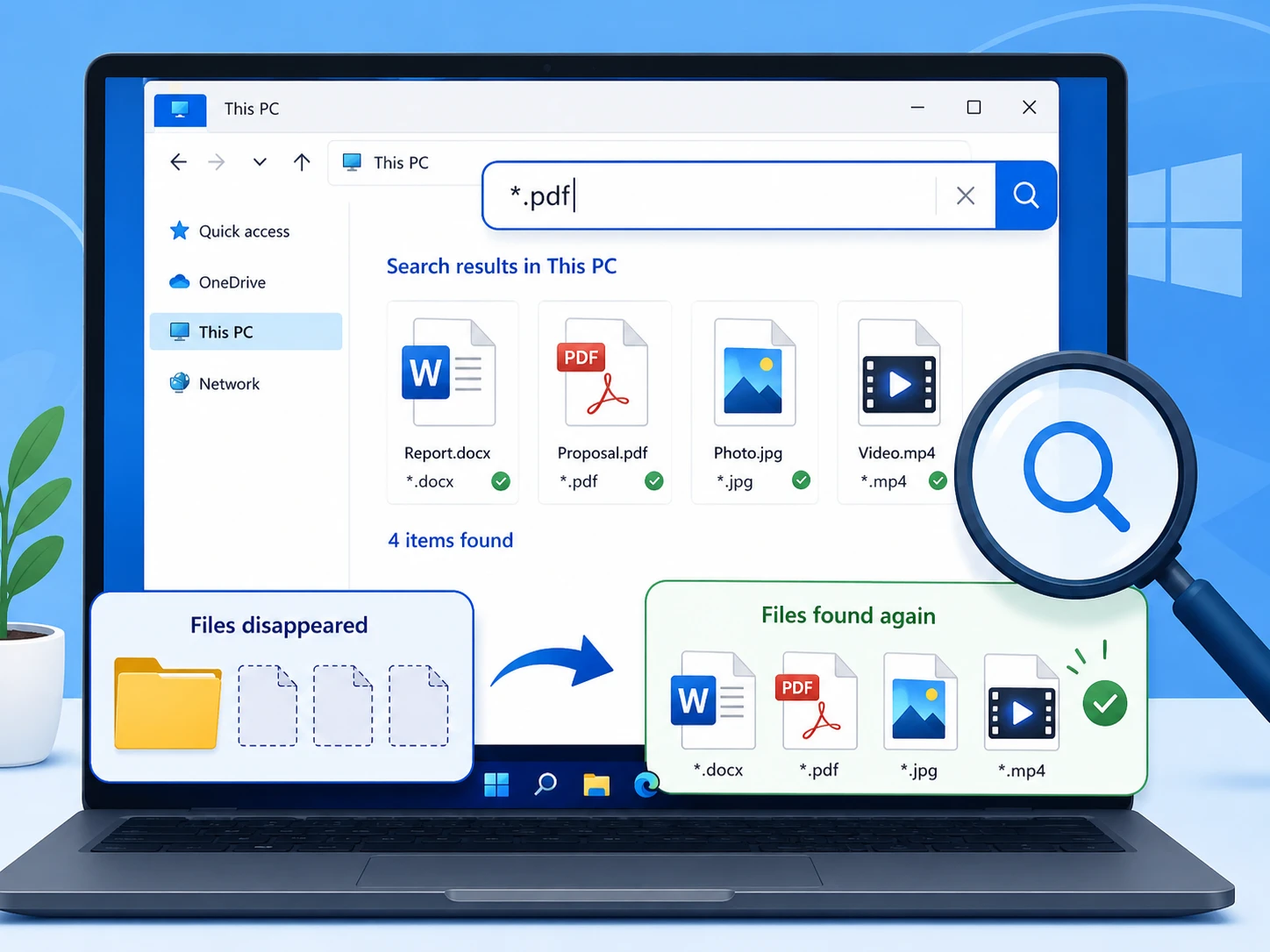
Expected result: The file opens from a different folder than the one you expected.
If it fails: Continue with hidden files and user-profile checks.
Method 2: Check the Recycle Bin
Best for: Files that may have been deleted normally.
Limitation: Shift + Delete, an emptied Recycle Bin, or some removable-storage deletions may bypass this route.
Open the Windows Recycle Bin and look for the missing file or folder. If you find it, right-click the item and select Restore. Windows returns the item to its original location.
If the Recycle Bin has already been emptied, see Recover Files from an Emptied Recycle Bin before moving to deeper recovery.
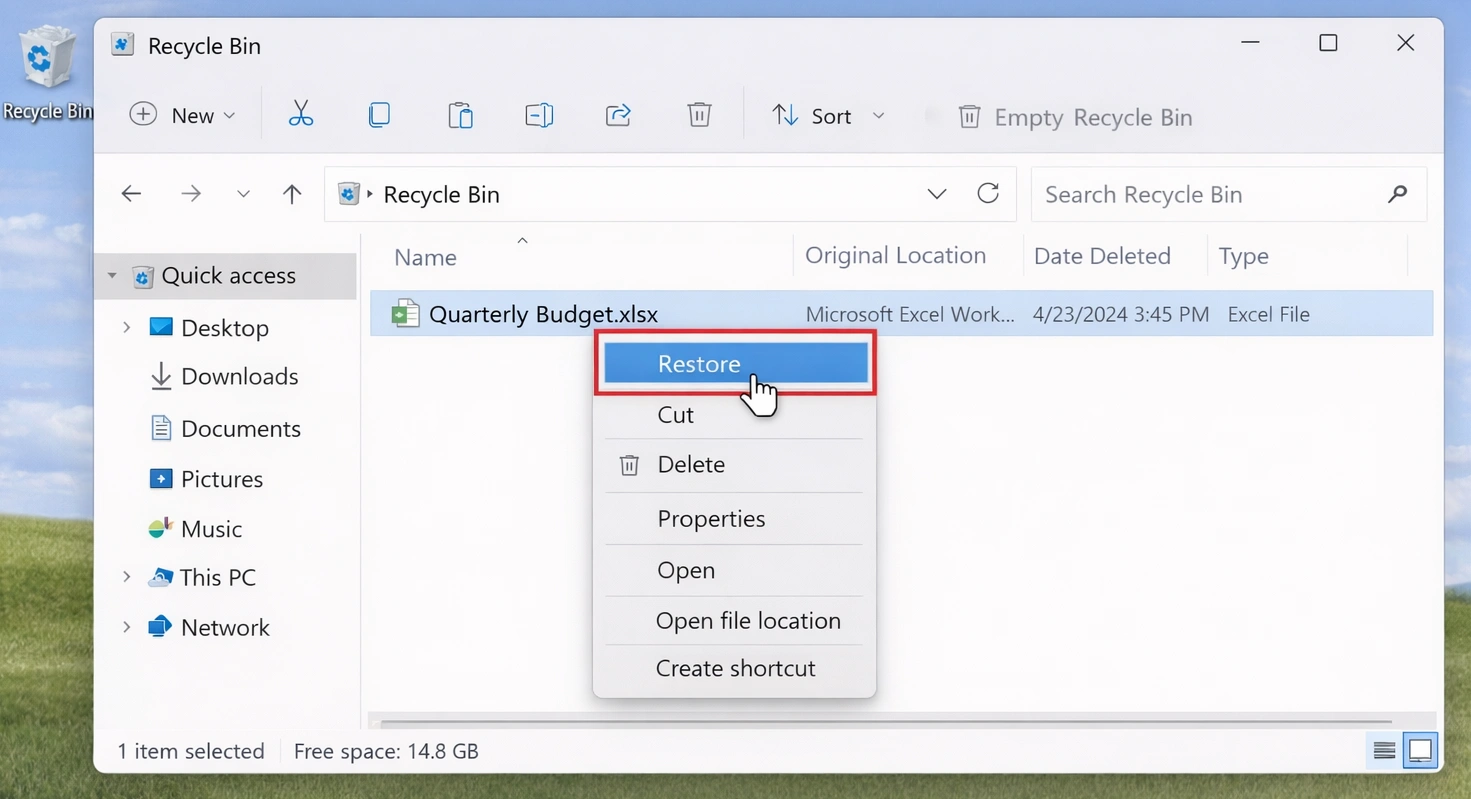
Expected result: The restored file reappears in its previous folder.
If it fails: Check hidden items and other locations before scanning the drive.
Method 3: Show Hidden Files and Folders
Best for: An existing folder looks empty or files vanished without an obvious deletion event.
Limitation: This helps only when the files still exist and are hidden.
Open File Explorer and select:
View > Show > Hidden items
Return to the original folder and check whether the missing files appear. If they do, confirm their names, paths, and contents before changing file attributes or moving them.
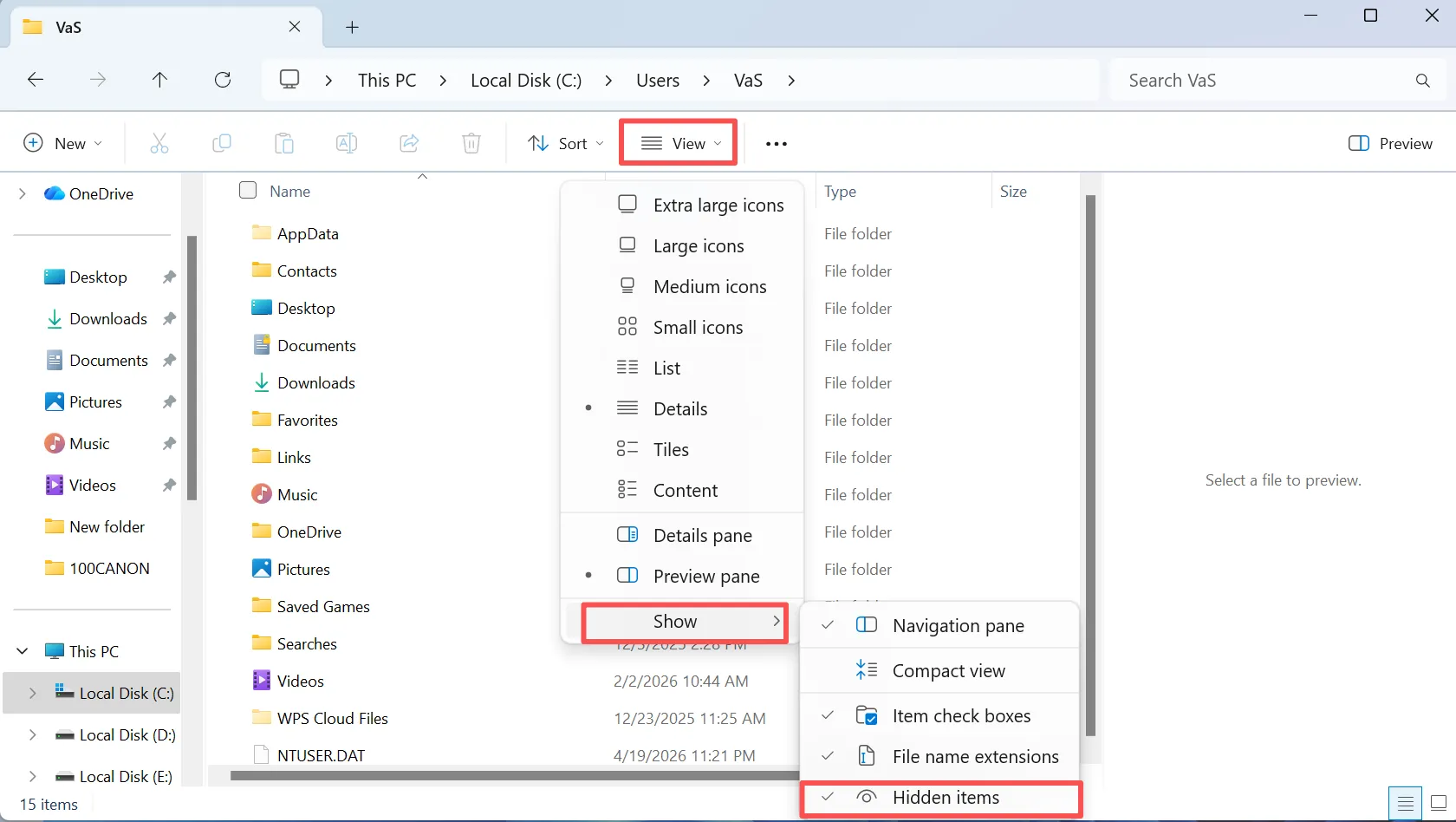
Expected result: The missing files become visible in their existing location.
If it fails: Check the Windows user profile.
Method 4: Check Whether Windows Signed You Into a Temporary Profile
Best for: Your Desktop, Documents, Downloads, or personal settings suddenly look reset after a restart, update, or sign-in problem.
Windows can sign you into a temporary user profile when your normal profile cannot load correctly. In that case, your original files may still exist under the previous profile in C:\Users, even though the current Desktop and Documents appear almost empty.
Microsoft specifically warns that files created or changed while using a temporary profile can be lost when you sign out. Before restarting or signing out, copy any new work from the temporary session to an external drive or another safe location.
Then check:
C:\Users
Look for your normal profile folder and inspect:
Desktop
Documents
Downloads
Pictures
If the original files are still there, this is primarily a profile-loading problem, not a deleted-file problem, so data recovery software should not be your first step.
Method 5: Check OneDrive and Its Recycle Bin
Best for: Desktop, Documents, or Pictures are synchronized with OneDrive.
Limitation: OneDrive recovery only helps if the file was stored or synchronized there.
Check the OneDrive folder in File Explorer first. Depending on your configuration, files may appear under paths such as:
OneDrive\DesktopOneDrive\Documents
Then sign in to OneDrive online and check My Files, Recent, and Recycle Bin. Microsoft specifically recommends starting with the OneDrive website when looking for lost or missing cloud files. See Microsoft: Find lost or missing files in OneDrive.
Expected result: The missing file is found in OneDrive, another account, or the OneDrive Recycle Bin.
If it fails: Check local deletion and backup locations.
Method 6: Check Windows.old After an Upgrade
Best for: Files disappeared immediately after a Windows version upgrade.
Limitation: Reset this PC and some clean-install scenarios do not create the same recovery path.
Look for:
C:\Windows.old
If it exists, open:
C:\Windows.old\Users\YourName
and check Desktop, Documents, Pictures, and other personal folders.
Microsoft says Windows.old content in applicable upgrade scenarios is normally kept for 10 days. See Microsoft: Retrieve files from Windows.old.
If you find important files, copy them to your current user folders or another safe storage location.
Expected result: The missing files are found under your previous Windows profile and can be copied to a safe location.
If it fails: Continue to File History or other backups instead of assuming the files were permanently deleted.
Method 7: Restore From File History or Previous Versions
Best for: File History or another backup existed before the files disappeared.
Limitation: File History cannot create a backup retroactively after data loss.
Open the folder that previously contained the missing files, right-click it, and choose Restore previous versions when available.
Select an earlier version and preview its contents before restoring. Microsoft also allows restoring to another location to avoid replacing the current version unnecessarily. See Microsoft: Backup and restore with File History.

Expected result: A usable earlier copy is restored from backup.
If it fails: Continue to quarantine and drive-status checks.
Method 8: Check Antivirus Quarantine and Others
Best for: One or several executables, archives, scripts, or downloaded files disappeared around the time of a security alert.
Limitation: Restoring an unsafe file can reintroduce malware.
Open Windows Security > Virus & threat protection > Protection history and review recent detections. If you use third-party security software, check its quarantine instead.
Restore a quarantined item only if you are confident that the file is safe.
Expected result: The missing file appears in Protection history or the security product’s quarantine and can be restored after you verify it is safe.
If it fails: If the missing files were on an entire drive or partition, check Disk Management next.
Files Disappeared From a Hard Drive? Check Disk Management
Best for: An entire drive or partition disappeared from File Explorer, or Windows reports RAW, Unallocated, or a missing drive letter.
Limitation: Disk Management helps diagnose the storage state; it does not recover deleted files by itself.
Right-click Start and open Disk Management. Do not immediately format, initialize, repartition, or run repair commands. First identify what Windows sees.
The Partition Is Healthy but Has No Drive Letter
A healthy volume without a drive letter may not appear normally in File Explorer.
If the partition otherwise looks normal and it is not the Windows or application volume, assign an unused drive letter through Disk Management. Microsoft advises against arbitrarily changing the letter of a drive containing Windows or installed applications. See Microsoft Learn: Change a drive letter.
If the files become accessible afterward, copy important data before making additional changes.
Expected result: The volume reappears in File Explorer and the files become accessible.
If it fails: Do not format the volume. Check whether Disk Management reports RAW, Unallocated, or another abnormal state and follow the matching branch below.
The Drive Shows as RAW
RAW means Windows cannot interpret the file system normally. This does not automatically mean that all file contents are gone.
If important files are still missing, avoid formatting the RAW volume simply to make it usable again. Recover or secure the data first, then repair or reformat the storage after verification. For more detail, see RAW Hard Drive Recovery.
The Space Shows as Unallocated
Unallocated space can indicate missing or damaged partition information.
Do not create a new partition or volume over important missing data. Creating a new file system changes disk structures and can complicate recovery. If the drive is stable and physically healthy, recover important data before rebuilding the partition layout.
When Location Checks Fail: Move From Finding to Recovery
At this point, you have already checked the lowest-risk possibilities: file location, hidden attributes, user profiles, cloud storage, the Recycle Bin, backups, Windows.old, quarantine, and the drive’s basic status.
If the files still cannot be found, there are two reasonable software paths:
- Windows File Recovery if you are comfortable with command-line recovery.
- A graphical data recovery application when you need easier scanning, filtering, preview, and file selection.
Neither option can guarantee recovery. Overwritten files may be unrecoverable, and SSD TRIM can reduce the chance of restoring deleted data.
Method 9: Try Windows File Recovery
Best for: Deleted local files that are no longer available in the Recycle Bin and users comfortable with command-line tools.
Limitation: It is command-line based and the source and destination drives must be different.
Windows File Recovery is Microsoft’s recovery utility for local storage. Microsoft recommends minimizing computer use before recovery because new activity can overwrite space occupied by deleted files. See Microsoft: Windows File Recovery.
Its basic syntax is:
winfr source-drive: destination-drive: [/mode] [/switches]Microsoft provides Regular and Extensive modes depending on the storage and recovery situation.
Expected result: Recoverable files are written to a recovery folder on a different destination drive.
If it fails or the command line is too cumbersome: Use a graphical recovery tool if the source drive is still stable.
Method 10: Recover Missing Files With Magic Data Recovery
Best for: Windows can no longer locate the files, no usable backup exists, and the original drive is still detected and stable.
Limitation: Recovery depends on overwrite status, device condition, file-system damage, and SSD TRIM. The software cannot repair physical hardware damage.
Magic Data Recovery can scan HDDs, SSDs, USB drives, SD cards, and other supported storage for deleted or inaccessible data. It supports more than 5,000 file formats.
It makes sense here because simpler location and backup checks have already failed.
Supports Windows 7/8/10/11 and Windows Server
Step 1: Install It Away From the Affected Data
If possible, install Magic Data Recovery on a different drive from the one containing the missing files. For example, if files disappeared from C:, use another storage location when available.
Step 2: Select the Original Drive or Partition
Launch Magic Data Recovery and choose the drive or partition that originally stored the missing data. Start the scan.

Step 3: Scan for Missing or Deleted Files
Allow the scan to search the selected storage. You can review discovered files while scanning, but a filename appearing in the result does not by itself prove that the file content is intact.
Step 4: Filter and Preview the Results
Use filenames, paths, file types, and filters to narrow the results. Preview supported files before recovery when possible.

Step 5: Recover to Another Drive
Select the files you need and save them to a different physical drive or safe storage location. Do not write recovered files back to the source drive while other data still needs to be recovered.

Expected result: Important files can be previewed and recovered to a different storage device, where they should then be opened and checked for integrity.
If it fails: If the drive remains stable but the needed files are not recoverable, avoid repeated rescans and consider another recovery approach or professional service. If the drive is unstable, disconnect it and stop DIY recovery.
Magic Data Recovery cannot repair physical drive damage, restore overwritten content, or guarantee recovery after Secure Erase or some SSD TRIM situations.
What We Tested: Common “Files Disappeared” Scenarios
To verify when Magic Data Recovery is actually useful, we tested common file-loss scenarios across different storage conditions and recovery situations rather than relying only on product specifications. The software supports recovery from multiple file systems and storage devices, but to keep the results comparable, the sample below uses NTFS on Windows as the controlled test environment.
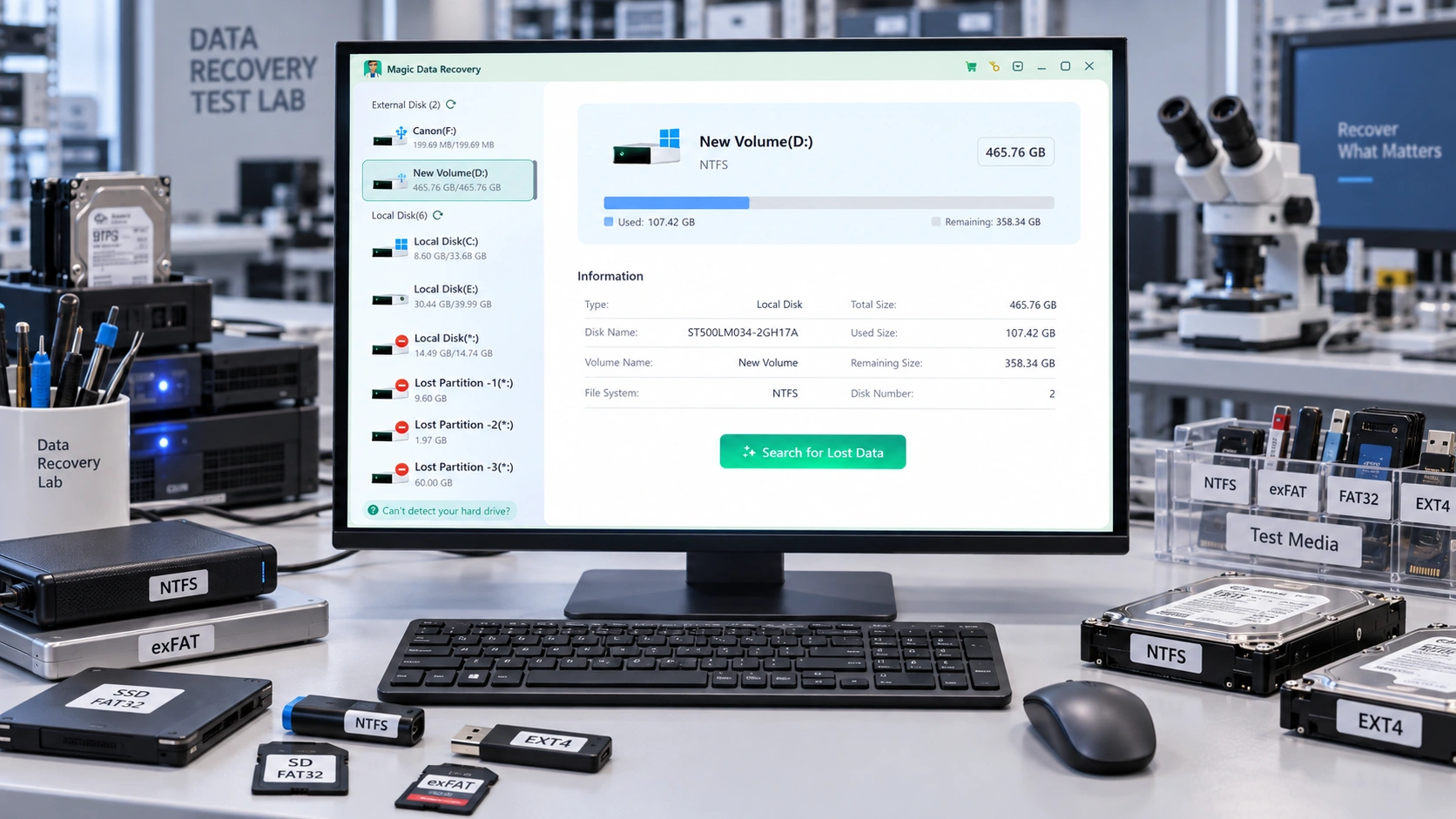
Our test set included 320 files totaling 4.8 GB across common formats such as DOCX, XLSX, PDF, JPG, PNG, MP4, and ZIP. We reproduced both cases where the files were only hidden or relocated and cases where the data had actually been deleted.
Test scenario | Test files | Result |
Hidden NTFS files | 80 | All files were located without recovery software |
Windows profile change | 80 | Original files remained under the previous user profile |
Shift+Delete on HDD | 80 | 72 previewed; 80 opened normally after recovery |
SSD deletion | 80 | 68 previewed; 74 recovered and opened normally, results varied with TRIM and later writes |
For the HDD recovery test, we avoided further writes to the source drive and saved recovered files to a separate disk. We verified the results by opening recovered documents, images, archives, and videos rather than treating a detected filename as a successful recovery.
These tests reinforce an important rule: diagnosis should come before recovery. Hidden, redirected, or profile-related files usually do not need recovery software, while genuinely deleted files on a stable and readable drive are the scenario where Magic Data Recovery becomes most relevant.
How to Verify That the Files Were Actually Recovered
Finding a filename is only the first stage. Before you treat the recovery as successful, verify the actual data.
Open several important documents, photos, archives, or videos from the recovery destination. Check whether the file size looks reasonable and whether the application can read the content normally.
For large recovery jobs, test several files from different folders and file types rather than assuming that every result is intact because one file opens successfully.
Keep the recovered files on the separate destination until you are satisfied that the important data is usable.
Recover Before You Repair the Drive
A common mistake is trying to make the storage device “normal” before protecting the files.
For example, CHKDSK checks file-system structures and metadata. Microsoft documents that /f, /r, /x, and related repair parameters can fix errors on the volume, which means they are repair operations rather than deleted-file recovery operations. See Microsoft Learn: chkdsk.
Therefore, when irreplaceable files are inaccessible, use this order:
Recover or copy important files → Verify the files → Repair, format, or reuse the drive.
The same principle applies to formatting RAW volumes, initializing disks, and creating partitions in unallocated space.
When You Should Stop DIY Recovery
Software recovery is appropriate only while the storage device can be read reliably.
Stop repeatedly scanning or powering an HDD if it produces clicking, grinding, repeated spin-up failures, or other unusual mechanical sounds. Also stop if a device repeatedly disconnects, becomes less stable with each attempt, suffered water/fire/drop/electrical damage, or contains the only copy of extremely valuable data.
In these situations, repeated DIY attempts can create additional risk. Professional data recovery service is the safer next step.
How to Reduce the Chance of Files Disappearing Again
Once the data is safe, improve the system that protects it.
- Keep at least one independent backup rather than treating synchronization as your only backup.
- Enable File History or another versioned backup method for important working folders.
- Understand whether OneDrive is redirecting Desktop, Documents, or Pictures.
- Before formatting, repartitioning, repairing, resetting, or reinstalling Windows, verify that important files exist in a separate backup.
- If a storage device begins producing recurring file-system errors, disconnects, slow reads, or corrupted files, migrate important data before the problem becomes a recovery emergency.
Conclusion: How to Recover Files That Disappeared Safely
The safest way to recover files that disappeared is to determine whether the data is actually gone before scanning or repairing anything. If the files were moved, hidden, redirected by OneDrive, stored under another profile, retained in Windows.old, quarantined, or backed up by File History, restore that existing copy first.
If an entire drive disappears, check Disk Management. A missing drive letter may be simple to correct, while RAW or unallocated storage should be handled more cautiously. Protect important data before formatting, repartitioning, or running repairs.
When files are genuinely deleted and no usable copy exists, use Windows File Recovery or Magic Data Recovery while the device remains stable, and always recover to another drive. For additional deletion scenarios, see the Deleted File Recovery guide.
Supports Windows 7/8/10/11 and Windows Server
FAQs About Files That Disappeared on Windows
Can files disappear without actually being deleted?
What should I check if files disappeared after a Windows update?
Can files be recovered after the Recycle Bin has been emptied?
Can I recover files if a hard drive shows RAW or Unallocated?
Should I run CHKDSK when important files have disappeared?
Is Windows File Recovery free?
Does SSD TRIM affect disappeared-file recovery?
When should I use a professional data recovery service?

Vasilii is a data recovery specialist with around 10 years of hands-on experience in the field. Throughout his career, he has successfully solved thousands of complex cases involving deleted files, formatted drives, lost partitions, and RAW file systems. His expertise covers both manual recovery methods using professional tools like hex editors and advanced automated solutions with recovery software. Vasilii's mission is to make reliable data recovery knowledge accessible to both IT professionals and everyday users, helping them safeguard their valuable digital assets.