
Seagate External Hard Drive Files Disappeared
If your Seagate external hard drive files disappeared, avoid formatting the drive or copying new data to it. In many cases, the files still exist, but Windows cannot display them because of hidden attributes, a missing drive letter, file system errors, or directory damage. In other cases, accidental deletion, formatting, or partition problems may have removed access to the data.
Fortunately, as long as you take the right external drive recovery methods, you can often identify the cause before making risky changes. This guide explains how to diagnose Seagate external hard drive files disappeared problems, recover missing data safely, and repair the drive only after you protect important files. When the files are genuinely lost, Magic Data Recovery can scan the Seagate drive, preview recoverable data, and save selected files elsewhere.
Quick Tip: Recover important data before running CHKDSK, formatting a RAW drive, or making major partition changes. If the Seagate HDD clicks, grinds, or repeatedly disconnects, stop using it and consider professional recovery.
Supports Windows 7/8/10/11 and Windows Server
Table of Contents
Why Did Files Disappear From Your Seagate Drive?
When Seagate external hard drive files disappeared, the symptom matters as much as the cause. A folder that Windows hides needs a different fix from a deleted partition or a failing HDD. Therefore, check what you can still see before you choose a solution.
What You Notice | Likely Cause | Best Next Step |
Files are missing, but used space remains high | Hidden files, damaged directory, or file system issue | Show hidden items first |
Used space drops after files vanish | Deletion, formatting, or lost data | Stop writing data and scan for recoverable files |
The drive appears in Disk Management but not File Explorer | Missing or conflicting drive letter | Assign a drive letter |
The partition shows RAW | File system corruption | Recover important files before formatting |
The drive disconnects randomly | Cable, USB port, power, or hardware issue | Test the connection carefully |
The drive clicks or grinds | Possible physical failure | Stop DIY recovery |
This quick diagnosis prevents random troubleshooting. More importantly, it helps you protect recoverable files before a repair process changes the disk.
Are the Missing Seagate Files Really Gone?
Before you start Seagate external hard drive recovery, check whether Windows has only hidden or temporarily lost access to the files.
Files Disappeared but Storage Space Is Still Used
One common problem occurs when Seagate external hard drive files disappeared but the drive still shows roughly the same amount of used space.
In that case, the data may remain on the disk. Hidden attributes, file system errors, damaged directory information, permissions, or malware can make files invisible. Therefore, start with visibility checks instead of formatting the drive.
This situation commonly leads users to search for terms such as Seagate files missing but space used or Seagate external hard drive not showing files. However, the files may not be permanently lost.
Used Space Suddenly Decreased
If the missing files previously used a large amount of storage and the free space suddenly increased, actual data loss becomes more likely. Accidental deletion, formatting, or partition changes may have removed the file references.
At this stage, stop saving new files to the Seagate drive because new data can overwrite recoverable information. Instead, run a recovery scan if the missing files matter.
The Seagate Drive Is Missing From File Explorer
Sometimes Seagate external hard drive files disappeared because Windows does not mount the drive correctly. Open Disk Management and check whether the system can still see the Seagate disk.
If Windows shows a healthy partition without a drive letter, assigning a letter may restore normal access. However, if the partition appears as RAW or unallocated, recover important files before you create, format, or repair anything.
The Drive Clicks, Disconnects, or Fails to Appear
Physical symptoms require a different approach. Clicking, grinding, repeated disconnections, or complete non-detection can point to hardware failure.
In this situation, do not keep scanning the disk with recovery software. Repeated reads may place more stress on an unstable HDD. Instead, disconnect the drive and consider a professional data recovery service.
What to Do First When Seagate External Hard Drive Files Disappeared
If Seagate external hard drive files disappeared, protect the remaining data before you troubleshoot aggressively. A few precautions can make the difference between a recoverable file and an overwritten one.
Do:
- Stop copying, downloading, or creating files on the affected Seagate drive.
- Install recovery software on your system drive or another healthy disk.
- Save recovered files to a different physical drive.
- Confirm the correct disk by checking its capacity and drive letter.
- Use professional recovery when the HDD shows clear physical failure symptoms.
Don’t:
- Do not format the drive before recovering important files.
- Do not restore recovered files to the same affected disk.
- Do not run repeated repair commands on an unstable HDD.
- Do not create a new partition over unallocated space before recovery.
- Do not assume an empty-looking drive contains no recoverable data.
In short, follow a recover first, repair second workflow. Recovery should protect your files before repair tools change the file system.
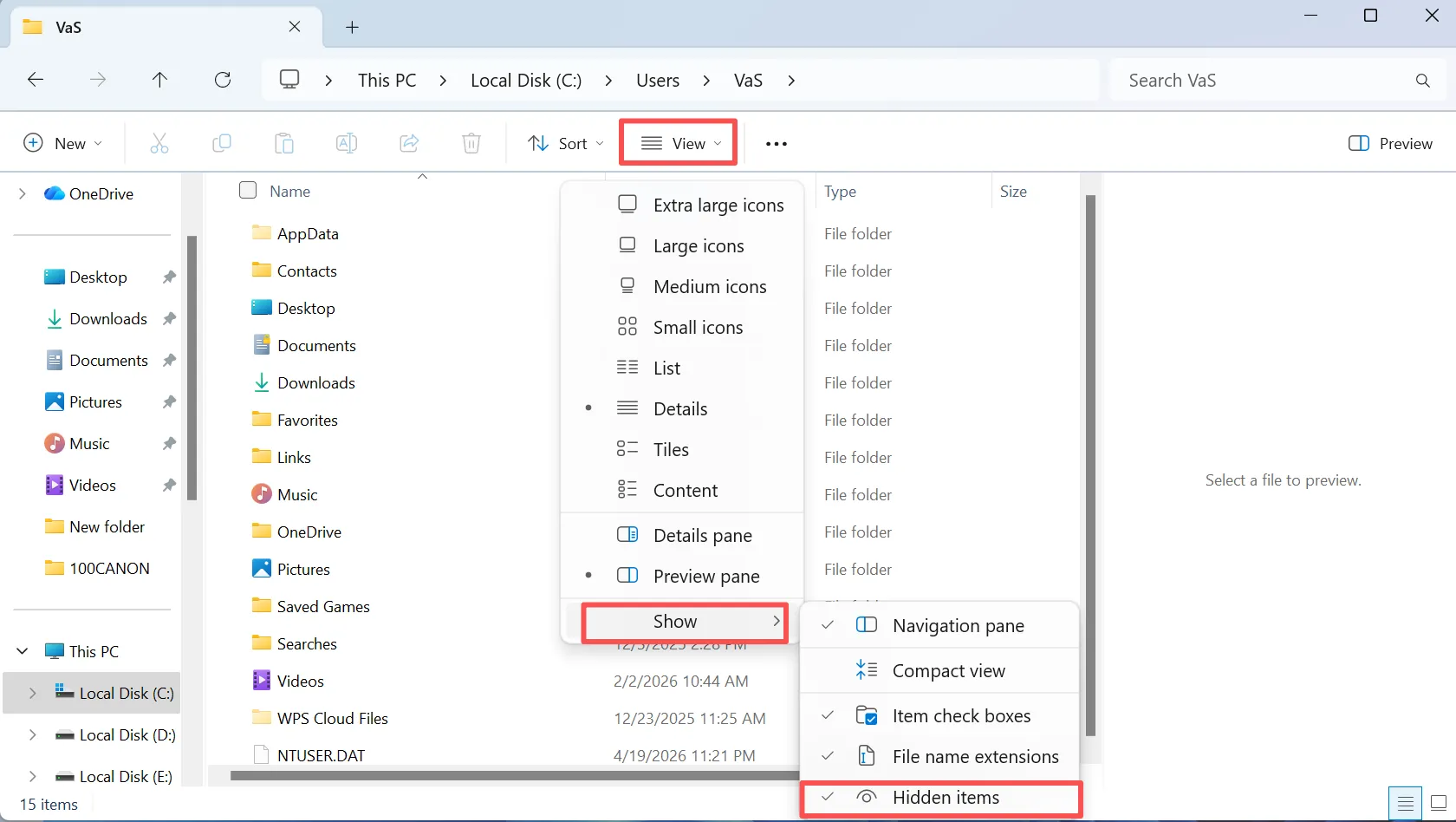
Method 1: Show Hidden Files on the Seagate Drive
If Seagate external hard drive files disappeared from File Explorer, start with the simplest fix. Windows may hide files because of file attributes or view settings.
On Windows 11:
- Connect the Seagate drive.
- Open File Explorer.
- Select View.
- Choose Show.
- Enable Hidden items.
- Open the Seagate drive again.
If the missing folders return, copy important files to a safe location. You do not need recovery software when Windows simply hid the data.
However, if Seagate external hard drive files disappeared and the drive still uses substantial space, continue to the recovery and disk-management checks below.
Method 2: Recover Data After Seagate External Hard Drive Files Disappeared
If Seagate external hard drive files disappeared after accidental deletion, formatting, or logical file system damage, recover the data before you attempt repairs. Magic Data Recovery can scan the affected Seagate drive for deleted, lost, or inaccessible files and lets you preview recoverable items before saving them.
This approach works well when Windows still detects the disk but File Explorer no longer shows the files. In addition, its visual recovery workflow makes it easier for ordinary users who do not want to rely on command-line tools.
Step 1: Download and Install Magic Data Recovery
Download Magic Data Recovery and install it on your computer. Choose your system drive or another healthy disk instead of the affected Seagate drive. This reduces unnecessary writes and helps protect data that may still be recoverable.
Supports Windows 7/8/10/11 and Windows Server
Step 2: Select the Seagate Drive to Scan
Open Magic Data Recovery. From the main interface, locate the Seagate drive where the files disappeared. If several disks are connected, compare the capacity and drive letter so you select the correct one. Then start the scan.

Step 3: Scan the Seagate Drive for Missing Files
Magic Data Recovery starts an Advanced Scan automatically. As the scan progresses, the software lists recoverable files in the interface. Therefore, you can begin reviewing the results while the scan continues.

Step 4: Preview Files Before Recovery
Next, browse the scan results and preview the files you want to restore. You can also use available filters to narrow the list by file type, name, or other criteria.
For example, search for familiar filenames or filter by file type. Previewing helps you recover only the data you need.

Step 5: Recover Files to a Safe Location
Finally, select the files you need and recover them to another healthy drive or storage device. Do not save recovered data back to the affected Seagate drive because new writes could overwrite other recoverable files.
After you secure the important data, you can return to the Seagate drive and troubleshoot its file system more safely.

Why Choose Magic Data Recovery for Missing Seagate Files?
Different fixes solve different problems. Showing hidden files fixes a visibility problem, while assigning a drive letter fixes a Windows mounting issue. However, neither method replaces file recovery after deletion, formatting, or logical corruption.
Magic Data Recovery focuses on that recovery stage. It supports Seagate HDDs and follows a simple Select → Scan → Preview → Recover workflow. In addition, preview and filtering tools help you handle large scan results without restoring every file.
For example, suppose Seagate external hard drive files disappeared after you formatted the wrong partition. Instead of immediately creating folders or repairing the file system, you can scan the drive first, locate the files you need, and save them to another storage device.
This approach offers several practical advantages:
- It focuses on recovering data before file system repair.
- It allows users to preview files before recovery.
- Filters make large recovery results easier to navigate.
- It works with common documents, photos, videos, audio files, archives, and other data types.
- The guided interface requires fewer technical steps than many command-line solutions.
However, no recovery program can guarantee every file. Overwritten data may be unrecoverable, while physically damaged HDDs may require professional service.
Therefore, Magic Data Recovery fits logical data-loss situations without pretending to solve mechanical failure. If you need an efficient solution to recover missing files from a Seagate drive, it is worth trying before you format or make major file system changes.
Method 3: Check the Seagate Drive in Disk Management
If Seagate external hard drive files disappeared because Windows cannot mount the drive normally, Disk Management can reveal what happened.
Press Windows + R, type:
diskmgmt.msc
Then press Enter and locate the Seagate disk by its capacity.
Check its status carefully:
- Healthy partition, no drive letter: Assign a drive letter.
- RAW partition: Recover important files before formatting.
- Unallocated space: Avoid creating a new volume until you recover needed data.
- Drive missing completely: Test the connection and consider hardware failure.
A RAW or unallocated partition does not automatically mean that every file has vanished permanently. However, creating a new file system too early can complicate recovery.
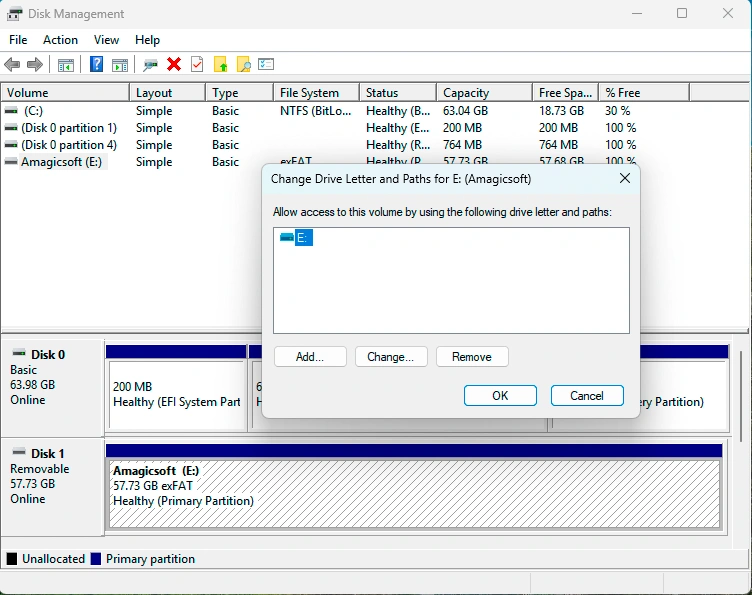
Method 4: Assign or Change the Drive Letter
When Seagate external hard drive files disappeared from File Explorer but Disk Management shows a healthy volume, a missing drive letter may be the cause.
To fix the issue:
- Open Disk Management.
- Right-click the Seagate volume.
- Select Change Drive Letter and Paths.
- Click Add or Change.
- Choose an available letter.
- Click OK.
Afterward, reopen File Explorer.
If the folders appear normally, copy important data to another location before doing further maintenance. In this case, you probably had a Windows mounting problem rather than actual file deletion.
Method 5: Check the USB Cable, Port, and Another Computer
Sometimes Seagate external hard drive files disappeared because the connection became unstable rather than because the data vanished.
First, connect the drive directly to another USB port. Next, avoid an unreliable USB hub and test another compatible cable if possible. Then connect the Seagate drive to another computer.
If the disk works elsewhere, the original port, cable, or system may be responsible.
However, if several computers cannot detect it and the HDD clicks or disconnects repeatedly, stop testing. Repeated attempts may place additional stress on failing hardware.
Method 6: Scan for Malware and Check File Visibility
Malware can change file attributes, hide folders, or interfere with normal access. Therefore, if the problem started after suspicious downloads, unknown shortcuts, or other unusual activity, run a trusted security scan.
After the scan, check the Seagate drive again and enable hidden items in File Explorer.
Security software removes or isolates threats; it does not necessarily restore deleted files. If Seagate external hard drive files disappeared after malware damage and the files remain missing, a recovery scan may still be necessary.
In other words, malware removal and data recovery solve two different problems.
Method 7: Repair File System Errors After Recovering Important Data
Once you have saved the files you need, you can focus on repairing logical errors.
Windows includes CHKDSK, which can check the file system and repair certain errors.
For a Seagate drive assigned the letter G:, open Command Prompt as administrator and run:
chkdsk G: /f
Replace G: with the actual drive letter.
However, use CHKDSK after recovery when important data is already missing. The tool repairs file system structures; it does not function as a dedicated undelete solution.

Format the Drive Only as a Last Resort
If Windows reports the partition as RAW or continues to show file system errors, formatting may restore normal storage use.
Nevertheless, formatting creates a new file system and removes normal access to the existing file structure. Therefore, recover or back up anything important first.
Afterward, you can format the drive and test it before you trust it with valuable data again.
What If Seagate External Hard Drive Files Disappeared Because of Physical Damage?
Software works best when the storage hardware still functions and the problem remains logical. Physical damage changes the situation.
Stop DIY recovery if you notice:
- Repeated clicking or grinding
- Failure to spin normally
- Frequent disconnections
- Liquid or impact damage
- No detection in File Explorer or Disk Management
- Unstable or incorrect capacity reporting
If Seagate external hard drive files disappeared along with these symptoms, disconnect the HDD. Continued scanning may add stress to a failing device.
For valuable personal or business files, a professional recovery service offers the safer path. If your drive qualifies, you can also review Seagate Rescue Data Recovery Services.
Most importantly, do not assume software can repair damaged read/write heads, motors, or other mechanical components.
How to Prevent Seagate Files From Disappearing Again
After Seagate external hard drive files disappeared once, reduce the chance of another loss.
First, keep at least one additional copy of important files. An external HDD should not hold the only copy of irreplaceable photos, documents, or work projects.
Next, eject the Seagate drive safely before disconnecting it. In addition, replace questionable USB cables and investigate repeated connection drops early.
You should also keep Windows and your security software updated.
Finally, if the HDD develops clicking sounds, frequent errors, or unstable detection, move the data to a healthy disk.
A simple backup strategy remains more reliable than trying to recover the only copy of an important file after something goes wrong.
Conclusion: What to Do When Seagate External Hard Drive Files Disappeared
When Seagate external hard drive files disappeared, do not rush to format the disk. First, determine whether Windows hid the files, lost the drive letter, or can no longer read the file system correctly. Next, protect important data before you run repair tools.
If deletion, formatting, or logical corruption caused the problem, Magic Data Recovery offers a practical external drive recovery solution because it lets you scan the Seagate drive, preview recoverable files, and save them to another location before you repair the disk.
Its straightforward workflow also makes it suitable for users who want a guided Seagate external hard drive recovery process without relying on complex commands.
However, software cannot repair physical HDD damage. If the drive clicks, grinds, or disappears from Disk Management, stop using it and seek professional recovery.
When Seagate external hard drive files disappeared, avoid treating every case as the same problem. Ultimately, the safest response to Seagate external hard drive files disappeared is simple: diagnose first, recover valuable files second, and repair the drive only after your data is secure.
Supports Windows 7/8/10/11 and Windows Server
FAQs
Why did my Seagate external hard drive files disappear?
Seagate external hard drive files disappeared for several possible reasons, including hidden file attributes, accidental deletion, file system corruption, formatting, a missing drive letter, malware, or hardware failure. First, check whether the drive still shows the expected used space. Then inspect hidden items and Disk Management before you format or repair the disk.
Why are my Seagate files missing but still taking up space?
If the Seagate files are missing but still taking up space, the data may remain on the disk even though File Explorer cannot display it. Hidden attributes, damaged directory information, permissions, or file system errors can cause this symptom. Therefore, show hidden items first. If the files remain inaccessible, consider a recovery scan before making destructive changes.
Can I recover Seagate external hard drive files without formatting?
Yes. In many cases, you can recover files from a Seagate external hard drive without formatting it. If Windows only hides the files or misses the drive letter, simple settings may restore access. If deletion or logical corruption caused the loss, use recovery software first. Format the disk only after you secure important data elsewhere.
Can CHKDSK recover missing files from a Seagate drive?
CHKDSK mainly checks and repairs file system structures, so it should not replace dedicated Seagate data recovery software. In some situations, it may restore access to damaged file system information. However, it can also change disk structures during repair. Therefore, when important files are already missing, recover or back them up before you run CHKDSK.
Can Magic Data Recovery restore missing Seagate files?
Magic Data Recovery can scan a functioning Seagate drive for recoverable files after deletion, formatting, or logical file system problems. It also lets you preview results before recovery and save selected files elsewhere. However, recovery depends on the disk condition and whether new data has overwritten the missing files, so no software can promise complete recovery.
What should I do if my Seagate drive is not detected?
First, test another USB port, compatible cable, and computer. Next, open Disk Management to see whether Windows detects the Seagate disk. If the drive remains missing and also clicks, grinds, or disconnects repeatedly, stop reconnecting it. Those symptoms may indicate physical damage, in which case professional recovery is safer than repeated software scans.
How can I prevent Seagate external hard drive files from disappearing again?
Keep at least two copies of important files, eject the drive safely, maintain reliable cables, and investigate recurring disk errors early. In addition, keep Windows and security software updated. If the HDD starts clicking or disconnecting, copy its data to a healthy device promptly. A backup strategy remains the most reliable protection against future data loss.

Vasilii is a data recovery specialist with around 10 years of hands-on experience in the field. Throughout his career, he has successfully solved thousands of complex cases involving deleted files, formatted drives, lost partitions, and RAW file systems. His expertise covers both manual recovery methods using professional tools like hex editors and advanced automated solutions with recovery software. Vasilii's mission is to make reliable data recovery knowledge accessible to both IT professionals and everyday users, helping them safeguard their valuable digital assets.