
Recover Files from Temp Folder: 6 Safe Ways
If an app crashed, Windows restarted, or a cleanup tool removed temporary data, you may need to recover files from temp folder before the remaining copies disappear. First identify what was actually lost: an unsaved document, an existing .tmp file, a deleted temp file, or the original saved file. This guide separates those cases and shows the safest method for each one. For broader document-loss scenarios, see Amagicsoft’s document recovery guide. If the temporary file itself was deleted and built-in options fail, Magic Data Recovery may help scan the original drive for recoverable data.
Temporary files are not permanent backups. Windows, apps, and Storage Sense may remove them, so avoid cleanup utilities until recovery is complete.
Supports Windows 7/8/10/11 and Windows Server
Table of Contents
Can You Recover Files from Temp Folder?
Yes, sometimes. However, the correct method depends on the file’s state.
If the temp file still exists, inspect %temp%. If an app crashed, check AutoRecover. For normal deletion, start with Recycle Bin. If the file was permanently removed, try backups or disk-level recovery. If the original saved file—not a temp copy—was deleted, recover that original file instead.
This distinction matters when you recover files from temp folder. Temp files, AutoRecover files, and backups can all preserve data, but they are not the same thing.
Before You Recover Temp Files
Before you recover files from temp folder, reduce overwrite risk:
- Stop downloading, installing, or copying files to the affected drive.
- Do not run cleanup tools.
- Do not install recovery software on the affected partition.
- Save recovered files to another drive.
- If the drive clicks, disconnects, or is not detected correctly, stop software recovery.
Microsoft also recommends minimizing computer use after deletion because Windows can reuse deleted-file space.
Method 1: Recover Files from Temp Folder Manually
The fastest way to recover files from temp folder is to see whether the temporary copy still exists.
- Press Win + R.
- Type
%temp%and press Enter. - Switch File Explorer to Details view.
- Sort by Date modified.
- Check files created around the time of the loss.
- Copy likely files elsewhere before opening or renaming them.
The user Temp folder is commonly C:\Users\<YourUserName>\AppData\Local\Temp. You can also inspect C:\Windows\Temp, although many files there are system or installer data.
Some guides recommend renaming .tmp files directly to .docx or .xlsx. Instead, copy the file first and rename only the copy. Changing an extension does not change the file’s internal format. For Word cases, see our Word temp file recovery guide.
Method 2: Check AutoRecover or Crash Recovery
If Word, Excel, PowerPoint, or another app crashed, do not assume %temp% is the only location. To recover files from temp folder safely, check the application’s own recovery feature first.
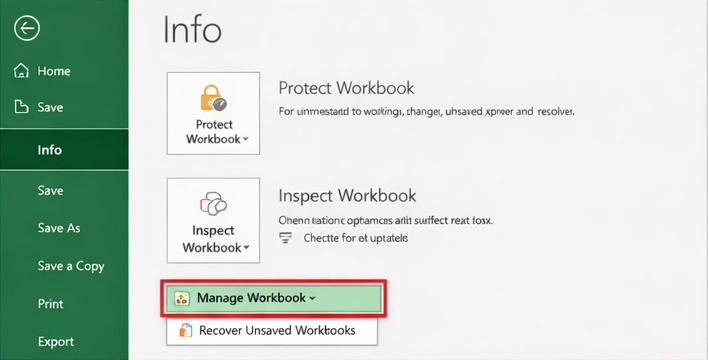
Microsoft Office may show Document Recovery after an unexpected close. You can also use File > Info > Manage Document/Workbook > Recover Unsaved Documents/Workbooks.
AutoRecover can live outside the standard Temp folder, so %temp% alone may miss it. For Excel, see where to find Excel recovery files. For Notepad++, use the unsaved file recovery guide. AutoRecover is not a permanent backup, so save files regularly.
Method 3: Check Recycle Bin
If you manually deleted a temp file in File Explorer, Recycle Bin should be your next stop.
- Open Recycle Bin.
- Sort by Date Deleted.
- Search by filename, extension, or original location.
- Right-click the needed file and choose Restore.
This method can recover files from temp folder after normal deletion. However, Shift+Delete, cleanup tools, and application cleanup may bypass a usable Recycle Bin copy.
If the file is no longer there, see our guide to recover files from an emptied Recycle Bin.
Method 4: Recover Files from Temp Folder with Previous Versions
If File History or another backup was enabled before the loss, use it before disk scanning.
- Open File Explorer and go to the folder that contained the file.
- Right-click the folder and choose Restore previous versions.
- Open a suitable version to check its contents.
- Restore it, preferably to another location first.
Microsoft notes that Previous Versions can restore earlier copies available through File History, although restoring directly can replace the current version. This method restores a retained copy rather than reconstructing deleted Temp data. For overwritten files, see our overwritten file recovery guide.
Method 5: Recover Files from Temp Folder with Windows File Recovery
If the Temp file is permanently deleted and no backup exists, Microsoft’s command-line Windows File Recovery can recover deleted files from local storage that are no longer in Recycle Bin. It does not support cloud storage or network shares.
This method can recover files from temp folder after permanent deletion. Always recover to a different drive.
Method 6: Recover Deleted Temp Files with Magic Data Recovery
If the Temp file is permanently deleted and no usable Recycle Bin, backup, or AutoRecover copy remains, Magic Data Recovery is a practical next step.
Unlike AutoRecover, File History, or Recycle Bin, Magic Data Recovery does not require a retained backup copy. It scans the selected storage device for recoverable data after deletion, formatting, or certain file-system-related loss. That makes it useful when you need to recover files from temp folder but the needed file is gone, or when the original saved file was deleted.
However, overwritten data may be unrecoverable. SSD TRIM can reduce recovery chances, and software cannot repair physical drive damage.
If the built-in recovery options no longer work, you can try Magic Data Recovery before new data overwrites the deleted files.
How to Use Magic Data Recovery to Recover Files from Temp Folder
Step 1: Download and Install Magic Data Recovery
Install Magic Data Recovery on a drive or partition different from the one that contained the missing file. If the loss occurred on C:, avoid installing the software to C: when another location is available.
Supports Windows 7/8/10/11 and Windows Server
Step 2: Select the Drive Where the Temp File Was Stored
Launch the software and select the drive that contained the Temp folder or original file. For the standard Windows user Temp directory, this is usually the system drive.

Step 3: Scan for Lost or Deleted Temp Files
Start the scan and filter by file type, path, size, and date. The needed file may appear under its original format rather than .tmp.

Step 4: Recover Files to a Safe Location
Recover selected files to another drive or safe location. Do not save them back to the same Temp folder or affected partition, because that can overwrite other recoverable data.

Why Temp Folder Recovery Can Fail
You may not always recover files from temp folder successfully. Common reasons include:
- The app never wrote a useful temp copy.
- The app removed recovery data after a normal close or “Don’t Save” action.
- Storage Sense or a cleaner removed the file.
- New data overwrote it, or SSD TRIM cleared deleted blocks.
- The problem is corruption, not deletion. For Office files, try Open and Repair first.
Prevent Future Temp File Loss
After you recover files from temp folder, save important work outside Temp. Enable AutoRecover where available, use File History or cloud version history, keep regular backups, and review cleanup settings before removing temporary files. Temp storage is disposable, so it should never be the only location for important work.
Conclusion
The safest way to recover files from temp folder is to start with the least invasive option. Search %temp%, check AutoRecover, inspect Recycle Bin, and use File History or Previous Versions when available.
If the Temp file or original file was permanently deleted and built-in methods fail, Magic Data Recovery can scan the affected drive for remaining recoverable data. For broader deletion scenarios, see our deleted file recovery guide. Stop writing new data to the affected drive, and remember that overwriting, SSD TRIM, and physical damage can limit recovery.
Supports Windows 7/8/10/11 and Windows Server
FAQs
How do I recover files from Temp folder in Windows 11?
To recover files from temp folder in Windows 11, press Win + R, enter %temp%, and sort by Date modified. Copy likely files elsewhere before testing them. If nothing useful remains, check the app’s AutoRecover feature, Recycle Bin, File History, or Windows File Recovery. For permanently deleted files, disk-level recovery software may be the next option.
Can I recover deleted temp files after emptying Recycle Bin?
Yes, but only if recoverable data still remains on the storage device or another backup copy exists. First check File History, Previous Versions, cloud version history, and application recovery folders. If those fail, stop using the affected drive and scan it with recovery software. SSD TRIM or later overwriting can make permanently deleted temp files unrecoverable.
Are Temp files the same as AutoRecover files?
No. Temp files are general temporary working data created by Windows and applications, while AutoRecover files are specifically created by supported apps to restore recent work after an interruption. They may use different folders and extensions. Therefore, searching %temp% alone can miss an AutoRecover copy stored in an application-specific recovery location.
Can I rename a .tmp file to .docx or .xlsx to restore it?
Sometimes, but changing the extension does not convert the file’s internal format. A .tmp file may contain Office data, but it may also contain unrelated cache or program information. Copy the temp file first, rename only the copy, and test it with the appropriate application. Check AutoRecover before relying on extension changes.
Why did my files disappear from the Temp folder?
Applications often remove temporary files after closing normally, while Windows cleanup features or third-party utilities can delete unnecessary temp data. In addition, some crash-recovery files disappear after you choose not to save recovered work. Therefore, a missing Temp file does not automatically mean the original document was deleted; check the app’s recovery folders, backups, and original location too.
Can recovery software restore an unsaved file that never existed on disk?
Not necessarily. Recovery software works best when the missing content was written to storage at some point, such as a deleted original file, temporary copy, backup fragment, or AutoRecover file. If an application kept unsaved content only in memory and never wrote it to disk, disk-level recovery software may have nothing to find after the program closes.
How can I prevent losing important files stored in Temp again?
Do not use the Temp folder as permanent storage. Save important files to Documents, a project folder, or backed-up cloud storage as soon as possible. Enable AutoRecover in supported applications, configure File History or another backup method, and review Storage Sense or cleanup settings before deleting temporary files. Versioned backups provide stronger protection than temporary recovery copies.

Vasilii is a data recovery specialist with around 10 years of hands-on experience in the field. Throughout his career, he has successfully solved thousands of complex cases involving deleted files, formatted drives, lost partitions, and RAW file systems. His expertise covers both manual recovery methods using professional tools like hex editors and advanced automated solutions with recovery software. Vasilii's mission is to make reliable data recovery knowledge accessible to both IT professionals and everyday users, helping them safeguard their valuable digital assets.