
How to Recover BitLocker Key from Microsoft Account
Supports Windows 7/8/10/11 and Windows Server
Table of Contents
Why BitLocker Asks for a Recovery Key
Sometimes, when you boot your PC after a hardware change, firmware update, TPM or Secure Boot change, or other significant system event, BitLocker will require the 48-digit recovery key to unlock the drive.
BitLocker includes this security feature to prevent unauthorized access when system components change.
Where BitLocker Recovery Keys Are Stored
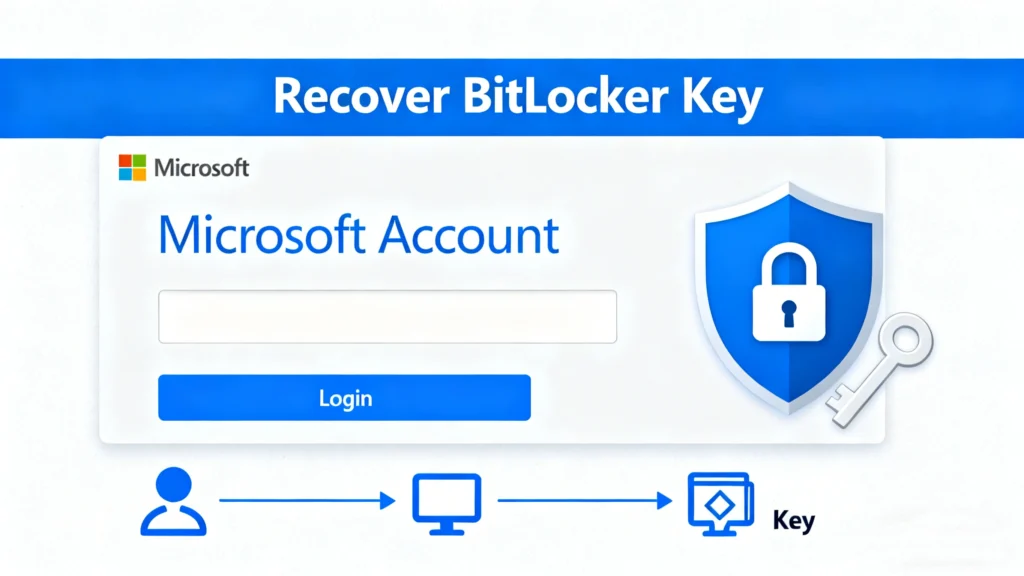
Depending on how you configured BitLocker, Windows may store your recovery key in one of several places:
- Your personal Microsoft account — common when you enabled BitLocker and chose to back up automatically.
- Work or school account (Azure AD / organizational account) — if the device was signed in under a work/school account, the key might be stored in the organization’s directory.
- Printout (paper copy) — some users print the recovery key when enabling BitLocker.
- USB flash drive (text file on USB) — saving the key to a removable USB when enabling BitLocker.
Because BitLocker allows multiple backup methods, it’s important to check all these possibilities if the key isn’t in your Microsoft account.
How to Recover BitLocker Key from Microsoft Account
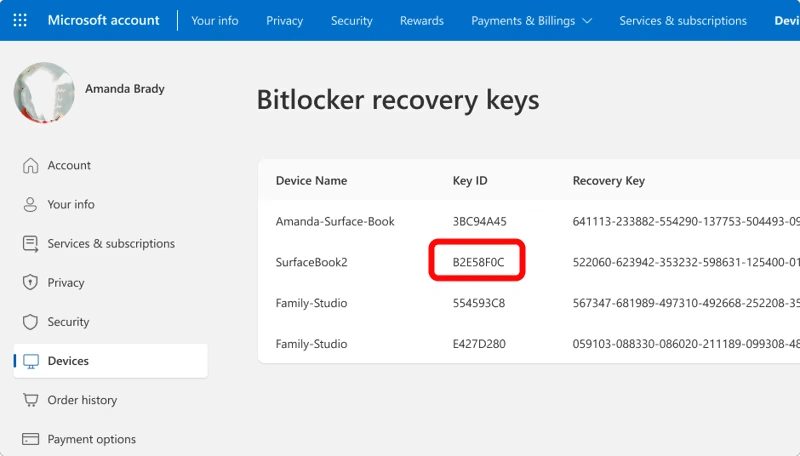
3. In the “Recovery Keys” list, locate the device name that matches your PC.
4. To confirm the correct key, compare the Recovery Key ID shown on your BitLocker recovery screen with the one listed in your account.
5. Once matched, copy the 48-digit recovery key.
6. Go back to your locked PC, enter the 48-digit key at the BitLocker prompt, and press Enter — your drive should unlock.
If that works, you’ve successfully recovered your BitLocker key from your Microsoft account!
What If the Key Isn’t in Your Microsoft Account?
Before giving up, check these possibilities: you might have used a different Microsoft account, or saved the key via printout or USB.
For devices managed by organizations (work or school), Azure AD or the organizational account may store the recovery key — you may need to contact your IT administrator.
If none of those work, and you cannot locate any backup — unfortunately, BitLocker’s full-disk encryption means there is no “backdoor.” As official support states: no one (not even Microsoft) can recreate a lost key.
How to Use Magic Recovery Key — Step-by-Step
Key may help, it will try to find the bitlocker recovery key saved on this computer or hidden files:
1. Download Magic Recovery Key from Amagicsoft, then install and launch the program.
Download the installer, complete the setup, and open Magic Recovery Key on a working Windows PC.
Supports Windows 7/8/10/11 and Windows Server
2. In the main interface, select BitLocker Recovery Key from the left-side menu.
This will open the module designed for scanning and locating BitLocker Drive Encryption keys.

3. Click the Search button to begin scanning your system for available BitLocker recovery keys.
The software will analyze system files, registry entries, and local key storage to identify any recoverable keys.
4. Once a key is found, the software will display the BitLocker recovery key and ready for immediate use.
You can now copy the 48-digit key and enter it on your locked BitLocker drive to unlock your data.

That’s it! With these four simple steps, Magic Recovery Key helps you quickly locate the BitLocker recovery key stored on your computer so you can unlock your BitLocker-protected drive without hassle.
⚠️ Important: Magic Recovery Key works only if the key or metadata was stored on the disk or system. If the key was never backed up or was erased, no tool (including Magic Recovery Key) can create a valid one.
Conclusion
Recovering a BitLocker key is straightforward if you backed it up to your Microsoft account. But if the key is missing, your best bet is to use a tool like Magic Recovery Key only if the key data still exists on your system. Otherwise, data may be lost permanently.
By combining official BitLocker recovery methods with a practical recovery-tool walkthrough and clear backup advice, you can maximize your chances of regaining access — and avoid future lockouts.
Supports Windows 7/8/10/11 and Windows Server
FAQs – Recover BitLocker Key from Microsoft
How do I recover the BitLocker key from my Microsoft account?
What if I don’t see my device or recovery key listed in my Microsoft account?
Where else can BitLocker recovery keys be stored besides Microsoft account?
Can I recover a BitLocker key if it was never backed up?
What is Magic Recovery Key and how can it help?
How do I use Magic Recovery Key to recover a lost BitLocker key?
After unlocking, how should I store my BitLocker recovery key to avoid future problems?
What happens if I still can’t find the recovery key or Magic Recovery Key fails?
Can BitLocker prompt for recovery key after a Windows update or hardware change?

Erin Smith is recognized as one of the most professional writers at Amagicsoft. She has continually honed her writing skills over the past 10 years and helped millions of readers solve their tech problems.