
Recover Files After Deleting from Recycle Bin
Deleting an important file can cause real panic. Emptying the Recycle Bin makes the situation feel even worse. However, you may still recover files after deleting from recycle bin if new data has not overwritten the original file space.
This guide explains what happens after deletion, what you should do first, and which recovery method fits your case. You will learn how to restore files from Windows backups, use built-in recovery options, check cloud storage, and recover deleted files with Magic Data Recovery.
In many real cases, users lose files because they clear the Recycle Bin too quickly, use Shift + Delete, or remove files during disk cleanup. Therefore, the most important rule is simple: stop using the affected drive immediately. Then, choose the safest recovery method based on whether you have a backup.
Supports Windows 7/8/10/11 and Windows Server
Table of Contents
Can You Recover Files After Deleting from Recycle Bin?
Yes, you can often recover files after deleting from recycle bin, but success depends on timing. When Windows removes a file from the Recycle Bin, it does not always erase the actual data at once. Instead, Windows marks the file’s storage space as available.
As a result, the deleted file may remain on the drive until new data replaces it. This is why quick action matters. If you continue downloading files, installing software, or saving documents to the same drive, you may overwrite the lost data.
You should also know the difference between common deletion cases:
- Files still inside the Recycle Bin can usually be restored directly.
- Files removed after emptying the Recycle Bin need backup or recovery software.
- Shift + Delete files bypass the Recycle Bin completely.
- Files deleted from USB drives or SD cards may not appear in the Recycle Bin.
Therefore, before you try to recover files after deleting from recycle bin, avoid using the affected drive and prepare a separate location for recovered files.
Before You Recover Files After Deleting from Recycle Bin
Before you start any recovery process, take a few precautions. These steps protect your deleted files and improve your chance of successful recovery.
First, stop using the affected drive. If the deleted files were on Drive C, avoid installing programs or saving new files there. If they were on another partition, do not copy new data to that partition.
Next, do not install recovery software on the same drive where the files were deleted. Installation creates new data, and that data may overwrite lost files.
Also, never save recovered files back to the original folder. Instead, choose another drive or a safe storage location. This habit helps prevent data corruption and allows further recovery if needed.
Finally, check whether your file was synced to cloud storage. OneDrive, Google Drive, Dropbox, and similar services often keep deleted files in a cloud trash folder for a limited time.
Best Ways to Recover Files After Deleting from Recycle Bin
There is no single best method for every user. The right solution depends on whether the file still exists in the Recycle Bin, whether you enabled backups, and whether you prefer a simple interface or a technical tool.
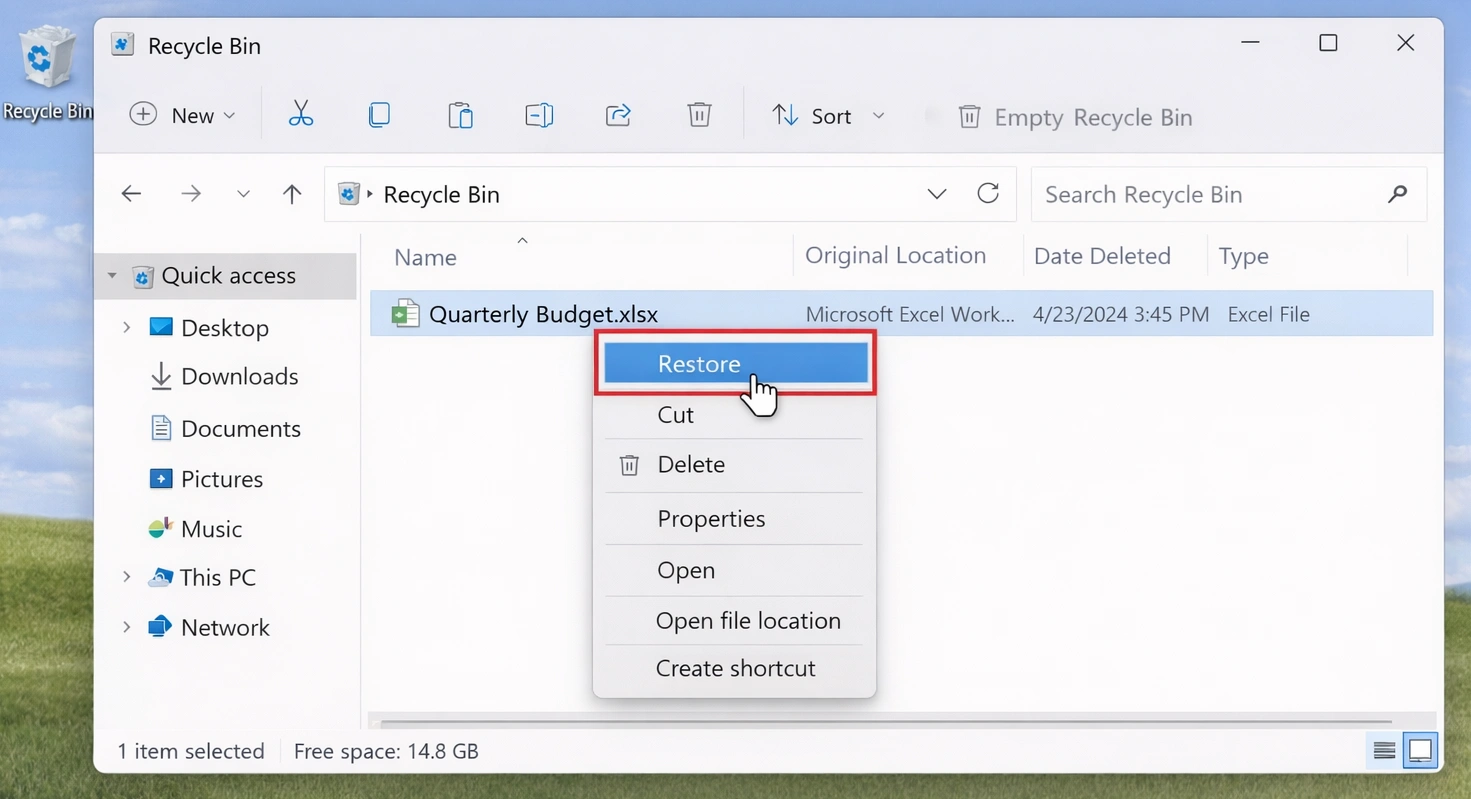
Method 1: Restore Files Directly from the Recycle Bin
This method works only when the file still appears in the Recycle Bin. It is the fastest and safest option.
Follow these steps:
- Open the Recycle Bin on your desktop.
- Search for the file name, folder name, or file type.
- Right-click the file you want to restore.
- Choose “Restore.”
- Go back to the original folder and check the file.
However, this method will not help after you empty the Recycle Bin. In that case, you need another way to recover files after deleting from recycle bin.
Method 2: Recover Files with File History
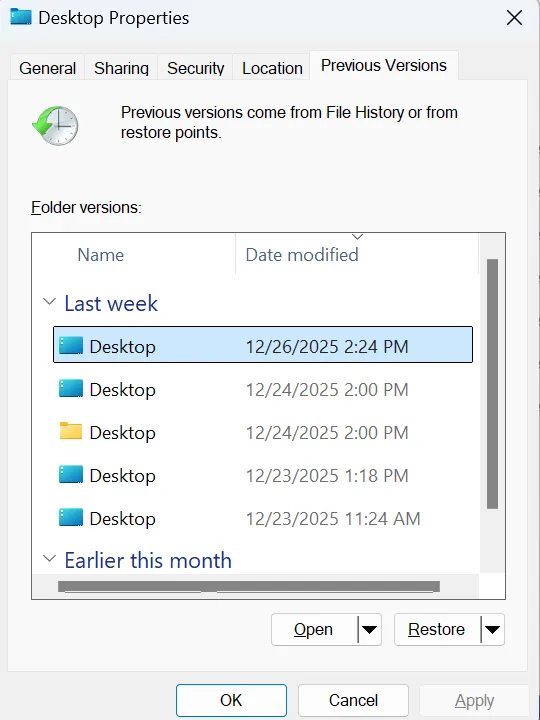
File History is a Windows backup feature. It can restore earlier versions of files if you turned it on before deletion.
Here is how to use it:
- Open the folder where the deleted file was stored.
- Right-click inside the folder.
- Select “Properties.”
- Open the “Previous Versions” tab.
- Choose a version that contains the deleted file.
- Restore the file to a safe location.
This method works well for documents, photos, and work folders. However, it cannot help if File History was not enabled before the file disappeared.
Method 3: Restore Files from Windows Backup
Windows Backup and Restore can also help if you created a backup earlier. This option is useful for users who regularly back up important folders.
To use it:
- Open Control Panel.
- Go to “Backup and Restore.”
- Click “Restore my files.”
- Search for the deleted file.
- Choose a safe restore location.
This method is reliable because it uses existing backup copies. However, many users only realize they have no backup after they need to recover files after deleting from recycle bin.
Method 4: Try Windows File Recovery
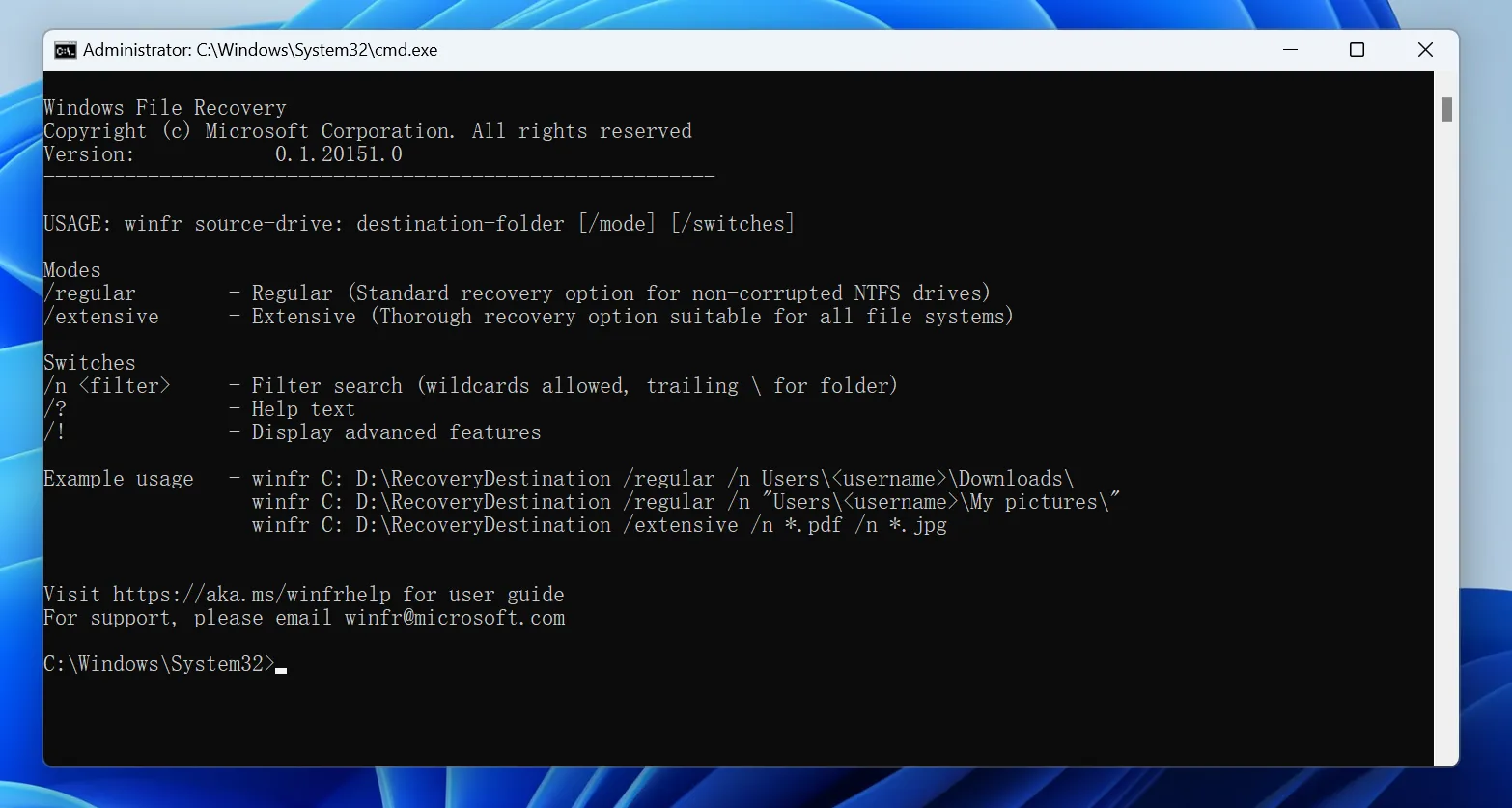
Windows File Recovery is a command-line recovery tool from Microsoft. It can help advanced users recover deleted files from local storage devices.
A basic command follows this format:
winfr source-drive: destination-drive: /regular /n file-path
For example, if you deleted a document from Drive C and want to save recovered files to Drive E, Drive C is the source drive and Drive E is the destination drive.
This option is useful because it comes from Microsoft and does not require a paid tool. However, it may feel difficult for beginners. It also does not offer the same visual preview experience as many recovery programs. Therefore, if you want a simpler way to recover files after deleting from recycle bin, a graphical recovery tool may suit you better.
Method 5: Use Magic Data Recovery to Recover Files After Deleting from Recycle Bin
If you have no backup and need an easier solution, Magic Data Recovery can help. It gives you a clear scan-preview-recover workflow, which makes it suitable for ordinary users who do not want to use command lines.
Magic Data Recovery is useful when you need to recover files after deleting from recycle bin, restore Shift + Delete files, or recover files lost during cleanup. It supports common file types such as documents, photos, videos, audio files, archives, and more. In addition, it lets you preview files before recovery, so you can choose only the items you truly need.
Step 1: Download and Install Magic Data Recovery
First, download Magic Data Recovery from the official Amagicsoft website. Install it on a different drive from the one that contained your deleted files. This approach helps protect the lost data from accidental overwriting during installation.
Supports Windows 7/8/10/11 and Windows Server
Step 2: Select the Drive or Location to Scan
Launch Magic Data Recovery. Then, from the main interface, choose the drive, partition, or location where the deleted files were originally stored. After that, start the scan to search for files removed from the Recycle Bin.

Step 3: Scan for Deleted Files
Magic Data Recovery will start scanning the selected location. Meanwhile, the software lists recoverable files as the scan progresses. This helps you check potential results without waiting until the entire scan finishes.

Step 4: Preview Deleted Files Before Recovery
Next, use the preview function to confirm file content before recovery. This step is helpful when file names look similar or when you only want to restore specific documents, photos, or videos.

Step 5: Recover Files to a Safe Location
Finally, select the files you want to restore and save them to a different drive or safe storage location. Do not recover files back to the original folder, because doing so may overwrite other lost data and reduce the chance of further recovery.

Why Magic Data Recovery Is a Practical Solution
Magic Data Recovery does not promise impossible results. No recovery software can guarantee success after overwritten data. However, it solves several real problems that users face when they try to recover files after deleting from recycle bin.
First, it reduces technical difficulty. Many users do not feel comfortable with command-line tools, so a visual interface saves time and prevents mistakes.
Second, it allows file preview. This matters because deleted files may appear with unclear names. Preview helps you confirm content before recovery.
Third, it supports different file loss situations. For example, you may need to recover a deleted work folder, lost photos, removed videos, or files cleared during system cleanup.
Finally, it gives users more control. Instead of recovering everything blindly, you can scan, filter, preview, and recover selected files to a safe place. Therefore, if Windows backup options do not help, Magic Data Recovery offers a practical next step.
Recover Files After Deleting from Recycle Bin: Method Comparison
Use this quick comparison to choose the best solution.
Situation | Best Solution | Why It Helps |
File still appears in Recycle Bin | Restore from Recycle Bin | Fastest and safest method |
File History was enabled | File History | Restores earlier file versions |
Windows backup exists | Backup and Restore | Uses existing backup copies |
You prefer Microsoft command tools | Windows File Recovery | Suitable for advanced users |
No backup and Recycle Bin is empty | Magic Data Recovery | Offers scan, preview, and recovery |
Drive has physical damage | Professional recovery service | Reduces further damage risk |
In general, you should check built-in options first. However, if no backup exists, Magic Data Recovery can help you recover files after deleting from recycle bin with less technical effort.
Common Mistakes When You Recover Files After Deleting from Recycle Bin
Many recovery failures happen because users take the wrong action too soon. To improve your chances, avoid these mistakes.
Installing Software on the Original Drive
Installing new software creates new files. These files may overwrite the deleted data you want to recover.
Saving Recovered Files to the Same Folder
Always recover files to another drive. This prevents recovered data from damaging other lost files.
Running Disk Cleanup Tools
Cleanup tools may remove temporary data and write new information to free space. As a result, they can reduce recovery success.
Continuing Normal Computer Use
Browsing, downloading, editing, and updating software can all write new data. Therefore, pause normal use until recovery finishes.
Waiting Too Long
The longer you wait, the higher the chance that new data will replace deleted files. Act quickly if you need to recover files after deleting from recycle bin.
Tips to Avoid Losing Files Again
After you recover your files, build a safer file protection routine. Small habits can prevent serious data loss.
First, enable File History for important folders. Next, use cloud sync for work documents and personal files. In addition, keep a separate backup on another drive. You can also increase Recycle Bin storage size if you often delete large files by mistake.
Moreover, avoid using Shift + Delete for important data. This shortcut bypasses the Recycle Bin and makes recovery harder. Finally, review automatic cleanup settings in Windows, especially if Storage Sense removes files on a schedule.
These steps reduce the need to recover files after deleting from recycle bin in the future.
Conclusion
You can often recover files after deleting from recycle bin, but your next steps matter. Stop using the affected drive, check the Recycle Bin, review Windows backups, and look through cloud storage first. These methods are safe and should come before deeper recovery attempts.
However, if the Recycle Bin is empty and no backup exists, Magic Data Recovery offers a practical solution. It helps users scan the original location, preview recoverable files, and restore selected items to a safe place. Its clear workflow makes it especially useful for users who want to recover files after deleting from recycle bin without complex command-line steps.
For a safer deleted files recovery process, act quickly, avoid overwriting data, and save recovered files to a different location.
Supports Windows 7/8/10/11 and Windows Server
FAQ
Can I recover files after emptying the Recycle Bin?
Yes, you may still recover files after deleting from recycle bin if new data has not overwritten the original storage space. First, stop using the affected drive. Then, check File History, Windows backup, or cloud trash. If no backup exists, use Magic Data Recovery to scan and preview recoverable files.
Are files gone forever after deleting them from the Recycle Bin?
Not always. After deletion, Windows usually marks the file space as available instead of erasing the data immediately. Therefore, the file may remain recoverable for some time. However, once new data overwrites that space, recovery becomes much harder or impossible, even with recovery software.
Can I recover Shift + Delete files?
Yes, you can often recover Shift + Delete files with backups or recovery software. Since Shift + Delete bypasses the Recycle Bin, direct restore will not work. Start with File History or cloud backups. If those options fail, Magic Data Recovery can scan the original location for recoverable files.
Is Magic Data Recovery suitable for beginners?
Yes. Magic Data Recovery suits beginners because it uses a visual scan-preview-recover process. You do not need command-line knowledge to search for deleted files. In addition, the preview feature helps you confirm file content before recovery, which reduces confusion and helps avoid restoring unnecessary files.
Where should I save recovered files?
Save recovered files to a different drive or safe storage location. Do not save them back to the original folder where deletion happened. This rule matters because writing recovered data to the same location may overwrite other deleted files and lower the chance of additional recovery.
Is Windows File Recovery better than Magic Data Recovery?
It depends on your skill level and recovery needs. Windows File Recovery works well for users who understand command-line tools. However, Magic Data Recovery may work better for ordinary users who want visual scanning, file preview, and selective recovery. Both options can help in different situations.
How soon should I try to recover deleted files?
You should start recovery as soon as possible. The longer you use the affected drive, the greater the risk of overwriting lost data. Therefore, stop saving new files, avoid installing programs on that drive, and begin scanning quickly if you need to restore important files.

Vasilii is a data recovery specialist with around 10 years of hands-on experience in the field. Throughout his career, he has successfully solved thousands of complex cases involving deleted files, formatted drives, lost partitions, and RAW file systems. His expertise covers both manual recovery methods using professional tools like hex editors and advanced automated solutions with recovery software. Vasilii's mission is to make reliable data recovery knowledge accessible to both IT professionals and everyday users, helping them safeguard their valuable digital assets.