
How to Recover Files After Windows Reinstall
Reinstalling Windows can fix crashes, remove malware, and refresh a slow PC. However, it can also make documents, photos, videos, and work files disappear. If you need to recover files after Windows reinstall, stop using the affected drive before you try any fix.
Lost files may still exist until new data overwrites them. Therefore, this guide explains how to recover files from your drive with Windows.old, backups, and Magic Data Recovery when no backup works.
Supports Windows 7/8/10/11 and Windows Server
Table of Contents
Can You Recover Files After Windows Reinstall?
Yes, you can often recover files after Windows reinstall, but the result depends on your situation. If Windows created a Windows.old folder, you may copy files from your old user profile. If you chose “Keep my files” during Reset this PC, your chance also stays high.
However, a clean install, quick format, deleted partition, or heavy computer use after reinstall can lower the success rate. No recovery tool can restore data that new files have already overwritten. Also, SSD recovery may become harder because TRIM can clear deleted blocks in the background.
First Steps Before You Recover Files After Windows Reinstall
Before you try to recover files after Windows reinstall, protect the remaining data. Many users install apps, download updates, or save new files to the same drive. Unfortunately, those actions can overwrite lost files.
Use this quick checklist:
- Stop saving new files to the affected drive.
- Do not format the drive again.
- Avoid reinstalling Windows a second time.
- Do not save recovered files back to the same location.
- Use another partition or storage device for recovered data.
If your lost files were on the C: drive, install recovery software on another partition when possible.
Check Your Recovery Chance After Reinstalling Windows
Different reinstall actions create different recovery conditions. Therefore, identify your case before choosing a method.
Windows Reinstall Scenario | Recovery Chance | Best First Action |
Windows.old folder exists | High | Check old user folders |
Reset this PC with “Keep my files” | High | Check folders and backups |
Reset this PC with “Remove everything” | Medium | Scan the drive quickly |
Clean install without formatting | Medium | Run a deep scan |
Quick format before reinstall | Low to medium | Avoid new writes and scan |
Deleted or changed partitions | Low to medium | Use lost partition recovery |
SSD with TRIM enabled | Low | Stop use and scan carefully |
In short, Windows.old and backups offer the easiest path. However, when both are missing, data recovery after Windows reinstall usually requires a deeper scan.
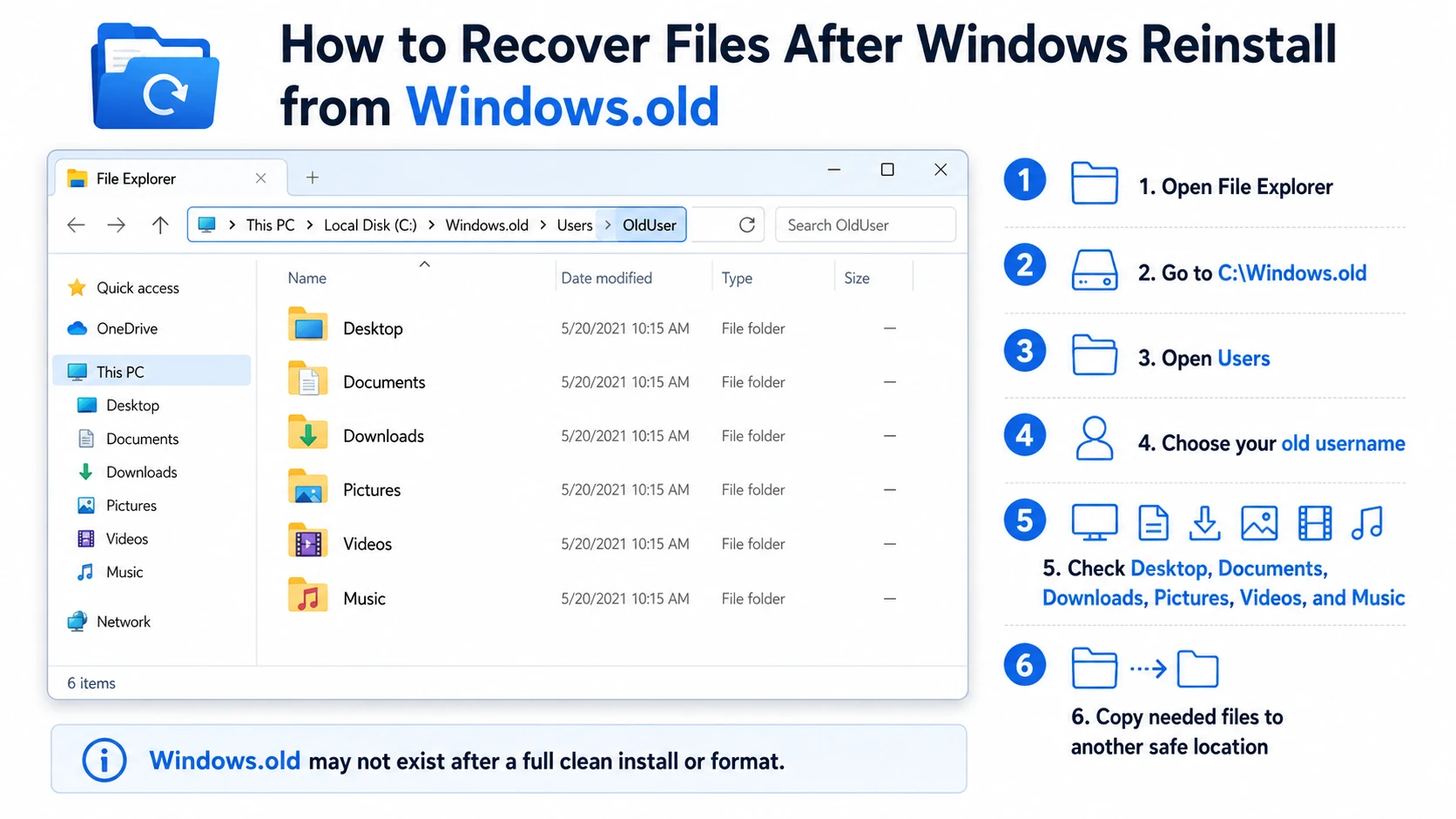
How to Recover Files After Windows Reinstall from Windows.old
Windows may create a Windows.old folder after some upgrade or reinstall processes. This folder can contain old Desktop, Documents, Downloads, Pictures, and Videos files.
Follow these steps:
- Open File Explorer.
- Go to
C:\Windows.old. - Open
Users. - Choose your old username.
- Check Desktop, Documents, Downloads, Pictures, Videos, and Music.
- Copy needed files to another safe location.
This method offers the easiest way to recover files after Windows reinstall when the folder exists. However, Windows.old does not appear after every reinstall. If you formatted the system partition or performed a full clean install, you may not find it.
Restore Data from File History, OneDrive, or Backups
Backups provide the safest recovery path because they do not depend on deleted file traces. If you enabled File History before reinstalling Windows, you may restore older versions of your personal files.
Also, check OneDrive, Google Drive, Dropbox, Windows Backup, email attachments, and old USB copies. If backups are missing or incomplete, you need a stronger method to recover files after Windows reinstall.
Use Magic Data Recovery to Recover Files After Windows Reinstall
When Windows.old and backups fail, Magic Data Recovery offers a practical way to recover files after Windows reinstall. It helps users scan a drive or partition, preview recoverable files, and restore selected items without complex commands.
This tool fits common post-reinstall problems. For instance, Windows.old folder may be missing, or Windows may show the drive as empty after a format or partition change. In these cases, Magic Data Recovery can scan for lost documents, photos, videos, archives, and other file types.
Why Magic Data Recovery Is Useful
Magic Data Recovery focuses on the main pain point: finding lost files when Windows no longer shows them. It supports deep scan, file preview, filters, and common file formats. As a result, it works well for home users, students, creators, and office workers who need documents, photos, videos, spreadsheets, or ZIP archives.
Compared with manual methods, Magic Data Recovery covers more situations. Windows.old only helps when the folder exists. File History only helps if you enabled backup earlier. Windows File Recovery can help, but its command-line process may confuse beginners. Magic Data Recovery gives a clearer visual workflow with less risk.
How to Use Magic Data Recovery Safely
Follow these steps to recover files after Windows reinstall without increasing the risk of overwriting lost data.
Step 1: Download and Install Magic Data Recovery
First, download Magic Data Recovery from the official Amagicsoft website. Install it on a different drive or partition. This helps reduce new write operations and protects recoverable data.
Supports Windows 7/8/10/11 and Windows Server
Step 2: Select the Drive to Scan
Launch Magic Data Recovery. Next, choose the drive or partition where your files disappeared. Then, start the scan to search for lost data.

Step 3: Scan the Drive for Lost Files
Magic Data Recovery begins an Advanced Scan automatically. Meanwhile, it lists recoverable files as it finds them, so you can review results while the scan continues.

Step 4: Preview Files Before Recovery
Next, use the preview feature to check file content before recovery. This step helps you confirm whether the files are usable and avoid restoring unnecessary items.

Step 5: Recover Files to a Safe Location
Finally, select the files you want to restore and save them to a different drive, partition, or storage device. Do not recover files back to the same location where they were lost, because it may overwrite other recoverable data.

Other Options Before You Give Up
Windows File Recovery can help advanced users recover deleted files from local drives and removable storage. However, it uses commands, so it may not suit beginners who want to preview files before recovery. Therefore, Magic Data Recovery offers a more visual route for most ordinary users.
System Restore may fix settings, drivers, or registry changes. However, it does not serve as a dependable personal file recovery method after a reinstall. Therefore, check backups and scan recoverable data before you try system-level changes.
What Affects Your Ability to Recover Files After Windows Reinstall?
Several factors decide whether you can recover files after Windows reinstall successfully. First, HDDs often keep deleted data until new data overwrites it. SSDs may use TRIM, which can clear deleted blocks and reduce recovery chances.
Second, a Windows upgrade with Windows.old usually gives a better result than a clean install with formatting. Third, browsing, gaming, installing apps, and downloading updates can write new data to the drive. Consequently, you should scan early and recover important files first.
Conclusion
To recover files after Windows reinstall, you need speed, caution, and the right HDD recovery method. Start with Windows.old because it may contain your old user files. Next, check File History, OneDrive, and other backups. If those options fail, scan the affected drive before new data overwrites the old files.
Magic Data Recovery is worth recommending because it solves the most common post-reinstall problem: lost files with no clear backup. It offers a visual workflow, deep scan, preview, filters, and broad file type support. More importantly, it helps ordinary users recover files without complicated commands.
If you need to recover files after Windows reinstall, try Magic Data Recovery early and save recovered files to a safe location.
Supports Windows 7/8/10/11 and Windows Server
FAQ About How to Recover Files After Windows Reinstall
Can I recover files after Windows reinstall without backup?
Yes, you may still recover files after Windows reinstall without backup if new data has not overwritten the old file content. First, check Windows.old and cloud sync folders. Then, scan the affected drive with Magic Data Recovery. For the best result, avoid installing programs or saving files to the same drive before recovery.
Where are my files after reinstalling Windows?
Your files may appear in Windows.old, your current user folders, OneDrive, File History, or another backup location. However, a clean install or format may remove visible file records. In that case, the files may still exist as recoverable data on the drive until new data overwrites them.
Can I recover files after a clean install of Windows 11?
Yes, you can sometimes recover files after a clean install of Windows 11, especially if you used a quick format and did not use the PC heavily afterward. However, the chance drops when Windows updates, apps, and new files overwrite old data. Run a deep scan as soon as possible.
Is Windows.old always available after reinstalling Windows?
No, Windows.old does not appear after every reinstall. Windows may create it during some upgrade or reinstall processes, but it may disappear after formatting, deleting partitions, or performing a full clean install. If Windows.old is missing, check backups first, then use a recovery tool to scan the drive.
Should I install recovery software on the same drive?
No. You should avoid installing recovery software on the same drive where files disappeared. Installation creates new data, and that data may overwrite recoverable files. Instead, use another partition when possible. Also, save recovered files to a different location to protect remaining lost data.
Can I recover files from an SSD after Windows reinstall?
You may recover some files from an SSD, but the chance depends on TRIM and later disk activity. TRIM can clear deleted data blocks, which makes recovery harder. Therefore, stop using the SSD quickly. If the files are very important, scan from another system or consider professional help.
What is the best way to recover files after Windows reinstall?
The best way is to follow a safe order. First, stop using the affected drive. Next, check Windows.old, File History, and cloud backups. If those methods fail, use Magic Data Recovery to scan, preview, and restore selected files to another location before more data gets overwritten.

Vasilii is a data recovery specialist with around 10 years of hands-on experience in the field. Throughout his career, he has successfully solved thousands of complex cases involving deleted files, formatted drives, lost partitions, and RAW file systems. His expertise covers both manual recovery methods using professional tools like hex editors and advanced automated solutions with recovery software. Vasilii's mission is to make reliable data recovery knowledge accessible to both IT professionals and everyday users, helping them safeguard their valuable digital assets.