
How to Retrieve Contacts from Google Account
Losing contacts can disrupt work, travel, family communication, and daily tasks. You may lose phone numbers after deleting entries, switching phones, importing a messy file, or turning off sync by mistake. The good news is that you have several safe ways to retrieve contacts from Google account before you try any recovery software.
This guide explains how to restore deleted contacts, fix missing contacts, import CSV or VCF backups, and recover deleted contacts from google when Google’s built-in options still apply. It also explains where Magic Data Recovery fits. The tool cannot scan your Google Account or restore cloud-only contacts directly. However, it can help when you previously exported a Google Contacts CSV, VCF, or Google Takeout file and then deleted that local backup.
Supports Windows 7/8/10/11 and Windows Server
Table of Contents
Quick Guide to Retrieve Contacts from Google Account
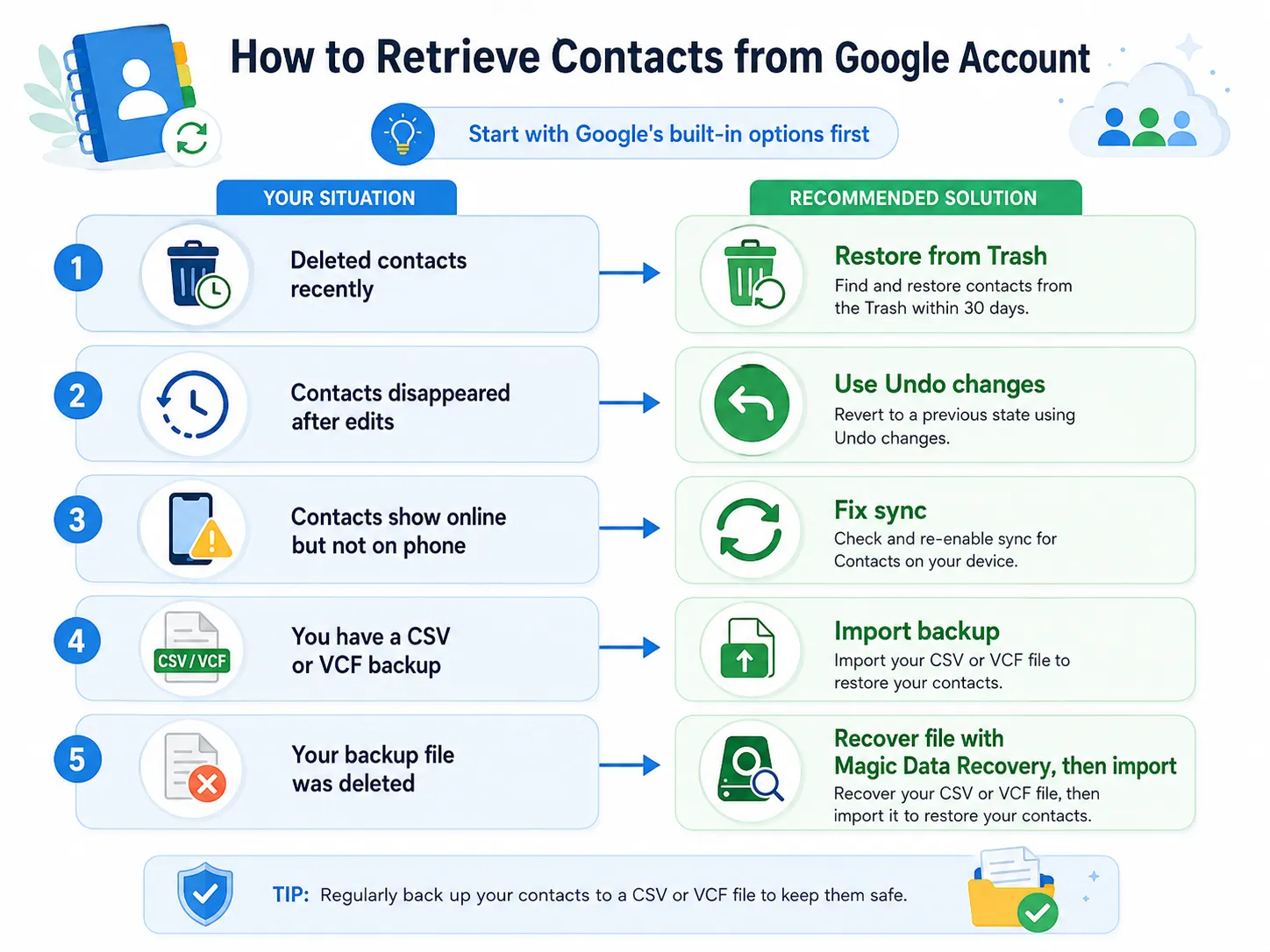
Start with the method that matches your situation. This saves time and prevents accidental overwrites.
Situation | Best Solution |
You deleted contacts recently | Restore them from Google Contacts Trash. |
Contacts disappeared after edits | Use Undo changes. |
Contacts show online but not on your phone | Fix Google Contacts sync. |
You saved a CSV or VCF file | Import the backup into Google Contacts. |
Your backup file was deleted from your PC or drive | Recover the file with Magic Data Recovery, then import it. |
This order gives you the best chance to retrieve contacts from google account safely. It also helps you avoid a common mistake: using file recovery software when the real issue is only a sync setting.
Before You Restore Deleted Contacts Google, Check the Source
Before you try to restore deleted Google contacts, confirm where the missing contacts were saved. Not every contact on a phone belongs to Google Contacts. Some contacts may stay only on the device, SIM card, Outlook, Exchange, iCloud, WhatsApp, or another app.
Open Google Contacts in a browser first. Then sign in with the Google Account you used on your phone. If the missing contacts appear there, your data still exists in Google. In that case, you probably need to fix sync. If the contacts do not appear, check Trash, Undo changes, or a backup file.
This step matters because many users search for recover deleted contacts from Google even when they logged in with the wrong account. Google explains that Google contacts can sync across devices when users sign in and keep sync enabled.
Method 1: Retrieve Contacts from Google Account from Trash
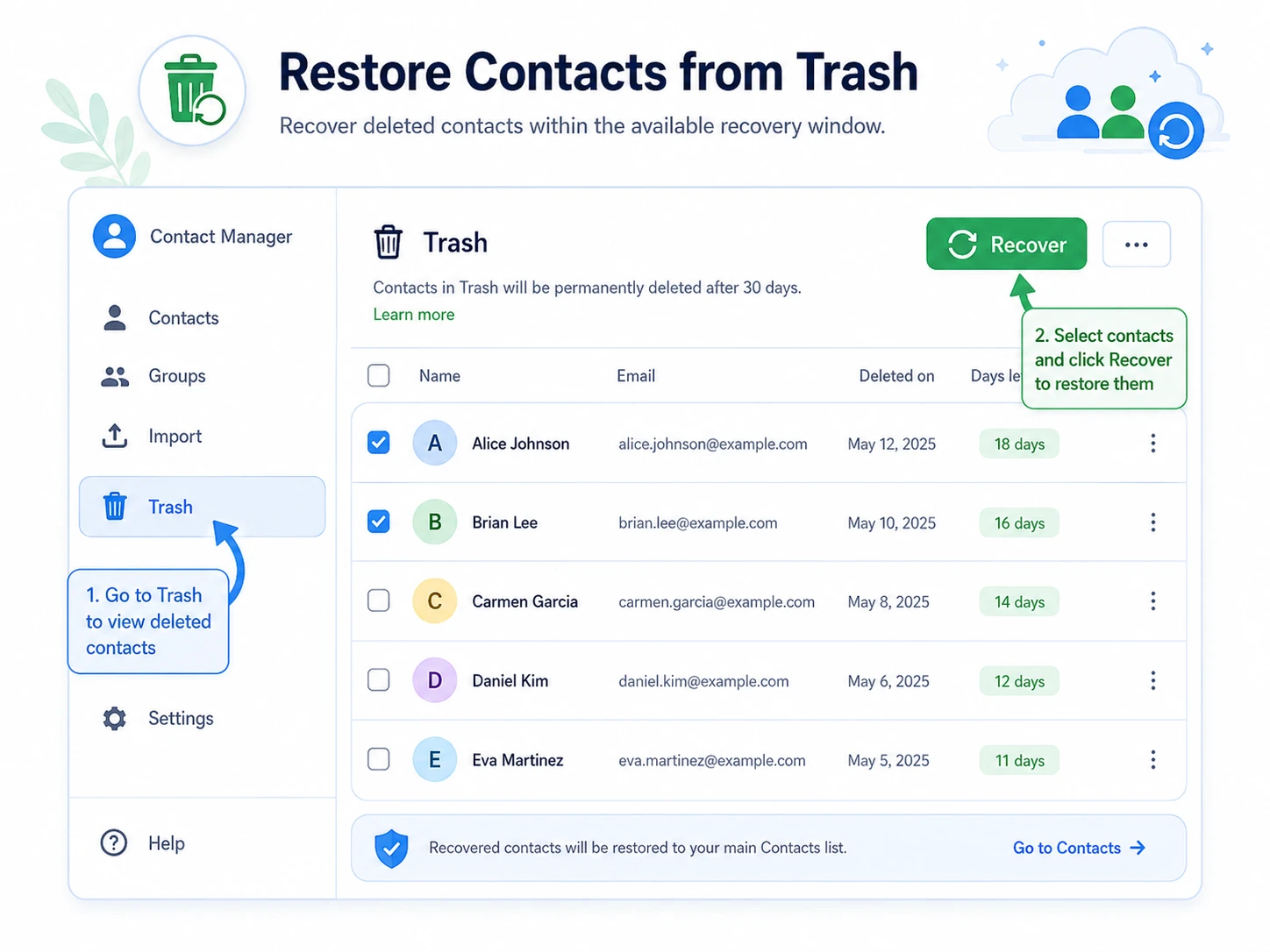
Trash should be your first stop after accidental deletion. Google Contacts lets users recover deleted contacts from Trash within its recovery window. Google also notes that permanently deleted contacts cannot be recovered from Trash.
Follow these steps:
- Open Google Contacts on your computer.
- Sign in with the correct Google Account.
- Click Trash in the left menu.
- Select one contact or multiple contacts.
- Click Recover.
- Wait for your phone or tablet to sync.
This method helps you retrieve contacts from google account without sharing account access with another app. It also gives you the cleanest recovery path because Google restores the selected contacts directly into your contact list.
However, Trash does not solve every case. If you deleted contacts long ago, cleared Trash, or lost contacts after a bulk edit, move to Undo changes.
Method 2: Recover Deleted Contacts from Google with Undo Changes
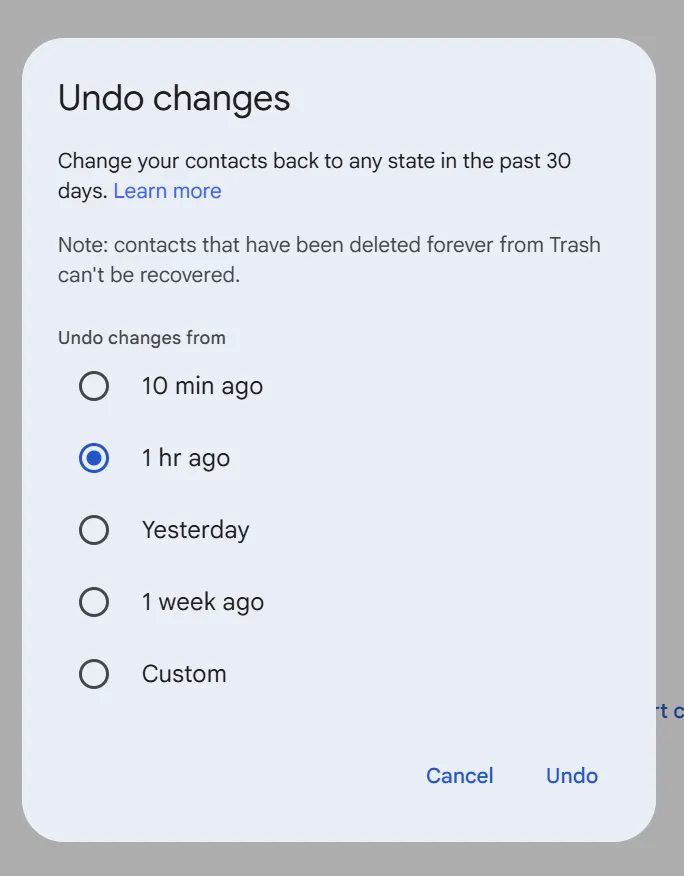
Undo changes works well when many contacts disappeared after an import, merge, sync error, or accidental edit. Instead of restoring one contact at a time, this option rolls your contact list back to an earlier point.
Here is how to use it:
- Open Google Contacts.
- Click the gear icon.
- Choose Undo changes.
- Select a time, such as yesterday or one week ago.
- Click Confirm.
Google says users can undo contact changes made during the past 30 days. It also warns that contacts added after the selected restore point may not show after the rollback.
Therefore, export your current contacts before you use Undo changes. This small step protects new contacts. After the rollback, you can import the exported file again if needed.
Use this method when you need to recover deleted contacts from google after a mistake that affected many entries at once.
Method 3: Fix Sync to Retrieve Contacts from Google Account
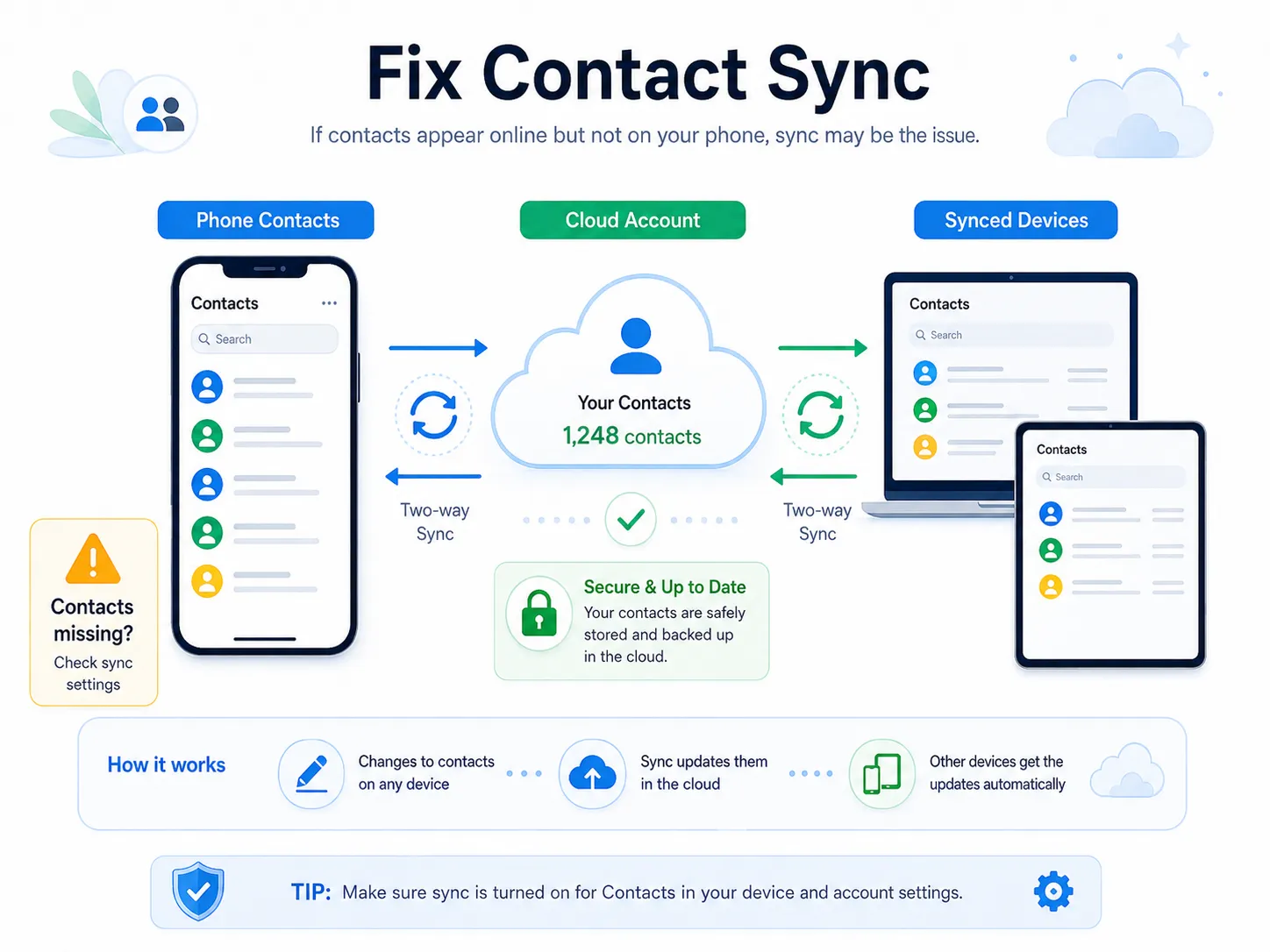
Sometimes your contacts are not deleted. They simply do not appear on your phone. This often happens after switching phones, adding several Google Accounts, clearing app data, or disabling sync.
Try these fixes:
- Check that you signed in with the correct Google Account.
- Open Google Contacts on the web to confirm the contacts still exist.
- Turn Google Contacts sync off and on again.
- Refresh account sync in Android settings.
- Check whether your Contacts app hides some accounts.
- Restart your phone and open Contacts again.
Google explains that contacts can sync to phones, tablets, and computers. When users change a synced contact, the change can update everywhere.
This method helps many users retrieve contacts from Google account without restoring anything. For example, if contacts appear on the web but not on Android, recovery software will not help. You need to repair the sync path instead.
Method 4: Import CSV or VCF Backups
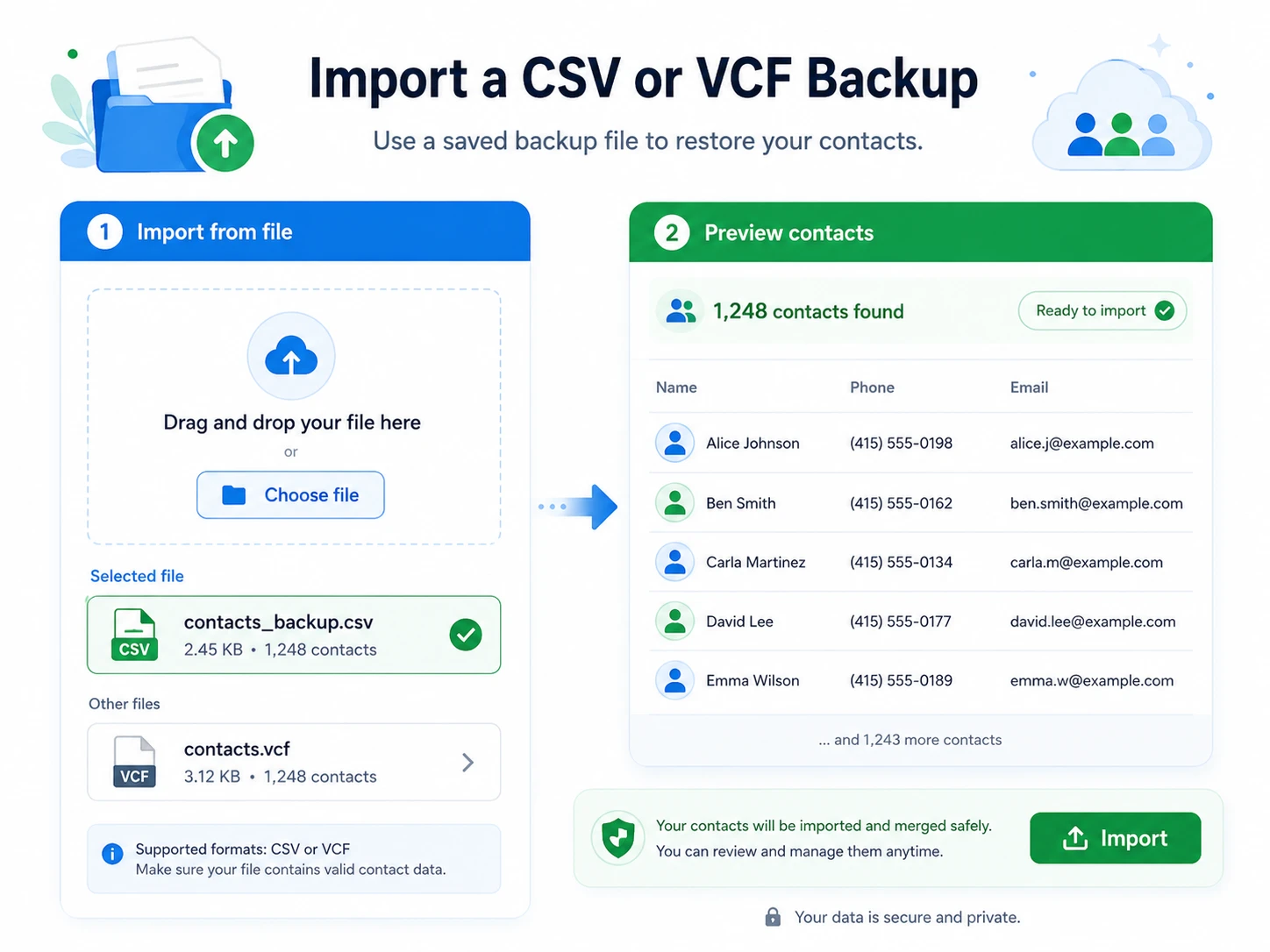
A backup file gives you another reliable way to retrieve contacts from Google account. Google Contacts supports importing existing CSV and vCard files. CSV files use the .csv extension, while vCard files use the .vcf extension.
Follow these steps:
- Open Google Contacts on your computer.
- Click Import.
- Click Select file.
- Choose your CSV or VCF file.
- Click Import.
- Review the imported contacts.
- Merge duplicates if needed.
Use Google CSV when you plan to import contacts back into Google Contacts. Use VCF when you need wider compatibility with phones, email apps, or other platforms.
If an imported contact misses details, check the Notes field. Also, keep the header row in a CSV template because it helps Google map names, phone numbers, emails, and addresses correctly.
What If Your Google Contacts Backup File Was Deleted?
At this point, Google’s cloud recovery options may not solve the problem. Maybe you exported a contacts file weeks ago, saved it to your computer, and later deleted it. Perhaps you had a Google Takeout ZIP file on a USB drive, but the file disappeared. In these cases, you need a tool that can recover the local backup file. This is the right scenario for Magic Data Recovery.
Recover a Deleted Backup with Magic Data Recovery
Magic Data Recovery helps with file-level recovery. It cannot directly retrieve contacts from Google account, and it cannot log in to Google Contacts. Instead, it scans storage devices for deleted files, such as CSV, VCF, ZIP, or other backup files.
According to Amagicsoft, Magic Data Recovery works as Windows file recovery software and supports recovery from devices such as hard drives, SSDs, USB drives, and SD cards. Its workflow lets users select a drive, scan it, preview files, and recover selected items.
Use Magic Data Recovery when:
- You deleted a Google Contacts CSV from your PC.
- A VCF file disappeared from a USB drive or memory card.
- A Google Takeout ZIP file was removed from an external disk.
- A spreadsheet with saved contact details was deleted.
- The Recycle Bin no longer contains the backup.
This process gives you a practical way to recover deleted contacts from google indirectly when the missing data exists inside a deleted local backup.

Tips to Avoid Contact Loss Again
After you retrieve contacts from Google account, protect your contact list with a simple routine. Prevention takes only a few minutes, but it can save hours later.
Use these best practices:
- Keep Google Contacts sync turned on.
- Save device and SIM contacts as Google contacts when possible.
- Export your contacts monthly as Google CSV.
- Keep one backup in cloud storage.
- Store another copy on an external drive.
- Use clear file names, such as
google-contacts-backup-2026-06.csv. - Export contacts before merging, deleting, or importing large lists.
- Do not rely on one phone as your only contact source.
These habits reduce the need to restore deleted contacts Google under pressure. They also make local recovery easier because you will know what file name and location to search.
Conclusion
The best way to retrieve contacts from Google account is to start with Google’s official recovery tools. Check the correct account, restore from Trash, use Undo changes, repair sync, and import a CSV or VCF backup when you have one.
Magic Data Recovery deserves a recommendation because it solves a specific problem that Google’s cloud tools do not cover: deleted local backup files. It cannot directly restore deleted contacts Google or scan your Google Account. However, if your exported Google Contacts CSV, VCF, Google Takeout archive, or contact spreadsheet disappeared from a Windows PC, USB drive, SD card, SSD, or external drive, it can scan the storage device and help recover the file.
That makes Magic Data Recovery a practical companion to Google Contacts recovery. Use Google first. Then use Magic Data Recovery to recover deleted contacts backup files.
Supports Windows 7/8/10/11 and Windows Server
FAQs About Retrieve Contacts from Google Account
Can I retrieve contacts from google account after 30 days?
You may still have options, but they depend on backups. Google’s built-in Trash and Undo changes have time limits, so old deletions become harder to fix. Check old phones, synced devices, exported CSV files, VCF files, Google Takeout archives, or work account backups. If you saved a local backup and deleted it, Magic Data Recovery may help recover that file.
What is the safest way to restore deleted contacts google?
Start with Google Contacts Trash if you deleted contacts recently. Then try Undo changes if a sync error, import, merge, or bulk edit caused the problem. Before using Undo changes, export your current contacts. This prevents newer contacts from disappearing after you roll the address book back to an earlier time.
Why are my Google contacts missing on my new phone?
Your contacts may not be deleted. You may have signed in with another Google Account, disabled sync, hidden an account in the Contacts app, or saved contacts only to the old phone or SIM card. First, open Google Contacts in a browser. If the contacts appear there, fix sync on the phone.
Should I use CSV or VCF to back up Google Contacts?
Use Google CSV if you plan to import the file back into Google Contacts. It usually maps contact fields more smoothly. Use VCF when you need broader compatibility with phones, Apple Contacts, email apps, or other address books. For better protection, keep both formats and name each backup with a clear date.
What should I do if my contacts backup file was deleted?
Stop using the drive where the file was stored. New data can overwrite deleted files and reduce recovery chances. Then scan the location with Magic Data Recovery. Search for file names like “contacts,” “google,” or “takeout,” and filter by .csv, .vcf, or .zip. Recover the file to another safe drive.
How often should I back up Google Contacts?
For personal use, a monthly backup works well. For business, sales, recruiting, or client communication, export contacts more often. Create a dated Google CSV file before major edits, imports, merges, or phone changes. Store one copy in cloud storage and one copy on an external drive. This simple habit makes future recovery much easier.

Vasilii is a data recovery specialist with around 10 years of hands-on experience in the field. Throughout his career, he has successfully solved thousands of complex cases involving deleted files, formatted drives, lost partitions, and RAW file systems. His expertise covers both manual recovery methods using professional tools like hex editors and advanced automated solutions with recovery software. Vasilii's mission is to make reliable data recovery knowledge accessible to both IT professionals and everyday users, helping them safeguard their valuable digital assets.