
Recover Data from Damaged Hard Drive Safely
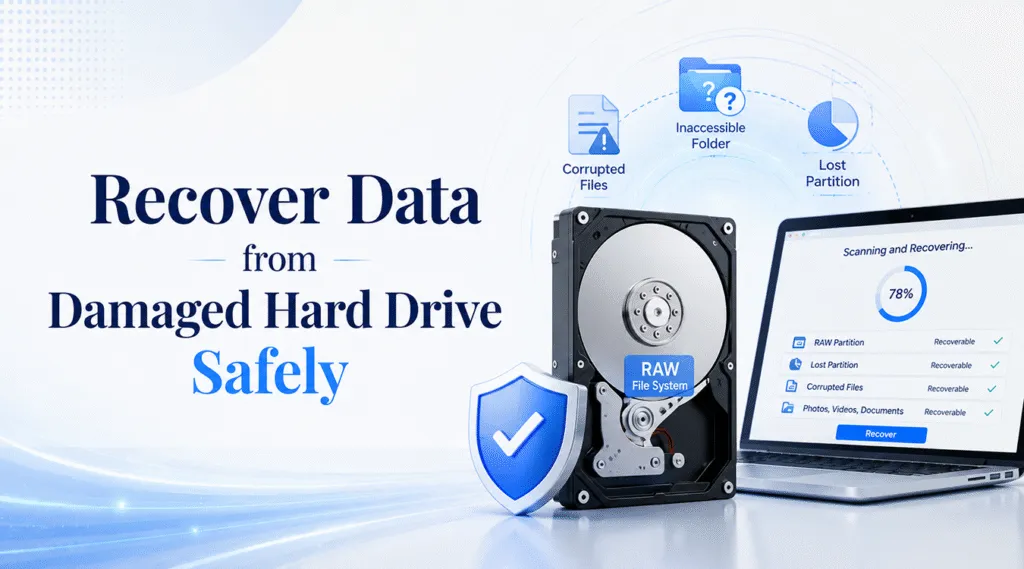
When a hard drive becomes unreadable, every click can feel risky. You may see a RAW partition, a format warning, missing folders, or an external drive that suddenly stops opening. Fortunately, you can often recover data from damaged hard drive issues when the device still appears in Windows. However, you need the right first step. Random repairs can overwrite files or make a weak disk worse.
This guide explains how to identify the damage type, avoid unsafe fixes, and choose a hard drive recovery method that fits the real problem. In addition, it shows when Magic Data Recovery can help with logical damage and when a dead hard drive needs a professional recovery lab.
Supports Windows 7/8/10/11 and Windows Server
Table of Contents
Can You Recover Data from Damaged Hard Drive?
Yes, you can often recover data from damaged hard drive problems if the disk still shows in File Explorer, Disk Management, or recovery software. In many cases, the file system, partition table, or directory records have become corrupted.
For example, Windows may ask you to format an external drive, or the drive may turn RAW, lose a partition, or show strange file names. In these situations, recovery software can scan the disk and rebuild a file list.
However, a physically damaged drive needs a different plan. If you hear clicking, grinding, or repeated beeping, disconnect it. Also, stop DIY attempts if the disk smells burnt, overheats, or never appears in the system. A true dead hard drive usually needs expert handling.
Before You Recover Data from Damaged Hard Drive, Avoid These Mistakes
Before you try to recover data from damaged hard drive errors, protect the data that remains. Many users lose recoverable files because they try repair steps too early.
First, do not format the drive, even if Windows suggests it. Formatting may create new records over old data. Next, do not save new files to the same disk. Also, do not install recovery software on the damaged drive.
Moreover, avoid running CHKDSK before recovery when the files matter. It may change damaged records. Therefore, recover important files first, save them to another healthy drive, and then decide whether to repair or replace the disk.
Identify the Problem: Damaged Drive vs Dead Hard Drive
To recover data from damaged hard drive safely, you need to know whether the issue is logical, unstable, or physical. This quick check helps you avoid the wrong solution.
Logical Damage
Logical damage means the hardware still responds, but Windows cannot read the data structure correctly. Common signs include deleted files, accidental formatting, a RAW drive, a lost partition, or an inaccessible external hard drive. In this case, Magic Data Recovery can scan the drive and help restore files.
Unstable Drive or Bad Sectors
A drive with bad sectors may still appear, but it can freeze, disconnect, or scan slowly. If the data has high value, create a disk image first when possible, and then scan the image.
Physical Damage or Dead Hard Drive
A dead hard drive may not spin, may click repeatedly, or may not appear in BIOS or Disk Management. Physical damage can involve heads, motor, platters, firmware, or the controller board. Consequently, stop powering it on and contact a professional recovery service.
When Magic Data Recovery Helps Recover Data from Damaged Hard Drive
Magic Data Recovery works best when you need to recover data from damaged hard drive problems caused by logical errors. It suits users who want a clear recovery workflow without deep technical steps.
You can use it for deleted files, formatted drives, lost partitions, RAW drives, corrupted external drives, inaccessible folders, and files lost after a system crash. It also supports HDDs, SSDs, USB drives, memory cards, and external hard drives.
The core pain point is simple: your files may still exist, but Windows cannot display them normally. Magic Data Recovery addresses this by scanning the selected device, finding recoverable files, and letting you preview items before saving them.
Compared with random repair commands, this method gives you more control. You can choose specific documents, photos, videos, or archives and save them to a healthy location.
How to Recover Data from Damaged Hard Drive with Magic Data Recovery
If Windows can still detect the problem disk, you can use Magic Data Recovery to recover data from damaged hard drive issues caused by logical errors. Follow the steps below carefully, and always save recovered files to another healthy location.
Step 1: Download and Install Magic Data Recovery
First, download Magic Data Recovery and install it on a healthy drive, not on the damaged hard drive. This simple step matters because installing new software on the affected disk may overwrite lost files and reduce the chance of successful recovery.
Supports Windows 7/8/10/11 and Windows Server
Step 2: Select the Damaged Hard Drive to Scan
Next, launch Magic Data Recovery. From the main interface, choose the damaged hard drive, lost partition, or affected storage device where your files disappeared. Then start the scan so the software can search for recoverable data.

Step 3: Scan the Damaged Hard Drive for Lost Files
After that, Magic Data Recovery will scan the selected drive and look for lost, deleted, or inaccessible files. Meanwhile, you can view recoverable items as the scan continues. For a damaged hard drive, let the scan finish unless the disk becomes unstable, overheats, or disconnects repeatedly.

Step 4: Preview Files Before Recovery
Once the scan results appear, use the preview function to check file content before recovery. This step helps you confirm whether photos, documents, videos, or other important files are still usable. As a result, you can recover only the files you actually need.

Step 5: Recover Files to a Safe Location
Finally, select the files you want to restore and save them to a different healthy drive or storage device. Never recover files back to the same damaged hard drive, because writing new data to the affected disk may overwrite remaining lost files or cause further data corruption.

Can You Recover Data from Dead Hard Drive with Software?
Sometimes users call a corrupted disk a dead hard drive, even though Windows can still detect it. In that case, you may still recover data from damaged hard drive problems with software. A RAW file system, missing partition, or format prompt often points to logical damage.
However, software needs the system to access the disk. If the disk does not spin, does not receive power, or never appears in Disk Management, recovery software cannot scan it. Likewise, clicking sounds often suggest mechanical trouble. For these signs, a professional lab offers the safer path.
Software Recovery vs Professional Service
Both options can help, but they solve different problems. Magic Data Recovery fits logical data loss. It gives ordinary users a guided way to recover data from damaged hard drive cases such as deletion, formatting, RAW partitions, and corrupted external drives.
Professional recovery service fits severe physical failure. Choose that option for water damage, fire damage, impact damage, motor failure, or constant clicking. Although lab recovery usually costs more, it can handle hardware problems software cannot reach.
Therefore, the best solution depends on the symptom. If the drive still appears and runs quietly, try software first. If the drive acts like a true dead hard drive, stop DIY attempts.
Tips to Improve Damaged Hard Drive Recovery Results
To improve your chance to recover data from damaged hard drive successfully, act in the right order. First, recover the most important files. Next, use a stable cable. Additionally, avoid repeated scans if the drive becomes hot or unstable.
After recovery, replace the damaged disk instead of trusting it again. Then create a backup plan with one local copy and one cloud or external copy.
Conclusion: The Best Way to Recover Data from Damaged Hard Drive
The safest way to recover data from damaged hard drive issues is to match the HDD solution to the symptom. If the disk still appears and the problem looks logical, use recovery software before formatting, CHKDSK, or other repair commands. If the disk shows physical failure, stop using it and seek professional help.
Magic Data Recovery earns a recommendation because it solves common software-recoverable cases: deleted files, formatted drives, RAW partitions, lost partitions, corrupted external drives, and inaccessible folders. It also gives users a simple scan, preview, and recover workflow. Therefore, if you need a practical and safer way to recover data from damaged hard drive, Magic Data Recovery is a reliable first option to try.
Supports Windows 7/8/10/11 and Windows Server
FAQ About How to Recover Data from Damaged Hard Drive
Can I recover data from damaged hard drive at home?
Yes, you can often recover data from damaged hard drive issues at home when the disk still appears in Windows. For example, software can help with deleted files, formatted drives, RAW partitions, and corrupted external drives. However, stop DIY recovery if the disk clicks, smells burnt, overheats, or does not appear anywhere.
Can Magic Data Recovery fix a dead hard drive?
Magic Data Recovery can help when a dead hard drive still appears in Windows or Disk Management and the issue comes from logical corruption. However, it cannot repair broken heads, motors, platters, or controller boards. If the drive makes noise or stays undetected, choose a professional recovery lab.
Should I format a damaged hard drive before recovery?
No, do not format the drive before recovery. Formatting may create new file system records and reduce the chance to recover data from damaged hard drive problems completely. Instead, cancel the format prompt, stop saving new data, scan the disk with recovery software, and save recovered files to another healthy drive.
Is CHKDSK safe for damaged hard drive recovery?
CHKDSK can repair some file system errors, but it can also change damaged file records. Therefore, do not run it first if your files matter. Use recovery software before repair commands. After you restore important data, you can use CHKDSK or other repair tools to test the disk.
Why does my external hard drive become RAW?
A drive becomes RAW when Windows cannot read its file system. This may happen after unsafe removal, power loss, bad sectors, or partition corruption. Fortunately, you may still recover data from damaged hard drive cases like RAW drives if the disk remains detectable and does not show physical failure signs.
Where should I save recovered files?
Always save recovered files to another healthy drive, not the damaged one. This prevents overwriting lost data during recovery. For example, use your computer’s internal drive, a new external drive, or another safe storage device. After recovery, check the files and create a backup copy.
When should I contact a professional recovery service?
Contact a professional service when the drive clicks, grinds, overheats, suffers water or fire damage, or never appears in BIOS or Disk Management. These signs suggest physical failure. In these cases, repeated DIY scans may make the dead hard drive worse and reduce the final recovery chance.

Vasilii is a data recovery specialist with around 10 years of hands-on experience in the field. Throughout his career, he has successfully solved thousands of complex cases involving deleted files, formatted drives, lost partitions, and RAW file systems. His expertise covers both manual recovery methods using professional tools like hex editors and advanced automated solutions with recovery software. Vasilii's mission is to make reliable data recovery knowledge accessible to both IT professionals and everyday users, helping them safeguard their valuable digital assets.