
Partition Recovery Windows 10: Recover Lost Partition
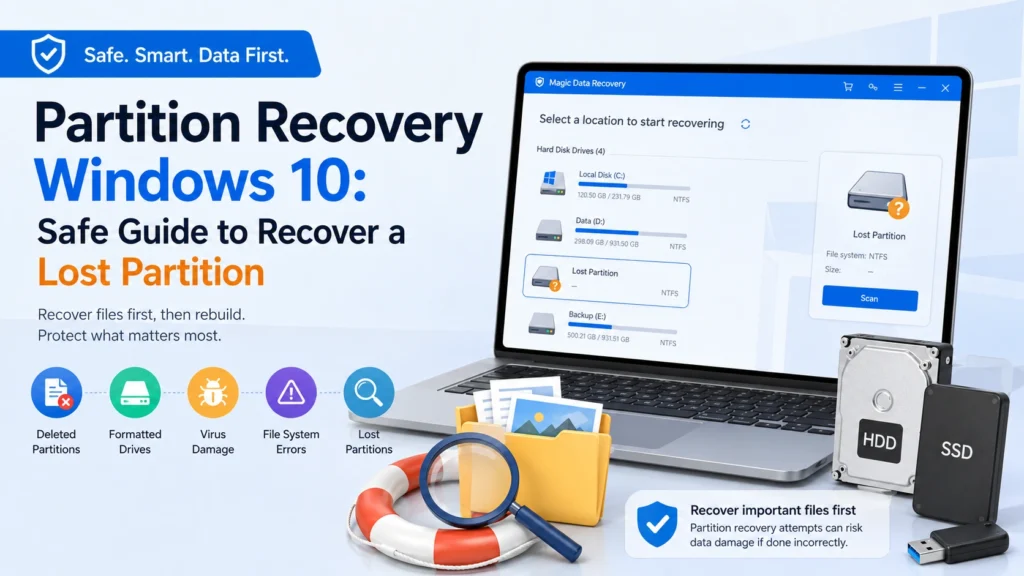
A missing partition in Windows 10 can feel alarming. One moment your drive appears normally. Then, after a failed update, accidental deletion, disk management mistake, or virus attack, the drive letter disappears and Windows shows the space as unallocated. In this situation, partition recovery windows 10 users often search for a fast fix, but rebuilding the partition too soon can make recovery harder.
The safer strategy is simple: recover important files first, then repair or recreate the partition. If a partition repair goes wrong, it may overwrite metadata, damage the file system further, or reduce the chance of recovering valuable files. That is why this guide focuses on a safer partition recovery Windows 10 workflow: protect your files first, understand what caused the lost partition, and then choose the right recovery method.
For users who need a practical solution, Magic Data Recovery can help recover files from deleted, formatted, inaccessible, virus-damaged, or lost partition scenarios before you make risky changes to the disk.
Supports Windows 7/8/10/11 and Windows Server
Table of Contents
What Does Partition Recovery Mean in Windows 10?
Partition recovery windows 10 refers to the process of restoring access to a missing, deleted, damaged, or unallocated partition. A partition is a logical section of a physical disk. Windows uses partition information, file system records, and drive letters to locate files.
When a partition disappears, the files may still exist on the disk. However, Windows may no longer know where that partition starts, ends, or how to read its file system. As a result, the drive may appear as:
- Unallocated space in Disk Management
- RAW partition
- Missing drive letter
- Disk not initialized
- Deleted volume
- Inaccessible partition
A lost partition does not always mean the data has disappeared. In many cases, the partition table or file system structure is damaged, while the actual file content remains recoverable.
Common Causes of a Lost Partition in Windows 10
Understanding the cause helps you choose the safest recovery path. In real-world support cases, users usually lose partitions for one of the following reasons.
Accidental Deletion in Disk Management
Many Windows 10 users delete the wrong volume while resizing, formatting, or cleaning disks. Once deleted, the partition may become unallocated. At this point, do not create a new volume immediately. A new partition may overwrite important file system information.
Failed Windows Installation or Update
A failed Windows 10 installation, reset, or upgrade can change the partition layout. This often happens when multiple disks remain connected during OS installation. If the wrong disk is selected, Windows may delete or recreate partitions unexpectedly.
Partition Table Corruption
The MBR or GPT partition table works like a map for the disk. If that map becomes corrupted, Windows may fail to locate one or more partitions. In this case, a partition recovery wizard may find the lost partition, but rewriting the partition table should be handled carefully.
File System Errors
NTFS, FAT32, and exFAT file systems can become corrupted because of unsafe removal, power loss, bad sectors, or interrupted write operations. When this happens, Windows may ask you to format the partition. Do not format it before recovering your files.
Virus or Malware Damage
Some malware can damage partition records, hide drive letters, or corrupt file system data. After malware removal, the partition may still remain inaccessible. A data-first recovery process is safer than repeated repair attempts.
The Safest Rule: Recover Files Before Rebuilding the Partition
Many articles about partition recovery windows 10 focus on restoring the partition itself. That approach can work in simple cases. However, it also carries risk.
When you rebuild a partition, rewrite a partition table, run repair commands, or create a new volume, Windows may write new metadata to the disk. If the operation uses the wrong partition boundary or file system structure, it can cause secondary damage.
A safer workflow is:
- Stop using the affected disk.
- Do not format, repartition, or initialize the drive.
- Recover important files to another storage device.
- Check whether recovered files open correctly.
- Only then rebuild, format, or recreate the partition.
This order protects the data first. It also gives you flexibility. Even if partition repair fails later, your important documents, photos, videos, and project files are already safe.
Partition Recovery Wizard vs Data Recovery Software: Which Should You Use First?
A partition recovery wizard and data recovery software may sound similar, but they solve different problems.
A partition recovery wizard usually tries to find and restore the missing partition structure. It may scan for deleted partition entries and write the selected partition back to the partition table.
Data recovery software focuses on recovering files from the affected disk. It scans the disk, identifies recoverable files, lets you preview them, and saves them to a different location.
Use a Partition Recovery Wizard When
- You understand disk structures.
- The partition was recently deleted.
- No new partition has been created.
- You have a full disk backup or disk image.
- You are confident the found partition boundary is correct.
Use Data Recovery First When
- The files are more important than the partition structure.
- The disk shows as RAW or unallocated.
- Windows asks you to format the drive.
- You are not sure what caused the partition loss.
- The partition contains business files, family photos, school files, or client projects.
- You need a beginner-friendly and safer process.
For most ordinary users, recovering files first is the safer choice. After the files are safe, partition repair becomes less risky.
Best Safe Method for Partition Recovery Windows 10
The best method depends on the disk condition. However, for a lost partition that contains important files, the safest method is to scan the affected disk with reliable recovery software before changing the partition table.
Magic Data Recovery is a practical option because it focuses on restoring lost files without requiring users to manually rebuild partitions first. It supports common data loss cases, including deleted files, formatted drives, file system errors, lost partition issues, and virus-related data loss.
Why Magic Data Recovery Is Recommended
Magic Data Recovery is useful for partition recovery windows 10 users because it addresses the core pain point: the partition may be missing, but the files inside may still be recoverable.
Key advantages include:
- It can scan lost, deleted, formatted, or inaccessible partitions.
- It supports common Windows storage devices, including HDDs, SSDs, USB drives, memory cards, and external drives.
- It allows users to preview recoverable files before saving them.
- It recovers files to another location instead of forcing risky partition repair first.
- It is easier for ordinary users than command-line tools.
- It supports many file types, including documents, photos, videos, archives, emails, and project files.
For example, if a Windows 10 user accidentally deletes a data partition while installing Windows, Magic Data Recovery can scan the affected disk and help recover the files before the user creates a new partition.
How to Recover Files from a Lost Partition in Windows 10
Follow these steps before attempting to rebuild the partition. You can also refer to the Magic Data Recovery user guide for detailed operation instructions.
Step 1: Stop Using the Affected Disk
Do not copy files to the disk. Do not install software on it. Do not create a new volume. Continued use may overwrite recoverable data.
If the affected partition was on your system disk, shut down the computer and connect the drive to another Windows computer if possible. This reduces accidental writes.
Step 2: Install Magic Data Recovery on a Safe Drive
Download and install Magic Data Recovery on a healthy drive, not the disk that contains the lost partition. If the lost partition is on an external drive, install the software on your internal Windows drive.
This step matters because installing software on the affected disk may overwrite recoverable files.
Supports Windows 7/8/10/11 and Windows Server
Step 3: Select the Affected Disk
Launch the software and select the disk where the partition disappeared. If the partition no longer has a drive letter, choose the physical disk or the detected lost partition area.

Step 4: Scan for Lost Data
Start the scan. The software will search for lost files, file system records, and recoverable data. A deep scan may take longer, but it is useful when the partition table is damaged or the drive appears as unallocated.

Step 5: Preview Important Files
After scanning, preview the files you need. Focus on important folders first, such as documents, photos, videos, work files, design files, or archives.
Previewing helps confirm whether the file content is usable before recovery.

Step 6: Recover Files to Another Drive
Select the files you want and save them to a different disk. Never save recovered files back to the same lost partition area.

After recovery, open several files to verify integrity. Once your important files are safe, you can decide whether to recreate the partition, format it, or use a repair tool.
Should You Use Windows Disk Management?
Windows Disk Management can help you inspect the disk, but it is not a data recovery tool. It can show whether the partition appears as unallocated, RAW, healthy, or missing a drive letter.
However, you should avoid risky actions before file recovery.
Do not click “New Simple Volume” on unallocated space. Do not format a RAW partition. Do not initialize a disk that previously contained important data. Also, do not delete additional partitions or change MBR/GPT settings unless you have a backup.
Disk Management is useful for diagnosis. It is not the safest first step for recovering files from a lost partition.
Can CHKDSK Fix a Lost Partition?
CHKDSK can repair some file system errors, but it is not designed to recover a deleted partition. In some cases, CHKDSK may modify file system records. That can help a healthy but slightly corrupted partition. However, it can also make recovery more difficult if the file system is heavily damaged.
Use CHKDSK only after recovering important files or after creating a full disk image. If Windows shows the partition as RAW, unallocated, or missing, recover files first.
For deeper file system issues, you can also read this guide about Master File Table recovery to understand why NTFS metadata matters during recovery.
Can TestDisk Recover a Lost Partition?
TestDisk is a powerful open-source tool that can locate lost partitions and rewrite partition tables. It can be effective for experienced users who understand partition structures. However, it uses a more technical workflow and may feel difficult for ordinary Windows users.
The main risk is not the tool itself. The risk comes from choosing the wrong partition entry or writing incorrect changes to the disk. Therefore, if your files are important, recover them first with data recovery software. Then you can try TestDisk or another partition recovery wizard with less pressure.
When Partition Recovery May Not Work
Not every lost partition can be fully recovered. Recovery becomes harder when:
- New data has overwritten the old partition space.
- The disk has physical damage.
- An SSD has already cleared deleted data through TRIM.
- The partition was formatted multiple times.
- A new operating system was installed over the old partition.
- The drive has severe bad sectors.
In these cases, stop software attempts if the drive shows physical symptoms, such as clicking sounds, repeated disconnections, overheating, or failure to appear in BIOS. A professional recovery lab may be safer.
Partition Recovery Windows 10 Best Practices
To improve your recovery chance, follow these practical tips.
- Recover data before repairing the partition.
- Use a separate drive for recovered files.
- Avoid full formatting.
- Avoid installing tools on the affected disk.
- Do not run multiple repair tools repeatedly.
- Preview files before recovery.
- If possible, create a disk image before advanced repair.
- Check the recovered files before deleting or recreating partitions.
These steps may seem simple, but they reduce the risk of secondary data loss.
Comparison: Common Partition Recovery Options
Method | Best For | Main Risk | Recommended Use |
Windows Disk Management | Checking disk status and drive letters | Creating a new volume may overwrite data | Use for diagnosis only |
CHKDSK | Minor file system errors | May modify damaged file system records | Use after file recovery |
TestDisk | Rebuilding partition tables | Requires technical decisions | Use after backup or file recovery |
Partition Recovery Wizard | Restoring recently deleted partitions | May write changes to disk | Use only when partition boundary is clear |
Magic Data Recovery | Recovering files from a lost partition | Requires saving files to another drive | Best first step when files matter most |
Why Magic Data Recovery Is a Safer Choice for Lost Partition Files
A partition recovery wizard may try to bring the entire partition back. That sounds convenient, but it also changes disk structures. Magic Data Recovery takes a safer data-first approach. It helps users locate and recover important files from a lost partition without requiring immediate partition rebuilding.
This makes it especially useful in cases such as:
- Accidentally deleted Windows 10 data partition
- External hard drive partition suddenly missing
- USB drive showing unallocated space
- RAW partition after unsafe removal
- Virus-damaged partition
- Formatted or repartitioned disk
- Failed Windows installation that removed a data volume
For users who are not sure what happened, this approach is more reliable because it protects files first. Once the files are recovered, rebuilding the partition becomes a maintenance task instead of a high-risk emergency.
If you are looking for a safer way to start, you can Download Magic Data Recovery and scan the affected disk before changing its partition structure.
Conclusion
Partition recovery windows 10 should not begin with risky disk changes. If a partition disappears, your first goal should be to protect the data inside it. Avoid formatting, repartitioning, or rewriting the partition table until your important files are safe.
A partition recovery wizard can be useful in the right situation, especially when the partition was recently deleted and you understand the disk layout. However, for most users, recovering files first is the safer and more practical choice.
That is why Magic Data Recovery is recommended for this scenario. It supports deleted, formatted, file system error, lost partition, and virus-damaged data recovery cases. It also lets users scan, preview, and recover files to another drive before attempting partition repair.
If you are facing a lost partition in Windows 10, start with a data-first lost partition data recovery workflow. It gives your files the best chance of staying safe.
Supports Windows 7/8/10/11 and Windows Server
FAQs About Partition Recovery Windows 10
What is the safest way to perform partition recovery Windows 10?
The safest way is to stop using the affected drive and recover important files before rebuilding the partition. Avoid formatting, creating a new volume, or running repair commands too early. Once your files are saved to another drive, you can repair, recreate, or format the partition with much lower risk.
Can I recover a lost partition in Windows 10 without losing data?
Yes, it is often possible if the original data has not been overwritten. However, the safest approach is to recover the files first. Rebuilding a partition directly may work, but a wrong partition boundary or repair action can damage data. File recovery first gives you better protection.
What causes a lost partition in Windows 10?
A lost partition can result from accidental deletion, failed Windows installation, partition table corruption, file system errors, power loss, malware, or incorrect disk management operations. Sometimes the drive letter disappears, while the data remains on the disk. That is why recovery may still be possible.
Should I use a partition recovery wizard first?
Use a partition recovery wizard only when you understand the disk layout and have already protected your files. Many wizard tools write changes to the partition table. If the selected partition is wrong, the repair may cause secondary damage. For important files, data recovery should come first.
Can Magic Data Recovery recover files from a lost partition?
Yes. Magic Data Recovery can scan disks with deleted, formatted, inaccessible, or lost partitions and recover files to another location. It is useful when Windows 10 shows the partition as missing, RAW, or unallocated. The preview feature also helps you check recoverable files before saving them.
Is CHKDSK safe for lost partition recovery?
CHKDSK is not the best first step for a lost partition. It can repair some file system errors, but it may also modify disk records. If the partition is missing, RAW, or unallocated, recover important files first. After your files are safe, you can consider repair commands.
Can I recover a lost partition after formatting?
In many cases, yes. A quick format may remove file system records but leave much of the file content recoverable. However, a full format or continued use can overwrite data. Start scanning as soon as possible and save recovered files to a different drive.
What should I avoid after a partition disappears?
Avoid creating a new partition, formatting the disk, initializing the drive, installing software on the affected disk, or saving recovered files back to the same location. These actions may overwrite recoverable data. Disconnect the drive if possible and begin recovery from a safe computer or drive.

Jason has over 15 years of hands-on experience in the computer data security industry. He specializes in data recovery, backup and restoration, and file repair technologies, and has helped millions of users worldwide resolve complex data loss and security issues.