
Top 4 Free Data Recovery Software for Windows 11
It feels like a digital nightmare if you lose critical files on your computer. Whether it is a deleted work document, a folder of family photos, or a system crash that wiped your drive, the panic is real. Windows 11, while modern and secure, is not immune to data loss. Fortunately, you do not always need to hire an expensive specialist to get your files back. Many developers offer powerful tools to help you undo the damage. However, finding free data recovery software for windows 11 that actually delivers results without hidden catches can be difficult.
Furthermore, data loss often happens at the most inconvenient times. Consequently, having a reliable tool ready is essential for any PC user. This guide explores the most reliable HDD solutions available today, helping you navigate the technical hurdles of file retrieval with ease. We have tested numerous applications to ensure that this list of free data recovery software for windows 11 meets the highest standards of efficiency and safety.
Supports Windows 7/8/10/11 and Windows Server
Wondering if your files can be recovered? Find out in seconds with our quick check below.
Data Recovery Assessment
Answer 3 quick questions to estimate your recovery chances
Table of Contents
How to Choose the Most Reliable Free Data Recovery Software for Windows 11
Selecting the right utility requires more than just looking at a price tag. Because Windows 11 uses specific file management protocols, you must ensure your chosen free data recovery software for windows 11 is fully compatible. In addition, you should consider the following factors to ensure a high success rate.
1. Scan Depth and Speed
A “Quick Scan” is usually enough for recently deleted files. However, for formatted drives, you need a “Deep Scan.” The best free data recovery software for windows 11 allows you to toggle between these modes based on your specific situation.
2. File Preview Capabilities
There is nothing more frustrating than reaching the free limiations only to find they are all corrupted. Therefore, you should always choose a tool that lets you preview the contents of a file before you hit the “Recover” button. This feature is a hallmark of professional-grade free data recovery software for windows 11.
3. Safety and Reliability
Avoid tools that require you to install them on the same drive where the data loss occurred. This action can overwrite your lost files. Professional software like Magic Data Recovery will always warn you about this risk. Similarly, ensure the software comes from a reputable developer to avoid bundled malware.
Common Data Loss Scenarios for Free Data Recovery Software for Windows 11
Understanding how you lost your data can help you choose the right recovery method. Windows 11 users typically face three common scenarios where free data recovery software for windows 11 becomes a lifesaver.
- Accidental Deletion: You press “Shift + Delete” or empty the Recycle Bin. In this case, the file header is removed, but the data remains on the disk.
- Drive Formatting: You format the wrong partition or a USB drive becomes unreadable. A high-quality free data recovery software for windows 11 can still rebuild the file structure.
- System Crashes: A sudden power failure or a Blue Screen of Death (BSOD) can corrupt file systems. Specialized software can often bypass these corruptions to extract your files.
Why Magic Data Recovery is the Best Free Data Recovery Software for Windows 11
When efficiency and success rates are your top priorities, Magic Data Recovery stands out as a premier choice. While many tools struggle with the complexities of Windows 11’s latest updates, this software offers a specialized approach to recover data for free or via its advanced pro features. Specifically, it handles the nuances of the latest OS updates better than many legacy applications.
Solving the Core Pain Points
Most users encounter two main problems: they cannot see the files they lost, or the recovered files are corrupted. Magic Data Recovery addresses this by using a high-level “Advanced Scan” algorithm. This technology reconstructs files based on their unique digital signatures, even if the file system is damaged. Consequently, you can find data that other tools might miss entirely.
Key Features
- Clear and User-friendly Interface: This enables non-technical users to handle the recovery process easily.
- Pre-recovery Preview: You can view photos, documents, and videos before committing to the recovery process. This ensures you are not wasting time on damaged data.
- Comprehensive File Support: It supports over 5000 file formats, including RAW camera files, compressed ZIP folders, and encrypted databases.
- Safe Recovery Process: The software operates in a “read-only” mode. This means it will never overwrite your existing data during the scanning process.
Common Use Scenarios
Imagine you accidentally emptied the Recycle Bin containing your tax returns. Or perhaps a USB drive became “RAW” and unreadable. In these cases, Magic Data Recovery excels because it bypasses logical errors to find your lost information. If you are looking for a more efficient solution to complex data loss, you should definitely try this free data recovery software for windows 11.
How to Use Magic Data Recovery
Step 1: Download and Install Magic Data Recovery
Begin by downloading Magic Data Recovery and installing it on a drive other than the affected drive. Installing on a separate drive helps avoid accidentally overwriting any lost files and keeps your data safer.
Supports Windows 7/8/10/11 and Windows Server
Step 2: Choose the Drive for Scanning
Open the software once installed. From the main screen, select the drive where you delete the files, then start searching lost files.

Step 3: Scan the Drive to Find Lost Files
The program will automatically run an Advanced Scan. As the scan proceeds, all detected recoverable files will be displayed.

Step 4: Preview Files
Before recovering, use the preview feature to check the contents of the files. This ensures you only restore the files you actually want.

Step 5: Recover Files to a Secure Location
Finally, mark the files you wish to recover and save them to another drive or storage device. Avoid saving the recovered data back to the same drive, as this could lead to data corruption.

Top Alternatives for Free Data Recovery Software for Windows 11
While we highly recommend Magic Data Recovery, it is helpful to understand the broader market. Here are other tools that provide Windows 11 data recovery capabilities.
1. Recuva: The Classic Choice for Beginners
Recuva remains a solid option for those seeking a free data recovery software for windows 11 that is lightweight. It offers a helpful wizard mode for non-technical users. However, it hasn’t received a major interface update in a long time, and its success rate on formatted SSDs is lower than modern competitors.

2. PhotoRec: Best Open-Source Technical Tool
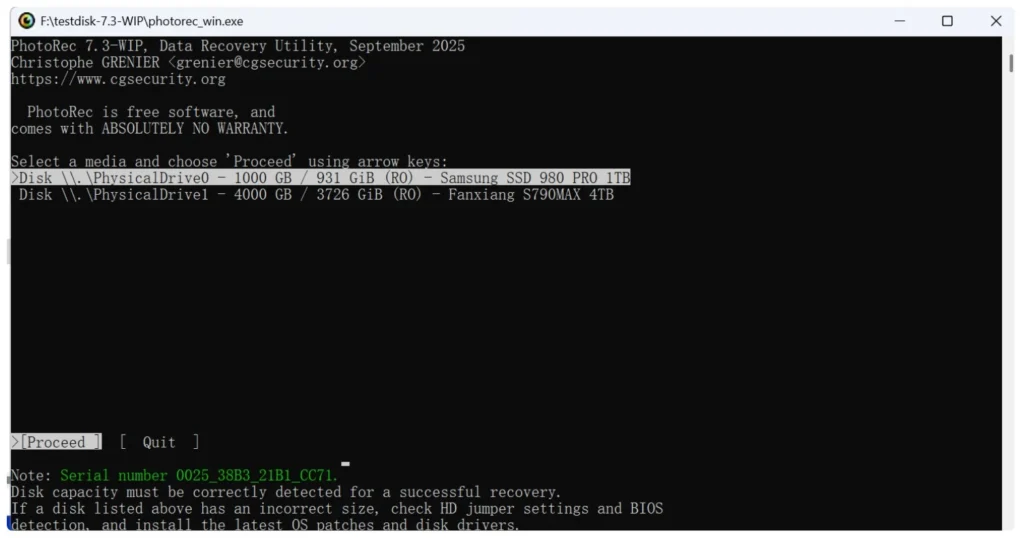
For users who are comfortable with a command-line interface, PhotoRec offers incredible power. It is completely free and ignores the file system to go after the “raw” data underneath. Nevertheless, because it lacks a graphical user interface (GUI), it is not recommended for beginners. If you want to recover permanently deleted files for free and have technical skills, this is a strong choice.
3. Disk Drill: Modern Design
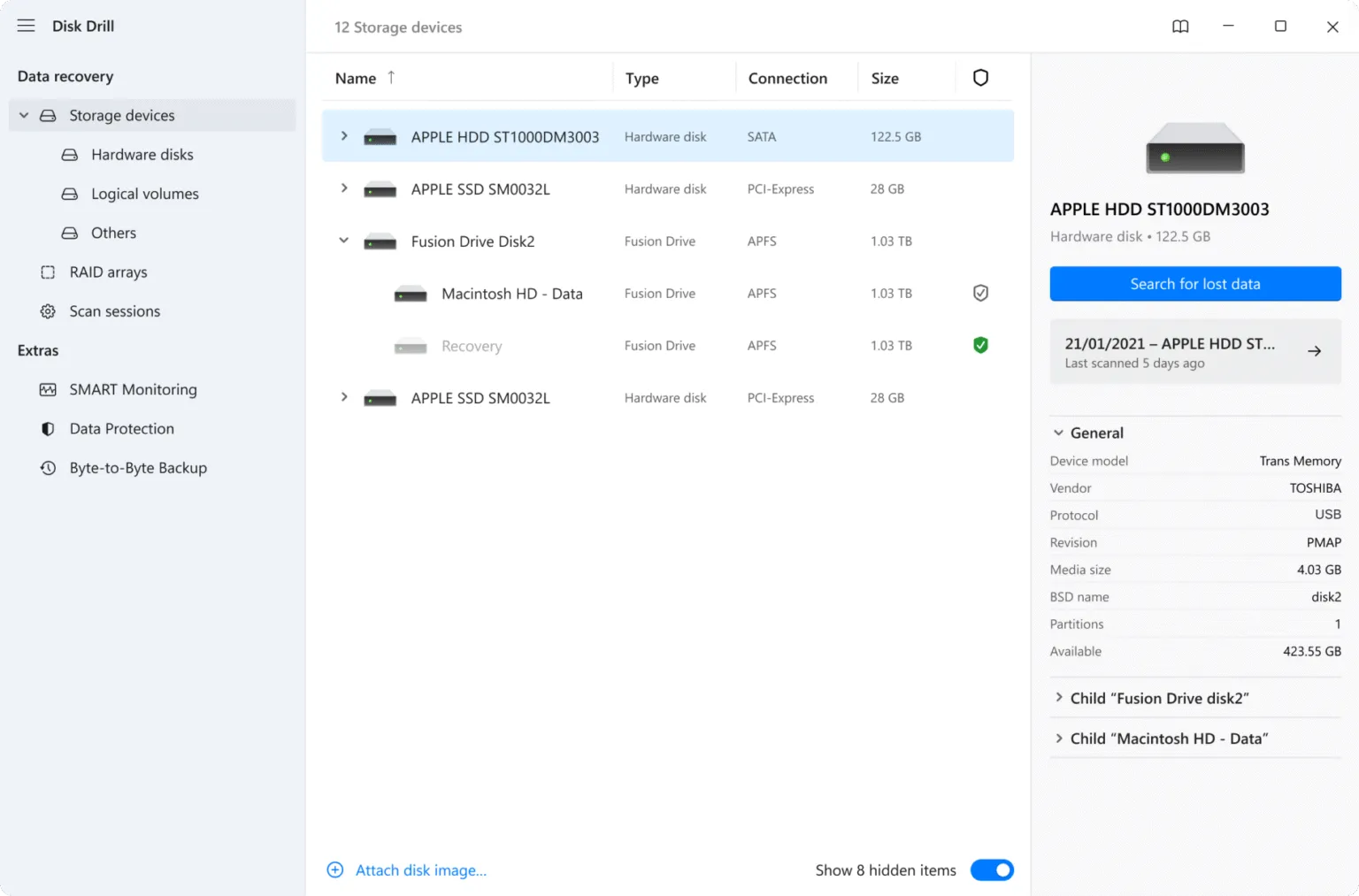
Disk Drill offers a very polished user interface. It is a capable free data recovery software for windows 11, though its free version often limits the total amount of data you can recover to 500MB. This might not be enough for large video folders or system backups.
Conclusion
Data loss is an inevitable part of the digital age, but it doesn’t have to be permanent. By choosing the right HDD recovery methods, you can act quickly to recover your most important memories and documents. While there are many tools available, we recommend Magic Data Recovery because it combines professional-grade scanning algorithms with an interface that anyone can understand.
In summary, the best way to handle data loss is to stay prepared. Furthermore, the best way to recover data is to never lose it in the first place. Always maintain a 3-2-1 backup strategy. But for those moments when backups fail, a reliable free data recovery software for windows 11 is your best second chance. If you are currently facing a data loss emergency, don’t wait. Start your scan wtih Magic Data Recovery today and get your files back where they belong.
Supports Windows 7/8/10/11 and Windows Server
FAQ
Is there a free data recovery for Windows 11?
Is there a free data recovery software that actually works?
What is the free deleted data recovery software for PC?
What software do police use to recover data?
Can I recover data for free?
How to recover permanently deleted files for free?

Vasilii is a data recovery specialist with around 10 years of hands-on experience in the field. Throughout his career, he has successfully solved thousands of complex cases involving deleted files, formatted drives, lost partitions, and RAW file systems. His expertise covers both manual recovery methods using professional tools like hex editors and advanced automated solutions with recovery software. Vasilii's mission is to make reliable data recovery knowledge accessible to both IT professionals and everyday users, helping them safeguard their valuable digital assets.