
Advanced File Recovery: Recover Lost Files
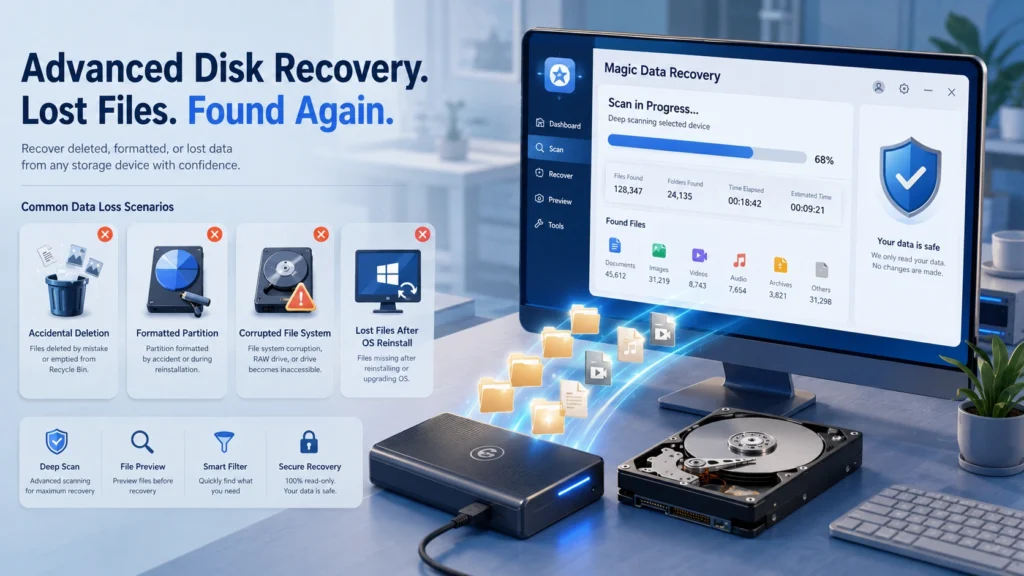
When important files disappear, most users do not know whether they need advanced file recovery. The problem may look simple at first: a folder is gone, a USB drive asks to be formatted, or Windows no longer shows an old user profile after reinstalling the system. However, the safest recovery method depends on how the data was lost.
This guide explains how advanced file recovery works in real situations. You will learn what to do after deletion, formatting, file system errors, Windows reinstallation, and EFS-related access problems. More importantly, you will see when a practical tool such as Magic Data Recovery can help you scan, preview, and recover lost files without forcing you into command-line steps.
Supports Windows 7/8/10/11 and Windows Server
Table of Contents
What Is Advanced File Recovery?
Advanced file recovery means using structured recovery methods to find data that the operating system can no longer display normally. This may include files deleted from the Recycle Bin, data lost after a quick format, documents hidden by a damaged file system, or folders left behind after a system reinstall.
In simple terms, deleting a file does not always erase the file content immediately. Often, the file system marks that space as available for new data. If new files overwrite that space, recovery becomes harder or impossible. Therefore, the first rule is clear: stop using the affected drive as soon as you notice data loss.
Advanced File Recovery vs Advanced Disk Recovery vs Advanced EFS Data Recovery
Many users search these terms as if they mean the same thing. They overlap, but each one points to a different recovery need.
Recovery term | Best fit | Typical problem | What users should know |
advanced file recovery | Lost documents, photos, videos, emails, and folders | Deleted files, emptied Recycle Bin, missing folders | Start with scan and preview before restoring |
advanced disk recovery | Whole drives, partitions, external disks, USB drives, SD cards | Formatted drive, RAW partition, inaccessible disk | Deep scan usually matters more than quick scan |
advanced EFS data recovery | Windows EFS-encrypted files | Lost user profile, missing certificate, reinstalled Windows | Encryption keys or recovery certificates may be required |
For ordinary users, advanced file recovery should cover both file-level and disk-level cases. Advanced disk recovery becomes important when the device itself has logical damage. Advanced EFS data recovery is more specialized because Windows EFS protects files through encryption. A recovery tool can help locate lost encrypted files, but it cannot responsibly bypass missing cryptographic keys.
First Steps Before Any Advanced File Recovery Attempt
Your first actions can decide the result. Before installing any software or running a repair command, follow these steps:
- Stop saving new files to the affected drive.
- Do not format the drive again.
- Install recovery software on another drive.
- Avoid CHKDSK or repair tools until you recover important files.
- Save recovered files to another healthy drive.
These steps matter because advanced file recovery depends on preserving the remaining data. For example, if you deleted a project folder from the C drive, installing a large program on C may overwrite recoverable fragments. Instead, install the recovery tool on another partition or external disk.
Common Data Loss Scenarios and the Best Solution
Before choosing a recovery method, it helps to identify what kind of data loss you are facing. Each scenario leaves different traces on the storage device. For example, deleted files may still keep their original file names, while formatted drives or RAW partitions often need a deeper scan. The following sections explain the most common cases and the safest solution for each one.
Deleted Files or Emptied Recycle Bin
Accidental deletion is the most common reason people need advanced file recovery. If the files are still in the Recycle Bin, restore them from there first. If the bin was emptied, use recovery software quickly. A quick scan may find recently deleted files with original names and paths. If it fails, run a deeper scan.
Formatted Drive or Partition
A quick format often removes file system records, but it may leave file content on the disk until new data overwrites it. In this case, advanced disk recovery is more relevant because you need to scan the whole partition or storage device. Choose deep scan, filter by file type, preview important files, and recover them to a different drive.
File System Error or RAW Drive
A RAW drive, corrupted directory, or message such as “You need to format the disk before you can use it” usually means Windows cannot read the file system correctly. Do not click Format first. A safer workflow is to scan the device, recover important data, and only then repair or reformat the drive.
Windows Reinstallation or System Crash
After reinstalling Windows, old user folders may disappear from the usual location. Sometimes the files still exist on the disk, but the new system cannot show the old structure clearly. Advanced file recovery software can scan the drive for documents, photos, videos, archives, and other file types left after system changes.
EFS-Encrypted Files
Advanced EFS data recovery needs extra care. EFS stands for Encrypting File System, a Windows feature that encrypts files at the file system level. If you lose the original user profile, private key, password access, or recovery agent certificate, access may become difficult. In this scenario, recover the encrypted files first, but also look for exported certificates, old profile backups, or IT-managed recovery keys.
Why Magic Data Recovery Is a Practical Choice
Many recovery pages only focus on one situation. Some tools target deleted files. Others focus on formatted disks. EFS-specific tools target encrypted file recovery and may require technical knowledge. Magic Data Recovery is useful because it addresses the practical scenarios ordinary Windows users face every day.
It supports recovery from deleted files, formatted drives, file system errors, inaccessible storage, virus-related loss, and data loss after system reinstallation. This broad coverage makes it suitable when you do not know whether your issue belongs to advanced file recovery or advanced disk recovery.
Core Pain Points It Solves
Magic Data Recovery helps when:
- You deleted files and emptied the Recycle Bin.
- You formatted a USB drive, SD card, external hard drive, or partition.
- A drive became RAW or showed a file system error.
- You lost files after reinstalling Windows.
- You need to preview recoverable files before saving them.
- You want a clear workflow instead of command-line recovery.
Unique Advantages of Magic Data Recovery
The main advantage is not hype. It is control. Magic Data Recovery gives users a logical workflow: select the affected drive, scan, filter results, preview files, and recover data to a safe location. That process reduces common mistakes, especially for users who may panic after data loss.
Compared with narrow advanced file recovery tools, it covers more data loss cases. Compared with tools built mainly for advanced disk recovery, it remains easier for non-technical users. Compared with advanced EFS data recovery utilities, it avoids suggesting that encryption can always be bypassed. Instead, it supports the safer first step: recover the files and preserve the evidence needed for proper EFS access.
How to Use Magic Data Recovery for Advanced File Recovery
Step 1: Install It Safely
Download and install Magic Data Recovery on a healthy drive, not on the drive where files were lost. This prevents accidental overwriting.
Supports Windows 7/8/10/11 and Windows Server
Step 2: Select the Lost-Data Location
Open the software and choose the affected disk, partition, USB drive, SD card, or external drive. If you are unsure, select the device where the files originally existed.

Step 3: Run a Scan
Start with the available scan process. If the files were recently deleted, a faster scan may be enough. For formatted drives, RAW partitions, or file system errors, let the deeper scan continue.

Step 4: Preview and Filter Results
Use file type, name, date, size, or path filters to narrow the results. Preview documents, images, and other supported files when possible. This helps you avoid recovering unnecessary data.

Step 5: Recover to Another Drive
Never save recovered files back to the same affected drive during the same session. Choose another internal disk, external hard drive, or USB device with enough free space.

Magic Data Recovery vs Other Advanced Recovery Options
Option | Strength | Limitation | Better choice when |
Basic Recycle Bin restore | Fast and free | Only works before permanent deletion | Files still appear in Recycle Bin |
Windows command-line recovery | Built into the Windows ecosystem | Requires command-line confidence | You know the exact file type and destination |
Typical advanced file recovery software | Good for deleted files | May not handle formatted or RAW drives well | You only lost recent files |
Dedicated advanced disk recovery software | Better for whole-drive issues | Can feel technical or slow | The partition or drive has logical damage |
Dedicated advanced EFS data recovery tools | Built for encrypted files | Requires proper keys, certificates, or expertise | You need to handle Windows EFS encryption |
Magic Data Recovery | Broad scenarios, clear workflow, preview support | Cannot fix physical damage or bypass encryption without valid access | You need a balanced recovery solution for common data loss |
This comparison shows why Magic Data Recovery works well as a first choice. It covers the most common logical data loss cases while keeping the process understandable.
Expert Tips to Improve Recovery Results
Use these best practices before and during advanced file recovery:
- Recover urgent files first, such as work documents, photos, and financial files.
- Keep the device connected steadily during scanning.
- Avoid repeated formatting, because it adds risk without improving recovery.
- Do not run disk repair before recovery if the drive shows RAW or asks to be formatted.
- Check backups, cloud sync folders, File History, and old Windows user folders.
- Contact a professional lab if the drive clicks, overheats, fails to spin, or disappears from BIOS.
These rules help you avoid preventable damage. Software works best for logical data loss. Physical damage needs hardware-level diagnosis.
Conclusion: Why Choose Magic Data Recovery
Advanced file recovery should not feel like guesswork. The right process starts with protecting the affected drive, understanding the cause of data loss, scanning safely, previewing files, and saving recovered data to a different location.
That is why Magic Data Recovery is recommended. It handles common recovery scenarios, including deleted files, formatted drives, file system errors, inaccessible storage, virus-related loss, and data loss after Windows reinstallation. It also gives ordinary users a clear recovery path without overpromising impossible results. If you are looking for a more efficient solution, try Magic Data Recovery before taking risky repair steps.
Supports Windows 7/8/10/11 and Windows Server
FAQs
What is advanced file recovery?
Advanced file recovery is the process of recovering files that are no longer visible through normal Windows access. It can help with deleted files, emptied Recycle Bin cases, formatted drives, corrupted file systems, and files lost after system changes. The best results usually come when you stop using the affected drive quickly.
Is advanced disk recovery different from file recovery?
Yes. Advanced disk recovery focuses on storage-level problems, such as formatted partitions, RAW drives, inaccessible disks, or external drives that Windows cannot read correctly. File recovery usually targets deleted or missing files. In many real cases, both methods overlap because lost files often come from deeper disk or partition issues.
Can I recover files after formatting a drive?
In many cases, yes, especially after a quick format. Formatting may remove file system records without immediately erasing all file content. However, new data can overwrite recoverable files. Stop using the formatted drive, scan it with reliable recovery software, preview the results, and save recovered files to another storage device.
What should I do if Windows asks me to format the disk?
Do not format the disk first if it contains important files. That message may appear when the file system becomes damaged or RAW. Instead, use advanced file recovery or advanced disk recovery software to scan the device and recover important data before attempting repairs, reformatting, or other disk operations.
What is advanced EFS data recovery?
Advanced EFS data recovery deals with files encrypted by Windows Encrypting File System. It is more complex than normal recovery because the encrypted files may require the original user profile, certificate, private key, password access, or a recovery agent. A tool may recover the files, but valid encryption access is still important.
Why recommend Magic Data Recovery?
Magic Data Recovery is recommended because it covers common logical data loss scenarios in one clear workflow. It helps with deleted files, formatted drives, file system errors, inaccessible storage, virus-related loss, and data loss after system reinstallation. It also lets users scan, filter, preview, and recover files without technical command-line steps.
Can Magic Data Recovery recover every lost file?
No recovery software should promise that. Recovery depends on the data loss cause, overwrite level, storage condition, and whether the drive has physical damage. Magic Data Recovery is a practical first step for logical data loss. If the drive clicks, overheats, or fails to appear in BIOS, contact a professional recovery lab.
Where should I save recovered files?
Always save recovered files to a different healthy drive. Do not restore them to the same partition or device where they were lost. Saving to the original location can overwrite other recoverable data. Use another internal disk, external hard drive, USB drive, or network location with enough available storage.

Jason is a data recovery and technical support specialist with over 15 years of hands-on experience. He has worked extensively with frontline users, troubleshooting difficult data loss cases and providing practical recovery solutions for accidental deletion, formatted drives, damaged file systems, lost partitions, system failures, and other recovery emergencies. His expertise also includes backup and restoration, file repair, and disaster recovery, with a strong emphasis on safe, reliable, and technically accurate guidance.