
How to Recover the Deleted Files: 2026 Guide
Accidentally deleting important files is a situation most Windows users eventually face. Whether the loss involves work documents, personal photos, or critical system data, the first reaction is often panic—especially when files appear to be permanently removed. Fortunately, deletion does not always mean data is gone forever. This guide focuses on how to recover the deleted files, with special attention to how to recover the deleted files in Windows 10. You will learn what really happens when you delete files, which recovery options work in different scenarios, and when professional recovery software becomes necessary. Throughout the article, we will also explain why Magic Data Recovery is a reliable deleted files recovery solution for complex data loss situations.
Supports Windows 7/8/10/11 and Windows Server
Wondering if your files can be recovered? Find out in seconds with our quick check below.
Data Recovery Assessment
Answer 3 quick questions to estimate your recovery chances
Table of Contents
Is It Possible to Recover Deleted Files?
Before discussing recovery methods, it is important to understand how file deletion works in Windows. When you delete a file, Windows typically removes its reference from the file system rather than erasing the actual data immediately. As long as the storage space has not been overwritten by new data, recovery remains possible. However, the recovery success rate depends on several factors:
- How you delete the file (Recycle Bin vs. permanent deletion)
- Whether new data has been written to the same drive
- The type of storage device (HDD, SSD, external drive)
- How quickly recovery actions are taken
Understanding these variables helps you choose the safest and most effective recovery method.
Common File Deletion Scenarios in Windows 10
Different deletion scenarios require different approaches. Below are the most common situations users encounter.
Files Deleted to the Recycle Bin
This is the simplest case. After you delete files normally, the file system stores them temporarily in the Recycle Bin and you can restore the files with a single click, provided you haven’t emptied the Recycle bin.
Files Permanently Deleted (Shift + Delete)
Using Shift + Delete bypasses the Recycle Bin entirely. While the files disappear instantly, the underlying data may still exist on the disk until overwritten.
Files Deleted After Formatting or Partition Issues
Formatting a drive or experiencing partition corruption removes file system structures. Recovery in these cases requires specialized scanning tools capable of rebuilding file records.
Data Loss Due to System Errors or Crashes
Unexpected shutdowns, system updates, or file system errors can cause files to disappear without user action. These cases often require deeper analysis and recovery methods.
How to Recover the Deleted Files Without Software
Before turning to recovery software, Windows offers a few built-in options worth checking.
Restore from the Recycle Bin
Open the Recycle Bin, locate the deleted file, right-click it, and choose Restore. The file will return to its original location.
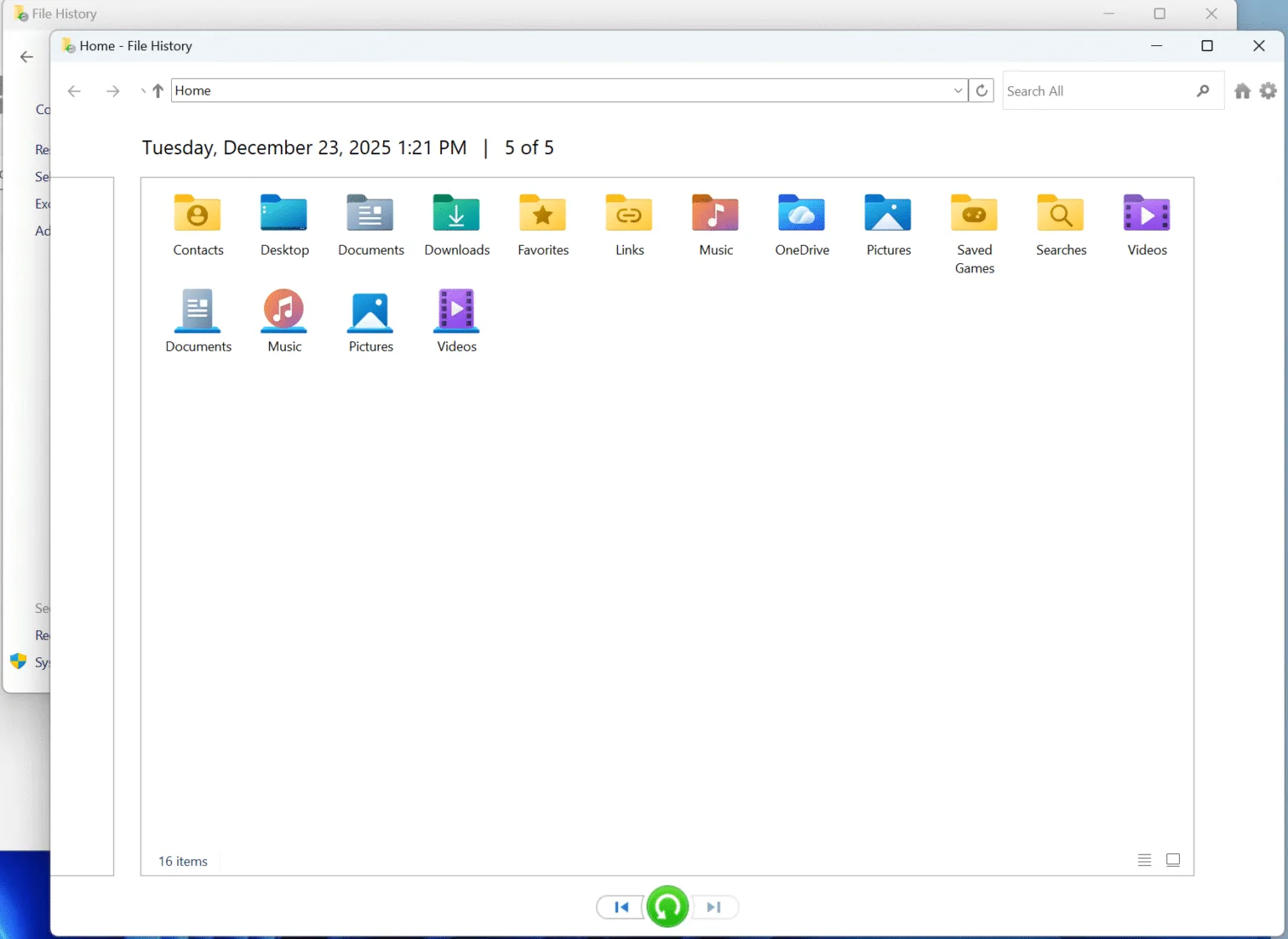
Use File History (If Enabled)
If you enabled File History before deletion, you may be able to restore the files from backups easily.
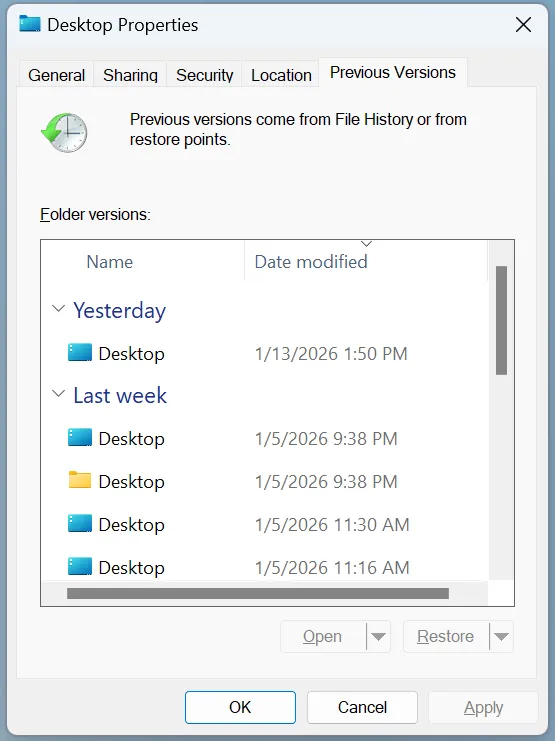
Restore Previous Versions
In some cases, Windows allows you to restore earlier versions of folders through system restore points. This option depends on system configuration and is not always available.
While these methods are useful, they have clear limitations. Once files are permanently deleted or backups are unavailable, professional tools become necessary.
How to Recover the Deleted Files in Windows 10 Using Magic Data Recovery
When built-in solutions no longer work, Magic Data Recovery provides a safe and effective way to retrieve lost data. It is designed to handle scenarios such as permanent deletion, formatted drives, and file system errors without risking further damage.
Step 1: Download and Install Magic Data Recovery
Begin by downloading Magic Data Recovery and installing it on a storage location that is different from the drive where lost data located. Installing recovery software on the affected drive may overwrite recoverable data, reducing recovery success.
Supports Windows 7/8/10/11 and Windows Server
Step 2: Select the Drive to Scan
After launching the program, you will see a list of available drives. Choose the drive where files were originally deleted, such as an internal Windows partition or an external hard drive. Once selected, initiate the scan process.

Step 3: Scan for Deleted Files
Magic Data Recovery performs an in-depth scan that analyzes both existing and previously deleted file structures. As the scan progresses, recoverable files begin appearing in the results list.

Step 4: Preview Files Before Recovery
Before restoring any files, use the built-in preview feature to verify file integrity. Previewing helps confirm that the files are intact and relevant, preventing unnecessary recovery of corrupted or unwanted data. This step is especially helpful when dealing with large volumes of deleted files.

Step 5: Recover Files to a Safe Location
Once you have selected the files you want to restore, save them to a different drive or storage device. Avoid restoring data to the original drive to prevent accidental overwriting or corruption.

Why Magic Data Recovery Is a Reliable Choice
Magic Data Recovery addresses several key pain points commonly encountered during data loss:
- Supports permanent deletion and formatted drives
- Read-only scanning minimizes data risk
- Clear file preview improves recovery accuracy
- Suitable for Windows 10 users with varying technical experience
Compared to command-line utilities or complex tools, Magic Data Recovery offers a balanced combination of usability and professional-grade functionality. For users seeking a dependable solution rather than experimental fixes, it provides a safer recovery path.
What to Do Immediately After Files Are Deleted
Your actions after data loss can directly affect recovery success. Follow these best practices:
- Stop using the affected drive immediately
- Avoid installing new software on the same partition
- Do not save recovered files back to the original location
- Begin recovery as soon as possible
These steps reduce the risk of data being overwritten and improve the chances of successful file recovery.
Conclusion
Understanding how to recover the deleted files can save you from permanent data loss and unnecessary stress. While Windows 10 provides basic recovery options, they are often insufficient for permanent deletion or advanced data loss cases.
For users who need a dependable solution, Magic Data Recovery offers a practical balance between safety, effectiveness, and ease of use. By following professional recovery practices and using the right tool, you significantly improve your chances of restoring valuable data.
If you are facing permanent file loss and need a proven deleted file recovery solution, Magic Data Recovery is a sensible option to consider.
Supports Windows 7/8/10/11 and Windows Server
FAQs About Recovering Deleted Files
How to recover permanently deleted files?
How to restore deleted files?
How do I recover permanently deleted files from bin?
Can deleted files really be recovered?
Are deleted files gone forever?
Where do files go after being permanently deleted?
How to recover deleted files if not in Recycle Bin?
Which tool is used to recover deleted files?

Vasilii is a data recovery specialist with around 10 years of hands-on experience in the field. Throughout his career, he has successfully solved thousands of complex cases involving deleted files, formatted drives, lost partitions, and RAW file systems. His expertise covers both manual recovery methods using professional tools like hex editors and advanced automated solutions with recovery software. Vasilii's mission is to make reliable data recovery knowledge accessible to both IT professionals and everyday users, helping them safeguard their valuable digital assets.