
USB Recovery for Windows 10: How to Create a Recovery USB Step by Step
A USB recovery for Windows 10 is one of the most reliable tools you can prepare in advance to protect your system. When Windows fails to boot, Inaccessible Boot Device,crashes after an update, or shows critical errors, a recovery USB for Windows 10 allows you to repair or restore your PC quickly.
In this guide, you’ll learn what a Windows 10 system recovery USB is, why you need one, and how to create and use it step by step.
Table of Contents
What Is a Windows 10 Recovery USB?
A Windows recovery USB is a bootable USB drive that gives you access to built-in recovery tools. These tools help you troubleshoot system issues even when Windows cannot start normally.
For example, with a recovery USB, you can repair startup problems, restore Windows from a system image, or reset the operating system. As a result, it becomes an essential safety tool for every Windows 10 user.
USB Recovery Drive vs Installation USB
Many users confuse a recovery USB with an installation USB. However, they serve different purposes.
Feature | Recovery USB | Installation USB |
Purpose | Repair & restore system | Install Windows |
Bootable | Yes | Yes |
Fix boot issues | Yes | Limited |
Reset Windows | Yes | Yes |
Recover personal files | No | No |
A USB recovery drive focuses on system repair and recovery, while an installation USB mainly installs Windows from scratch. Therefore, if your goal is troubleshooting rather than reinstalling, a recovery USB is the better option.
Why You Need a Recovery USB Drive for Windows
System failures often happen without warning. In this case, having a recovery USB ready can save significant time and effort.
Common situations include:
- Windows 10 fails to boot
- Startup repair loops
- Corrupted system files
- Failed Windows updates
Moreover, creating a recovery USB before problems occur ensures that you always have access to recovery options.
How to Create a Recovery USB Drive for Windows 10
Follow these steps to create a recovery USB drive for Windows 10 using the built-in tool.
Step 1: Prepare a USB Drive
Use a USB flash drive with at least 16 GB of storage. Keep in mind that Windows will erase all existing data on the drive.
Step 2: Open the Recovery Drive Tool
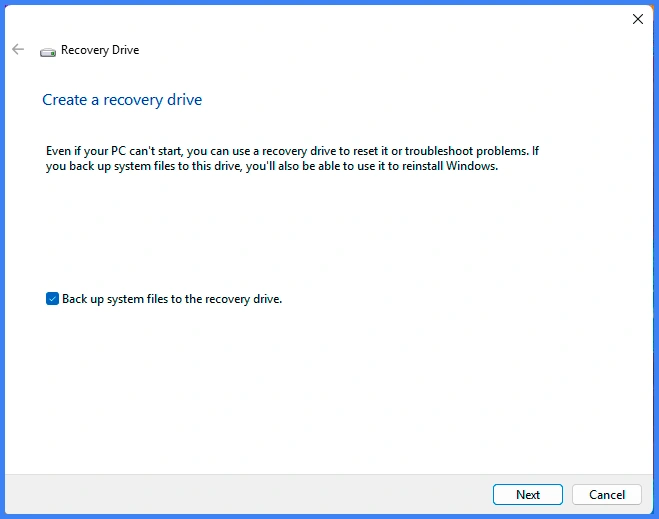
Click Start, type “Recovery Drive,” and select Create a recovery drive. Then run the tool as administrator.
Step 3: Include System Files
Check the option “Back up system files to the recovery drive.” This option allows you to reinstall Windows later if necessary.
Step 4: Create the USB Recovery Drive
Select your USB drive, click Next, and start the process. Finally, wait until Windows completes the creation.
How to Use a Recovery USB Drive
If Windows cannot start, insert the USB recovery drive and boot from it. Then select Troubleshoot to access recovery options such as Startup Repair or System Restore.
As a result, you can fix most boot and system issues without reinstalling Windows completely.
Lost Data After Using a Recovery USB?
Although a USB recovery Drive for Windows helps fix system issues, some recovery options may cause data loss. For example, resetting Windows can remove personal files.
In this situation, Magic Data Recovery offers a reliable solution. It supports recovery from deleted files, formatted drives, and file system errors. Moreover, it works well after system recovery or Windows reinstallation. You can download it from the button below.
Supports Windows 7/8/10/11 and Windows Server
Conclusion
Creating a recovery USB for Windows 10 is a simple yet effective way to protect your system. With just one USB drive, you can troubleshoot errors, restore Windows, and avoid unnecessary downtime.
Therefore, preparing a recovery USB today is a smart step for every Windows 10 user.
FAQs
What is a USB recovery for Windows?
How big should a recovery USB be for Windows 10?
Can I use a recovery USB on another Windows 10 PC?
Does creating a recovery USB delete files on the USB?
Is a recovery USB the same as a Windows 10 installation USB?
Will using a recovery USB delete my personal files?
How often should I recreate a Windows 10 recovery USB?
Can I recover files lost after Windows 10 recovery?

Jason is a data recovery and technical support specialist with over 15 years of hands-on experience. He has worked extensively with frontline users, troubleshooting difficult data loss cases and providing practical recovery solutions for accidental deletion, formatted drives, damaged file systems, lost partitions, system failures, and other recovery emergencies. His expertise also includes backup and restoration, file repair, and disaster recovery, with a strong emphasis on safe, reliable, and technically accurate guidance.