
How to Find Bitlocker Recovery Key with Recovery Key ID
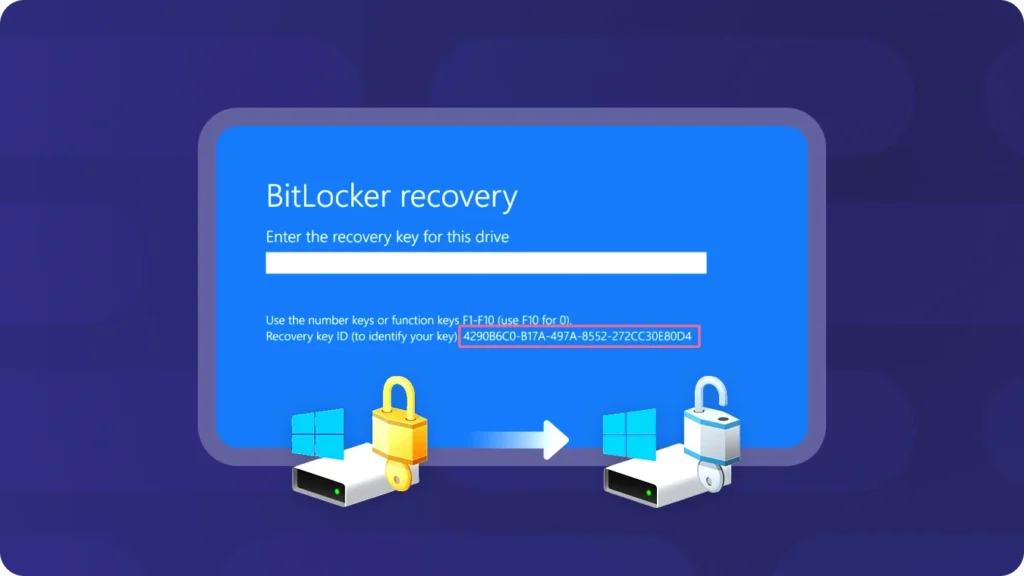
When Windows suddenly asks for a BitLocker recovery key, the blue screen may show a Recovery Key ID but no obvious way to unlock your computer. You might even find several keys in your Microsoft account and have no idea which one belongs to the locked drive.
Fortunately, you can find BitLocker recovery key with Key ID by comparing the identifier on your screen with previously saved recovery records. The ID cannot generate the missing password, but it helps you identify the correct 48-digit key.
This guide explains where to find your Key ID, how to check Microsoft and organizational accounts, and what to do when the matching key seems to be missing. We’ll also cover ways to search for locally stored recovery information before you consider resetting Windows. For a broader overview of encrypted-drive access problems, visit our BitLocker Recovery guide.
Table of Contents
Quick Answer: How to Find BitLocker Recovery Key with Key ID
If you’re staring at the BitLocker recovery screen, start here:
- Record the Recovery Key ID. Note the first eight characters shown on the blue recovery screen.
- Open your Microsoft account. On another device, visit Microsoft’s recovery key page.
- Find the matching ID. Compare the displayed identifier with the Key IDs in your saved recovery records.
- Enter the 48-digit recovery key. Once you find a match, enter its corresponding numerical password on the locked computer.
If nothing matches, check other Microsoft accounts, your work or school account, USB backups, printed records, or previously saved files.
Important: You cannot convert a Recovery Key ID into a BitLocker recovery password. You must locate an existing key or use another legitimate recovery method.
What Is a BitLocker Recovery Key ID?
A BitLocker Recovery Key ID is an identifier associated with a BitLocker recovery-password protector. Windows uses it to help identify the correct recovery password when an encrypted drive requires additional verification.
BitLocker protects your files by encrypting the drive. Under normal conditions, Windows unlocks the system drive automatically through its configured security mechanisms, often involving the Trusted Platform Module (TPM).
However, firmware changes, boot configuration changes, certain hardware replacements, or security checks can interrupt automatic unlocking. Windows may then request a recovery key.
The recovery screen displays the identifier so you can distinguish the correct backup from other saved keys.
BitLocker Recovery Key ID vs. 48-Digit Recovery Key
These two values serve different purposes.
Item | Recovery Key ID | BitLocker Recovery Key |
Purpose | Identifies a recovery-password protector | Unlocks the encrypted drive |
Format | Identifier, often shown as a GUID or shortened ID | 48-digit numerical password |
Where to find it | Recovery screen, Windows tools, saved records | Microsoft account, organizational directory, or backup |
Can unlock the drive? | No | Yes |
Can be calculated from the ID? | Not applicable | No |
For example, a recovery screen might display an identifier beginning with 8D7C6B5A. You would look for a stored recovery key record with the same ID.
The associated password has eight groups of six digits, separated by hyphens.
The key distinction is simple: the ID tells you which recovery key to look for, not what the key is.
Can You Recover BitLocker with Key ID Only?
No. The Recovery Key ID does not contain the information needed to reconstruct the original numerical password.
A website claiming to convert an eight-character ID into a working 48-digit BitLocker key should be treated with caution.
Microsoft’s official BitLocker recovery instructions describe the ID as a way to identify a saved recovery key, not as a method for calculating one.
That’s why the correct approach is to search existing recovery records rather than attempt to decode the identifier.
How to Find Your BitLocker Recovery Key ID
Before searching for the password, make sure you’re using the right identifier.
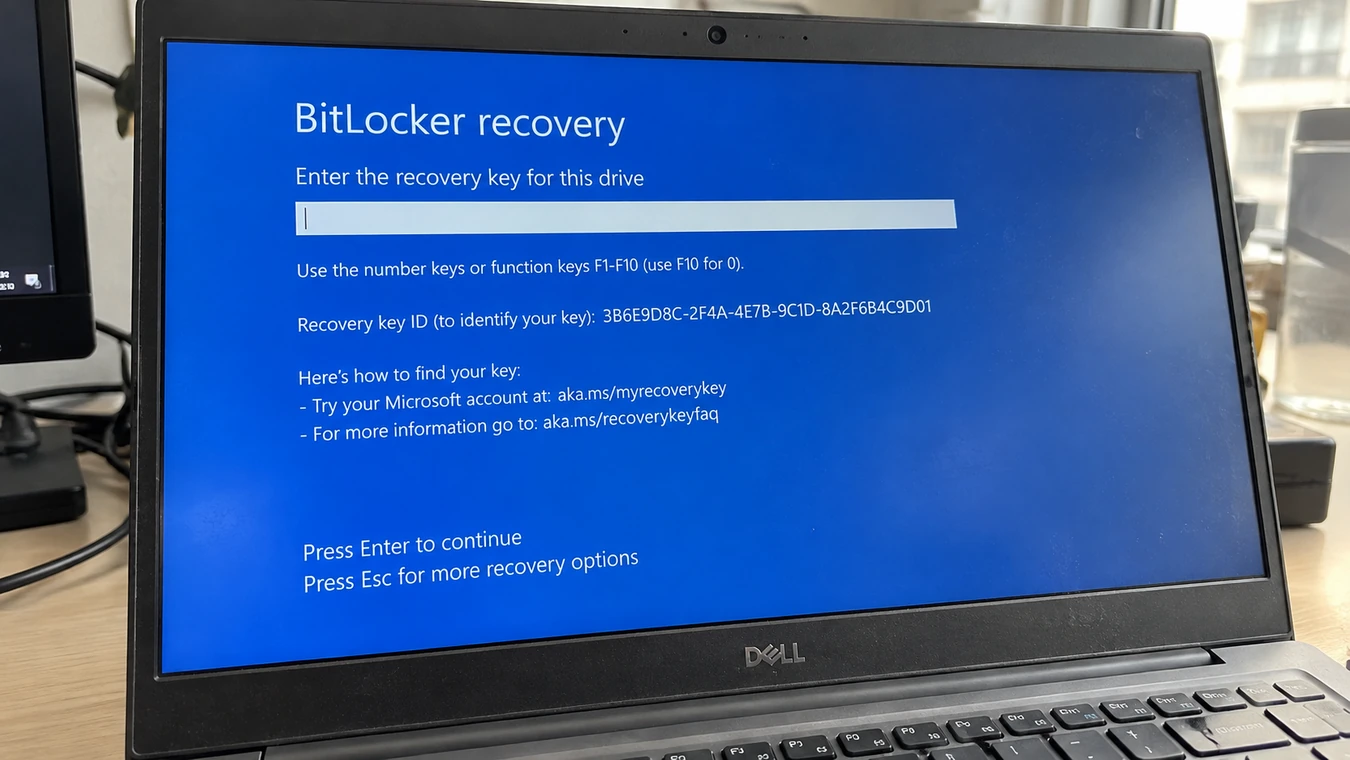
Method 1: Find the Key ID on the BitLocker Recovery Screen
This is the easiest method when Windows cannot start normally.
- Turn on the affected computer.
- Look for the blue screen requesting your BitLocker recovery key.
- Locate the field labeled Recovery Key ID.
- Write down the first eight characters. You can also photograph the complete ID for reference.
- Use another device to search your recovery key backups.
Don’t confuse the Recovery Key ID with the device name, Windows product key, or a password hint.
If several recovery entries share a similar identifier, compare the full ID whenever available.
Method 2: Find the BitLocker Key ID Using Command Prompt
If you can still access Windows and have administrator privileges, you can inspect the configured BitLocker protectors.
Step 1. Open the Start menu and search for cmd.
Step 2. Right-click Command Prompt and select Run as administrator.
Step 3. Enter the following command:
manage-bde -protectors -get C:
Replace C: with the appropriate drive letter if you’re checking another volume.
Step 4. Look for the Numerical Password protector and its associated ID.
Depending on the drive’s configuration and your access permissions, the command may also display the recovery password.
Microsoft documents this command in its manage-bde protectors reference.
Note: This command does not bypass BitLocker. If your system drive is locked at startup, you generally cannot use its normal Windows installation to retrieve the key this way.
How to Find BitLocker Recovery Key with Key ID: 5 Methods
Once you have the identifier, your next task is to locate the matching 48-digit password.
The best place to search depends on who configured BitLocker and where the recovery information was backed up.
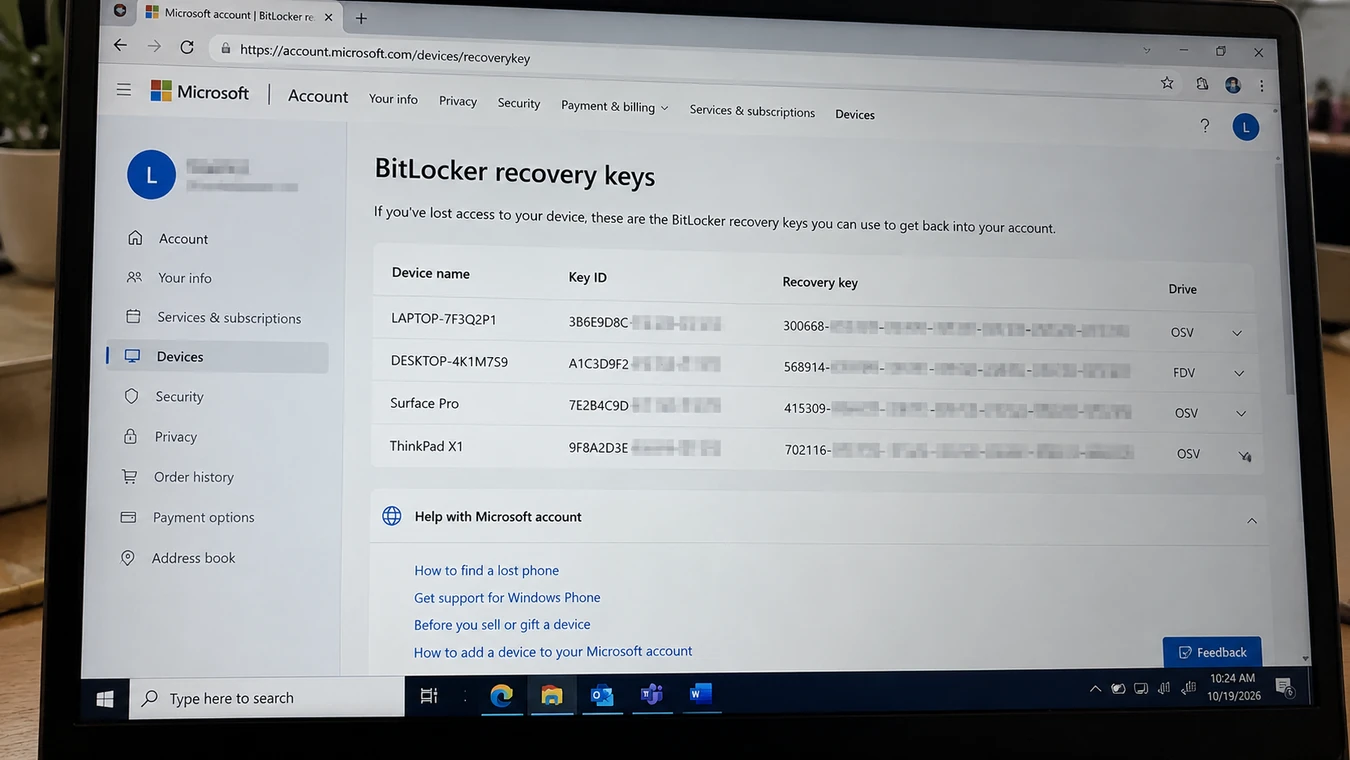
Method 1: Find the Recovery Key in Your Microsoft Account
For a personally owned Windows 10 or Windows 11 computer, checking your Microsoft account is a sensible first step.
Step 1. On another computer or phone, open:
https://account.microsoft.com/devices/recoverykey
Step 2. Sign in using the Microsoft account associated with your locked device.
Step 3. Review the available recovery key records.
Step 4. Compare the Key ID in the account with the one shown on your BitLocker recovery screen.
Step 5. Enter the corresponding 48-digit recovery password on your locked computer.
For example, suppose your Microsoft account contains recovery keys for an old laptop, a current desktop, and an external drive. The device name might not be enough to identify the right one.
Matching the Key ID eliminates much of that uncertainty.
What if no key appears?
Try another Microsoft account you previously used. If someone else initially configured the computer, the recovery key might be associated with their account.
On Windows 11 version 24H2 and later, the recovery screen may also show an account hint that helps you identify the relevant Microsoft account. For more help, see our guide to recovering a BitLocker key from a Microsoft account.
Method 2: Retrieve the Key from a Work or School Account
If your organization manages the computer, the recovery key may be stored in Microsoft Entra ID, formerly called Azure AD.
You might be able to retrieve it without contacting IT.
- Visit Microsoft’s work or school recovery portal.
- Sign in with your organizational account.
- Open Devices.
- Select the affected computer.
- Choose View BitLocker Keys, if your organization permits it.
- Match the Recovery Key ID and retrieve the corresponding password.
Some organizations restrict direct access to recovery keys.
In that case, contact your IT administrator. Provide the device name and complete Recovery Key ID rather than sharing unrelated account passwords.
If your organization uses Microsoft Intune, authorized users may also retrieve recovery keys through Company Portal.
For additional information, consult Microsoft’s Company Portal recovery instructions.
Method 3: Ask an Administrator to Search Active Directory
Companies that use on-premises Active Directory Domain Services (AD DS) may back up BitLocker recovery passwords there.
An authorized administrator can search for the corresponding record.
A typical procedure is:
- Open Active Directory Users and Computers.
- Locate the relevant computer object.
- Open its properties.
- Select the BitLocker Recovery tab, if available.
- Identify the matching recovery-password entry.
Administrators with the necessary tools and permissions can also use Find BitLocker Recovery Password to search by the first eight characters of the password ID.
This method is particularly useful when a computer has undergone maintenance or has multiple historical recovery entries.
The recovery information must already have been backed up to AD DS. Searching the directory cannot create a password that was never stored there.
Method 4: Check USB Drives, Printed Copies, and Saved Files
Not every recovery key is stored online.
When BitLocker was configured, someone may have saved the password to a USB flash drive, printed it, or exported it to a text file.
Check the following locations:
- USB flash drives used during Windows setup
- Printed computer maintenance records
- External hard drives and backup folders
- Documents or Desktop folders on another computer
- OneDrive or other cloud storage where you manually saved a copy
- Secure password managers and archived documents
A saved text file may have a name similar to:
BitLocker Recovery Key XXXXXXXX-XXXX-XXXX-XXXX-XXXXXXXXXXXX.txt
Try searching for BitLocker Recovery Key, Recovery Key, or the first eight characters of your ID.
Once you locate a file, open it and verify the ID before entering the recovery password.
Practical tip: If the USB drive contains a text document, open it on a working computer. Don’t format the USB drive or overwrite its contents.
Method 5: Check an Accessible Windows Installation
Sometimes the locked drive isn’t your current Windows system drive.
For example, you might have moved an old encrypted SSD to a new desktop while your current Windows installation still works.
In this situation, check any accessible Windows installation, older backups, or administrative records that might contain a saved recovery password.
If the original system remains accessible, the manage-bde command may help identify its configured protectors.
However, connecting a locked SSD to another computer does not automatically expose its recovery password.
BitLocker still protects the encrypted content. You need the matching recovery information or another valid unlock mechanism.
For further instructions on working with encrypted drives, see our BitLocker CMD guide.
How to Find BitLocker Recovery Key Without a Microsoft Account
A missing Microsoft account backup doesn’t necessarily mean the recovery password has disappeared.
First, determine how the computer was configured.
If an IT department issued the device, check the organization’s recovery system. If you enabled BitLocker yourself, search the backup locations offered during setup.
You can also look for manually saved recovery files on separate, accessible storage.
Situation | Best next step |
You used a local Windows account | Check USB, printed, and manually saved backups |
Your company configured the device | Contact IT or check Entra ID / AD DS |
You replaced your laptop | Check the account and backups associated with the original device |
You still have another working Windows installation | Check its accessible recovery records |
Your recovery file was saved elsewhere | Search that backup and verify the Key ID |
No saved key is available | Investigate other legitimate unlock methods before resetting |
Be careful when searching old drives. If the only copy of your recovery password resides inside the same locked volume, you cannot simply read it without first unlocking that volume.
For readers dealing with a missing key, our BitLocker recovery key lost guide covers additional recovery scenarios.
What to Do When the Recovery Key ID Doesn't Match
Finding a list of recovery keys is encouraging, but sometimes none of them matches the ID on your screen.
Here are the most common explanations and what to do next.
You’re Signed Into the Wrong Account
Many users own more than one Microsoft account.
Check whether an older email address, family member, or previous device administrator handled the original setup.
For organizational devices, confirm that you’re checking the correct work or school tenant.
The Device Has Multiple Recovery Passwords
BitLocker can have multiple recovery-password records over time.
An older backup may not correspond to the protector currently requesting recovery.
Compare the ID rather than choosing a key simply because the device name looks familiar.
If your organization maintains several historical records, ask IT to check which recovery-password ID matches the screen.
Windows Asks for Recovery After a BIOS or TPM Change
A firmware update, boot configuration modification, or TPM-related change may trigger recovery.
The BitLocker Key ID still serves the same matching purpose.
Avoid clearing the TPM, modifying Secure Boot settings, or changing additional firmware options without understanding the consequences.
After successfully unlocking the device, investigate what caused the recovery prompt.
Repeated requests may indicate an unresolved configuration problem.
Your Computer Says the Hard Drive Is Not Installed
This situation deserves special attention.
Suppose a Dell laptop reports that it cannot detect its SSD after a crash and then asks for BitLocker recovery.
You might be dealing with two separate problems:
- A storage detection or hardware issue.
- An encrypted volume that requires recovery verification.
Finding the correct 48-digit password will not repair a faulty SSD or loose connection.
Check whether the drive appears consistently in BIOS/UEFI, and investigate possible hardware faults before attempting changes that could compromise the data.
The Correct 48-Digit Key Is Rejected
First, check every six-digit group for typing errors.
Then verify that the password belongs to the ID currently displayed on the recovery screen.
If the identifier matches but unlocking still fails, document the exact error and contact your administrator or qualified support provider.
Don’t repeatedly reset the PC in an attempt to make the password work.
When Manual Searches Fail: Try Magic Recovery Key
After checking your Microsoft account, organizational directory, and personal backups, you may still have no matching recovery record.
If you have access to a working Windows environment that could contain previously stored recovery information, a dedicated key-finding utility offers another search option.
Magic Recovery Key is an Amagicsoft utility designed to locate stored Windows product keys, software licenses, and supported BitLocker recovery information.
Its main advantage in this situation is convenience: rather than manually checking every accessible Windows record, you can use a dedicated interface to search for recoverable key information.
Why Use Magic Recovery Key?
The tool may be useful when:
- You suspect a recovery key was previously saved on an accessible Windows system.
- You want to identify stored BitLocker key information without manually inspecting numerous locations.
- You’re preparing for system migration and want to back up accessible recovery information.
- You need a simpler way to review recovery details alongside other saved software keys.
Unlike general file-recovery tools, Magic Recovery Key focuses on locating stored credentials and key information.
That makes it more relevant to a missing recovery-password record than a utility designed primarily to recover deleted documents.
Important limitation: Magic Recovery Key cannot calculate a password from a Key ID, bypass BitLocker encryption, or guarantee that an unavailable key can be recovered. Its usefulness depends on whether relevant recovery information remains accessible.
How to Use Magic Recovery Key
Step 1: Download and install the software
Visit the official Magic Recovery Key product page and install the application on a working, accessible Windows computer.
Avoid installing new software onto a drive that may contain deleted recovery files you want to preserve.
Step 2: Select BitLocker Recovery Key
Launch the program and choose BitLocker Recovery Key from the available recovery options.
Step 3: Start the search
Click Search and allow the software to check the supported, accessible recovery information.
Step 4: Verify and save the results
If the program finds a recovery password, compare its associated identifier with the ID requested by your encrypted drive.
Save any matching recovery information securely. You can then enter the 48-digit password into Windows.
If no matching record appears, don’t assume another scan will necessarily produce a key. Recheck your backups and consider whether the information was ever saved on an accessible system.

How to Avoid Another BitLocker Recovery Lockout
Once you’ve regained access, take a few minutes to protect your recovery information.
Keep More Than One Secure Backup
Maintain a recovery copy outside the computer itself.
A Microsoft account or organization-managed directory can provide a convenient location, while a separately stored printed record or secure password manager offers an additional option.
Avoid leaving unprotected recovery passwords in publicly accessible folders or shared documents.
Record the Key ID Alongside the Password
If you manage several computers or encrypted external drives, store each identifier with its corresponding recovery password and device name.
This makes future matching easier and reduces confusion when a device requests recovery unexpectedly.
Check Your Backup Before Changing Hardware
Before replacing a motherboard, updating firmware, modifying TPM settings, or performing major maintenance, confirm that you can access the recovery password.
This is particularly important for laptops containing business documents or files without another backup.
Review Repeated Recovery Prompts
Entering the correct key may unlock Windows, but it doesn’t necessarily resolve the underlying cause.
If BitLocker requests recovery on every restart, investigate the system configuration before making further changes.
You can learn more in Microsoft’s BitLocker recovery process documentation.
Conclusion
The safest way to find BitLocker recovery key with Key ID is to match the identifier on your locked computer with an existing 48-digit recovery password.
Begin with your Microsoft account, then check work or school recovery systems, USB backups, printed records, and other saved files. If you’re dealing with multiple stored keys, the Recovery Key ID helps determine which password belongs to the drive.
When those methods aren’t enough, Magic Recovery Key is worth considering for one specific reason: it provides a straightforward way to search an accessible Windows environment for previously stored key information.
We recommend it as an additional key-discovery option, not as a replacement for Microsoft’s official recovery methods or as a way to defeat encryption.
For more recovery scenarios and preventive advice, explore our BitLocker Recovery resource center.
Find the matching key, save a secure backup, and investigate any system changes that triggered the recovery screen before returning to normal use.
Supports Windows 7/8/10/11 and Windows Server
FAQs
How Do I Find My BitLocker Recovery Key from ID?
The identifier itself cannot unlock the drive.
Can I Get a 48-Digit BitLocker Recovery Key Using Only an 8-Digit ID?
Any legitimate retrieval process requires an existing backup, accessible stored recovery information, or another authorized unlock method.
Is the Numerical Password ID the Same as the Recovery Key?
The actual recovery password consists of 48 digits and provides the credentials needed to unlock the encrypted drive.
Where Can I Find the BitLocker Recovery Key ID on Windows 11?
manage-bde -protectors -get C: to inspect the configured key protectors.Can I Find My BitLocker Recovery Key Without a Microsoft Account?
Can I Unlock BitLocker with the Key ID but No Recovery Key?
What Happens If I Cannot Find the BitLocker Recovery Key Anywhere?

Erin Smith is recognized as one of the most professional writers at Amagicsoft. She has continually honed her writing skills over the past 10 years and helped millions of readers solve their tech problems.