
How to Recover Permanently Deleted Photos

Accidentally deleting important pictures can be stressful, especially after you empty the Recycle Bin or realize that a camera card has already been formatted. Fortunately, you may still be able to recover permanently deleted photos, depending on where the images were stored and what happened after deletion.
The safest approach is to start with built-in recovery options and backups. If those methods fail and the photos were stored on a Windows PC, HDD, USB drive, or memory card, a data recovery tool such as Magic Data Recovery can scan the storage device for recoverable image data.
This guide explains how to recover permanently deleted photos using seven practical methods. It also covers SSD TRIM, Google Photos, iPhone recovery limits, and the steps you should take immediately after photo loss.
Supports Windows 7/8/10/11 and Windows Server
Table of Contents
Can You Recover Permanently Deleted Photos?
Yes, you can sometimes recover permanently deleted photos, but no method can guarantee recovery in every situation.
When you delete a file from many traditional storage devices, such as an HDD or SD card, the operating system usually removes the file system reference and marks its storage space as available. The underlying data may remain until new information overwrites that space.
However, several factors affect the result:
- Whether new data has overwritten the deleted photos
- Whether the photos were stored on an HDD, SSD, SD card, or USB drive
- Whether SSD TRIM has already cleared deleted blocks
- Whether File History or another backup exists
- Whether the cloud service still keeps the deleted photos
- Whether the storage device has logical or physical damage
Therefore, stop writing new data to the affected storage device as soon as possible.
Microsoft also recommends minimizing computer use after file deletion because Windows can reuse the space occupied by deleted files at any time.
Which Photo Recovery Method Should You Try First?
Photo loss situation | Best first option | What to know |
Deleted normally on Windows | Recycle Bin | Usually the easiest recovery |
Recycle Bin emptied | File History or Windows File Recovery | Avoid saving new files |
Shift+Delete used | Backup or recovery tool | File bypasses the Recycle Bin |
SD card or USB photos deleted | Stop using the device | Deleted files usually bypass Recycle Bin |
Google Photos deletion | Check Trash | Retention depends on backup status |
iPhone photo deleted | Recently Deleted | Apple keeps deleted photos for 30 days |
SSD photo deletion | Check backups first | TRIM may reduce recovery chances |
Formatted camera card | Photo recovery software | Do not take new photos first |

Method 1: Recover Permanently Deleted Photos From the Recycle Bin
Before using advanced tools, confirm that the photos are actually permanently deleted.
On Windows:
- Open Recycle Bin.
- Search for the missing JPG, PNG, HEIC, RAW, or other image files.
- Select the photos you need.
- Right-click them and choose Restore.
- Windows returns them to their original folders.
This method will not work if you already emptied the Recycle Bin, used Shift+Delete, or deleted the pictures directly from many removable devices.
If the images are no longer there, move to the backup methods below instead of downloading or copying new files onto the affected drive.
Method 2: Recover Permanently Deleted Photos With File History
Windows File History can restore previous copies of photos if you enabled it before the deletion.
To check:
- Open File Explorer.
- Navigate to the folder that previously contained your pictures.
- Right-click the folder.
- Select Show more options > Restore previous versions.
- Choose a version created before the photos disappeared.
- Open it to verify the images.
- Select Restore or Restore to.
Microsoft explains that File History keeps copies of personal folders and can restore deleted files or earlier versions when a suitable backup exists.
Therefore, File History should usually come before third-party deleted photo recovery software.
The main limitation is simple: it cannot help if File History was never enabled or if no suitable backup contains the missing pictures.
Method 3: Recover Permanently Deleted Photos From Google Photos
If your missing pictures came from Google Photos, do not immediately scan your computer. Cloud deletion works differently from local disk deletion.
First, open Google Photos and check Trash.
Google currently states that deleted photos remain in Trash for:
- 60 days if Google Photos backed them up
- 30 days if they were not backed up
You can restore the pictures while they remain there. Once Google Photos permanently deletes an item from Trash, Google’s standard recovery process cannot restore it.
Therefore, if you want to recover permanently deleted photos from Google Photos, also check:
- Another phone or computer that may still contain a local copy
- Google Photos Archive
- Other Google accounts
- Device folders that were not synchronized
- External backups
- Downloads or exported photo libraries
A Windows recovery program cannot scan Google’s cloud servers. However, if the original picture also existed on an SD card, PC drive, or external storage device, you can scan that physical storage separately.
Method 4: Recover Permanently Deleted Photos With Windows File Recovery
When the Recycle Bin, File History, cloud storage, and other backups cannot restore the pictures, disk scanning becomes the next practical option.
Magic Data Recovery is designed for this situation. It can scan Windows-accessible storage such as HDDs, SSDs, USB flash drives, SD cards, and camera memory cards for deleted or lost files.
It supports more than 5,000 file types, including common photo formats such as JPG, PNG, TIFF, WEBP and HEIC, as well as camera RAW formats including CR2, CR3, NEF, ARW, RAF and DNG. The current free version also allows users to recover up to 500MB of data for testing.
Follow the full workflow below to ensure the best recovery results:
1. Download and install Magic Data Recovery
Install the software on a separate drive to avoid overwriting lost files.
Supports Windows 7/8/10/11 and Windows Server
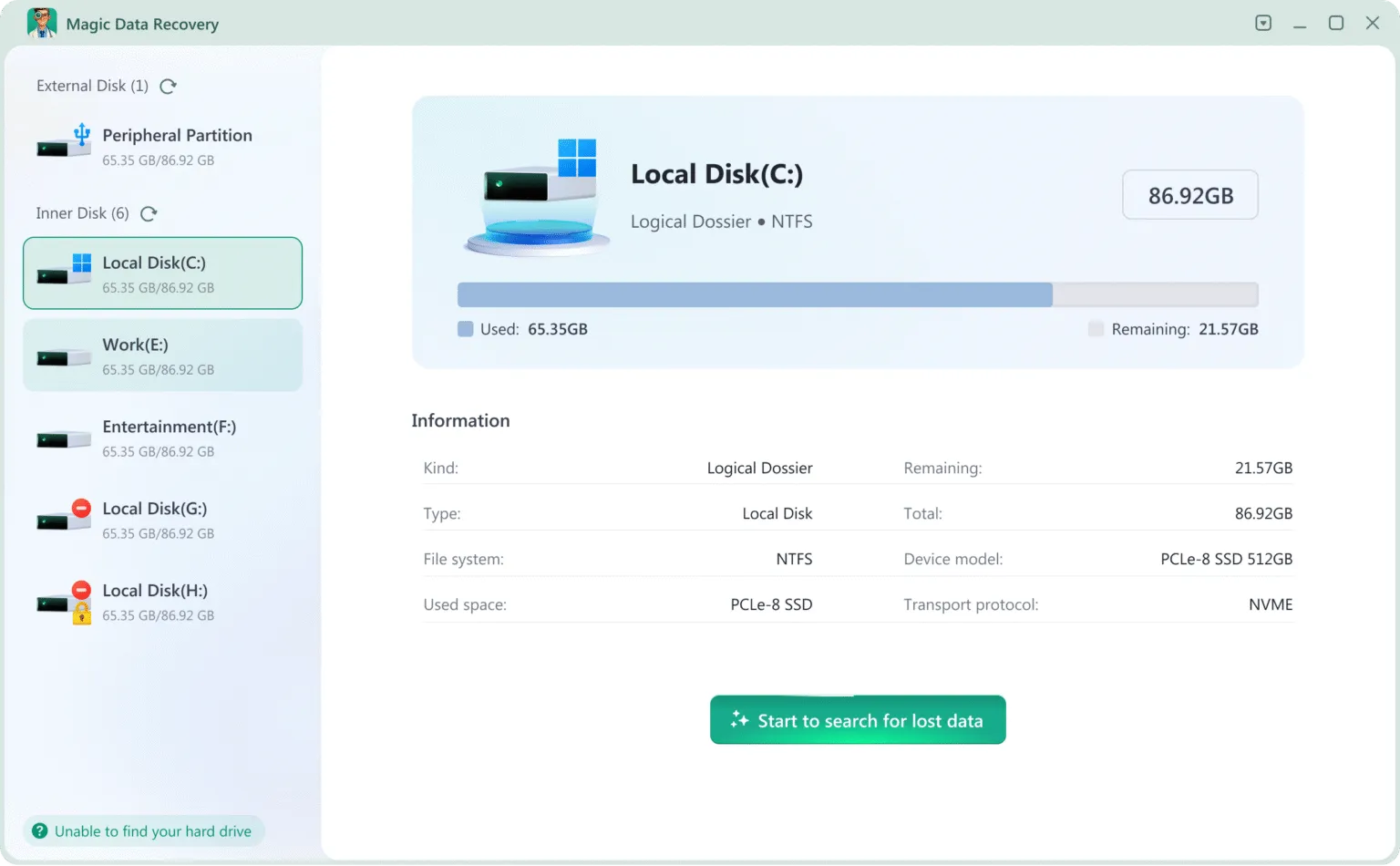
2. Select the drive or device to scan
Choose the internal disk, external HDD/SSD, SD card, USB drive, or camera card where photos were deleted.
3. Wait till the scan completes.
It runs Deep Scan automatically, which analyzes raw data sectors to restore all the files.

4. Preview photos
You can view image quality, resolution, and file details before restoring.

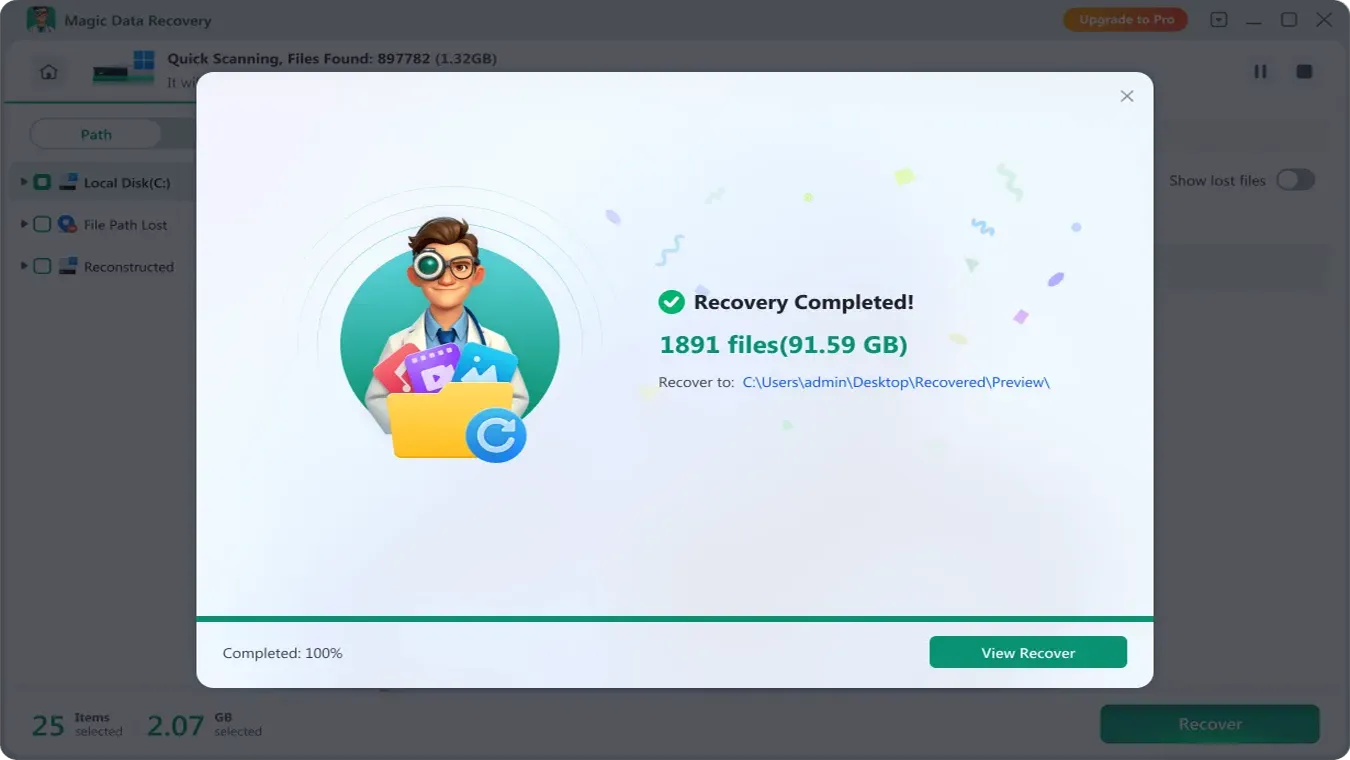
5. Recover photos and save them to a safe destination
Store recovered photos on a different drive to protect remaining recoverable data.
Why Magic Data Recovery Is the Best Photo Recovery Tool
Magic Data Recovery delivers industry-leading scanning and photo reconstruction performance, making it suitable for both home users and professional technicians. Unlike basic utilities, it is designed to restore images even when the file system no longer keeps directory information.
Capability | Benefit |
Deep digital forensics algorithm | Recovers photos after deletion, formatting, RAW/unallocated drive, and partition loss |
Supports 5000+ formats | JPG, PNG, HEIC, CR2, NEF, ARW, RAF, DNG, TIFF, and other professional camera RAW formats |
Compatible with all storage devices | HDD / SSD, SD card, USB flash drive, external hard drives, DSLR / mirrorless camera cards |
High recovery success rate | Sector-by-sector level recovery makes the recovery rate to 99.7% (if there are no changes on the drive after data loss) |
Whether the photo loss was caused by accidental deletion, formatting, or file system error, Magic Data Recovery offers a complete and reliable solution to bring images back safely.
Tips to Improve the Chance of Recovering Permanently Deleted Photos
Regardless of the tool you choose, your actions after deletion matter.
Follow these rules:
- Stop using the affected storage device immediately.
- Do not download files onto the affected drive.
- Do not format an SD card simply because Windows asks you to.
- Avoid running CHKDSK before recovering important files.
- Do not create a new partition over lost or unallocated space.
- Install recovery software on another drive.
- Save recovered photos somewhere else.
- Check backups before performing more invasive troubleshooting.
In short, use a recover first, repair second workflow.
Recovery protects the remaining data. Repair operations can change file system structures and make later recovery more difficult.
Conclusion
Permanently deleted photos are not actually destroyed at the moment of deletion. Unless the disk sectors have been overwritten, the image data remains recoverable — even after emptying the Recycle Bin or formatting a storage device.
The most effective and safest solution is to use a professional photo recovery tool that performs forensic-level deep scanning. For users seeking the highest success rate with an easy workflow, Magic Data Recovery is an ideal choice. If data loss happens, stop using the affected device immediately and perform photo recovery as soon as possible for the best results.
FAQ
Can permanently deleted photos really be recovered?
How can I recover permanently deleted photos without a backup?
Can I recover permanently deleted photos after emptying the Recycle Bin?
Can I recover permanently deleted photos from Google Photos?
Can I recover permanently deleted photos from an iPhone?
Can permanently deleted photos be recovered from an SSD?
Can I recover permanently deleted photos from a formatted SD card?

Vasilii is a data recovery specialist with around 10 years of hands-on experience in the field. Throughout his career, he has successfully solved thousands of complex cases involving deleted files, formatted drives, lost partitions, and RAW file systems. His expertise covers both manual recovery methods using professional tools like hex editors and advanced automated solutions with recovery software. Vasilii's mission is to make reliable data recovery knowledge accessible to both IT professionals and everyday users, helping them safeguard their valuable digital assets.