
HP Laptop How to Restore to Factory Settings
HP laptop restore to factory settings can resolve system errors, malware, and performance issues — making the computer feel brand new again. But before you click Reset, there is one crucial step many users overlook: backing up security keys and credentials, especially the BitLocker recovery key. Without it, encrypted drives may become completely inaccessible after the reset, leading to permanent data loss.
This guide explains how to safely restore an HP laptop step-by-step and how to prevent the most common disaster users face after reset: lossing cecurity keys and being locked out because of BitLocker encryption.
Supports Windows 7/8/10/11 and Windows Server
Table of Contents
Why HP Laptop Restore to Factory Settings Can Be a Good Solution
Factory reset can fix:
- Slow performance and freezes
- Malware and ransomware infections
- Windows system errors / blue screen
- Software conflicts and registry corruption
- Preparing the device for resale or transfer
However, a reset also erases system applications and stored settings — which means passwords, software licenses, Windows credentials, Wi-Fi passwords and encryption keys may be lost if not backed up first.
Before Resetting: Back Up Files AND Crucial Keys
Most professional IT support teams agree:
The data you back up is not the only thing that matters — the keys to access that data matter even more.
Before restoring, users should prepare:
Items to Back Up | Why It Is Important |
Personal files | Prevents permanent data loss |
BitLocker recovery key (if enabled) | Required to unlock the drive after reset |
Windows product key | Required for reactivation on some systems |
Adobe / Microsoft Office licenses | Prevents activation failure after reset |
Network & Wi-Fi passwords | Saves time during reconfiguration |
VPN / remote work credentials | Prevents work access disruptions |
Among all these, BitLocker recovery key is the most critical. If it is not saved, the reset can complete successfully — but on reboot the system may request the key to access the encrypted disk. Without it, even professional repair shops cannot decrypt the data.
How to Restore an HP Laptop Using Windows Settings
Method 1:Reset via Windows Settings (Windows 10/11)
You can reset your HP laptop using the built-in Windows Settings:
1. Navigate to Recovery:
- Windows 10: Go to Settings > Update & Security > Recovery.
- Windows 11: Go to Settings > System > Recovery.
2. Under “Reset this PC,” click Get started.
3. Choose a reset option:
- Keep My Files: Removes apps and settings but preserves your personal data.
- Remove Everything: Performs a complete reset for maximum performance and security.
4. Follow the on-screen instructions to complete the process.
Method 2: Using Windows Recovery Environment (WinRE)
If you cannot access Windows normally, the Windows Recovery Environment (WinRE) offers an alternative way to reset your device.
1. Access WinRE using one of these methods:
- Press and hold the Shift key while clicking Restart in the Start menu.
- Force a startup interrupt by powering off the device three times during startup.
- Use Windows installation media if available (and choose the “Repair your computer” option).
2. Once in WinRE:
- Select Troubleshoot > Reset this PC.
- Choose your preferred reset options.
- Follow the guided process to completion.
Useful when: Windows won’t start normally, you can’t access the Settings app, system files are corrupted, or malware prevents normal operation.
A Secure Solution — Magic Recovery Key
Magic Recovery Key is the ideal solution for helping users safely recover and back up their BitLocker recovery key before performing major operations, such as a factory reset, or for situations where the key is stored on a non-system partition but is inaccessible.
Magic Recovery Key is designed for situations where:
- Recommended for: Ensuring the BitLocker recovery key is securely extracted and backed up before proceeding with a factory reset.
- Factory Reset has been performed, but BitLocker recovery key was stored on a non-system drive, or the drive cannot be accessed.
Instead of panic or uncertainty, users can safely recover and back up the key, and then continue the factory reset or data recovery process with confidence.
How to Use Magic Recovery Key
1. Download and Installation
Download and install Magic Recovery Key from official website
Supports Windows 7/8/10/11 and Windows Server
2. Locating the keys
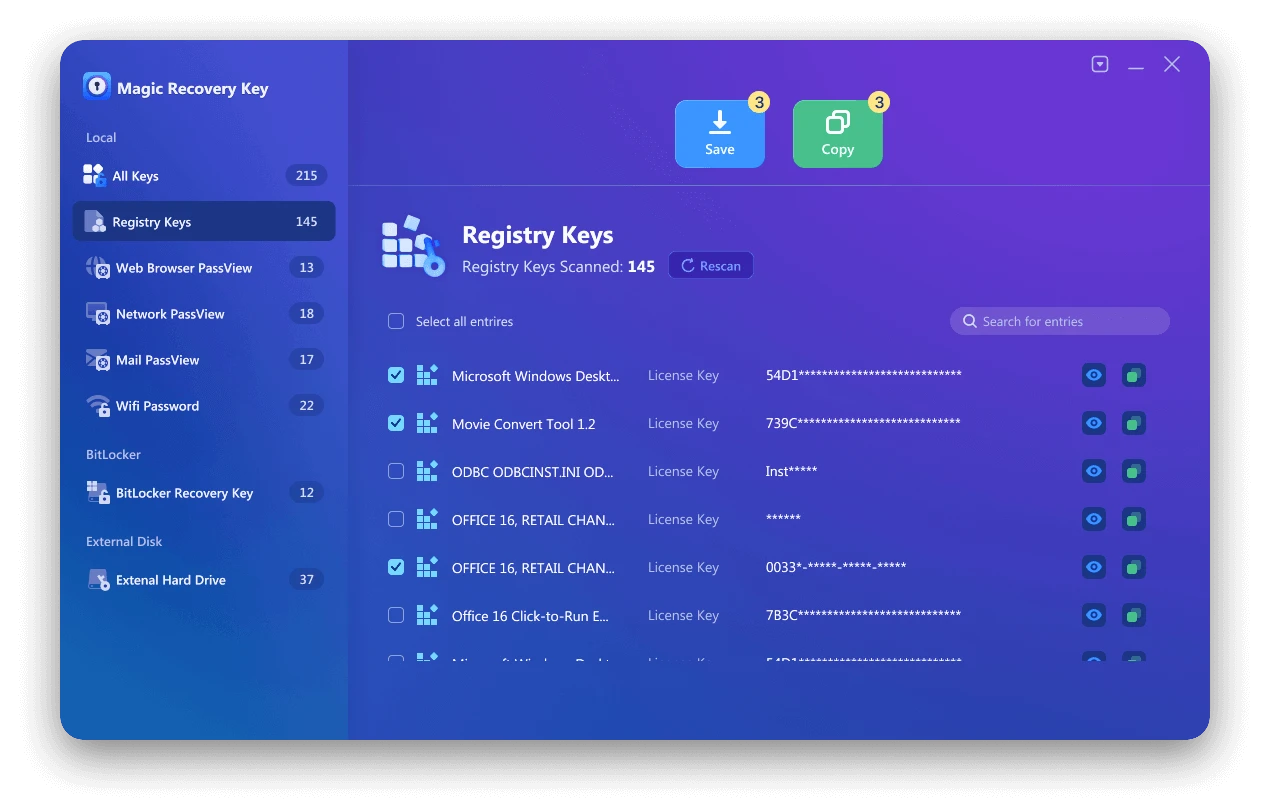
Click the “Registry Keys”or “Bitlocker Recovery Key” tab to located the keys you are looking for.

3. Viewing and Recovering Keys
- On the right panel, view the Applications Registry Keys.
- Magic Recovery Key will display all keys (serial numbers/activation codes) for the installed software.
- Select and copy the targeted serial numbers.
- Additionally, you have the option to click either “Copy” or “Save” for your convenience to store these keys.
Supports Windows 7/8/10/11 and Windows Server
Conclusion
Restoring an HP laptop to factory settings is an effective way to fix system errors and bring performance back to its original state — but the reset should never begin until all critical keys are backed up, especially the BitLocker recovery key. Without it, the encrypted drive may remain locked after the reset, and even professional services may struggle to recover the data.
The safest workflow is:
1. Back up software licenses (Adobe, Microsoft Office, Windows), Wi-Fi and network passwords and Bitlocker recovery keys
2. Proceed with the factory reset
If you’re unsure whether the BitLocker key still exists or cannot locate it, Magic Recovery Key offers a secure way to scan and recover the key before resetting — ensuring that once the factory restore begins, there is zero stress, zero risk of losing access, and you can complete the reset with confidence.
With all keys safely backed up using Magic Recovery Key, you can restore your HP laptop knowing that every password, license and Bitlocker encrypted drive will remain accessible afterward — no surprises, no lockouts, just a smooth, trouble-free reset.
hp laptop factory reset FAQs
How to factory reset an HP laptop through Settings?
How to System Restore an HP laptop?
Is F11 or F12 for factory reset?
How do I force my laptop to factory reset?
What is the F11 key on my HP laptop?
How do I do a full System Restore on my laptop?
How to reset an HP laptop with F11?
How to boot an HP laptop in recovery mode?

Vasilii is a data recovery specialist with around 10 years of hands-on experience in the field. Throughout his career, he has successfully solved thousands of complex cases involving deleted files, formatted drives, lost partitions, and RAW file systems. His expertise covers both manual recovery methods using professional tools like hex editors and advanced automated solutions with recovery software. Vasilii's mission is to make reliable data recovery knowledge accessible to both IT professionals and everyday users, helping them safeguard their valuable digital assets.