
How to Find WiFi Password on Windows & Mac Easily
Supports Windows 7/8/10/11 and Windows Server
Table of Contents
Why You May Need to Find Your WiFi Password
People often need to find your WiFi password after resetting the router, switching providers, replacing devices, or losing written notes. Although Windows and macOS store passwords, they are not visible by default. Fortunately, several built-in tools allow you to retrieve them safely.
Below are the most effective and secure approaches.
Built-in Methods to Find WiFi Password
1. Find WiFi Password on Windows
Windows stores all WiFi credentials in the system’s network configuration. Follow these steps:
Method A: Using Network & Sharing Center
① Open Control Panel.
② Select Network and Internet.
③ Click Network and Sharing Center.
④ Next to your WiFi name, choose Wireless Properties.
⑤ Go to the Security tab.
⑥ Check Show characters to reveal your WiFi password.
Method B: Using Command Prompt
This method is fast and works even if the network is not currently connected.
① Press Win + R, type cmd, and press Enter.
② Type the following command:
netsh wlan show profiles
It will list all saved WiFi profiles.
③ Enter:
netsh wlan show profile "WiFi-Name" key=clear
④ The password appears under Key Content.
2. Find WiFi Password on macOS
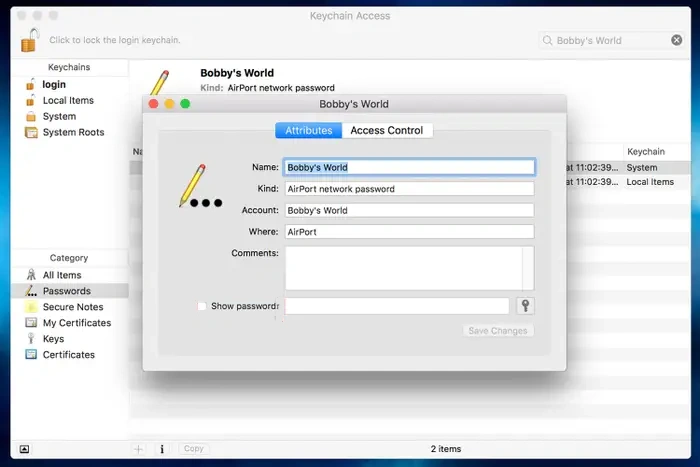
macOS stores WiFi credentials in Keychain Access.
① Open Keychain Access from Applications → Utilities.
② Search for your WiFi network name.
③ Double-click the network entry.
④ Check Show password.
⑤ Enter your macOS administrator password to reveal it.
Find WiFi Password Using Magic Recovery Key
If built-in tools fail, the Wi-Fi profile is missing, or the system refuses to display stored passwords, you may need a specialized solution. Magic Recovery Key helps users who search for how to find out WiFi password or where can I find my saved Wi-Fi passwords, especially when Windows profiles become hidden or corrupted.
Magic Recovery Key finds stored Wi-Fi passwords safely using a read-only process.
Steps to Recover WiFi Password with Magic Recovery Key
1. Download and install Magic Recovery Key from Amagicsoft.
Supports Windows 7/8/10/11 and Windows Server

Conclusion
Finding your Wi-Fi password is simple when using Windows or macOS native tools. If the network profile is missing, the system is corrupted, or you want a faster and more reliable password recovery method, Magic Recovery Key offers a complete solution. It is also useful for users searching for how to get WiFi password from a connected computer.
Supports Windows 7/8/10/11 and Windows Server
How to Find WiFi Password FAQs
Where can I see what my Wi-Fi password is?
Is it possible to see Wi-Fi passwords?
How to find Wi-Fi password on iPhone?
How to join hidden Wi-Fi?
Is it OK to use public Wi-Fi?
Can Wi-Fi owners see what you do on their Wi-Fi?
Can I see who's connected to my Wi-Fi?
How to find Wi-Fi password to share from phone?

Erin Smith is recognized as one of the most professional writers at Amagicsoft. She has continually honed her writing skills over the past 10 years and helped millions of readers solve their tech problems.