
Defrag Master File Table: The Complete Guide to Master File Table Defrag on NTFS
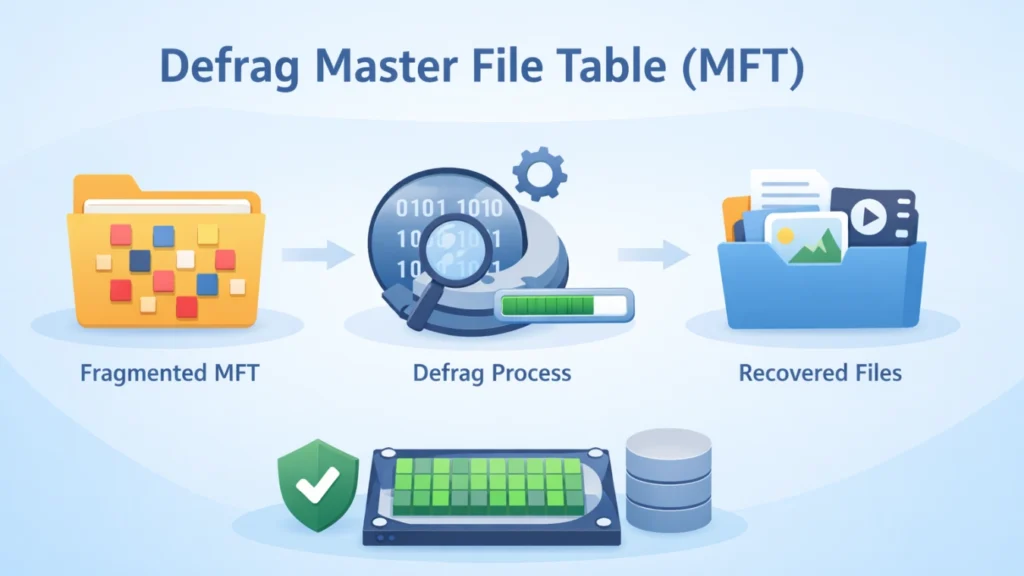
If your Windows PC feels unusually slow when opening folders or searching files, the problem may not be regular fragmentation. In many cases, the real issue lies in the Master File Table (MFT). When the MFT becomes fragmented, file access slows down—even if the rest of the drive looks fine.
Many users search for how to defrag master file table, but they often find incomplete or overly technical explanations. This guide explains what MFT fragmentation means, when a master file table defrag is necessary, and how to perform it safely. Most importantly, it also explains what to do if MFT issues lead to file corruption or data loss and data recovery from NTFS drive.
Table of Contents
What Is the Master File Table (MFT)?
The Master File Table (MFT) is the core metadata structure of the NTFS file system. Every file and folder stored on an NTFS drive has at least one entry in the MFT. That entry contains:
- File name
- File location
- Security permissions
- Size and timestamps
- Attributes
In simple terms, the MFT acts like a master index. When Windows needs to open a file, it first checks the MFT to find where the data physically resides.
Why MFT Fragmentation Happens
NTFS reserves space (often called the MFT Zone) to help keep the MFT contiguous. However, fragmentation can still occur when:
- The drive runs low on free space
- Many small files are constantly created and deleted
- Large software installations change file structures
- The system operates for years without maintenance
Over time, the MFT expands. If no large contiguous space remains, the MFT splits into fragments. That is when users begin searching how to defrag master file table properly.
Signs You Need to Defrag Master File Table
Not every system needs a master file table defrag. However, you may notice these symptoms:
- Slow folder browsing
- Delayed file search results
- Disk activity spikes when opening small files
- Defrag error 0x89000023
- System sluggishness despite low overall fragmentation
These signs indicate metadata access inefficiency rather than large file fragmentation.
How to Check MFT Fragmentation
Before attempting to defrag master file table, verify the condition.
Step 1: Use Windows Optimize Drives
- Press Win + S and search “Defragment and Optimize Drives.”
- Select your NTFS HDD.
- Click “Analyze.”
Although Windows does not always display detailed MFT fragment counts, it provides general optimization feedback.
Step 2: Review Disk Health
Check:
- Free space percentage (keep at least 15–20%)
- SMART health status
- Disk errors using CHKDSK
If free space is critically low, fragmentation worsens quickly.
Can Windows Automatically Handle Master File Table Defrag?
Windows can optimize certain system files. However, the MFT is often locked during normal operation. This limitation prevents standard defrag processes from fully reorganizing it.
That is why advanced tools support boot-time defragmentation. Boot-time mode runs before Windows fully loads, allowing deeper optimization.
However, proceed cautiously. Not every scenario requires aggressive MFT defragmentation.
How to Safely Defrag Master File Table
Follow these best-practice steps.
Step 1: Back Up Important Data
Before performing any disk-level operation, create a backup. Disk restructuring always carries minor risk, especially on aging HDDs.
Step 2: Free Up Space
Low free space is the primary cause of MFT fragmentation. Try:
- Moving large media files to external storage
- Cleaning temporary files
- Removing unused applications
Creating contiguous space often reduces fragmentation naturally.
Step 3: Run Standard Optimization (HDD Only)
If you use an HDD:
- Open Optimize Drives
- Run optimization after freeing space
If you use an SSD, avoid traditional defragmentation. SSDs manage data differently and do not benefit from classic defrag operations.
Step 4: Consider Boot-Time Tools (If Necessary)
If standard methods fail and error messages persist, use a reputable tool that supports system-file defragmentation during startup.
Choose software that:
- Provides detailed logs
- Offers safe-mode operations
- Avoids aggressive restructuring
- Clearly explains limitations
Do not repeatedly force defrag attempts if errors continue. That may worsen metadata corruption.
Common Error: “MFT Is Too Fragmented” (0x89000023)
This error typically appears when Windows cannot consolidate the MFT due to space or structural limitations.
To fix:
- Stop repeated defrag attempts
- Increase free space
- Re-run analysis
- Consider boot-time optimization
- If problems persist, back up and restore the drive
If the system becomes unstable or files disappear, shift focus immediately to data protection.
When MFT Issues Lead to Data Loss
Severe MFT corruption can cause:
- Files not appearing in folders
- Incorrect file sizes
- Access denied errors
- RAW drive status
- Entire partitions becoming unreadable
At this stage, do not attempt further master file table defrag operations. Additional disk writes may overwrite recoverable data.
The Reliable Solution: Magic Data Recovery
If MFT problems cause missing files, Magic Data Recovery provides a practical solution.

Core Problem It Solves
When the MFT becomes corrupted or unreadable, file pointers break. Even though data still exists on disk, Windows cannot locate it. Magic Data Recovery scans the raw sectors and reconstructs file structures independently from damaged metadata.
Unique Advantages
- Deep sector-level scanning
- Support for NTFS, FAT, exFAT
- Preview before recovery
- Recovery to external drives
- Handles corrupted partitions
Real-World Usage Scenario
For example, a user encounters 0x89000023, runs multiple defrag attempts, and then notices missing folders. Instead of reinstalling Windows immediately, the user scans the drive with Magic Data Recovery and restores essential documents to an external disk.
Why It Is More Reliable
Unlike manual fixes or repeated defrag attempts, Magic Data Recovery focuses on data extraction first. That approach reduces overwrite risk. It also avoids direct structural manipulation of the damaged MFT.
If you are looking for a safer solution when files disappear due to MFT corruption, consider trying Magic Data Recovery before making further system-level changes.
Supports Windows 7/8/10/11 and Windows Server
Prevent Future MFT Fragmentation
Prevention reduces long-term maintenance.
- Maintain 20% free disk space
- Avoid excessive small-file churn
- Schedule periodic optimization (HDD only)
- Monitor disk health
- Replace aging drives
Healthy storage management reduces the need to frequently defrag master file table.
Conclusion
Understanding how to defrag master file table properly requires more than clicking “Optimize.” The master file table defrag process depends on disk type, free space, and system condition.
In mild cases, freeing space and running standard optimization works well. In severe cases, boot-time tools may help. However, if MFT corruption causes missing files, prioritize data recovery instead of repeated defragmentation.
That is why Magic Data Recovery stands out. It addresses the real pain point—recovering inaccessible files—without further damaging your storage structure.
If your data matters, protect it first. Then optimize your disk safely.
Supports Windows 7/8/10/11 and Windows Server
FAQs
What does it mean to defrag Master File Table?
Is master file table defrag necessary on SSD?
Can Windows automatically defrag the MFT?
What causes MFT fragmentation?
Is it safe to repeatedly attempt master file table defrag?
Can MFT corruption cause data loss?
How can I prevent needing to defrag master file table?
When should I use Magic Data Recovery?

Jason is a data recovery and technical support specialist with over 15 years of hands-on experience. He has worked extensively with frontline users, troubleshooting difficult data loss cases and providing practical recovery solutions for accidental deletion, formatted drives, damaged file systems, lost partitions, system failures, and other recovery emergencies. His expertise also includes backup and restoration, file repair, and disaster recovery, with a strong emphasis on safe, reliable, and technically accurate guidance.