
Corrupted Excel Files Recovery: Get Files Back Safely
When an Excel file suddenly becomes inaccessible, your work can stop immediately. You may see errors, missing data, or files that refuse to open. Therefore, direct repair attempts often fail in real situations, especially in corrupted excel files recovery scenarios..
However, many users try to repair the file first. As a result, they often overwrite recoverable content. Instead, a safer approach is simple: Recover first, then repair.
In this guide, you will learn how document recovery works, what causes file corruption, and how to recover a usable version of your data with Magic Data Recovery safely.
Supports Windows 7/8/10/11 and Windows Server
Table of Contents
What Causes Excel File Corruption and Data Loss
Before starting recovery, you should understand why corruption occurs. This helps you choose the right method instead of guessing.
Common causes include:
- Sudden shutdown during saving
- Malware or ransomware attacks
- Bad sectors on storage devices
- File system errors
- Software crashes or compatibility issues
In addition, Excel files rely on structured XML data. Once this structure breaks, the file becomes unreadable. Therefore, direct repair attempts often fail in real situations.
Recovery vs Repair: What You Need to Know First
Many users confuse recovery with repair. However, they are fundamentally different.
Key Differences
Method | Purpose | Risk |
Repair | Fix file structure | Medium to High |
Recovery | Retrieve usable data | Low |
Repair tools modify the damaged file. Therefore, they may remove corrupted sections along with important data. In contrast, recovery of corrupted excel file focuses on retrieving intact content without altering the original file. Recovery retrieves usable data, not fixes corruption.
How to Recover Corrupted Excel Files Safely
To achieve reliable results, you should avoid repairing the file directly. Instead, focus on recovering a usable version that existed before corruption.
Magic Data Recovery is designed for this purpose. It does not repair corrupted files. Instead, it helps you recover intact data or earlier versions from storage.
Step-by-Step Excel Files Recovery
Step 1: Download and Install Magic Data Recovery
Install the software on a different drive to avoid overwriting.
Supports Windows 7/8/10/11 and Windows Server
Step 2: Select the Location
Choose where the Excel file was stored and begin scanning.

Step 3: Perform a Scan
The software scans storage sectors and detects recoverable Excel files, including versions saved before corruption.

Step 4: Preview and Recover
Preview files to confirm content. Then recover a usable version safely.

This workflow supports corrupt excel file recovery by retrieving intact data rather than attempting to fix damaged structures. If you cannot find a usable previous version, you can try the repair methods below.
Built-in Methods for Corrupted Excel Files Recovery
Excel includes several built-in options that may help before you try third-party tools. However, these methods work best when the workbook is only lightly damaged. If the file is severely corrupted, they may fail or return incomplete content. Therefore, use them carefully and avoid saving over the original file.
Document Recovery Pane (After Excel Crash)
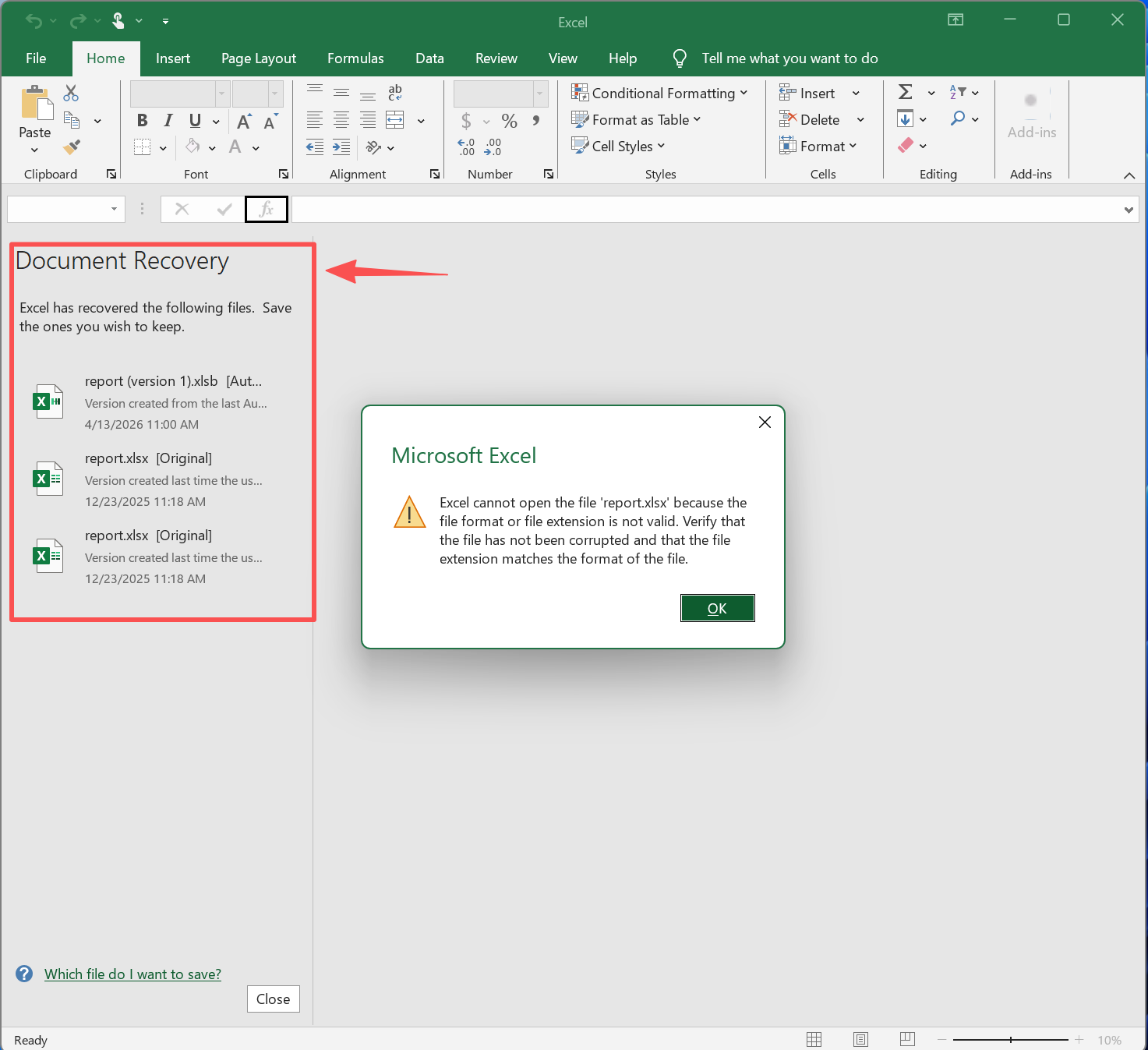
When Excel crashes or closes unexpectedly, it may display the Document Recovery Pane the next time you open the program. This feature provides quick access to recently recovered versions of your workbook.
How to use the Document Recovery Pane
- Reopen Excel after a crash
- Look for the Document Recovery panel on the left
- Click each version to preview
- Choose the most complete version
- Save it immediately with a new name
When it works best
- Excel crashes during editing
- System shuts down unexpectedly
- File becomes unusable after reopening
In these cases, the pane often contains the most recent usable version of the file.
Limitations
- It only appears after a crash
- It may disappear if you close Excel without saving
- It does not help if the file was already corrupted before the crash
Open and Repair
Open and Repair is the most direct built-in option for a damaged workbook. It is useful when the file still appears in its original location but Excel cannot open it normally.
How to use it:
1. Open Excel
2. Click File > Open > Browse
3. Select the damaged workbook
4. Click the arrow next to Open
5. Choose Open and Repair

6. First try Repair
7. If that fails, try Extract Data

When it works best:
- The workbook opens with errors
- Excel says the file is corrupted
- The workbook structure is damaged, but the data still exists
What to expect:
- Repair tries to restore the workbook structure
- Extract Data focuses on pulling values and formulas from the file
Limitation:
This method may remove formatting, charts, formulas, or parts of worksheets. Therefore, it is best for mild corruption, not for serious file damage.
AutoRecover and Document Recovery
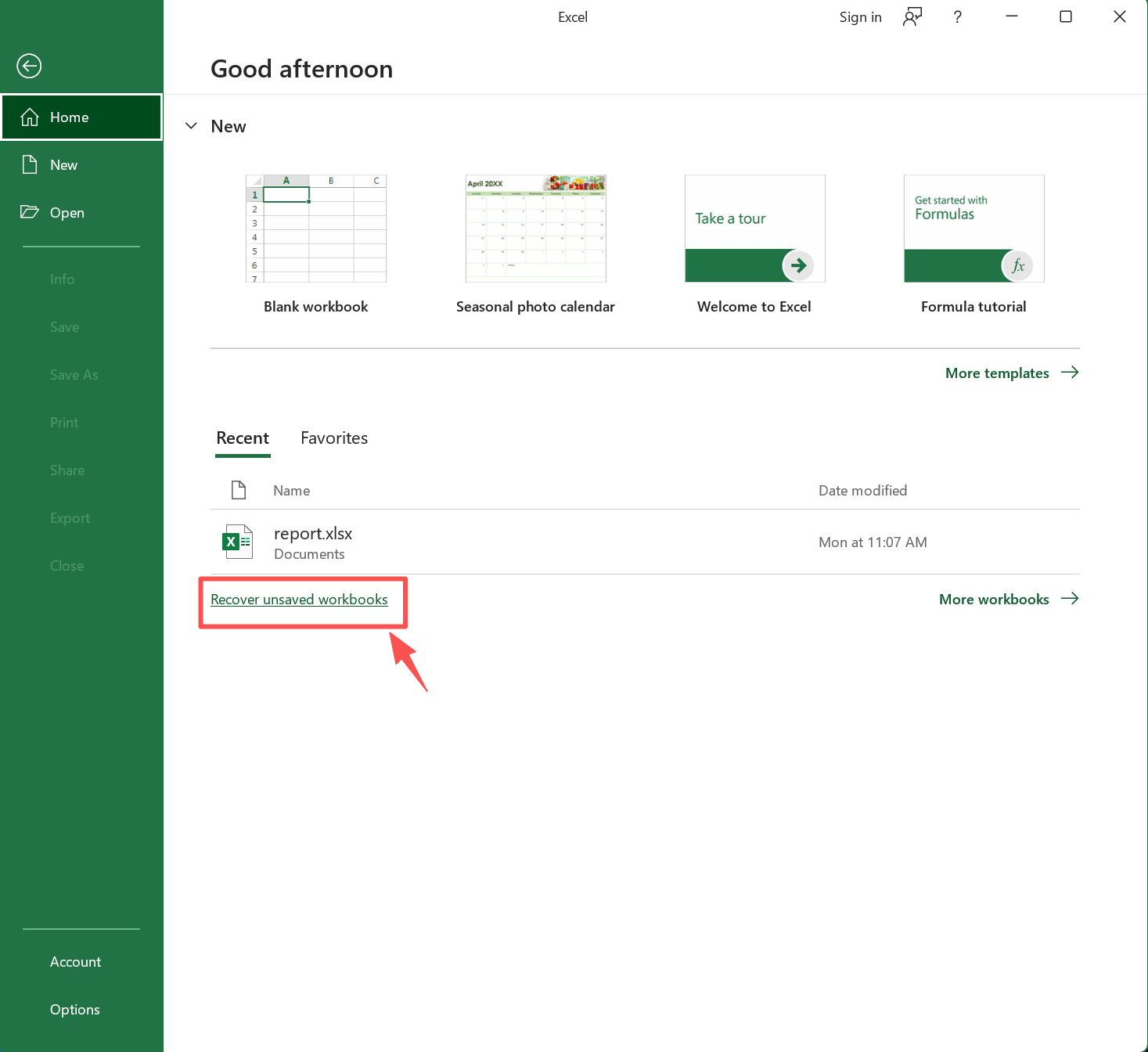
If Excel crashed while you were editing the file, AutoRecover may help restore a more recent version. This option is especially useful when the workbook was not saved properly before the crash.
How to check AutoRecover files:
- Open Excel
- Go to File > Home
- Look for Manage Workbook or Recover Unsaved Workbooks
- Open any available version and save it immediately with a new name
You can also check the AutoRecover folder manually in Excel settings.
When it works best:
- Excel closed unexpectedly
- The system restarted during editing
- The file became unusable after a crash
Limitation:
AutoRecover does not always contain the latest changes. In addition, it only works if the feature was enabled before the issue occurred.
Previous Versions in Windows
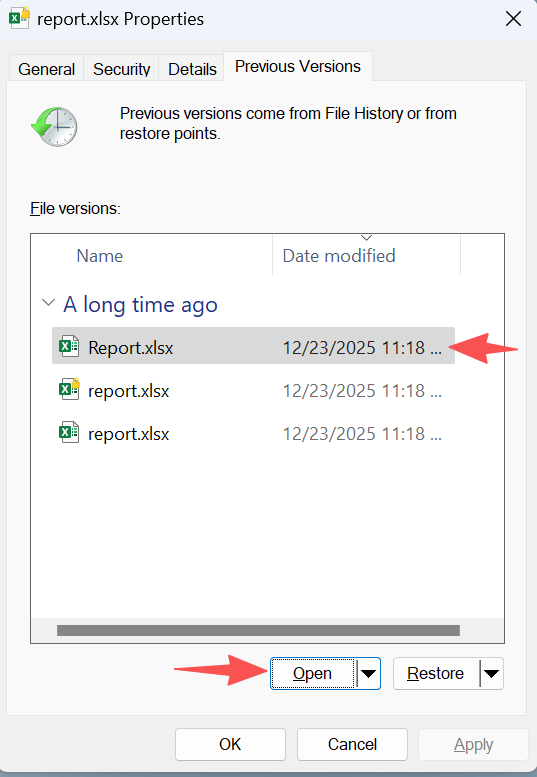
If File History or System Protection was enabled, Windows may store an earlier copy of the workbook. This is one of the safest options because it restores an older version instead of modifying the damaged file.
How to use it:
- Right-click the Excel file
- Select Properties
- Open the Previous Versions tab
- Choose an earlier version
- Open it first, then copy or restore it
When it works best:
- The current workbook is corrupted
- The file worked normally before
- Windows backup features were enabled
Limitation:
If no backup or restore point exists, this option will not help.
Advanced Methods for Corrupted Excel Files Recovery and Repair
If built-in methods fail, you can move to more advanced repair strategies. These methods are more technical, so they require patience. In addition, some of them may not preserve the full workbook layout. Therefore, they are best used after you have tried to recover a usable version of the file.
Simple ZIP Method for Partial Excel Data Recovery
This method does not fully repair a corrupted Excel file. However, it can help you quickly retrieve readable content from the file.
Step-by-step (simple and practical)
1. Make a copy of your Excel file. Always work on a copy to avoid further damage
2. Enable file extensions (Windows)
- Open File Explorer
- Click View in the top menu
- Check File name extensions
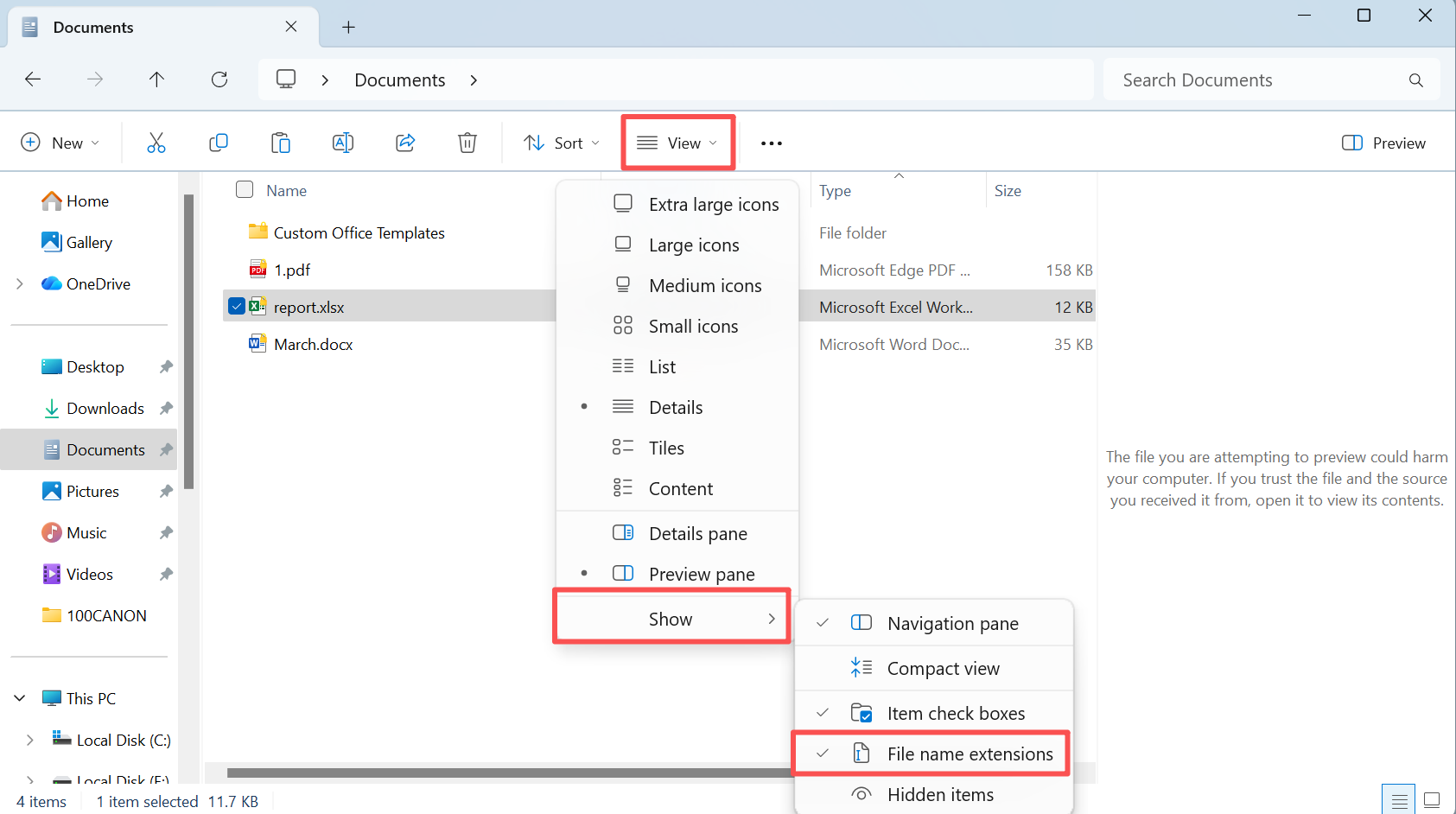
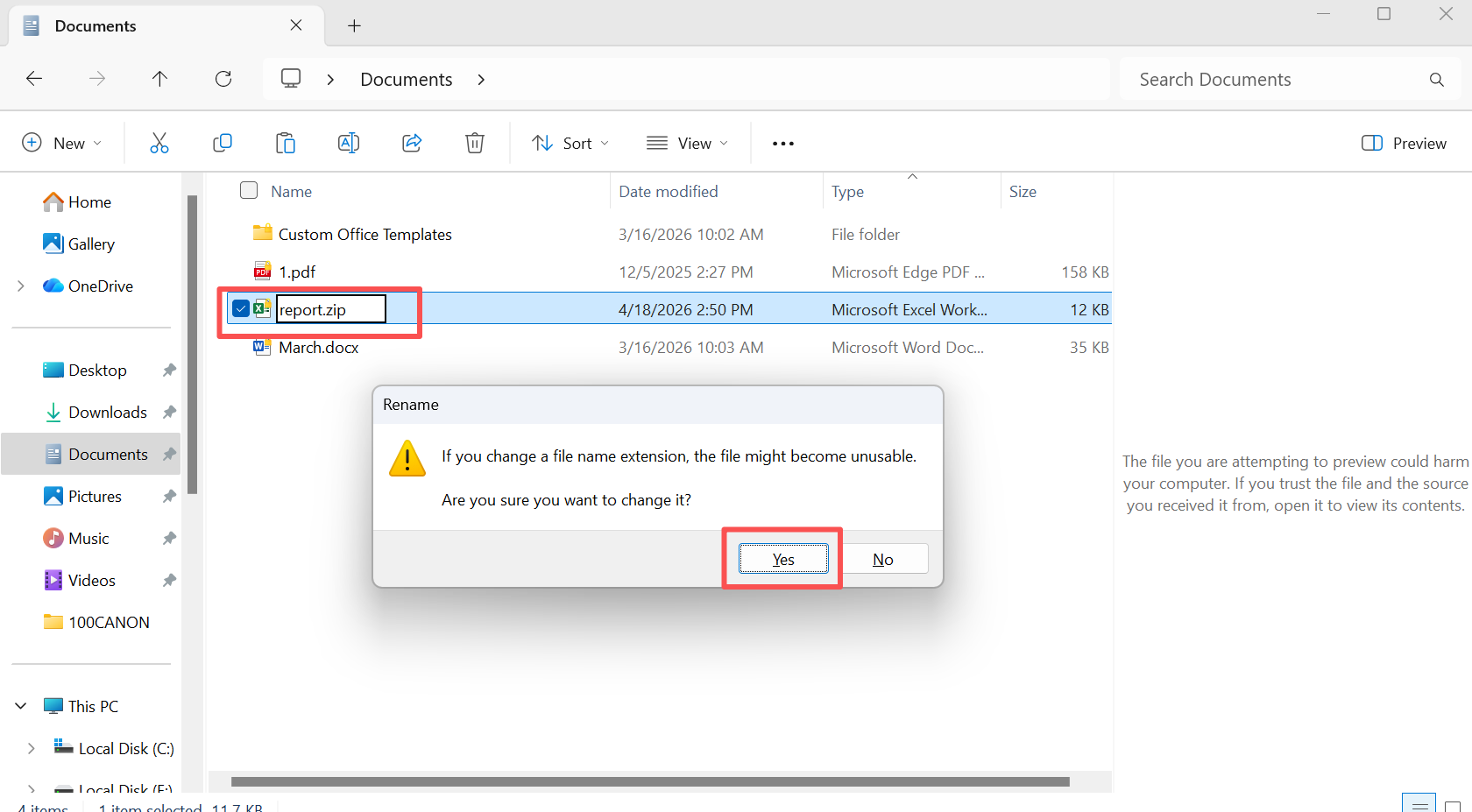
3. Change the extension from xlsx to zip, and then open the ZIP file.
- Double-click to open
- Or use WinRAR / 7-Zip
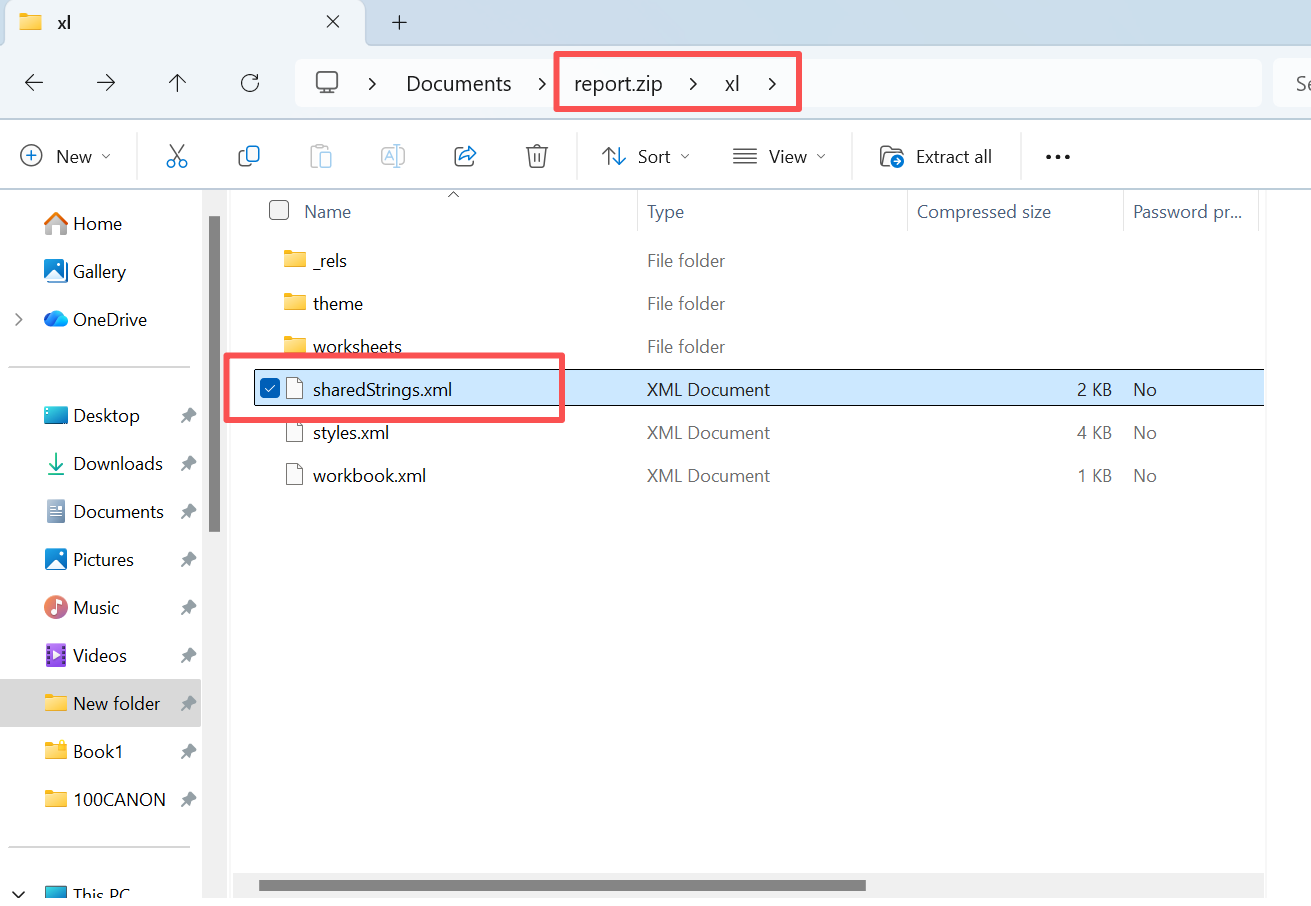
4. Go to xl folder and find sharedStrings.xml file, copy it to another location.
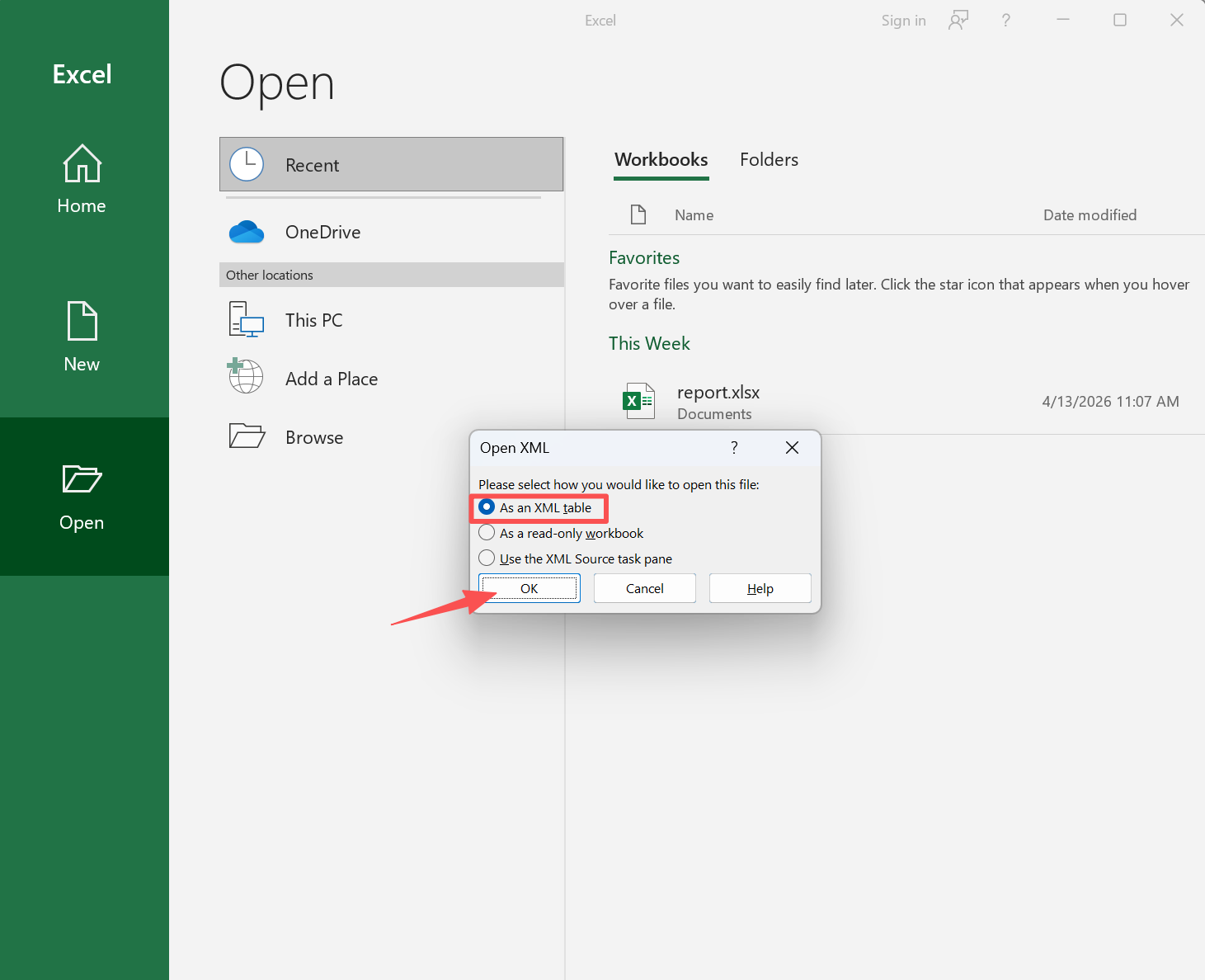
5. Run Excel and Open – Browse, and open the sharedStrings.xml file as an XML table.
6. It shows the original find contents. You can then copy and paste them to a new Excel table and rebuild the file.
What you will get
- Most of the original text content
- Key information such as names, labels, or descriptions
What you will NOT get
- Original table structure
- Formatting and layout
- Formulas or relationships
Key takeaway
This is a fast and practical way to extract data, but it does not restore the original workbook. This is an safe and fast way to check whether the contents have been damaged. If you need a complete file with structure intact, a full recovery solution is still required.
Use Repair Tools After Corrupted Excel Files Recovery
Dedicated Excel repair tools may help rebuild workbook structure. However, they work by modifying the damaged file. Therefore, they should not be your first step.
A safer workflow is:
- Recover a usable or earlier version first
- Copy the damaged file
- Test repair tools only on the copy
This matters because repair attempts can remove unreadable sections permanently. By contrast, recovery focuses on retrieving intact data from storage. This is why recovery of corrupted excel file should always be completed before using repair tools.
Best Tool for Corrupted Excel Files Recovery
Choosing the right tool directly affects corrupted excel file recovery results. However, different tools follow different approaches.
Detailed Comparison
| Tool | Recovery | Repair | Data Approach | Risk |
| Magic Data Recovery | ✅ | ❌ | Recover intact / previous versions | Low |
| EaseUS Data Recovery | ✅ | ❌ | File recovery | Low |
| Stellar Data Recovery | ✅ | ❌ | File recovery | Low |
| Disk Drill | ✅ | ❌ | File recovery | Low |
| Recovery Toolbox for Excel | ❌ | ✅ | File repair | Medium |
What This Means
Recovery tools extract usable data from storage. In contrast, repair tools attempt to fix damaged files and may overwrite content.
Therefore, for recovery file excel corrupt scenarios, the safest workflow is: Recover a usable version first → then repair if needed
When Recovery Is Not Possible
How to Prevent Excel File Corruption
Prevention reduces future risks.
- Enable AutoSave
- Maintain regular backups
- Avoid sudden shutdowns
- Use reliable storage devices
- Keep antivirus protection active
In addition, saving multiple versions helps reduce dependency on recovery tools.
Conclusion
Corrupted excel files recovery requires a careful and informed document recovery approach. Instead of repairing damaged files immediately, you should prioritize recovering a usable version first.
Magic Data Recovery does not repair corrupted Excel files. Instead, it helps retrieve intact or previously saved versions. Therefore, it offers a safer and more reliable solution when data matters most. Recover first. Repair later.
Supports Windows 7/8/10/11 and Windows Server
FAQs About Corrupted Excel Files Recovery
Can corrupted Excel files be recovered successfully?
Yes, in many cases, recovery is possible if the data still exists on the storage device. Recovery tools can extract usable content even when file structures are damaged. However, overwritten data or severe physical damage may reduce success rates.
What is the safest method for corrupted excel file recovery?
The safest method is to recover the file first using a professional tool. This prevents further data loss. After recovery, you can attempt repair if necessary.
Why do Excel files become corrupted?
Excel files may become corrupted due to crashes, disk errors, malware, or interrupted saving processes. Additionally, internal structure damage can make files unreadable.
Can I perform recovery corrupted excel file without software?
Yes, but only for minor corruption. Built-in features like Open and Repair may work. However, severe damage usually requires recovery tools.
Is recovery of corrupted excel file safe with online tools?
Online tools may work, but they require uploading files. Therefore, they may expose sensitive data. Local recovery tools are safer.
Does repairing a corrupted file reduce recovery chances?
Yes, repair may overwrite data. As a result, recovery becomes more difficult. Therefore, recovery should always be performed first.
Can permanently deleted Excel files be recovered?
Yes, if they have not been overwritten. Recovery tools can scan storage sectors and restore files. However, quick action is essential.

Vasilii is a data recovery specialist with around 10 years of hands-on experience in the field. Throughout his career, he has successfully solved thousands of complex cases involving deleted files, formatted drives, lost partitions, and RAW file systems. His expertise covers both manual recovery methods using professional tools like hex editors and advanced automated solutions with recovery software. Vasilii's mission is to make reliable data recovery knowledge accessible to both IT professionals and everyday users, helping them safeguard their valuable digital assets.