
How to Recover USB Drive Files: 2026 Guide
USB flash drives are incredibly convenient for carrying your essential files, project backups, and media everywhere you go. However, because we constantly plug them into different computers, accidental file deletion, unexpected partition corruptions, or sudden capacity loss can happen at the worst possible moments. If your computer suddenly prompts you to format your device, you need to know how to safely recover usb drive data before your files vanish into thin air. Fortunately, your valuable data usually remains completely intact on the storage sectors, even if Windows or macOS cannot see it right away. Therefore, you just need the right technical approach to get everything back. In this comprehensive expert guide, we will show you exactly how to save your files and restore usb drive configurations back to their peak factory performance.
Critical Safety Warning: The moment you realize files are missing or that your partition is corrupted, you must stop using the flash drive immediately. Do not save new documents to it, and do not run casual disk repair utilities. Writing any new data to the device can permanently overwrite the hidden sectors where your old files still live, making full recovery completely impossible. To ensure the highest success rate without risking further damage, utilizing a dedicated solution like Magic Data Recovery is the safest way to recover your lost data on USB drives.
Supports Windows 7/8/10/11 and Windows Server
Table of Contents
Scenario 1: How to Recover USB Drive Files After Accidental Deletion
When you accidentally shift-delete a folder or clear out files to save space, the operating system does not actually wipe the physical storage cells immediately. Instead, it simply marks that specific storage space as available for rewriting and removes the direct file pointers from the directory index. Consequently, as long as you act quickly, you can successfully recover usb files before new data overwrites them forever.
The Standard Solution to Recover USB Drive Data Without OS Indexes
Because the operating system completely loses track of deleted file pointers, standard file managers like Windows Explorer cannot help you see or rescue these items. To overcome this limitation, you need a method that bypasses the broken file system index and communicates directly with the underlying storage sectors.
If you are looking for an efficient, automated solution to safely bridge this technical gap and recover usb drive files, using specialized utility software is the most practical choice. For this purpose, Magic Data Recovery provides an advanced, read-only scanning engine specifically engineered to salvage lost data from standard flash drives, external solid-state drives, and memory cards.
This utility directly addresses critical user frustrations by reconstruction of over 5,000 distinct file formats, including complex RAW camera images, extensive databases, ZIP archives, and video documents. Furthermore, it supports file restoration across FAT32, exFAT, and NTFS storage environments without altering your original files.
If you want to test your drive viability and recover usb archives immediately, you can download Magic Data Recovery to evaluate your storage media and preview your missing files for free.
Step-by-Step Guide to Recover USB via Magic Data Recovery
Saving your files is simple. Please follow these five straightforward steps to safely recover usb drive contents:
Step 1: Download and Setup Magic Data Recovery
First, download the official installation file for Magic Data Recovery. You must install the program onto your primary computer hard drive rather than the compromised USB flash drive itself. This vital step ensures you do not inadvertently overwrite the very sectors you are trying to rescue.
Supports Windows 7/8/10/11 and Windows Server
Step 2: Choose Your Flash Media to Recover USB Data
Launch the newly installed program on your desktop. On the main menu interface, find the list of connected storage media and click on your target USB drive to prepare it for scanning.

Step 3: Analyze the Flash Memory to Recover USB Drive Hidden Sectors
Click the scan button to let the software automatically execute an Advanced Scan across the storage blocks. As the deep analysis goes forward, the software will dynamically populate a list of all your available, reconstructable assets so you can monitor the progress to recover usb files.

Step 4: Inspect Discovered Folders to Recover USB Drive Safely
Take advantage of the built-in file preview tool to check the contents of your documents or images before finalizing the process. This convenient mechanism lets you confirm file integrity so you extract exactly what you need.

Step 5: Safely Reclaim Data and Complete Your Recover USB Drive Process
Mark the checkboxes next to your missing files and click the final recovery button. Remember to always choose a storage location on your local PC or an entirely different drive to prevent data corruption risks, making it easy to recover usb drive data.

Scenario 2: How to Recover USB Files After Formatting
Formatting errors typically happen when a user accidentally clicks the wrong option or when a device is suddenly pulled out during a crucial write operation. Understanding how Windows handles drive formatting determines your chances of success when you try to recover usb drive data.
Quick Format vs. Full Format: The Impact on Recover USB Choices
When you perform a Quick Format, the system merely purges the top-level directory index, while leaving the underlying data clusters completely untouched. Because of this, professional recovery programs like Magic Data Recovery can easily scan these orphaned clusters and restore them to their original folders.
Conversely, a Full Format systematically overwrites every single sector on the drive with zeroes. If you unfortunately ran a Full Format on your storage device, the data is permanently erased from the flash memory cells. Under these circumstances, manual command-line tricks and software solutions alike will no longer be able to recover usb folders or fix the partition.
Scenario 3: How to Fix and Recover USB Invisible or Hidden Files
Sometimes, malicious malware or severe logical glitches alter your file attributes, rendering your documents completely invisible to the default Windows File Explorer even though the drive capacity shows as occupied.
Manual Method: Use CMD to Restore USB Drive Attribute Access
You can attempt to reveal these hidden items without external software by carefully using the built-in Windows Command Prompt.
⚠️ Crucial Safety Warning: You must be extremely careful when executing commands in the Command Prompt. Please ensure you have successfully switched to your correct USB drive letter before running the attribute reset script. If you mistakenly execute this command while inside the default C:\ drive directory, you might accidentally alter or corrupt critical Windows system files.Please strictly follow these exact steps to avoid any system conflict:
- Press the Windows Key + R on your keyboard, type
cmdinto the box, and press Enter. - Check your actual USB drive letter in File Explorer (for example, drive
G:). - Type your exact USB drive letter followed by a colon (such as
G:) into the black window and press Enter to switch directories. Do not skip this step. - Carefully type the following command to reset attributes on the targeted flash memory:
attrib -h -r -s /s /d *.* - Press Enter and wait a few seconds for the prompt to clear completely.
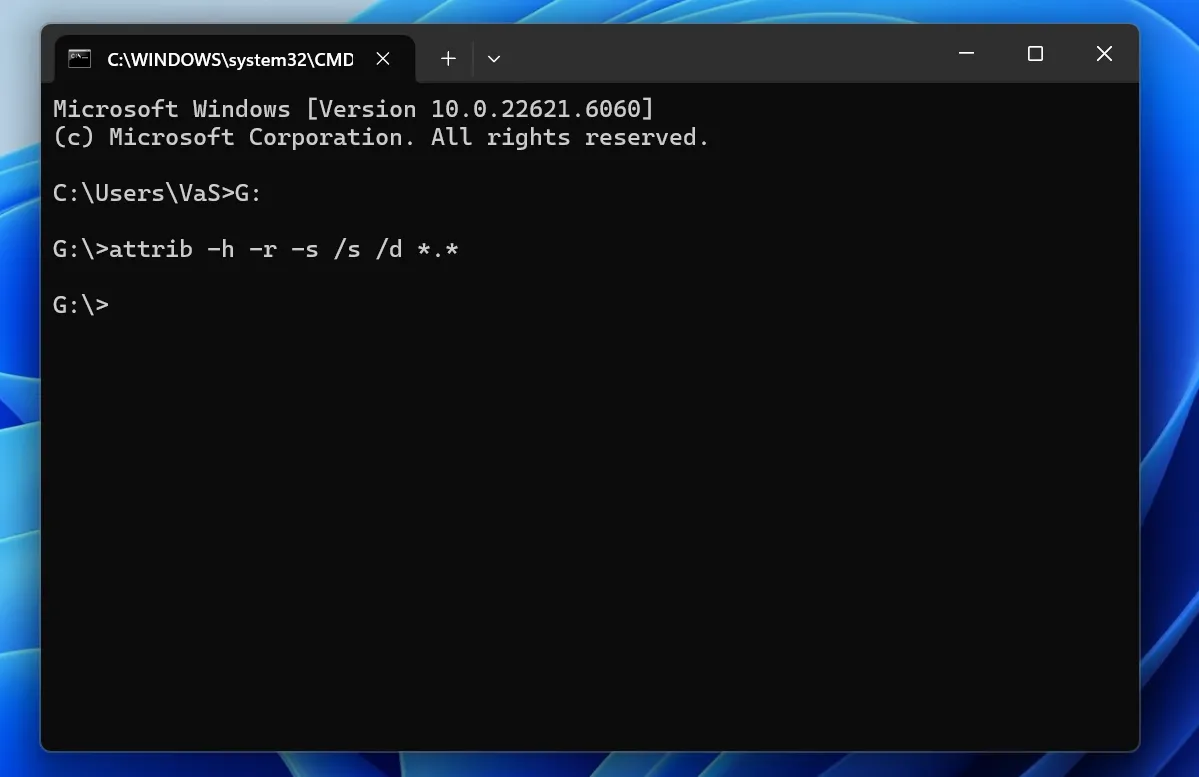
This specific command strips away the hidden, read-only, and system-locked flags exclusively from your selected storage folders. However, please note that this method is completely useless if you need to recover usb drive data after a format, because formatting destroys the file entries entirely rather than hiding them.
If this manual command line fails to reveal your missing files after you verify the correct partition path, or if your drive shows up as an unreadable RAW volume, it indicates that your data has been deeply corrupted. In such cases, switching to a professional scanning tool like Magic Data Recovery is necessary to extract the orphaned sectors and properly recover usb contents.
Scenario 4: How to Restore USB Drive Back to Full Capacity
Many users notice that their flash drive suddenly shows only a fraction of its original storage capacity. This common issue often occurs after using the drive as a bootable installation medium, leaving large chunks of the storage space completely unallocated and invisible to standard menus. To fix this, you must restore usb drive configurations by rewriting the master partition layout.
Method 1: Fix Capacity Using DiskPart (Windows Built-in)
The DiskPart utility is a powerful built-in command-line tool that lets you manage disk partitions at a low level. Please follow these instructions carefully, as selecting the wrong disk number can wipe data from your primary system drives.
- Right-click the Windows Start menu button and select Terminal (Admin) or Command Prompt (Admin).
- Launch the utility by typing
diskpartand hitting Enter. - Identify your drive by typing
list diskand looking at the sizes listed. - Target your flash drive by typing
select disk X(replace X with your specific USB disk number). - Erase all hidden partition tables by typing
cleanand pressing Enter. - Generate a brand new partition by typing
create partition primary. - Format the fresh partition by entering
format fs=exfat quickto fully restore usb drive health.
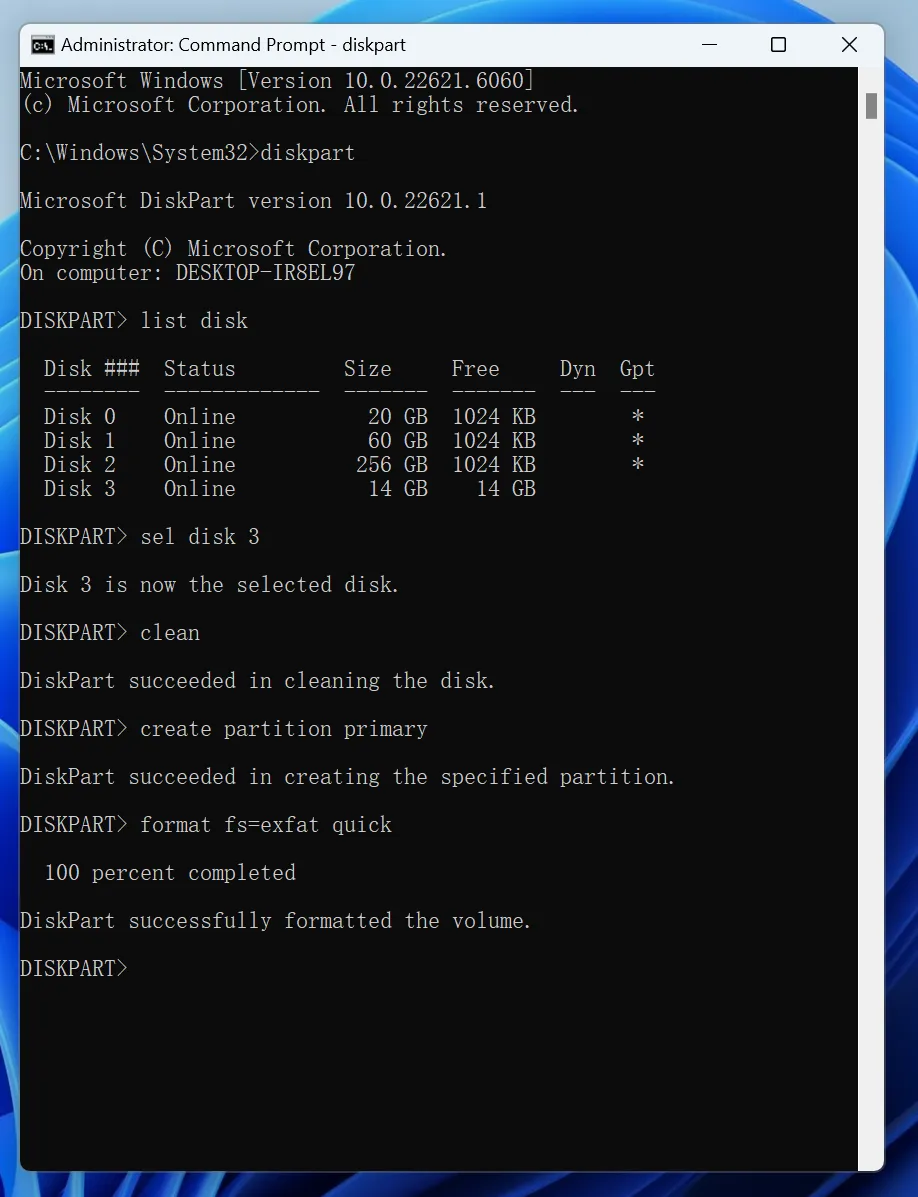
Once the process finishes completely, your drive will show its full storage capacity again, allowing you to successfully restore usb drive functionality.
⚠️ Important Data Warning: You must complete all data recovery processes and successfully rescue your missing files before performing this drive partition repair. Executing low-level command-line actions like cleaning and formatting will overwrite your file allocation tables, which can cause severe damage or permanent loss to any unrecovered files remaining on the storage cells.
Method 2: Use Windows Disk Management to Fix USB Capacity
If you prefer a visual approach rather than using text-based command lines, the native Disk Management tool is an excellent alternative to restore usb drive spaces.
- Press the Windows Key + X together and select Disk Management from the list.
- Scroll down to locate your removable flash drive in the lower graphical panel.
- Right-click any existing small partitions on the USB and choose Delete Volume.
- Right-click the large, black Unallocated Space block and select New Simple Volume.
- Follow the on-screen wizard instructions to choose your preferred file system (exFAT or FAT32) and assign a new drive letter to completely restore usb drive properties.
Essential Tips to Protect Your USB Drive from Data Loss
While knowing how to recover usb data is incredibly helpful, avoiding data loss entirely is always the best strategy. Therefore, implementing a few healthy hardware habits can keep your portable flash drives running safely for years.
- Always Use Safe Ejection: Never pull a flash memory stick out of your computer while it is actively reading or writing files. Always right-click the icon in your system tray and select Eject to ensure all cache data is written safely.
- Keep Your Drives Dry and Clean: Physical damage from moisture, dust, or dropping your device can break the delicate internal solder joints, rendering the drive completely dead.
- Maintain Secondary Backups: Portable flash drives are prone to getting lost or stepped on. Hence, you should always save a copy of your critical files on a secure cloud storage account or your local computer hard drive.
Conclusion
Losing important files or discovering that your flash drive has malfunctioned can be an incredibly stressful experience. However, tools like Magic Data Recovery make it simple to recover usb drive files without needing advanced technical skills. Its read-only scanning system safely recovers your USB files while identifying hundreds of deleted file types in just a few minutes.
Once your important files are safely extracted and backed up elsewhere, you can confidently use deep system utilities like DiskPart to restore usb drive capacities back to original factory specifications. If you are currently dealing with an unreadable storage device, download Magic Data Recovery right away to inspect your drive and recover usb data before it is too late.
Supports Windows 7/8/10/11 and Windows Server
FAQs
Can I recover files from a physically broken USB?
No, software utilities cannot fix physical hardware damage. If your flash drive has a snapped connector, a broken circuit board, or a burnt memory chip, software cannot communicate with the sectors. Therefore, you must ship the hardware to a professional laboratory to safely recover usb drive components.
Does Windows 11 have a native file recovery tool?
Yes, Microsoft provides an official tool called Windows File Recovery. However, this application lacks a graphical user interface and requires complex command lines. For that reason, everyday computer users prefer graphical options like Magic Data Recovery to recover usb drive data easily.
Why does my computer say the USB drive is RAW?
A RAW file system indicates that your operating system cannot recognize the drive's internal structure. This usually happens due to sudden disconnection or partition corruption. Fortunately, you can use Magic Data Recovery to read raw sectors and recover usb documents successfully.
How can I fix a USB drive that won't format?
If Windows fails to format your flash drive, the partition table might be severely corrupted. First, you should use professional software to recover usb drive files. After securing your data, use the DiskPart clean command to clear the blocks and completely restore usb drive capacities.
Can I recover data after running the DiskPart clean command?
The DiskPart clean command only deletes the partition architecture without overwriting the actual file sectors. Therefore, if you do not write new files to the empty drive, Magic Data Recovery can still perform a deep scan to recover usb drive partitions.
Why did my USB drive capacity shrink significantly?
Your flash drive capacity usually shrinks when hidden partitions or unallocated spaces occupy the storage area, often after creating bootable media. To fix this, you must delete all existing volumes via Disk Management to fully restore usb drive space to its original size.

Vasilii is a data recovery specialist with around 10 years of hands-on experience in the field. Throughout his career, he has successfully solved thousands of complex cases involving deleted files, formatted drives, lost partitions, and RAW file systems. His expertise covers both manual recovery methods using professional tools like hex editors and advanced automated solutions with recovery software. Vasilii's mission is to make reliable data recovery knowledge accessible to both IT professionals and everyday users, helping them safeguard their valuable digital assets.