
How to Restore Data from Google Drive

Losing critical files on cloud storage can be a highly stressful experience, especially when an accidental deletion or a bad sync cycle wipes out hours of hard work. Many users rely heavily on cloud ecosystems, assuming their files are permanently safe. However, data loss happens more frequently than you might think. Whether you are a remote professional missing a vital presentation or an individual searching for lost family photos, knowing how to restore data from Google Drive is an essential technical skill.
While Google provides built-in recovery features, they come with strict time limitations. What happens when you empty the cloud trash or miss the standard recovery window? This comprehensive guide will walk you through every reliable method to restore data from Google Drive, ranging from basic cloud retention tools to advanced local recovery strategies for permanent data loss scenarios. If cloud options fail, powerful desktop software like Magic Data Recovery offers a reliable solution to recover your deleted files.
Supports Windows 7/8/10/11 and Windows Server
Table of Contents
Method 1: Use the Trash Folder to Restore Data from Google Drive (Within 30 Days)
The easiest and quickest way to recover deleted files from Google Drive is by checking the native Trash folder. When you delete a file in your cloud storage drive, Google does not immediately erase it from existence. Instead, the system moves it to a temporary holding area.
Step-by-Step Trash Recovery Guide
To successfully bring back your files from the cloud trash bin on a desktop browser, follow these simple instructions:
- Open your web browser and log in your Google Drive.
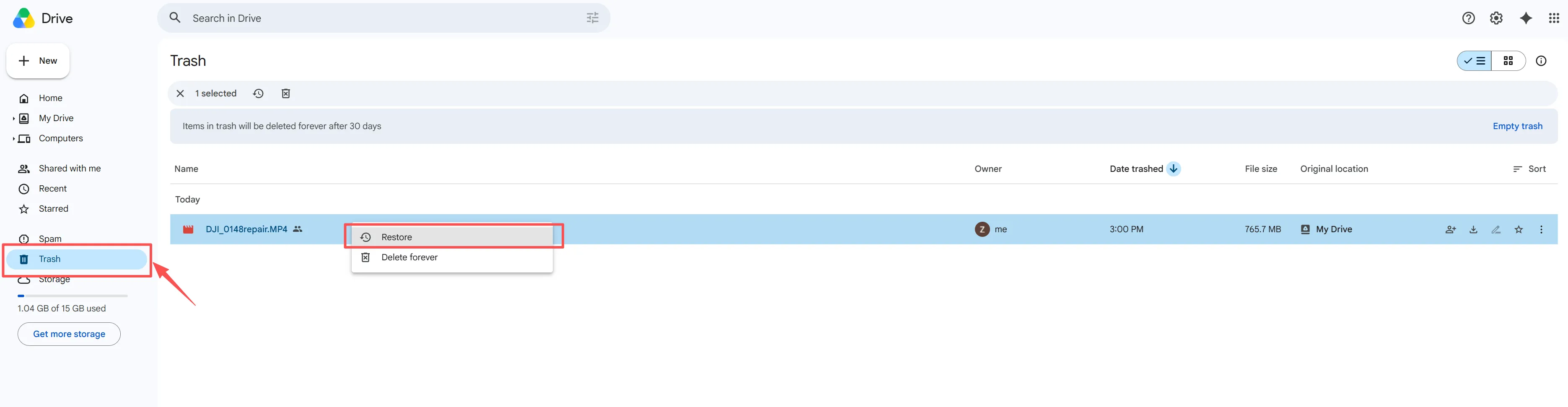
- On the left-hand sidebar menu, locate and click on Trash.
- Browse through the items or sort them by “Trashed date” to find your missing data.
- Right-click the specific file or folder you need, then click Restore.
The Critical Catch
Consequently, you must keep in mind that files remain in the Trash for exactly 30 days. Once this 30-day window expires, Google automatically and permanently deletes the files to free up cloud storage space. Therefore, if you are trying to restore data from Google Drive after this duration, native user-level options will no longer be available.
Method 2: Use Admin Console to Restore Data from Google Drive via Workspace
If your account is part of an organization, such as a business, school, or non-profit group, you are likely using Google Workspace. This enterprise structure offers a powerful hidden safety net for data retrieval. Specifically, Workspace administrators possess elevated privileges that allow them to restore data from Google Drive even after an individual user has completely emptied their personal Trash folder.
The Admin Recovery Process
If you have administrator access, you can retrieve lost user data by executing the following administrative workflow:
- Sign in to the Google Admin Console using an administrator account.
- From the home dashboard, navigate to Directory and select Users.
- Locate the specific employee or user who lost the files and click on their name.
- Click on More Options (represented by a three-dot icon) and choose Restore data.
- Select the date range for the missing files and choose “Drive” as the application source.
- Click Restore to push the files back into the user’s active account.
Strict Enterprise Limitations
Although this administrative route is highly effective, it is bound by rigid corporate rules. Furthermore, administrators can only use this specific strategy to restore data from Google Drive within a strict 25-day window from the time the file was permanently deleted from the user’s Trash. In addition, if an IT manager completely deletes an employee’s entire user account from the system, they only have 20 days to restore the account before all associated cloud data disappears into the ether forever.
Method 3: Use Desktop Software to Restore Data from Google Drive Local Synced Files
Many people believe that once a file is gone from the cloud servers and missing from the online trash, it is gone forever. However, this is actually a common misconception if you use the official desktop application. If you utilize Google Drive for Desktop on a Windows computer, a physical footprint of your previously synchronized data often remains hidden right on your local hard drive, allowing you to restore data from Google Drive locally.
Understanding the Local Synced File Connection
The desktop application works by mirroring or streaming your cloud directory directly to your computer. When you select the mirror option, Google creates exact local copies of your files on your hard drive partition, which typically operates on an NTFS, FAT32, or exFAT file system.
When you delete an item online, the sync process automatically removes the corresponding local file from your computer. Nevertheless, the raw binary structures of your documents, spreadsheets, or images still remain intact on your physical storage sectors until new data overwrites them. To salvage these hidden physical remnants, utilizing a dedicated Google Drive recovery software utility is the most effective approach to restore data from Google Drive files.
When cloud-based methods reach a dead end, a specialized hardware-level solution becomes necessary. Magic Data Recovery is a robust, natively supported Windows utility designed to scan local storage devices and piece together deleted file structures. It serves as an excellent technical bridge when cloud retention periods fail you, helping you restore data from Google Drive by recovering previously synced local files.
Important Note on Product Limits: Magic Data Recovery provides a 500MB free data limit for file recovery, allowing you to thoroughly test the software and preview your files completely free of charge before deciding to upgrade.
Step-by-Step Guide to Restore Local Data from Google Drive
If you want to pull back your vanished cloud files from your computer’s local storage sectors, running a targeted scan is a straightforward process. Follow these refined steps to safely restore data from Google Drive local folders:
Step 1: Download and Setup the Software
Download Magic Data Recovery directly onto your Windows PC. Make sure you install the utility on a partition or storage drive different from the one where your Google Drive local synced directory resides (which is usually the C: drive). This safe approach successfully prevents any accidental overwriting and fully protects your residual local data fragments.
Supports Windows 7/8/10/11 and Windows Server
Step 2: Choose the Local Synced Drive Partition to Scan
Next, from the clean main interface dashboard, select the specific local drive partition where your desktop cloud application previously kept its synchronized offline files. Click the scan button to let the software dig into the file system sectors.

Step 3: Analyze the Hard Drive Sector for Lost Files
The program immediately initiates an Advanced Scan across the selected partition area. As the diagnostic engine progresses through the deep sectors of your storage hardware, it dynamically populates an organized real-time list of all recoverable synced file residuals.

Step 4: Preview Files Before Recovery
Once you spot your missing documents or images in the results list, utilize the built-in file verification tool. This native preview feature allows you to examine the actual contents of the files beforehand, ensuring you restore data from Google Drive local directories that are completely uncorrupted.

Step 5: Safely Recover Your Data
Finally, check the boxes next to your target files and click the main action button. Always choose a completely separate storage folder or an alternative internal drive partition to save your newly rescued data. Never output the restored items to the exact same partition you just scanned, since doing so can overwrite other hidden file fragments.

Key Benefits of This Solution
- Deep Partition Searching: The software bypasses cloud network restrictions by directly reading the sectors of your local hard drive to find previously synced file structures.
- Risk-Free Trial Experience: The 500MB free data limit ensures that you can locate and verify your specific missing items without any upfront financial commitment.
- Intuitive Filtering: You can easily sort through thousands of recovered files by file extension, name, or size to pinpoint your exact missing assets.
- Broad Format Support: It reconstructs a vast array of file types, including DOCX, XLSX, PDF, PNG, and high-resolution videos.
Practical Scenarios for Local Recovery From Google Drive
To illustrate, consider a scenario where a user works diligently on an advertising report inside their local synced folder, but a sudden system crash corrupts the cloud sync pipeline. The file vanishes from the web view, and the cloud Trash shows absolutely nothing. In this exact situation, running a quick scan on the local C: drive with this utility can locate the previously synced file structure, effectively saving days of work.
If you are currently facing a data loss crisis because of an empty online trash folder, you should try a local desktop scan to restore data from Google Drive directories. If you are looking for a straightforward, efficient solution to check your computer drive for lost cloud assets, you can download Magic Data Recovery to begin a free diagnostic scan.
Method 4: Contact Support to Restore Data from Google Drive (For Personal Accounts)
For standard individual accounts, Google offers a final manual intervention option that many users overlook. If you are the original creator and owner of a file that was permanently deleted, you can occasionally petition the customer support team to pull the data back from their internal server backups and restore data from Google Drive cloud servers.
How to Initiate a Support Request
To try this final cloud-based remedy, you can follow these administrative steps:
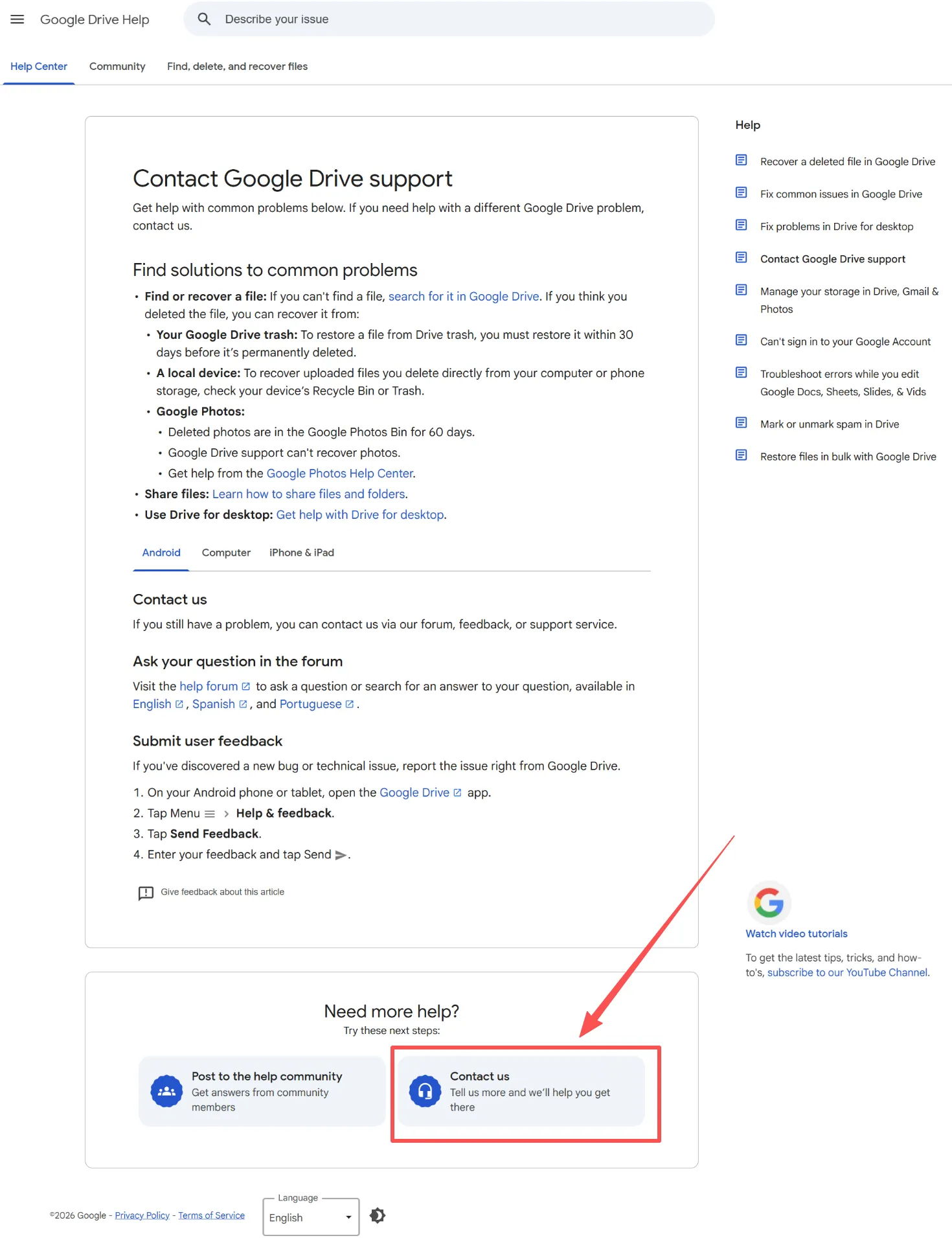
- Visit the official Google Drive Help Center page while logged into your account.
- Type “File recovery request” into the text prompt box.
- Scroll down to the bottom of the page and click on the Contact us button.
- Fill out the official form honestly, stating the exact name of the file and the approximate date it went missing.
Essential Caveats to Consider
Alternatively, you must remember that this method is not an automated or instantaneous fix. The recovery process depends entirely on server logs, and success is never guaranteed. Support specialists can generally only attempt to restore data from Google Drive if the assets were lost very recently, usually within a few weeks of the initial deletion. If you need an immediate fix or if your files disappeared months ago, relying on local hard drive scanning tools remains a far more predictable option.
Proactive Tips: How to Safeguard Your Cloud Storage Data
Preventing an emergency is always a better strategy than managing a recovery crisis. Implementing a few industry best practices can significantly reduce your chances of permanent file loss.
- Understand Stream vs. Mirror Settings: In your desktop app preferences, choosing “Mirror files” stores a complete duplicate copy on your computer, making local recovery much easier if the cloud version gets corrupted.
- Establish a Secondary Backup Protocol: Do not let a single cloud provider hold your only copy of business data. Instead, use a local external hard drive to maintain a physical backup schedule.
- Leverage Version History: If a file is not missing but simply corrupted or overwritten, right-click the item online and select Version history to revert to an older, clean save point.
Conclusion
Learning how to restore data from Google Drive does not have to be a confusing ordeal. For recent mishaps, checking the cloud Trash or contacting a Workspace administrator provides an immediate, free solution. However, when those cloud systems hit an absolute dead end due to strict time rules, local recovery becomes your best alternative line of defense.
Recovery Method | Time Window | Target User | Success Rate |
Google Drive Trash | Within 30 Days | Individual Users | High (Standard) |
Workspace Admin Console | Within 25 Days | Enterprise/Schools | High (Admin Only) |
Magic Data Recovery | No Time Limit | Windows Desktop Users | Excellent for Synced Files |
Google Support Request | Dynamic (Recent) | Original File Owners | Conditional |
We highly recommend Magic Data Recovery for these difficult deleted file recovery situations because it targets the physical reality of how computers process synced cloud data. By downloading this Windows utility, you can take advantage of its 500MB free data limit to scan your local drive partitions, locate previously synchronized file structures, and safely rescue your valuable information when online backups completely fail you.
Supports Windows 7/8/10/11 and Windows Server
FAQs About Restoring Data from Google Drive
Can I restore data from Google Drive after the 30-day limit has passed?
Yes. Although Google automatically deletes files from the online Trash after 30 days, you can still rescue them if you used Google Drive for Desktop. Specialized utilities can scan your local hard drive partitions to uncover the physical file structures previously synchronized to your computer.
Is it possible for a Google Workspace administrator to recover my permanently emptied trash?
Yes. Google Workspace administrators possess elevated security tools. They can restore data from Google Drive within a 25-day window after a user empties their personal Trash folder. However, if that 25-day enterprise retention period expires, administrative cloud options will fail completely.
Does the local synced file recovery method work if I only use Google Drive via a web browser?
Unfortunately, no. The local recovery method requires a physical footprint on your computer hardware. Because web browsers do not save actual copies of files directly to your hard drive, you must use the official Google Drive for Desktop client to generate recoverable local file structures.
Can I restore a file if I am not the original owner of the shared document?
No. Google’s server-side recovery tools strictly require you to be the primary creator and owner of the missing asset. If a shared file disappears, you must contact the original owner and ask them to restore data from Google Drive using their own account.
Why should I avoid saving recovered files back onto the same drive partition?
Saving files to the same partition risks permanent data corruption. When you write new data to a drive, the operating system can overwrite the exact sectors holding your hidden synced file segments. Therefore, always choose an alternative storage device or external drive for safety.

Vasilii is a data recovery specialist with around 10 years of hands-on experience in the field. Throughout his career, he has successfully solved thousands of complex cases involving deleted files, formatted drives, lost partitions, and RAW file systems. His expertise covers both manual recovery methods using professional tools like hex editors and advanced automated solutions with recovery software. Vasilii's mission is to make reliable data recovery knowledge accessible to both IT professionals and everyday users, helping them safeguard their valuable digital assets.