
How to Recover Unsaved Files from Illustrator
If Illustrator crashes before you save, how to recover unsaved files from Illustrator depends on what the application managed to write before it closed. A crash may leave Adobe recovery data, while a cloud document may contain an earlier version. However, a never-saved project is different from a saved .ai file that was later deleted.
Start with Illustrator’s built-in recovery features because they are designed specifically for unsaved work. If a saved Illustrator file or recovery copy was deleted and those options fail, Magic Data Recovery may help scan the original Windows storage device. For a broader explanation of what happens after files are deleted, see our deleted file recovery guide.
Important: If a saved .ai file was deleted, stop writing new data to that drive. New files can overwrite deleted data, while SSD TRIM may reduce the chance of disk-level recovery.Supports Windows 7/8/10/11 and Windows Server
Table of Contents
How to Recover Unsaved Files from Illustrator: Pick the Right Case
Before trying how to recover unsaved files from Illustrator, identify what actually happened. Unsaved work, deleted files, cloud documents, and corrupted projects require different solutions.
Situation | Best first method |
Illustrator crashed or froze | Restart Illustrator and check auto-recovery |
No recovered document appears | Check Illustrator’s DataRecovery folder |
Cloud document lost recent edits | Use Version History |
Previously saved | Recycle Bin, backup, then file recovery |
New project was closed without saving | Check recovery data, although no copy may exist |
Existing | Treat it as possible file corruption, not deletion |
Autosave is not the same as a permanent backup. Recovery data mainly protects against application crashes, while backups give you separate copies that can survive deletion or storage problems.
Method 1: Restart Illustrator and Use Auto-Recovery
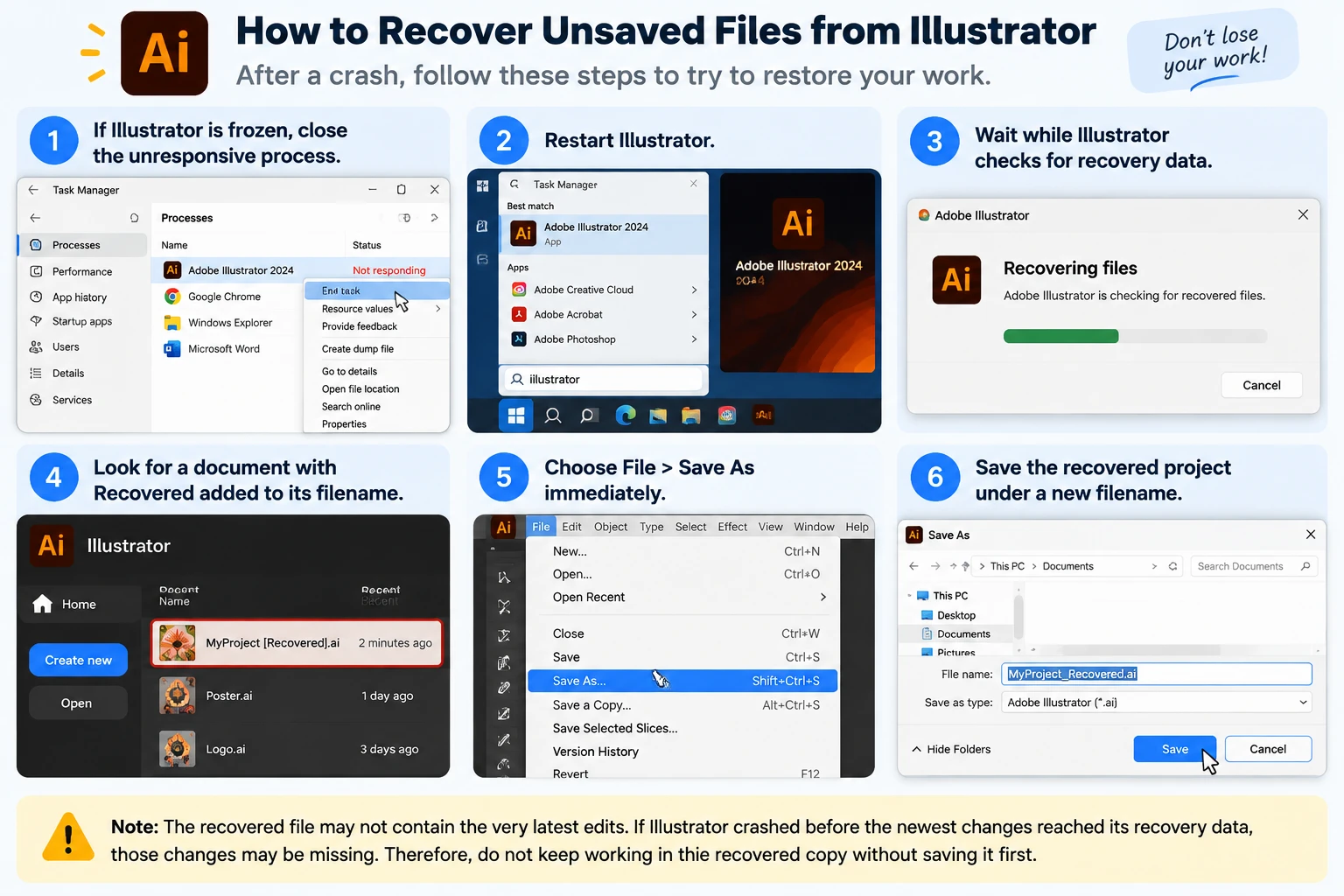
The fastest answer to how to recover unsaved files from Illustrator after a crash is usually to reopen Illustrator.
- If Illustrator is frozen, close the unresponsive process.
- Restart Illustrator.
- Wait while Illustrator checks for recovery data.
- Look for a document with Recovered added to its filename.
- Choose File > Save As immediately.
- Save the recovered project under a new filename.
Adobe explains that Illustrator can automatically recover documents after an unexpected application crash when suitable recovery data exists.
However, the restored file may not contain the very latest edits. If Illustrator crashed before the newest changes reached its recovery data, those changes may be missing.
Therefore, do not keep working in the recovered copy without saving it first.
Method 2: Check the Illustrator DataRecovery Folder on Windows
If Illustrator does not reopen your project, the next step in how to recover unsaved files from Illustrator is to inspect its recovery location manually.
Find Illustrator Recovery Files on Windows
- Press Win + R.
- Enter:
%AppData%
- Open the Adobe folder.
- Navigate to a path similar to:
Adobe\Adobe Illustrator <version> Settings\<locale>\x64\DataRecovery
- Sort the folder by Date modified.
- Look for recent Illustrator recovery files.
- Try opening a likely
.aior.aidfile in Illustrator. - If it opens correctly, use Save As and create a separate copy.
This method is useful when Illustrator created recovery information but did not automatically reopen it.
Illustrator 29.2–29.8 Need Special Attention
Adobe states that Illustrator versions 29.2 through 29.8 use .aishm recovery files. Those files are not intended to be manually opened through the traditional DataRecovery workflow.
Therefore, if you use one of these versions, restarting Illustrator and letting its automatic recovery process run should be your first choice.
Illustrator 30.0 also changed parts of the recovery workflow. Adobe now uses Save in Background for quick saving and auto-backup behavior, so some instructions written for older Illustrator releases may no longer match your version.
Method 3: Check Illustrator Recovery Data on macOS
Mac users can also try how to recover unsaved files from Illustrator through Adobe’s recovery folder.
- Open Finder.
- Choose Go > Go to Folder.
- Enter:
~/Library/
- Navigate to:
Preferences/Adobe Illustrator <version> Settings/<locale>/DataRecovery
- Sort files by modification date.
- Check recent
.aior.aidfiles. - Open a likely file in Illustrator.
- Save a new copy immediately if the project opens.
Again, Illustrator 29.2–29.8 uses a different .aishm recovery system, so automatic recovery is more appropriate for those releases.
Also, avoid searching every temporary folder and renaming random .tmp files to .ai. Windows and macOS temporary directories contain files created by many programs. A generic temporary file is not automatically an Illustrator document.
Method 4: Recover an Illustrator Cloud Document with Version History
If you were working with an Illustrator cloud document, how to recover unsaved files from Illustrator may involve Adobe Version History instead of local recovery files.
Cloud documents automatically save changes as part of Adobe’s cloud workflow.
Try this:
- Open the Illustrator cloud document.
- Choose File > Version History.
- Review available versions.
- Select a version created before the unwanted change or loss.
- Revert to that version when appropriate.
- Alternatively, copy the required artwork into a new document.
Version History is particularly useful when the file still exists but recent edits were accidentally changed or removed.
However, cloud version history and local auto-recovery are different systems. A local .ai document does not automatically gain cloud version history simply because Creative Cloud is installed.
Method 5: Recover a Previously Saved Illustrator File
Users searching how to recover unsaved files from Illustrator sometimes actually lost a project that had already been saved.
That is a deleted-file problem rather than an unsaved-file problem.
Check the Recycle Bin First
If you deleted the .ai file normally on Windows:
- Open Recycle Bin.
- Search for the project name or
.aiextension. - Right-click the file.
- Choose Restore.
- Check its original folder.
This is safer than scanning the disk because Windows is simply restoring the retained file. Our guide to recovering files deleted from Recycle Bin explains the different options if the file is no longer there.
Try File History or Previous Versions
If File History was enabled before the Illustrator file disappeared, Windows may contain an older copy.
- Open the folder that originally stored the
.aiproject. - Right-click the folder.
- Choose Properties.
- Open Previous Versions.
- Check versions dated before the file disappeared.
- Open or restore the required version.
You can also review our Windows 11 recently deleted file recovery guide if the Illustrator project was recently removed from a Windows computer.
Check Cloud and Manual Backups
Also search:
- OneDrive
- Dropbox
- Google Drive
- external backup drives
- emailed project attachments
- exported versions
- shared team folders
- older filenames such as
design-v2.aiorfinal-old.ai
A valid backup is preferable to disk scanning because it gives you a complete existing copy instead of trying to reconstruct deleted data.
When Magic Data Recovery Can Recover Files from Illustrator
Magic Data Recovery becomes relevant when you need to recover files from Illustrator that were once saved to storage and then deleted, permanently removed, or lost from an accessible Windows drive.
For example, it may be appropriate when:
- the
.aiproject was deleted; - the Recycle Bin was emptied;
- Shift + Delete bypassed the Recycle Bin;
- a recovery copy itself was deleted;
- no usable File History or cloud backup exists;
- the original storage device is still detected by Windows.
Magic Data Recovery lists Adobe Illustrator AI among its supported graphics file types.
However, it solves a different problem from Illustrator autosave. Adobe recovery features try to restore data Illustrator previously created during editing. Disk recovery software searches storage for data that existed on the device but later became inaccessible or deleted.
Therefore, Magic Data Recovery cannot reconstruct artwork that existed only in RAM and was never written to storage.
If the Illustrator project was permanently deleted, you can also read our guide on how to restore permanently deleted files to understand why overwriting and SSD behavior matter.
If the built-in recovery options no longer work, you can try Magic Data Recovery before new data overwrites the deleted files.
How to Use Magic Data Recovery for Deleted Illustrator Files
Step 1: Download and Install Magic Data Recovery
Download Magic Data Recovery and install it on a different drive or partition from the one where the Illustrator file was lost. Installing recovery software on the affected partition can write new data over deleted sectors.
Supports Windows 7/8/10/11 and Windows Server
Step 2: Select the Drive Where the Illustrator File Was Stored
Open Magic Data Recovery and locate the drive or partition that originally contained the .ai project. Select that drive and begin scanning.

Step 3: Scan for Lost or Deleted Illustrator Files
Allow the software to scan the selected storage location. As results appear, look for Illustrator projects by filename, extension, original folder, and other available filters. Letting the scan complete can reveal files that a quick initial search may not show.

Step 4: Recover Illustrator Files to a Safe Location
Select the required files and recover them to another drive or safe storage location. Do not save the recovered .ai project back to the original data-loss location during recovery. Writing there may overwrite other deleted data that has not yet been restored.

Why Unsaved Illustrator Recovery Sometimes Fails
Even when you follow every method for how to recover unsaved files from Illustrator, some projects cannot be recovered.
No Recovery Data Was Created
If Illustrator closed before writing recovery information, there may be no local recovery copy.
This is especially important for a brand-new document that was never manually saved.
You Closed the Document Normally Without Saving
Crash recovery is designed primarily for unexpected interruption. If you intentionally close a new document and choose not to save it, Illustrator may remove recovery data because the application interprets that action as deliberate.
The Deleted File Was Overwritten
After permanent deletion, the file system may mark the space as reusable.
Saving downloads, installing programs, copying large files, or continuing normal computer use can overwrite those sectors.
Once data has been overwritten, file recovery software cannot restore the previous information from those sectors.
SSD TRIM Removed Deleted Data
SSD recovery can be more difficult than HDD recovery.
When Windows sends a TRIM command, an SSD can treat deleted blocks as no longer needed and later clear them internally. As a result, permanently deleted Illustrator files may disappear from storage before recovery software can access them.
The Storage Device Is Physically Damaged
Recovery software is designed for logical data loss. It cannot repair a physically failed SSD, damaged HDD heads, burned electronics, or other hardware faults.
If a drive disconnects repeatedly, makes unusual mechanical noises, or is not detected correctly, stop scanning it and consider a professional recovery service.
How to Prevent Unsaved Illustrator Projects in the Future
Learning how to recover unsaved files from Illustrator is useful, but preventing the loss is much safer.
Check Illustrator Recovery Settings
Depending on your version, open Illustrator’s File Handling preferences and review its save and recovery settings.
In Illustrator 30.0, Adobe uses Save in Background as part of its quick-save and auto-backup workflow.
Save at Milestones
Use Ctrl + S regularly, especially after completing major design stages.
For important projects, create versions such as:
poster-v01.aiposter-v02.aiposter-client-review.aiposter-final.ai
Versioned files protect you from accidental edits as well as crashes.
Maintain an Independent Backup
Keep project copies on another storage location or use a cloud service with version history.
Remember:
Autosave ≠ permanent backup.
Autosave mainly helps with interruptions. A separate backup can also protect against accidental deletion, drive failure, unwanted changes, and other data-loss events.
Conclusion
The safest approach to how to recover unsaved files from Illustrator is to identify the loss scenario before doing anything else. After a crash, restart Illustrator and check its official recovery data first. For cloud documents, review Version History. If a saved project disappeared, check the Recycle Bin, File History, Previous Versions, and existing backups before scanning the disk.
When a previously saved .ai file or recovery copy has been permanently deleted and those built-in methods no longer work, Magic Data Recovery provides another way to recover files from Illustrator by scanning the original Windows storage device. However, deleted file recovery still depends on whether usable data remains, and overwriting or SSD TRIM can make deleted files unrecoverable.
Supports Windows 7/8/10/11 and Windows Server
FAQs
Can Illustrator recover an unsaved file after a crash?
Yes, Illustrator may recover a project after an unexpected crash if it created suitable recovery data beforehand. For how to recover unsaved files from Illustrator, restart the application first and look for a document marked as recovered. Save that copy immediately because the recovery file may not contain edits made after Illustrator's latest recovery snapshot.
Where are Illustrator recovery files stored on Windows?
Illustrator recovery data is commonly stored inside the Adobe Illustrator settings folder under %AppData%, including a DataRecovery directory. You may find recent .ai or .aid files there. However, Illustrator versions 29.2–29.8 use .aishm recovery data, so those versions should generally rely on Illustrator's automatic recovery process instead.
How to recover unsaved files from Illustrator after closing without saving?
If you deliberately closed a new Illustrator document without saving, recovery is less likely than after a crash. Check Illustrator's DataRecovery location and any available cloud versions first. However, if Illustrator never saved the project or wrote usable recovery data to storage, neither disk recovery software nor renaming temporary files can recreate artwork that existed only in memory.
Can I recover files from Illustrator after emptying the Recycle Bin?
You may still recover files from Illustrator after emptying the Recycle Bin if a previously saved .ai file remains on the storage device and has not been overwritten. Check File History, Previous Versions, and cloud backups first. If no backup exists, disk recovery software may help, although SSD TRIM can significantly reduce the available recovery opportunities.
Can data recovery software restore an Illustrator project that was never saved?
Recovery software cannot recreate a project that was never written to storage. It scans a drive for existing, deleted, or otherwise recoverable data rather than reconstructing unsaved RAM contents. Therefore, for how to recover unsaved files from Illustrator, Adobe auto-recovery, its DataRecovery folder, or cloud autosave should always come before disk-level file recovery tools.
Does SSD TRIM affect Illustrator file recovery?
Yes. SSD TRIM mainly affects previously saved Illustrator files that were later permanently deleted. After deletion, the operating system can notify the SSD that specific blocks are no longer needed. The drive may then clear them internally. Therefore, stop unnecessary writes to the SSD and check Illustrator recovery data, backups, and cloud versions before relying on deleted-file recovery.
How can I prevent losing unsaved Illustrator work again?
Enable the appropriate Illustrator recovery options for your installed version, save manually after important design changes, and create versioned .ai files for major milestones. In addition, keep an independent backup on another drive or cloud service. Autosave can help after an application crash, but it should not be treated as a permanent backup for important Illustrator projects.

Vasilii is a data recovery specialist with around 10 years of hands-on experience in the field. Throughout his career, he has successfully solved thousands of complex cases involving deleted files, formatted drives, lost partitions, and RAW file systems. His expertise covers both manual recovery methods using professional tools like hex editors and advanced automated solutions with recovery software. Vasilii's mission is to make reliable data recovery knowledge accessible to both IT professionals and everyday users, helping them safeguard their valuable digital assets.