
Overwriting Recovery Test: NTFS USB Before and After
This overwriting recovery test compared two outcomes on a 64 GB NTFS USB flash drive. After a quick format, WinHex showed that the old data areas we inspected were largely intact, and manual recovery retrieved the original dataset. After formatting the drive again and copying 15 GB of different files to it, most recovered files from the original dataset either failed to open or opened with incomplete content. The difference matters if you have accidentally formatted a USB drive and are deciding whether to keep using it. A quick format changes the file system that Windows reads. Later writes can replace the original bytes that recovery tools need.
Table of Contents
Test Setup and Recovery Methods
We used a 64 GB SanDisk Ultra Curve USB 3.2 flash drive from the CZ550 series, with an NTFS partition containing 15 GB of files of various types. We used WinHex to inspect the data areas and attempt manual extraction. We also ran Magic Data Recovery to check what a Windows recovery application could retrieve from the same drive.
The first pass tested recovery immediately after a quick format, before copying any new files to the USB drive. In the second pass, we formatted the drive again, copied 15 GB of different files to it, and then attempted to recover the original dataset. The comparison shows how the usable recovery results changed after the new writes. It does not quantify exactly which original clusters were reused.
File Recovery Before and After Overwrite
Test stage | What happened before recovery | What we observed |
After quick format, before new files were copied | We quick-formatted the NTFS partition that had held the original 15 GB dataset. | The old data areas inspected in WinHex appeared largely intact. Manual recovery retrieved the full original dataset. Magic Data Recovery also recovered original files. |
After another format and a 15 GB copy | We formatted the USB drive again, copied 15 GB of different files onto it, and then tried to recover the original files with both tools. | Most recovered files from the original dataset failed to open or contained incomplete data. A small share still opened, estimated at roughly 3% in the test notes. |
The test notes do not specify how the roughly 3% figure was calculated. It describes the observed result on this drive. A file that opens may also contain damage farther into the file, so opening alone cannot establish that every original byte survived.
The two datasets were both 15 GB, but they did not necessarily occupy the same storage locations. The likely explanation for the few files that still opened is that enough of their original data remained readable. Without a before-and-after map of each file’s clusters, the test cannot identify every overlap or establish whether the files that opened were complete.
What the Quick Format Changed
A quick format initializes a fresh file system. On NTFS, Windows uses the new Master File Table, or MFT, and directory structures to find files. The old folders can disappear from File Explorer even while readable bytes from the previous file system remain on the volume. New file-system structures can also overlap some of the earlier structures.
Our separate WinHex analysis of NTFS metadata after a quick format illustrates how this happens. The boot sector identifies where the current MFT begins. If the new file system points to a different location, Windows follows that reference. A hex editor can still inspect the old location independently and check whether older records or data survive there.
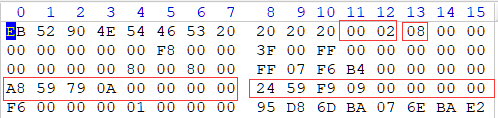
An NTFS boot-sector excerpt from a separate quick-format case. The boxed fields show bytes per sector, sectors per cluster, and the locations of the MFT and its mirror.
A surviving record can help locate the original contents. For larger NTFS files, that usually means following a list of cluster ranges. A small file may store its contents inside the MFT record itself. The recovery method depends on which records and data remain readable. That is why an empty volume in File Explorer tells you little about what can still be extracted.
Why the 15 GB Copy Affected So Many Old Files
Once a fresh file system is in use, locations that used to hold the original files can be available for allocation. Copying files onto the volume writes both file contents and file-system metadata. Where those writes overlap the original data, reading those locations returns the newer bytes. A recovery tool can still list an old filename if enough metadata survives, even when the data behind that name has changed.
The nominal 64 GB capacity offered no protection to any particular old file. The relevant question is where Windows placed the new files and their metadata. A file can become unusable after a small overlap if that write replaces an essential part, such as an archive directory or a video index. Another file can survive a much larger copy if its required data happens to lie outside the affected ranges.
The same principle applies to ordinary file deletion on NTFS. In a separate NTFS deleted-file MFT test, a controlled example tracks an old JPG through file-record reuse and then through a write to one of its data clusters. That example illustrates what a cluster-level comparison can establish. The USB test shows the practical effect when a user copies an entire new batch of files onto a formatted drive.
What an Overwritten File Signature Test Can Show
A file signature is a recognizable byte pattern associated with a file format. A recovery tool can search raw storage for these patterns and use the apparent file structure to extract a candidate. This method is called file carving. It can help when the old directory entries or file records are missing, although reconstructing fragmented files may require location information that a signature cannot supply.
A candidate can have a recognizable header and still contain damaged or unrelated data later in the file. For example, a JPEG may retain its opening bytes while part of the image data farther into the file has been replaced. A tool may identify it as a JPEG and export it. An image viewer may then display only part of the image, report a decoding error, or fail to open it. If the opening signature was replaced, a header-based scan may miss the file even if some later portions survive.
File system metadata recovery provides a different kind of evidence. An old MFT record may identify the filename, size, and original cluster locations. A signature may identify a likely file type. To confirm an overwrite at a specific location, compare the same logical byte range in a known-good image and a later image. This test recorded recovery outcomes and did not log that kind of comparison for each file.
How to Assess a Recovered File
Export recovered files to a different physical drive and check them there. Start with the files that matter most. A proper check depends on the format and on whether you have a trusted reference copy.
File type | What to check after recovery |
Documents and spreadsheets | Open the file and inspect later pages, multiple sheets, and embedded images. |
Photos | Open the full-resolution image and inspect the whole frame for missing sections or decoding errors. |
Videos | Seek to several points, including near the end, and check both picture and sound. Export or playback errors can reveal damage beyond the first frame. |
Archives | Run the archive application’s integrity test and check whether individual entries can be extracted. |
Files with a trusted original or checksum | Compare SHA-256 hashes. A match verifies that the recovered file has the same bytes as the trusted reference. |
If a file opens but some content is missing, keep the recovered copy if the surviving material is useful. When only a preview or thumbnail works, test the exported file itself before counting it as recovered. For files that matter, record separately which ones are byte-verified, which are usable, and which are partial or unreadable.
What to Do After Formatting or Copying New Files
Stop writing to the affected USB drive as soon as you notice the loss. Cancel active copies and leave the volume alone while you check for an older copy in backups, cloud version history, or the device that originally supplied the files. If the USB drive reads reliably, scan it from another drive or work from a read-only image. Save any recovered files to another physical device. The formatted partition recovery guide covers the scan, preview, and export process.
If you have already copied new files onto the drive, it can still be worth checking for surviving originals. Start with the most important files and verify the exported copies. Where new writes have replaced required bytes, an earlier copy is the reliable route to the complete original. For more on how this differs from saving a document over an older version, see how data overwriting affects recovery.
FAQs
Does copying 15 GB of new files overwrite exactly 15 GB of old files?
Can a file remain the same size after some of its contents are overwritten?
Can a file’s modified date show when its storage was overwritten?
Can file repair software help if a recovered file is partially overwritten?
Do these USB results apply to SSDs?
Does saving a new document under the same name always overwrite the same storage?

Jason is a data recovery and technical support specialist with over 15 years of hands-on experience. He has worked extensively with frontline users, troubleshooting difficult data loss cases and providing practical recovery solutions for accidental deletion, formatted drives, damaged file systems, lost partitions, system failures, and other recovery emergencies. His expertise also includes backup and restoration, file repair, and disaster recovery, with a strong emphasis on safe, reliable, and technically accurate guidance.