
Recover Formatted Partition Safely
Formatting the wrong partition can make photos, videos, documents, and work files disappear within seconds. Fortunately, you may still recover formatted partition data if you stop using the affected volume and follow a safe process. This guide explains what formatting changes, which mistakes to avoid, and how Magic Data Recovery can recover files from formatted partitions.
Supports Windows 7/8/10/11 and Windows Server
Table of Contents
What to Do Before You Recover Formatted Partition Data
First, stop using the formatted partition. Every new file may overwrite data that remains on the drive. Therefore, your next actions matter as much as the software you choose.
- Do not save new files to the affected partition.
- Do not format the partition again.
- Do not run CHKDSK, DiskPart, or repair commands first.
- Do not install recovery software on the affected volume.
- Prepare another partition or device for recovered files.
- Stop immediately if the drive clicks or disconnects.
For example, software may still locate many files after a quick format. However, copying new folders to the same partition can overwrite old content and reduce your chance to recover formatted partition files.
Can You Recover a Formatted Partition?
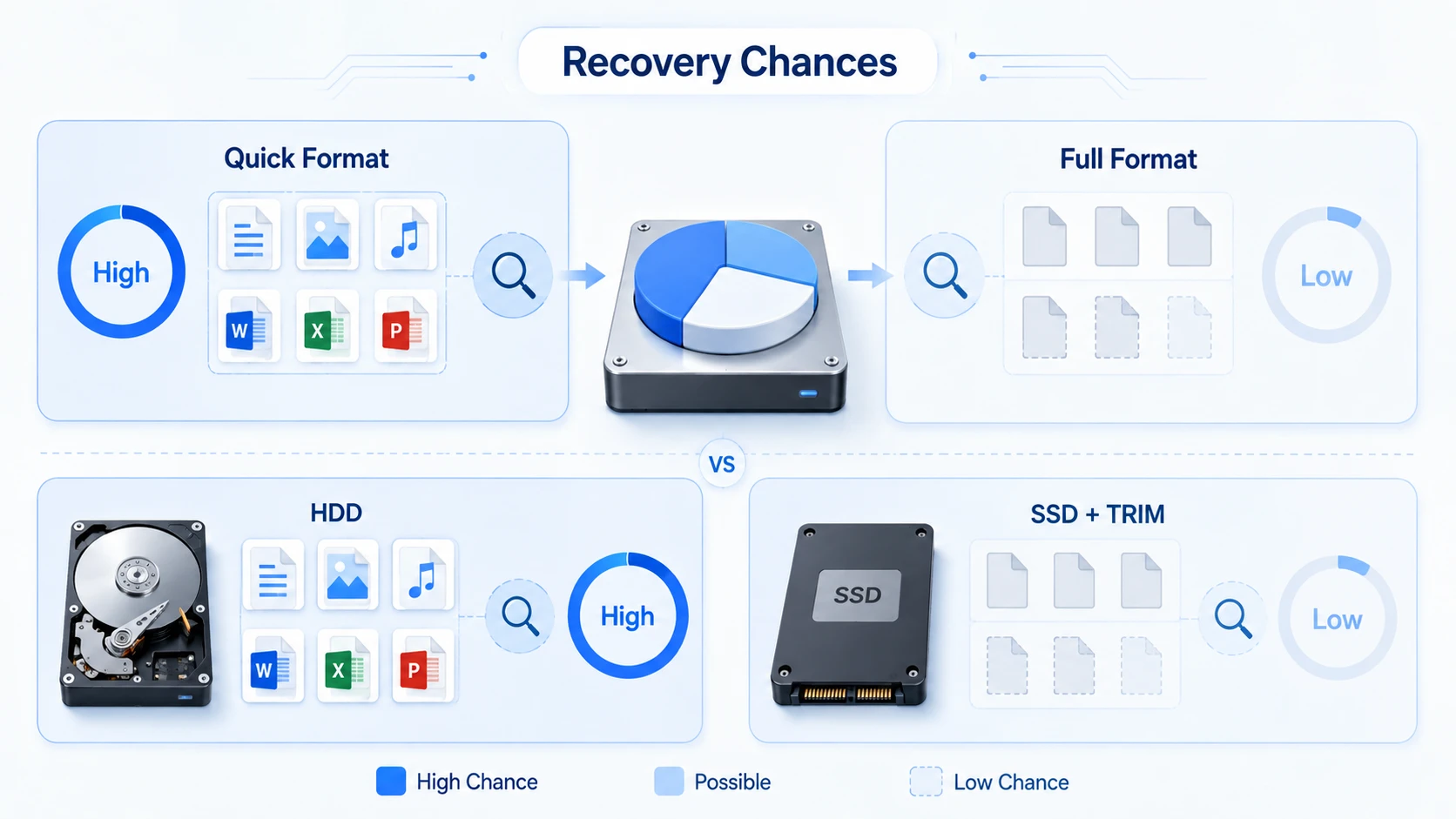
In many cases, yes. You can often recover a formatted partition after a quick format because the system may remove file-system references without erasing every file immediately. However, the result depends on the format method, device type, file system, and later disk activity.
Quick Format vs Full Format
A quick format creates a new file-system structure and marks the previous space as available. Although the files disappear from File Explorer, their data may remain until new information overwrites it. As a result, a deep scan can locate old records or identify files by signature.
By contrast, a full format may write across the partition and remove more recoverable information. Secure erase tools intentionally clear stored data. Therefore, start the recover formatted partition process as soon as possible.
HDD vs SSD and TRIM
Traditional hard drives usually keep old data until another file overwrites the same sectors. Consequently, a recently formatted HDD may provide better recovery conditions.
SSDs work differently. TRIM tells the controller that certain blocks no longer contain needed data. Afterward, the SSD may clear those blocks in the background. Therefore, SSD recovery can become difficult even when you act quickly.
No dependable tool can guarantee every file. Instead, choose a solution that lets you scan and preview results first.
Formatted, RAW, or Lost Partition?
Before you try to recover formatted partition data, check the volume in Windows Disk Management.
What You See | Likely Problem | Best Next Step |
Partition exists but looks empty | Formatted partition | Scan that partition |
Partition appears as RAW | Unreadable file system | Recover files before formatting |
Space appears as Unallocated | Lost or deleted partition | Scan the physical disk |
Drive clicks or disconnects | Possible hardware damage | Stop and contact a specialist |
A formatted partition still exists, while a lost partition may not have a visible volume. Meanwhile, RAW usually means Windows cannot read the file system.
How to Recover Formatted Partition Data with Magic Data Recovery
If you need a practical way to recover formatted partition files, use a read-only scanning workflow. The software should examine the source, locate recoverable content, and copy selected files to a safe location.
Magic Data Recovery can scan formatted, deleted, RAW, or missing partitions. It filters results, previews supported files, and recovers selected data without command-line skills. In addition, it supports common Windows file systems and Linux EXT2, EXT3, and EXT4 partitions through Windows.
Why Choose Magic Data Recovery?
After formatting, you must confirm whether important files remain readable and save them without overwriting other data.
Key advantages include:
- A clear graphical interface.
- Support for NTFS, FAT, exFAT, ReFS, EXT2, EXT3, and EXT4.
- Advanced scanning for formatted and lost files.
- Filters by type, name, path, and size.
- Preview support for common files.
- Support for hard drives, SSDs, USB drives, and memory cards.
For example, an office user can filter for DOCX, XLSX, PDF, and ZIP files. Likewise, a photographer can preview images before recovery.
How to Recover files with Magic Data Recovery
Step 1: Download and Install Magic Data Recovery
Download Magic Data Recovery and install it on a partition or computer different from the formatted partition. This lowers the risk of overwriting recoverable files. If the Windows system partition was formatted, connect the disk to a working computer as a secondary drive. Then, install the program on the working system.
Supports Windows 7/8/10/11 and Windows Server
Step 2: Select the Formatted Partition
Launch Magic Data Recovery and review the partitions on the main interface. Next, identify the formatted partition by its drive letter, capacity, and disk information. Then, select it to start the scan. If the partition appears as RAW or Unallocated, select the corresponding physical disk instead.

Step 3: Scan the Formatted Partition for Lost Files
After you choose the target, Magic Data Recovery starts an Advanced Scan. Meanwhile, the program searches for file records and recognized signatures. You can review files during the scan. However, let the process finish because later stages may locate more content. In addition, use filters to focus on documents, pictures, videos, archives, or other categories.

Step 4: Preview Files Before Recovery
Next, preview important files before recovery. A readable preview usually shows that the content remains available, although it cannot guarantee that every large or fragmented file will open perfectly. Use file-type, path, and name filters to narrow the results. Therefore, you can recover only the content you need.

Step 5: Recover Files to a Safe Location
Finally, select the target files and save them to a different partition, drive, or storage device. Never restore them to the formatted partition because new writes may overwrite unrecovered content. Afterward, open several documents, photos, archives, and videos to verify their integrity.

How to Recover Data from Formatted Partition of Hard Drive
Users who search how to recover data from formatted partition of hard drive need a direct workflow. First, stop all writing activity. Next, scan the visible partition. However, scan the physical disk if Disk Management shows RAW or Unallocated space.
Then, let the scan finish, filter by file type, preview important files, and save them elsewhere. This sequence helps you recover formatted partition data without changing the source first.
How to Recover a Formatted Linux Partition
People often search recover formatted partition linux or linux recover formatted partition after formatting an EXT volume. Magic Data Recovery runs on Windows, but it can scan supported Linux file systems after you connect the disk to a Windows computer.
Recover EXT2, EXT3, or EXT4 with Magic Data Recovery
- Shut down the Linux computer or disconnect the affected disk.
- Connect the disk to a Windows computer.
- Cancel any Windows prompt that asks you to format it.
- Select the EXT partition or physical disk in Magic Data Recovery.
- Complete the scan and preview important files.
- Save recovered data to another location.
Windows may call the partition unreadable because File Explorer does not support EXT by default. Nevertheless, that message does not prove the files are gone.
TestDisk and PhotoRec Alternatives
TestDisk can locate some lost partitions, while PhotoRec searches for file signatures. However, PhotoRec may lose original names or folder paths.
Before writing a new partition table, create a disk image. Alternatively, Magic Data Recovery offers a simpler graphical way to recover a formatted partition from a supported Linux disk.
Common Mistakes When You Recover Formatted Partition Files
Avoid reformatting the volume, copying new files to it, installing software on it, saving recovered data to the same location, or running repair commands first.
Also, stop scanning if the disk clicks or disconnects. For physical failure or highly valuable files, choose a professional recovery service.
Tips After You Recover Formatted Partition Files
After you recover formatted partition files, use the 3-2-1 backup rule: keep three copies, use two media types, and keep one copy off-site.
In addition, confirm the disk model and capacity before formatting. Also, create image backups before changing partitions.
Conclusion: Recover Formatted Partition Data Safely
To recover formatted partition data, act quickly, avoid new writes, and scan the correct target. A quick format on a stable HDD usually offers better conditions than a full format or a TRIM-enabled SSD.
Magic Data Recovery earns a recommendation because it combines advanced scanning, practical filters, file preview, Windows file-system support, and access to EXT2, EXT3, and EXT4 partitions through Windows. More importantly, it lets ordinary users inspect results before saving files safely.
If you need an efficient formatted drive recovery solution, try Magic Data Recovery before changing the formatted partition.
Supports Windows 7/8/10/11 and Windows Server
FAQ
Can I recover a formatted partition after a quick format?
Yes, you may recover a formatted partition after a quick format if new data has not overwritten the original files. Stop using the volume, scan it from another partition or computer, preview the results, and save recovered files elsewhere. Recovery becomes harder after heavy writing, a full format, or SSD TRIM activity.
Can I recover a fully formatted partition?
A full format creates a harder recovery case because the process may write across the partition. However, results vary by operating system, device, and formatting method. You can still scan the disk, but expect fewer recoverable files than after a quick format and avoid making further changes.
Can CHKDSK recover files from a formatted partition?
No. CHKDSK checks and repairs file-system structures; it does not work as formatted-data recovery software. Moreover, it may change the affected volume before you secure your files. Therefore, scan and recover important data first. Afterward, repair or recreate the partition only after you verify the recovered copies.
Can Magic Data Recovery recover an EXT4 partition?
Yes. Magic Data Recovery can scan EXT2, EXT3, and EXT4 partitions when you connect the disk to a Windows computer. The program does not run natively on Linux. Cancel any Windows request to format the EXT drive, select the correct scan target, and save recovered files elsewhere.
Should I scan the partition or the entire hard drive?
Scan the partition when it remains visible and shows the correct capacity. However, scan the physical disk when the volume appears as RAW, Unallocated, or missing. A full-disk scan can locate lost partition information, while a partition scan focuses directly on a visible formatted volume.
Where should I save recovered files?
Always save recovered files to a different partition or physical device. If you restore them to the formatted source, new data may overwrite other recoverable files. Afterward, open several documents, photos, videos, and archives to confirm their integrity before you repair or reuse the original partition.
Can I recover formatted partition data from an SSD?
Possibly, but SSD recovery remains less predictable because TRIM may clear blocks after formatting. Stop using the SSD immediately and scan it from another system. If the program cannot preview important files, avoid repeated scans. For critical data, contact a professional recovery service before more background cleanup occurs.

Vasilii is a data recovery specialist with around 10 years of hands-on experience in the field. Throughout his career, he has successfully solved thousands of complex cases involving deleted files, formatted drives, lost partitions, and RAW file systems. His expertise covers both manual recovery methods using professional tools like hex editors and advanced automated solutions with recovery software. Vasilii's mission is to make reliable data recovery knowledge accessible to both IT professionals and everyday users, helping them safeguard their valuable digital assets.