
How to Recover Deleted Data: A Complete Guide
Have you ever accidentally hit “Shift + Delete” on a critical work document or cleared out an entire folder only to realize it contained priceless family photos? Losing access to your files is an incredibly stressful experience that can disrupt your entire day. Fortunately, if you are currently dealing with missing files, you can still salvage your deleted data before it disappears forever with the help of Magic Data Recovery. This comprehensive guide will show you exactly how to navigate this digital crisis safely by implementing a reliable strategy to recover deleted files. Let us dive into the proper technical steps to secure your files.
Supports Windows 7/8/10/11 and Windows Server
Table of Contents
The Science: What Actually Happens to Deleted Data?
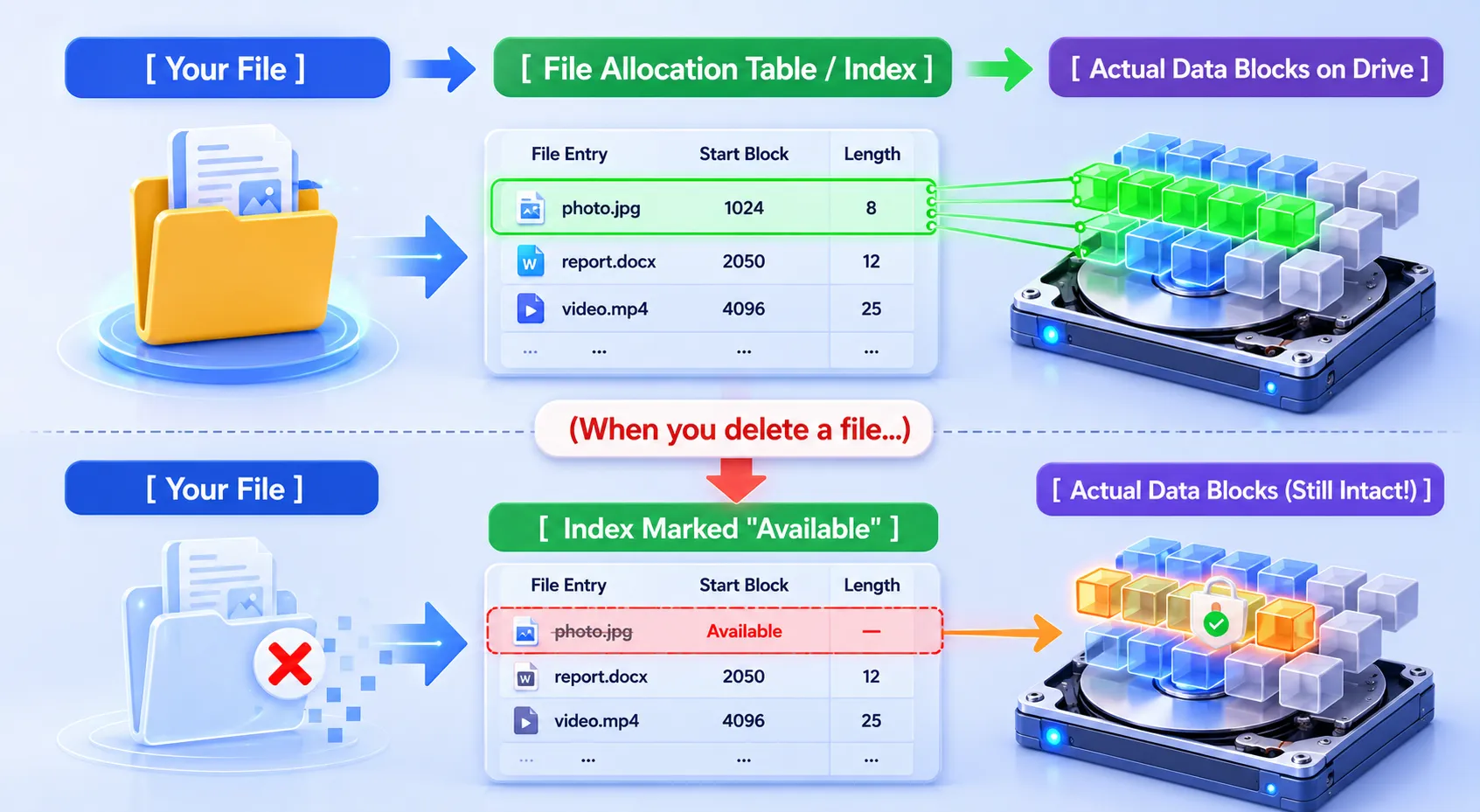
When you empty the Recycle Bin or remove a file permanently, your operating system does not immediately wipe the actual bits from the storage drive. Instead, the system modifies the file allocation table. It deletes the pointer or index that tells the computer where the file begins and ends. Consequently, the operating system marks that specific storage space as “available” or “free” for future writing.
Because the actual content remains intact on the drive, specialized data recovery software can scan the storage blocks, reconstruct the missing indexes, and pull your files back from limbo.
The Golden Rule of Data Survival: Avoid Overwriting
Therefore, you must remember the most critical rule of data rescue: stop using the affected device immediately. Because the system views the space as empty, any new activity can ruin your chances.
- Do not download new programs onto the same drive.
- Avoid saving new documents or streaming videos.
- Do not restart the computer unnecessarily, as background system processes write temporary files constantly.
If a new file occupies that marked space, it will overwrite the old deleted data. Once overwriting occurs, restoring the original content becomes practically impossible without expensive, lab-grade physical intervention.
The SSD Dilemma: Why Recovering Deleted Data from SSDs is Difficult
While traditional hard drives (HDDs) keep your information intact until new files physically replace it, solid-state drives (SSDs) behave entirely differently. Reclaiming deleted data from a modern SSD presents a much greater technical challenge due to an internal optimization command known as TRIM.
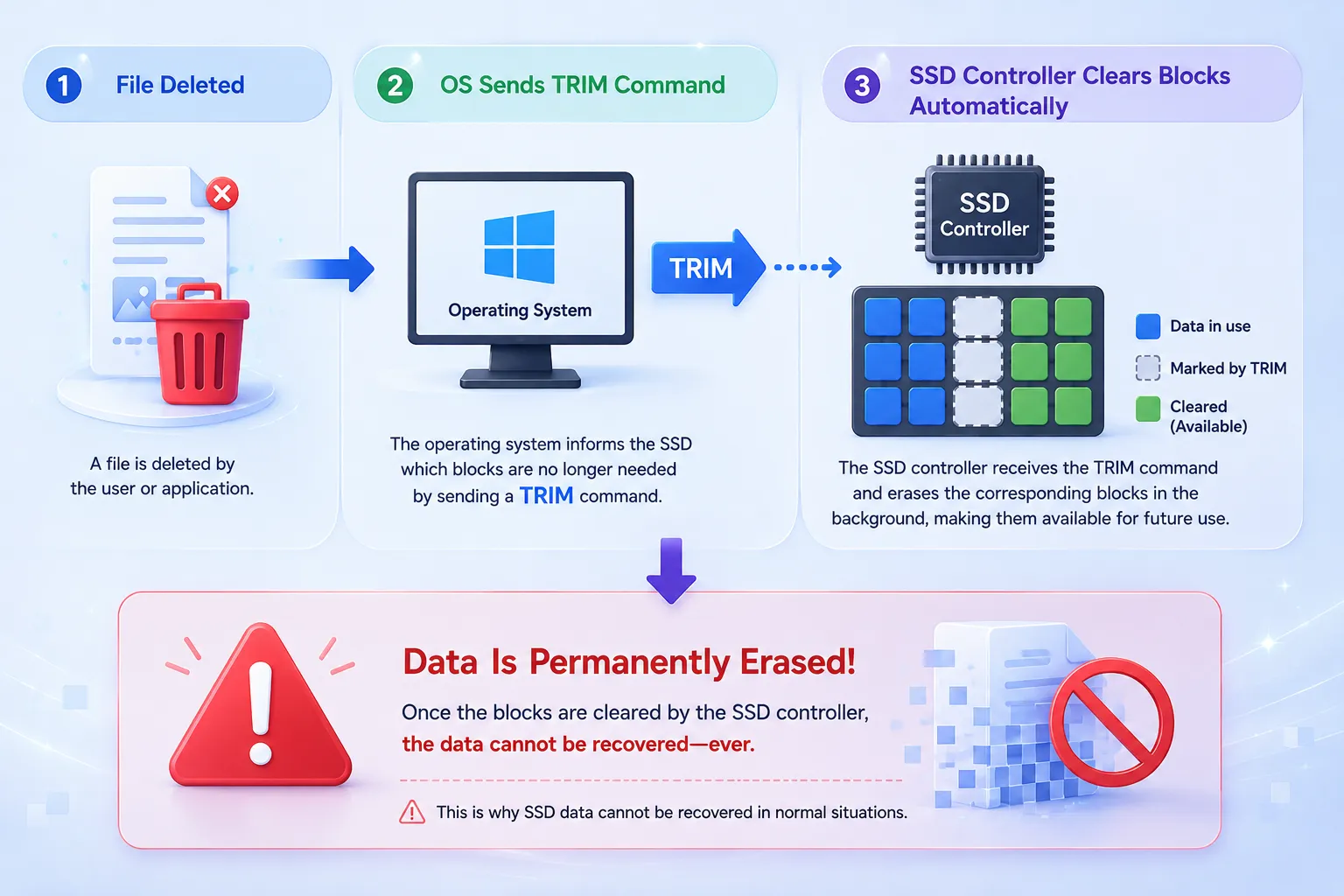
Unlike magnetic platters, flash memory components must erase existing block clusters before writing fresh bytes onto them. To maintain peak performance, your operating system automatically issues a TRIM command to the SSD controller whenever you remove a file.
Once activated, the TRIM command tells the drive controller to purge the designated flash sectors during background idle periods. Consequently, the actual bits disappear almost instantly behind the scenes.
While deleted file recovery remains highly successful on mechanical HDDs, USB thumb drives, and external storage expansion cards, you must act within seconds if you hope to salvage files from a TRIM-enabled internal SSD.
Step-by-Step Guide: How to Perform Deleted File Recovery
Fortunately, most users can easily handle file restoration at home without paying hundreds of dollars for a physical repair technician. We suggest working through these specific steps in order to rescue your information.
Phase 1: The Basic Checks
Before you attempt any advanced software solutions, you should rule out the simplest scenarios.
Search the Recycle Bin or Trash
It sounds obvious, but users frequently overlook this step. File systems hold files until the space fills up or you empty the bin manually. Open the Recycle Bin, locate your item, right-click it, and select “Restore”.
Check Cloud Backup Synchronizations
If you utilize services like Microsoft OneDrive, Google Drive, or Dropbox, your files might still exist online. Cloud platforms usually maintain an independent, secondary trash folder. Log into the web interface of your provider to check if your deleted data is sitting in their online cloud bin.
Phase 2: How to Restore Deleted Data with Magic Data Recovery
When your files are truly missing from the Recycle Bin and you lack a backup, you must utilize professional software to scan the storage drive. If you are looking for an efficient solution, you should try Magic Data Recovery.
This professional tool bridges the gap between complicated technical recovery methods and standard everyday users. It addresses the painful problem of permanent accidental deletion by thoroughly examining the deep layers of your storage media.
To salvage your missing files safely, launch the application and follow these five operational steps carefully:
Step 1: Download and Install Magic Data Recovery
First, download the tool from the official Amagicsoft website. To prevent accidental overwriting and protect your lost data, ensure you install the program setup package on a partition separate from the affected drive where your files vanished.
Supports Windows 7/8/10/11 and Windows Server
Step 2: Select the Targeted Drive to Scan
Next, open the main interface of the software utility. From the dashboard options displayed on your screen, click on the specific disk partition where your items were originally lost to initiate the scanning sequence.

Step 3: Scan the Storage Unit for Deleted Files
After that, the diagnostic utility automatically initiates an Advanced Scan across the sectors. As the processing indicator bar moves forward, the interface systematically lists all discovered items available for restoration in real time.

Step 4: Preview Deleted Files Before Recovery
Once the operation pauses, utilize the interactive file viewer window to verify the actual content of your files. This step ensures you spend time recovering only the specific, healthy documents you genuinely need.

Step 5: Recover Files to a Safe Location
Finally, mark the checkboxes next to your missing items and click the final confirmation option. Choose an independent storage unit or an alternative local disk drive to save your salvaged items, as saving them to the original partition risks severe file corruption.

Common Scenarios for Deleted Data Loss
Different situations require a clear understanding of what caused the file disappearance. This knowledge helps you pick the right settings during the recovery phase.
Accidental Deletion via System Shortcuts
Pressing “Shift + Delete” bypasses the local Recycle Bin entirely. The system instantly marks the space as free. Fortunately, specialized tools can easily catch these files because the underlying file structure remains intact until new data arrives.
Formatted Internal or External Drives
Users often format the wrong drive letter when preparing external USB drives or camera memory cards. A standard format clears the organizational directory but leaves the actual storage blocks untouched. Therefore, a comprehensive scan can usually rebuild the file structure.
Sudden Malicious Malware and Virus Attacks
Certain types of malicious software intentionally hide, alter, or erase user documents. If a virus corrupts your filesystem directory, standard tools can bypass the damage and extract the raw information directly from the healthy sectors of the disk surface.
Best Practices to Prevent Future Deleted Data Incidents
While knowing how to perform a deleted file recovery is highly valuable, protecting your system before accidents happen remains the best long-term strategy.
Preventive Strategy | Implementation Effort | Recovery Speed | Best For |
The 3-2-1 Backup Strategy | Moderate | Fast | All critical business and personal files |
Enable Shadow Copies | Low | Instant | Daily document revisions on Windows |
Write-Protection Switches | Low | Preventive | Camera SD Cards and archive USB units |
First, implement the classic 3-2-1 backup strategy. Keep three separate copies of your information, store them on two distinct media types, and keep at least one copy in a different physical location or cloud platform.
Second, activate automated backup utilities like Windows File History or macOS Time Machine. These native services create continuous, hourly snapshots of your library folders, allowing you to roll back changes instantly without running external tools.
Finally, always handle external storage media carefully. Use the “Safely Remove Hardware” option before unplugging a USB stick to avoid directory corruption, and flip the mechanical write-protect switch on camera SD cards before connecting them to unfamiliar computers.
Conclusion: Mastering Your Deleted File Recovery Strategy
Losing important files is undeniably stressful, but modern computing systems give you an excellent chance of retrieving deleted files. Remember that a file is never truly gone until it is overwritten by new system activity. By stopping all drive usage immediately and turning to highly capable data recovery software, you can safely navigate the deleted file recovery process.
If you are dealing with a critical data loss situation right now, we highly recommend trying Magic Data Recovery. Its powerful scanning capabilities, intuitive user interface, and safe read-only operations make it far more practical and secure than relying on unpredictable freeware or expensive repair laboratories. Protect your digital assets today by choosing a solution that prioritizes data safety.
Supports Windows 7/8/10/11 and Windows Server
FAQs
Can I recover deleted data from an emptied Recycle Bin?
Yes, you can absolutely restore files after emptying the Recycle Bin. The operating system only removes the filename index from its directory table while the actual content remains on the drive storage sectors.
Is deleted file recovery always guaranteed on computers?
No professional solution can promise an absolute outcome because success depends heavily on file overwriting. If you continue using the device after a deletion event, the operating system will write new information over the old sectors. This process permanently destroys the original deleted data beyond repair.
Does the TRIM command affect deleted file recovery on SSDs?
Yes, the TRIM command significantly impacts the outcome. When you delete a file from an SSD, the operating system commands the drive controller to wipe the unused blocks immediately to maintain speed. Therefore, you must launch your data recovery software right away before the automated cleanup occurs.
Can I run software to retrieve deleted data from a formatted SD card?
Yes, you can easily retrieve lost files from a formatted camera memory card or USB drive. Standard formatting merely clears the file directory structure while leaving the actual data blocks untouched. Thus, running Magic Data Recovery will allow you to scan the deep storage sectors and reconstruct your lost photos or videos.
How do I prevent background tasks from overwriting my deleted data?
To stop background system tasks from destroying your files, you must shut down any non-essential applications immediately. Avoid browsing the web, streaming media, or installing new utilities on the same partition. Instead, download and run your deleted file recovery software from an entirely separate storage drive or external USB.
Is it safe to restore my rescued files back to the same drive partition?
No, you should never save salvaged files back onto the same drive partition during the rescue process. Doing so can cause immediate data overwriting, which destroys the remaining unrecovered files. Always select an independent secondary drive or external storage device to save your restored deleted data safely.

Vasilii is a data recovery specialist with around 10 years of hands-on experience in the field. Throughout his career, he has successfully solved thousands of complex cases involving deleted files, formatted drives, lost partitions, and RAW file systems. His expertise covers both manual recovery methods using professional tools like hex editors and advanced automated solutions with recovery software. Vasilii's mission is to make reliable data recovery knowledge accessible to both IT professionals and everyday users, helping them safeguard their valuable digital assets.