
5 Best Free Data Recovery Software for Windows 10
Data loss on Windows 10 happens more often than most users expect. Accidental deletion, formatted drives, corrupted partitions, or failed system updates can all result in missing files. When this happens, many people immediately search for Windows 10 data recovery software free , hoping to restore their data without paying.
The good news is that several free tools do exist. The challenge is that free data recovery software is not truly unlimited. Each option comes with clear restrictions on recovery size, scan depth, or supported scenarios.
In this guide, we review and compare the most popular free data recovery software for Windows 10 users can try today. We also explain when free solutions are sufficient—and when a more reliable HDD recovery option like Magic Data Recovery becomes the smarter choice.
Supports Windows 7/8/10/11 and Windows Server
Wondering if your files can be recovered? Find out in seconds with our quick check below.
Data Recovery Assessment
Answer 3 quick questions to estimate your recovery chances
Table of Contents
Top Data Recovery Software Free Windows 10 Users Can Try
Below is a practical review of widely used free data recovery tools for Windows 10. Each tool is evaluated based on real data recovery scenarios.
Magic Data Recovery (Free Scan & Preview)
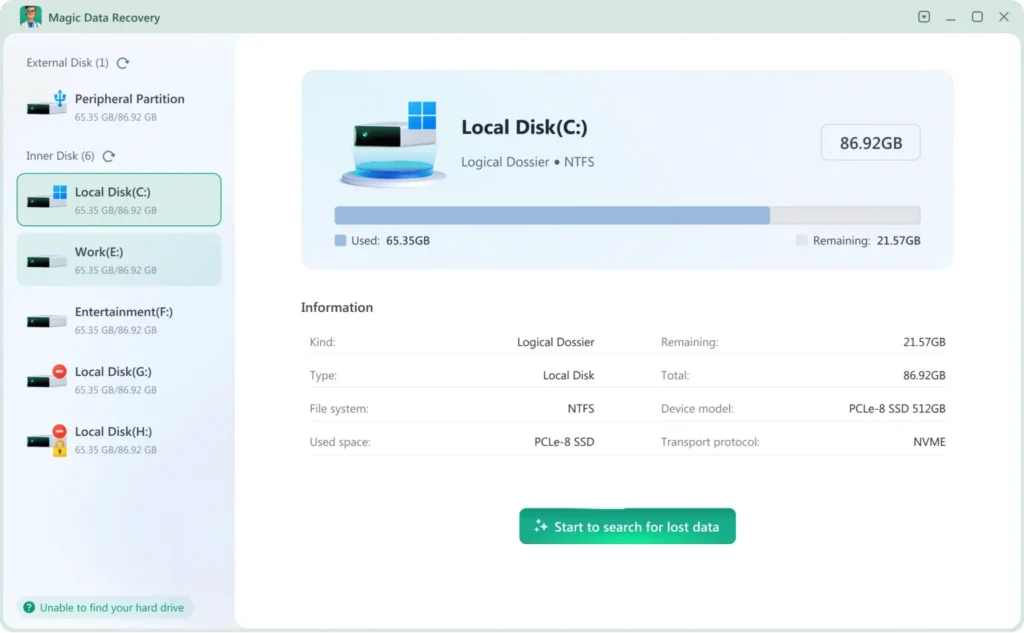
Magic Data Recovery is a professional-grade software designed to restore lost data from a wide variety of storage media. It employs advanced scanning algorithms to thoroughly analyze hard drives, SSDs, USB flash drives, and memory cards. Its user-friendly interface guides users through a clear process: select location, scan, and recover.
What you get for free
- Full disk scanning
- Advanced scan capability
- File preview before recovery
Unlike typical data recovery freeware Windows 10, Magic Data Recovery allows users to verify recovery results first, which helps avoid wasted upgrades.
Limitations
- 500 MB free files
Best for
Users who need a reliable solution for a few files or want to recover some files to check recovery quality first.
Recuva (Free Version)
Recuva is one of the most well-known Windows 10 data recovery freeware tools.
What it can do for free
- Recover recently deleted files
- Support common file types such as photos and documents
- Simple interface for beginners
Limitations
- Shallow scan depth
- Complex interface
- Low success rate for formatted or corrupted drives
Best for
Users who accidentally deleted small files and acted quickly.

EaseUS Data Recovery Wizard Free
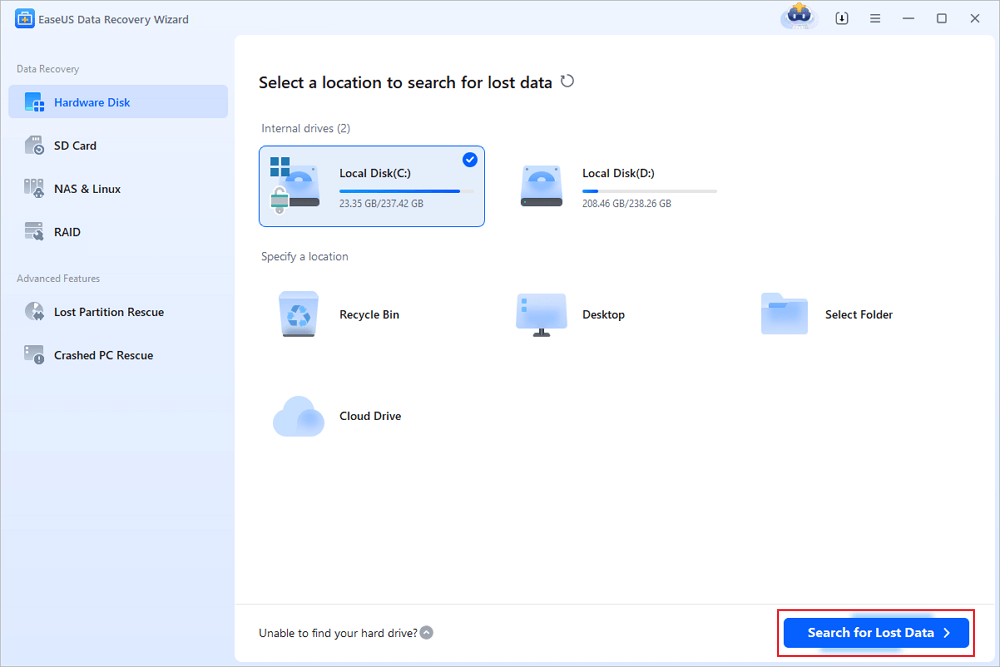
EaseUS offers a popular free edition of its recovery software for Windows 10.
Free version features
- Supports multiple storage devices
- Preview files before recovery
Limitations
- 500 MB – 2 GB free files
- Advanced recovery features locked behind paid upgrade
Best for
Users who need to recover a small number of important files.
Wondershare Recoverit Free
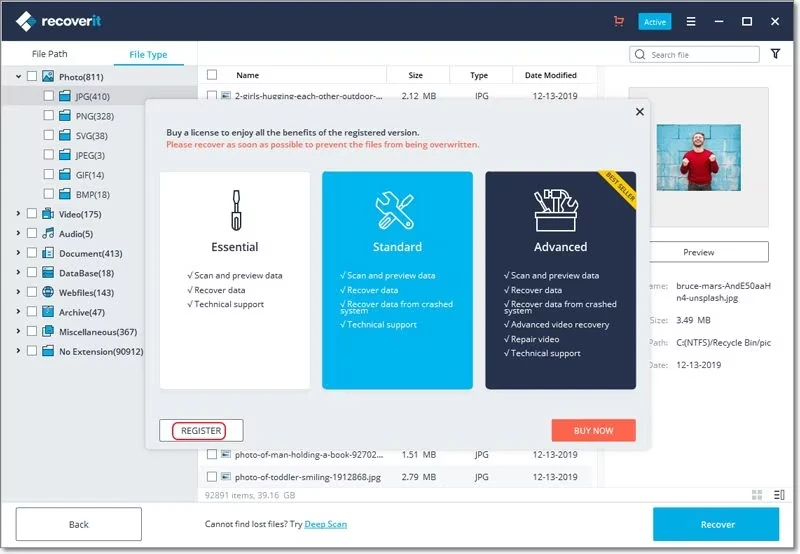
Wondershare Recoverit Free is another common option when searching for free data recovery software for Windows 10.
Free version features
- Free scanning and file preview
- Supports formatted drives and deleted files
- Clean, modern interface
Limitations
- 500 MB free recovery
Best for
Users who want to check if files are recoverable before upgrading.
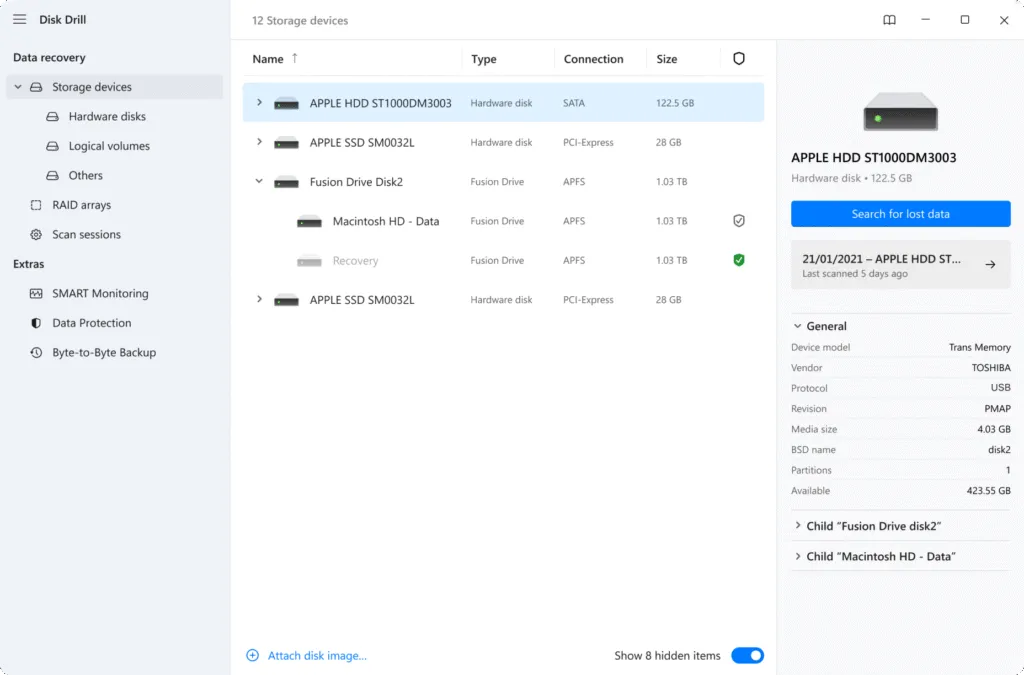
Disk Drill Free (Windows)
Disk Drill also provides a free recovery option for Windows users.
Free version features
- User-friendly design
- File preview available
- Supports various file systems
Limitations
- 500 MB free files
- Some features locked before purchase
Best for
Users testing recoverability rather than completing full recovery.
Limitations of Free Data Recovery Software on Windows 10
Free recovery tools work best only in basic situations. On Windows 10, several factors reduce their effectiveness:
- File size limits prevent recovery of large videos or archives
- SSD with TRIM enabled may permanently erase deleted data
- System partitions are often restricted in free editions
- Corrupted or RAW partitions require deep scanning
These limitations explain why many users fail to recover important files using Windows 10 data recovery freeware, even when the software appears to support their device.
When to Choose Magic Data Recovery
If you tried other free tools but cannot locate your files or restrict recovery size, Magic Data Recovery might be a better option when:
- Files were lost after formatting
- The system drive is affected
- Partitions appear as RAW or inaccessible
- Free software shows files but cannot restore them
Why Magic Data Recovery Is More Reliable
- Advanced scanning algorithms designed for Windows file systems like NTFS, FAT32, and exFAT
- Read-only recovery process to avoid overwriting data
- Accurate file preview to confirm results before recovery
Rather than replacing free tools, Magic Data Recovery complements them by handling cases where free recovery reaches its limits.
How to Recover Files on Windows 10 with Magic Data Recovery
Recovering data with Magic Data Recovery follows industry best practices:
Step 1: Download and Install Magic Data Recovery
Start by downloading Magic Data Recovery and installing it on a drive other than the one where lost data located. Installing the software on a separate disk helps reduce the risk of overwriting deleted files and protects recoverable data during the process.
Supports Windows 7/8/10/11 and Windows Server
Step 2: Select the Drive to Scan
From the main interface of Magic Data Recovery, locate and select the drive where lost files located. After selecting the correct drive, start searching for lost files.

Step 3: Scan the Drive for Deleted Files
Magic Data Recovery automatically performs a deep scan to search for deleted and lost files. As the scan runs, recoverable files appear gradually, allowing you to assess results without waiting for the entire scan to finish.

Step 4: Preview Files Before Recovery
Before restoring any data, use the built-in preview feature to check file contents. This step helps confirm file integrity and ensures that only the necessary files are selected for recovery.

Step 5: Recover Files to a Safe Location
Lastly, after selecting the files you want to restore, choose a different drive or storage device as the save location. Avoid recovering files to the same hard drive, as this could overwrite lost data and reduce recovery success.

This process minimizes risks and improves recovery success.
Conclusion
Data recovery software free for Windows 10 tools are helpful for simple file loss scenarios. However, their limitations become obvious when dealing with large files, system drives, or corrupted partitions.
By comparing free options first and then upgrading when necessary, users can make informed decisions. When free tools are no longer enough, Magic Data Recovery stands out as a more reliable and practical HDD recovery solution for recovering important data on Windows 10. If you are looking for a more effective solution, you may consider trying Magic Data Recovery.
Supports Windows 7/8/10/11 and Windows Server
FAQs About Data Recovery Software Free Windows 10
Is Windows 10 free data recovery software safe to use?
Can free recovery software restore files after formatting?
Does Windows 10 overwrite deleted files quickly?
How much data can free recovery software restore?
Is Magic Data Recovery free?

Vasilii is a data recovery specialist with around 10 years of hands-on experience in the field. Throughout his career, he has successfully solved thousands of complex cases involving deleted files, formatted drives, lost partitions, and RAW file systems. His expertise covers both manual recovery methods using professional tools like hex editors and advanced automated solutions with recovery software. Vasilii's mission is to make reliable data recovery knowledge accessible to both IT professionals and everyday users, helping them safeguard their valuable digital assets.