
Word Document Recovery Guide (2026): How to Recover Lost, Deleted & Unsaved Files
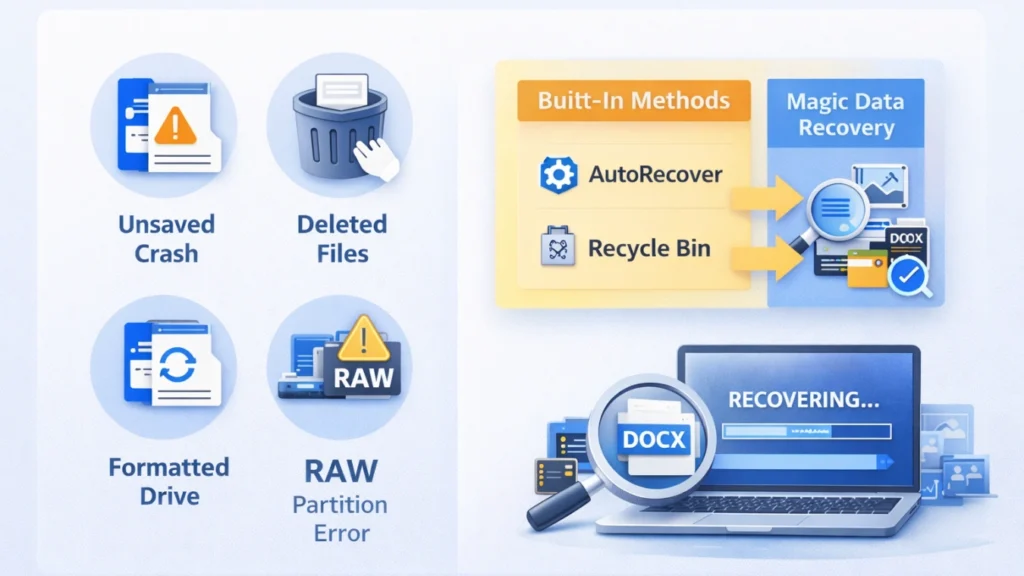
Losing a Word document — whether it was unsaved, accidentally deleted, or lost after formatting — is stressful. This Word document recovery guide explains proven ways to restore your files using built‑in tools, backup history, and professional recovery software when standard methods fail.
This guide explains how to recover Word recovery documents step by step. You’ll learn built-in methods, advanced document recovery solutions, and when professional tools like Magic Data Recovery become necessary. By the end, you’ll understand not only how to perform word documents recovery, but also how to prevent data loss in the future.
Supports Windows 7/8/10/11 and Windows Server
Table of Contents
What Is Word Document Recovery?
Word document recovery refers to restoring lost, deleted, unsaved, corrupted, or formatted Microsoft Word files (DOC/DOCX). Data loss can happen due to:
- Accidental deletion
- System crashes
- Power failures
- Disk formatting
- File system errors (e.g., RAW drive)
- Virus or malware attacks
Some situations allow quick recovery using built-in tools. Others require specialized recovery software.
Understanding what caused the loss is the first step toward successful document recovery word solutions.
Quick Diagnosis: What Happened to Your File?
Before attempting recovery, identify your situation:
- Word crashed before saving → Unsaved file
- File deleted but still in Recycle Bin → Simple restore
- Shift+Delete or emptied Recycle Bin → Permanent deletion
- Drive formatted → Partition-level data loss
- Disk shows RAW or file system error → Structural damage
Each case requires a different recovery documents word approach.
How to Recover Unsaved Word Documents
Use Document Recovery Pane
After a crash, Word often displays the Document Recovery panel automatically.
Steps:
- Reopen Microsoft Word.
- Look for “Document Recovery” on the left.
- Select the latest autosaved version.
- Click Save As immediately.
This method works best for recent unsaved files.
Recover from AutoRecover Folder
If the panel does not appear:
- Open Word.
- Go to File → Info → Manage Document → Recover Unsaved Documents.
- Browse for .asd files.
- Open and save the file.
AutoRecover typically saves files every 10 minutes (unless settings changed). This remains one of the most effective free word recovery documents methods.
Check Temporary Files
Sometimes Word stores temporary files:
- Search for *.tmp files.
- Look for files starting with “~”.
- Check the UnsavedFiles folder in AppData.
This requires patience but can help in certain cases.
How to Recover Deleted Word Documents
Restore from Recycle Bin
If you deleted the file normally:
- Open Recycle Bin.
- Locate the file.
- Right-click → Restore.
This is the simplest form of word documents recovery.
Use Previous Versions (Windows Backup)
If File History is enabled:
- Right-click the folder.
- Select “Restore previous versions.”
- Choose a backup version.
This method helps when files were overwritten or modified.
Check OneDrive Version History
If you use cloud sync:
- Log into OneDrive.
- Locate the file.
- Open Version History.
- Restore a previous version.
Cloud backups significantly increase success rates.
When Built-in Methods Fail: Advanced Word Document Recovery
Built-in solutions cannot recover files in these cases:
- Drive formatted
- Recycle Bin emptied
- Partition lost
- File system error (RAW disk)
- Severe corruption
At this stage, professional recovery software becomes necessary.
Magic Data Recovery: A Reliable Solution
If basic methods don’t work, Magic Data Recovery provides a structured solution for advanced word document recovery.
What Problems Does It Solve?
Magic Data Recovery can restore data from:
- Permanently deleted files
- Formatted drives
- Damaged or corrupted partitions
- File system errors
- Unexpected shutdown scenarios
It supports multiple file types, including documents, photos, and videos — not just Word files.
Why It’s More Reliable in Complex Cases
Unlike built-in Word tools, Magic Data Recovery scans storage at a deeper level. Instead of relying on temporary files, it analyzes raw disk sectors and reconstructs recoverable file fragments.
Key advantages:
- Recovers DOC and DOCX formats
- Works after formatting
- Handles file system corruption
- Supports multiple storage devices
- Simple interface for non-technical users
For example, if you accidentally formatted a USB drive containing reports, standard recovery word documents methods won’t help. A deep scan tool becomes necessary.
If you are looking for a more efficient solution, consider trying Magic Data Recovery.
Supports Windows 7/8/10/11 and Windows Server
Step-by-Step: Recover Word Files Using Magic Data Recovery
1. Stop using the affected drive immediately.
2. Install the software on a different drive.
3. Launch and select the affected disk.


5. Filter results by DOC/DOCX.
6. Preview files (if available).
7. Recover files to a separate location.

How to Verify Recovered Word Files
Recovery does not end when a file opens. Check:
- Images and tables display correctly
- Headings and formatting remain intact
- Word count matches expectations
- Track Changes or comments still exist
If corruption persists, use Word’s “Open and Repair” feature.
This verification step improves the reliability of your document recovery word process.
Prevent Future Word Document Loss
Prevention reduces dependency on emergency word document recovery.
Enable AutoSave for Real-Time Protection
When using Microsoft 365:
- Save files in OneDrive or SharePoint.
- Turn on AutoSave (toggle in top-left corner).
AutoSave writes changes continuously to cloud storage. Even sudden power failure rarely causes major loss.
Optimize AutoRecover Settings
By default, Word saves every 10 minutes.
To improve protection:
- Go to File → Options → Save.
- Set AutoRecover interval to 5 minutes.
- Enable “Keep the last autosaved version.”
Shorter intervals significantly reduce data loss windows.
Implement the 3-2-1 Backup Strategy
This industry best practice protects against hardware failure and ransomware.
- 3 copies of data
- 2 different storage media
- 1 offsite copy
Example setup:
Primary laptop
External backup drive
Cloud storage
This strategy nearly eliminates catastrophic data loss.
Conclusion
Not all data loss situations are equal. Unsaved files often require simple built-in tools. Deleted files may be restored from backups. However, formatted drives and file system errors demand advanced data recovery solutions.
Magic Data Recovery stands out because it handles complex scenarios like formatting and partition errors, while remaining accessible to regular users. It offers a balanced solution: powerful scanning technology combined with practical usability.
If you face serious data loss and standard solutions fail, Magic Data Recovery provides a dependable path forward.
Supports Windows 7/8/10/11 and Windows Server
FAQs
Can I perform word document recovery for free?
How do I recover Word recovery documents after formatting?
Where are AutoRecover files stored?
Can overwritten Word documents be recovered?
What reduces the success rate of word documents recovery?
Is it safe to use data recovery software?
Can I recover Word files from a corrupted USB drive?
How long does document recovery word take?

Jason is a data recovery and technical support specialist with over 15 years of hands-on experience. He has worked extensively with frontline users, troubleshooting difficult data loss cases and providing practical recovery solutions for accidental deletion, formatted drives, damaged file systems, lost partitions, system failures, and other recovery emergencies. His expertise also includes backup and restoration, file repair, and disaster recovery, with a strong emphasis on safe, reliable, and technically accurate guidance.